
1. Introdución
Thank you for choosing the DELTACO Gaming PM80 Wireless Optical Gaming Mouse. This manual provides essential information for setting up, operating, and maintaining your new gaming mouse. Please read these instructions carefully before use to ensure optimal performance and longevity of your device.
2. Contido do paquete
- DELTACO Gaming PM80 Wireless Optical Gaming Mouse
- Receptor sen fíos USB
- Cable de carga USB
- Manual de usuario
3. Produto rematadoview
The DELTACO Gaming PM80 is a high-performance wireless optical gaming mouse designed for precision and comfort. It features 7 programmable buttons, adjustable DPI up to 4800, and customizable illumination. The mouse is rechargeable, ensuring uninterrupted gaming sessions.
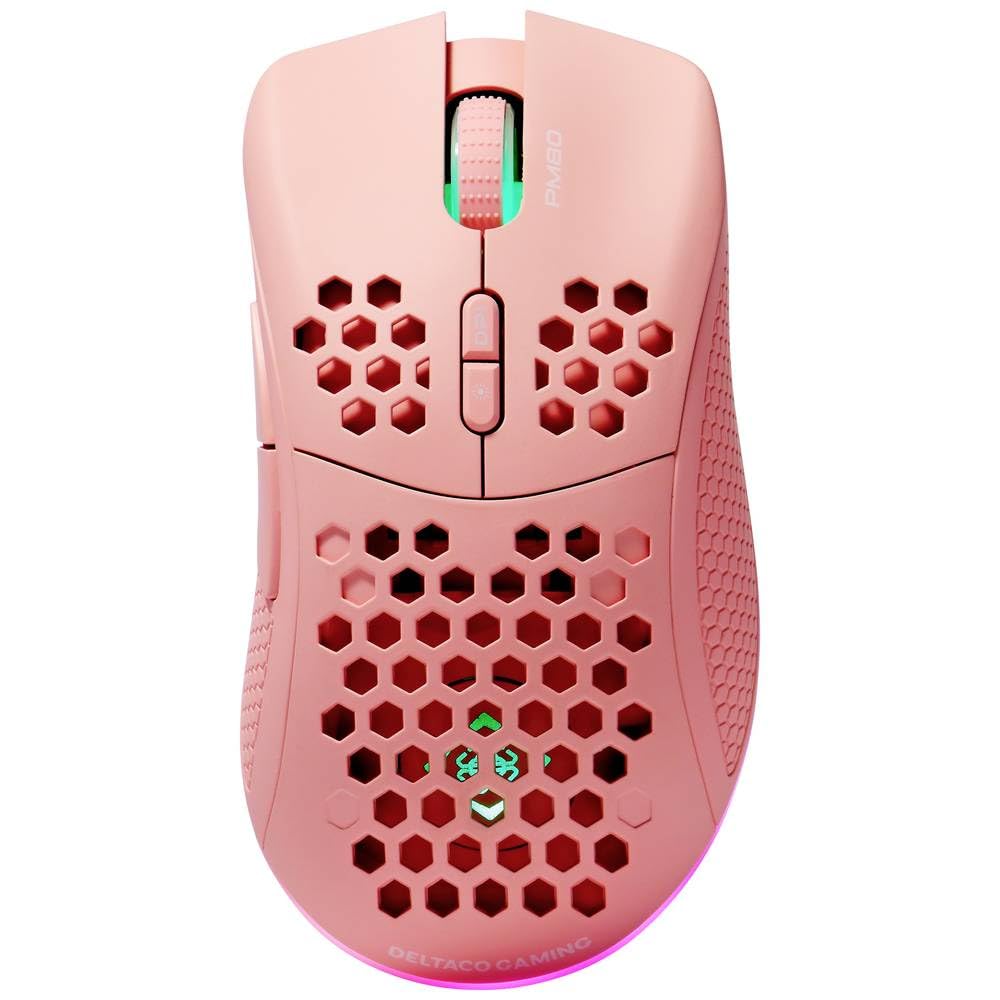
Image: DELTACO Gaming PM80 Wireless Optical Gaming Mouse. This image displays the mouse from a top-down perspective, highlighting its ergonomic design, the central scroll wheel, and the arrangement of its seven buttons.
Funcións do botón:
- Botón esquerdo para premer: Función de clic principal estándar.
- Botón dereito do rato: Función de clic secundario estándar.
- Roda de desprazamento: Desprázase cara arriba/abaixo e funciona como un botón central.
- Botón de ciclo de DPI: Changes the mouse's sensitivity (DPI).
- Botón de avance: Navega cara adiante web navegadores ou file exploradores.
- Botón de retroceso: Navega cara atrás en web navegadores ou file exploradores.
- Illumination Mode Button: Cycles through different lighting effects or turns illumination on/off.
4. Configuración
4.1. Cargar o rato
- Connect the small end of the USB charging cable to the charging port on the front of the mouse.
- Connect the larger end of the USB charging cable to an available USB port on your computer or a USB wall adapter.
- The mouse's illumination will indicate charging status (e.g., breathing effect, specific color). A full charge typically takes 2-3 hours.
- Once fully charged, the illumination may change or turn off. Disconnect the charging cable.
4.2. Connecting the USB Wireless Receiver
- Locate the USB wireless receiver, usually stored in a compartment on the underside of the mouse.
- Retire o receptor da súa ranura de almacenamento.
- Conecta o receptor sen fíos USB a un porto USB dispoñible do teu ordenador.
- O teu ordenador debería detectar e instalar automaticamente os controladores necesarios. Isto pode tardar uns intres.
4.3. Acendido/apagado
- Localiza o interruptor de alimentación na parte inferior do rato.
- Slide the switch to the 'ON' position to power on the mouse. The illumination will light up.
- To conserve battery life, slide the switch to the 'OFF' position when the mouse is not in use for extended periods.
5. Instrucións de funcionamento
5.1. Uso básico
Once connected and powered on, the mouse is ready for use. Move the mouse on a flat surface to control the cursor on your screen. Use the left and right click buttons for primary and secondary actions, and the scroll wheel for navigation.
5.2. Axuste de DPI
The DPI (Dots Per Inch) setting determines the sensitivity of your mouse. The DELTACO Gaming PM80 offers multiple DPI levels up to 4800 DPI. To adjust the DPI:
- Preme o Botón de ciclo DPI (typically located behind the scroll wheel).
- Each press will cycle through the available DPI settings. The mouse's illumination may change color or flash to indicate the current DPI level.
- Select the DPI setting that best suits your preference for gaming or general use.
5.3. Control da iluminación
The DELTACO Gaming PM80 features customizable illumination. To change the lighting effects:
- Preme o Illumination Mode Button (consulte Produto ao final)view para localización).
- Each press will cycle through different lighting modes, such as static colors, breathing effects, or off.
6. Mantemento
6.1. Limpeza
- Asegúrate de que o rato estea apagado antes de limpalo.
- Use un pano suave, seco e sen fiapos para limpar a superficie do rato.
- Para a sucidade persistente, d lixeiramenteampEnxágüe o pano con auga ou un limpador suave e non abrasivo. Evite a humidade excesiva.
- Do not use harsh chemicals, solvents, or abrasive materials, as these can damage the mouse's finish.
- Usa un hisopo de algodón ou aire comprimido para limpar arredor da roda de desprazamento e as fendas dos botóns.
6.2. Almacenamento
When not in use for extended periods, store the mouse in a cool, dry place away from direct sunlight and extreme temperatures. Ensure the power switch is in the 'OFF' position to preserve battery life.
7 Solución de problemas
- O rato non responde:
- Asegúrese de que o rato estea acendido.
- Check if the USB wireless receiver is securely plugged into a working USB port.
- Verify the mouse battery is charged. Connect the charging cable and try again.
- Tenta conectar o receptor a un porto USB diferente.
- Reinicia o teu ordenador.
- Conexión intermitente ou con atraso:
- Ensure the mouse is within close proximity to the USB receiver (ideally within 10 meters).
- Avoid placing the receiver near other wireless devices or sources of interference (e.g., Wi-Fi routers, cordless phones).
- Asegúrate de que o rato estea completamente cargado.
- O movemento do cursor é errático ou impreciso:
- Limpa o sensor óptico da parte inferior do rato cun pano suave e seco.
- Asegúrate de usar o rato sobre unha superficie axeitada (por exemplo, unha alfombrilla de rato). Evita superficies moi reflectantes ou transparentes.
- Adjust the DPI setting to a lower sensitivity if the cursor is too fast.
- Illumination not working:
- Asegúrese de que o rato estea acendido.
- Press the Illumination Mode Button to cycle through modes, ensuring it's not set to 'off'.
- Check battery level; low battery might disable illumination.
8. Especificacións
| Característica | Detalle |
|---|---|
| Marca | DELTACO GAMING |
| Número de modelo | GAM-120-P |
| Conectividade | Wireless (receptor USB) |
| Tipo de sensor | Óptica |
| DPI | Ata 4800 DPI (axustable) |
| Número de botóns | 7 |
| Orientación das mans | Certo |
| Iluminación | Si |
| Recargable | Si |
| Pilas necesarias | No (Internal Rechargeable) |
9. Garantía e soporte
For warranty information and technical support, please refer to the warranty card included with your product or visit the official DELTACO Gaming websitio. Garda o comprobante de compra para calquera reclamación de garantía.