
HP M607n
HP LaserJet Enterprise M607n Monochrome Laser Printer User Manual
Model: M607n
1. Introdución
The HP LaserJet Enterprise M607n is a high-performance monochrome laser printer designed for demanding office environments. It offers fast printing speeds, high-resolution output, and versatile connectivity options to meet your business needs.
As características principais inclúen:
- Single-function: Print only.
- Print speeds of up to 55 pages per minute (ppm).
- Maximum print resolution of 1200 x 1200 dpi for sharp text and graphics.
- 2.7-inch QVGA LCD display and keypad for intuitive control.
- Multiple media handling options, including a 100-sheet multipurpose tray and a 550-sheet input feeder.
- USB 2.0 and Ethernet connectivity.

Imaxe 1.1: Fronte view of the HP LaserJet Enterprise M607n printer.

Imaxe 1.2: Acabadoview of the printer's main and additional features.
2. Configuración
2.1 Desembalaxe da impresora
Carefully remove the printer from its packaging. Ensure all packing materials and tapes are removed from the exterior and interior of the printer.
Verifica que estean presentes todos os compoñentes:
- HP LaserJet Enterprise M607n Printer
- HP Black Original LaserJet Toner Cartridge (~11K yield)
- CD with software drivers and documentation
- Hardware Install Guide
- Cable de alimentación

Image 2.1: Contents included in the printer box.
2.2 Installing the Toner Cartridge
- Abra a porta de acceso frontal da impresora.
- Remove the new toner cartridge from its packaging and gently shake it to distribute the toner.
- Insert the toner cartridge into the designated slot until it clicks into place.
- Peche a porta de acceso frontal.
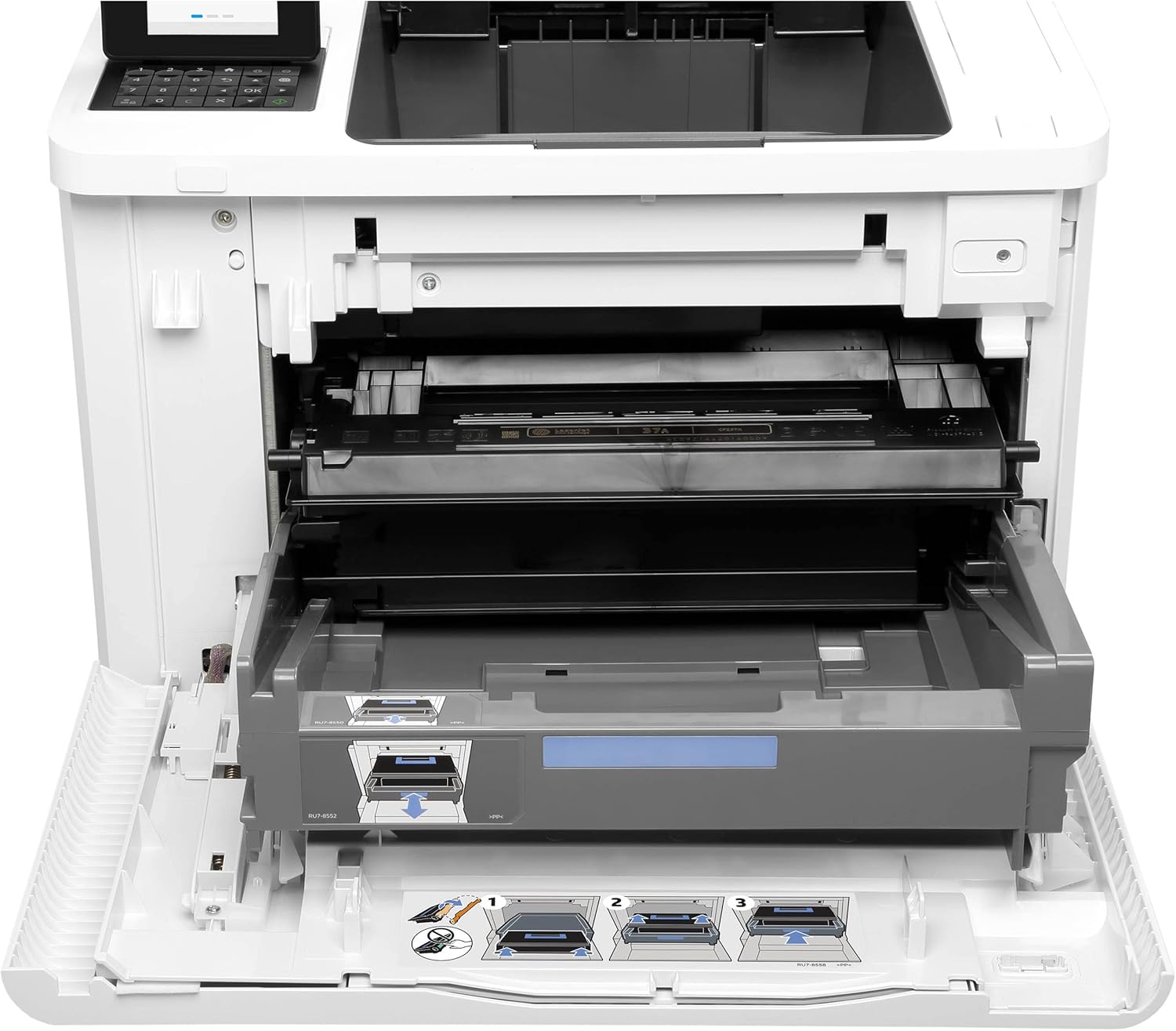
Image 2.2: Printer with the front panel open, illustrating toner and paper tray access.
2.3 Carga de papel
The printer features a 100-sheet multipurpose tray and a standard 550-sheet input feeder.
- Pull out the paper tray (Tray 2 or multipurpose tray).
- Axuste as guías do papel para que coincidan co tamaño do papel que está a cargar.
- Cargue a pila de papel na bandexa, asegurándose de que estea plana e por debaixo da liña de recheo máximo.
- Empurre con coidado a bandexa de papel de volta na impresora.
2.4 Conectar a impresora
The M607n offers both USB and Ethernet connectivity.
- Conexión USB: Connect one end of a USB 2.0 cable (not included) to the USB port on the printer and the other end to your computer.
- Conexión Ethernet: Connect an Ethernet cable to the Ethernet port on the printer and to an available port on your network router or switch.

Imaxe 2.3: Primeiro plano view of the USB and Ethernet connectivity ports.
2.5 Acendido
- Conecte o cable de alimentación á impresora e despois a unha toma de corrente con conexión a terra.
- Prema o botón de acendido da impresora.
- Follow the on-screen prompts on the 2.7-inch LCD display to complete the initial setup, including language and network settings if applicable.
3. Funcionamento da impresora
3.1 Panel de control rematadoview
The printer features a 2.7-inch QVGA LCD display and a numerical keypad for navigation and input.
- Use the keypad to enter numerical values or navigate menus.
- The LCD displays printer status, job information, and menu options.

Imaxe 3.1: Detallada view of the printer's control panel with LCD and keypad.
3.2 Basic Printing from a Computer
- Ensure the printer drivers are installed on your computer (from the included CD or HP's websitio).
- Abre o documento ou a imaxe que queres imprimir.
- Seleccione "Imprimir" no menú da aplicación.
- Choose the HP LaserJet Enterprise M607n from the list of available printers.
- Adjust print settings (e.g., paper size, number of copies) as needed.
- Fai clic en "Imprimir".
3.3 Printing from a USB Drive
The printer supports direct printing from a USB storage device.
- Insert your USB drive into the easy-access USB port on the printer.
- The printer's display will show options for printing from the USB drive.
- Navega polo files on your USB drive using the control panel.
- Seleccione o desexado file and follow the on-screen prompts to print.

Image 3.2: Printer with callouts indicating the easy-access USB port and other features.
4. Mantemento
4.1 Substitución do cartucho de tóner
When the toner level is low, the printer's display will indicate that the toner cartridge needs replacement. Use only genuine HP toner cartridges for optimal performance.
- Open the front access door.
- Remove the old toner cartridge by pulling it straight out.
- Unpack the new HP Black Original LaserJet Toner Cartridge and gently shake it.
- Introduza o novo cartucho na impresora ata que encaixe no seu lugar.
- Peche a porta de acceso frontal.
4.2 Limpeza da impresora
Unha limpeza regular axuda a manter a calidade de impresión e prolonga a vida útil da impresora.
- Exterior: Limpe as superficies exteriores cun pano suave e sen fiaposamprematado con auga.
- Interior: Refer to the printer's on-screen menu or the full user guide for instructions on cleaning internal components like the paper path or rollers, if necessary. Always power off and unplug the printer before cleaning internal parts.
5 Solución de problemas
This section provides solutions to common printer issues. For more detailed troubleshooting, refer to the full documentation or HP's support websitio.
5.1 Problemas comúns e solucións
- A impresora non responde:
- Comprobe as conexións de alimentación e asegúrese de que a impresora estea acendida.
- Verifique as conexións dos cables USB ou Ethernet.
- Reinicie a impresora e o ordenador.
- Ensure the correct printer is selected in your computer's print dialog.
- Atascos de papel:
- Follow the on-screen instructions on the printer's display to clear paper jams.
- Open all access doors and trays to locate and carefully remove any jammed paper.
- Asegúrate de que o papel estea cargado correctamente e que non estea demasiado cheo.
- Mala calidade de impresión:
- Comprobe os niveis do cartucho de tóner e substitúao se é baixo.
- Asegúrese de que está a usar cartuchos de tóner HP orixinais.
- Verify that the paper type setting in your print driver matches the paper loaded.
- Perform a print quality diagnostic from the printer's control panel.
- Problemas de conectividade:
- For Ethernet, check network cable and router status.
- Ensure the printer has a valid IP address if connected to a network.
- Temporarily disable any firewalls on your computer to test connectivity.
6. Especificacións
Below are the technical specifications for the HP LaserJet Enterprise M607n printer:
| Característica | Especificación |
|---|---|
| Marca | HP |
| Nome do modelo | M607n |
| Tecnoloxía de impresión | Láser |
| Saída da impresora | Monocromo |
| Velocidade máxima de impresión monocromática | 55 ppm |
| Resolución máxima de impresión | 1200 x 1200 ppp |
| Tecnoloxía de conectividade | Ethernet, USB |
| Interface de hardware | Ethernet, USB |
| Método de control | Pulsador, toque |
| Mostrar | 2.7-inch QVGA LCD |
| Capacidade máxima da folla de entrada | 650 (100-sheet multipurpose tray + 550-sheet input feeder) |
| Tamaño máximo do soporte | 8.5 x 14 polgadas |
| Impresión dúplex | Simplex (No automatic dual-sided printing) |
| Peso do elemento | 100 libras |
| Dimensións do produto | 16.46 x 14.8 x 11.77 polgadas |
| Memoria | 1.5GB (as per product description, 512MB in image) |
| Velocidade do procesador | 1.2 GHz |

Image 6.1: Printer dimensions (Height: 15", Depth: 18.3", Width: 17").
7. Información da garantía
This HP LaserJet Enterprise M607n printer comes with a Garantía limitada de 90 días. For specific terms and conditions, please refer to the warranty documentation included with your product or visit the official HP support websitio.
8. Apoio
For further assistance, technical support, or to download the latest drivers and firmware, please visit the official HP support website. You can also find additional troubleshooting guides and FAQs there.
Soporte HP Websitio: www.hp.com/support
Ask a question about this manual
Ask about setup, troubleshooting, compatibility, parts, safety, or missing instructions. Manuals+ will review the question and use this page’s manual context to help answer it.