
Lindy 38365
Lindy 38365 Extender, SDVoE HDMI 4K60 and USB Transmitter User Manual
Modelo: 38365
1. Introdución
The Lindy 38365 Extender is an advanced SDVoE (Software Defined Video over Ethernet) device designed for transmitting high-quality 4K@60Hz 4:4:4 HDMI video and USB signals over a 10G network. This device supports uncompressed resolution with HDR10 and no latency, making it ideal for professional AV installations. It can operate in either Encoder (Transmitter) or Decoder (Receiver) mode, offering flexibility for various system configurations.
2. Información de seguridade
- Lea atentamente todas as instrucións antes de utilizar o dispositivo.
- Non expoñas o dispositivo á humidade, a temperaturas extremas nin á luz solar directa.
- Use only the provided power supply and mounting hardware.
- Non intente abrir nin reparar o dispositivo vostede mesmo. Encargue calquera mantemento a persoal cualificado.
- Garantir unha ventilación adecuada para evitar o sobrequecemento.
3. Contido do paquete
- Lindy 38365 Extender Unit
- Fonte de alimentación
- Hardware de montaxe
- Manual de usuario (este documento)
4. Produto rematadoview
The Lindy 38365 Extender is a versatile unit capable of functioning as both an SDVoE HDMI 4K60 and USB Transmitter (Encoder) or Receiver (Decoder). It features multiple ports for video, audio, USB, and network connectivity.
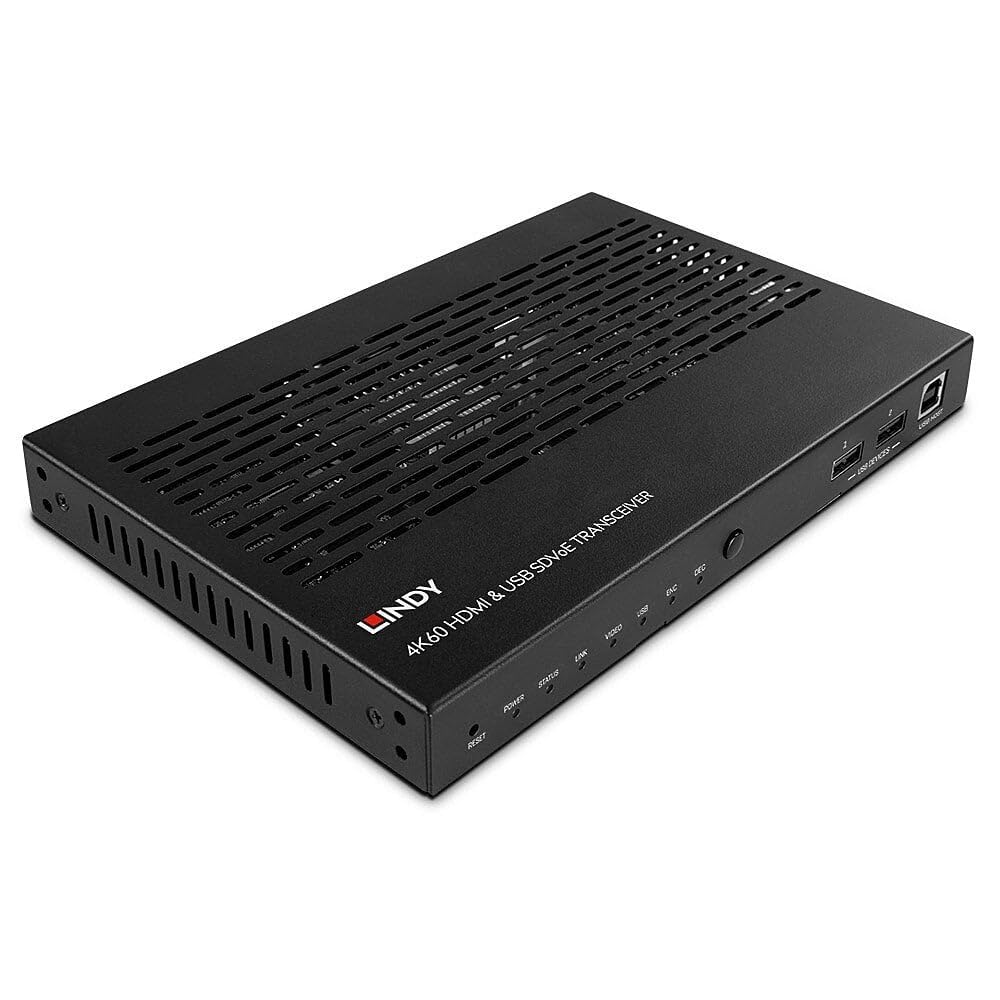
Figure 4.1: Lindy 38365 Extender - Overall View. This image displays the top and side panels of the black extender unit, highlighting its ventilation grilles and various input/output ports.
4.1 Panel frontal

Figure 4.2: Front Panel. The front panel includes LED indicators for Power, Status, Link, Video, USB, Encoder (ENC), and Decoder (DEC) modes. It also features a Reset button, a Mode button, two USB device ports, and one USB Host port.
- Botón RESET: Reinicia o dispositivo.
- Indicadores LED: Power, Status, Link, Video, USB, ENC (Encoder), DEC (Decoder).
- Botón MODE: Toggles between Encoder and Decoder modes.
- USB DEVICES (1, 2): USB ports for connecting peripheral devices.
- HOST USB: USB port for connecting to a host computer.
4.2 Panel posterior

Figure 4.3: Rear Panel. This view shows the DC 12V power input, RS-232 terminal block, IR In/Out jacks, HDMI In/Out ports, 10G (PoE) SFP+ port, 1G LAN port, and Audio In/Out jacks.
- DC 12 V: Conector de entrada de alimentación.
- RS-232 (TX, RX): Porto de control serie.
- IR IN / IR OUT: Infrared signal input and output for remote control.
- ENTRADA HDMI: Porto de entrada HDMI.
- Saída HDMI: Porto de saída HDMI.
- 10G (PoE) SFP+: 10 Gigabit Ethernet port with SFP+ cage, supporting Power over Ethernet.
- LAN 1G: 1 Gigabit Ethernet port.
- AUDIO IN / AUDIO OUT: Analog audio input and output jacks.

Figure 4.4: Rear Panel Close-up. A detailed view of the power, control, and HDMI ports on the rear panel, showing the DC 12V input, RS-232 terminal, IR In/Out, and HDMI In/Out connectors.
5. Configuración
Follow these steps to set up your Lindy 38365 Extender:
- Determine Mode: Decide whether the unit will function as an Encoder (Transmitter) or a Decoder (Receiver). Use the MODE button on the front panel to switch between modes. The corresponding LED (ENC or DEC) will illuminate.
- Conexión de alimentación: Connect the provided 12V DC power supply to the DC 12V port on the rear panel. Alternatively, if using a PoE-enabled 10G network switch, the unit can be powered via the 10G (PoE) SFP+ port.
- Conexión de rede: Connect the 10G (PoE) SFP+ port to your 10 Gigabit Ethernet network switch using an appropriate SFP+ module and fiber or copper cable. The 1G LAN port can be used for additional network connectivity or control.
- HDMI Connection (Encoder Mode):
- Connect your HDMI source (e.g., Blu-ray player, PC) to the ENTRADA HDMI porto.
- If local monitoring is required, connect an HDMI display to the SAÍDA HDMI porto.
- HDMI Connection (Decoder Mode):
- Connect your HDMI display (e.g., TV, projector) to the SAÍDA HDMI porto.
- Conexión USB:
- In Encoder mode, connect a host computer to the HOST USB porto.
- Connect USB peripheral devices (e.g., keyboard, mouse) to the DISPOSITIVOS USB ports (1, 2).
- Conexión de audio: If using external analog audio, connect your audio source to ENTRADA DE AUDIO and your audio receiver/speakers to SAÍDA DE AUDIO.
- RS-232 & IR Control: Connect RS-232 control devices to the terminal block and IR emitters/receivers to the IR IN/OUT jacks as needed for system integration.
6. Instrucións de funcionamento
Once all connections are made and the unit is powered on, the Lindy 38365 Extender will automatically detect the connection type and begin operation based on its configured mode (Encoder or Decoder).
- Cambio de modo: Preme o MODO button on the front panel to toggle between Encoder (ENC) and Decoder (DEC) functionality. The active mode is indicated by the illuminated LED.
- Indicadores LED: Monitor the front panel LEDs to confirm power, network link, video signal presence, and USB activity.
- SDVoE Features: The device supports advanced SDVoE features such as Multicast, Video Wall, and Multiview configurations. These advanced functionalities typically require a compatible SDVoE controller and software for configuration and management. Refer to your SDVoE system documentation for detailed setup of these features.
- Extensión USB: USB devices connected to the "USB DEVICES" ports on the Decoder unit will be extended to the host connected to the "USB HOST" port on the Encoder unit.
7. Mantemento
- Limpeza: Limpa o dispositivo cun pano suave e seco. Non empregues produtos de limpeza líquidos nin en aerosol.
- Ventilación: Asegúrese de que as aberturas de ventilación non estean bloqueadas para evitar o sobrequecemento.
- Actualizacións de firmware: Periodically check the Lindy websitio web para ver se hai actualizacións de firmware dispoñibles para garantir un rendemento e unha compatibilidade óptimos.
8 Solución de problemas
- Sen saída de vídeo:
- Verify all HDMI cables are securely connected.
- Ensure the unit is in the correct mode (Encoder/Decoder).
- Check the network connection and ensure the 10G link is active.
- Confirm the source and display are powered on and functioning correctly.
- No USB Functionality:
- Ensure USB cables are properly connected to the USB HOST and USB DEVICES ports.
- Verify the unit is in the correct mode for USB extension.
- Problemas de conectividade de rede:
- Check the 10G (PoE) SFP+ port and 1G LAN port connections.
- Confirm your network switch supports 10G and PoE (if used).
- Verify network cable integrity.
- O dispositivo non se acende:
- Ensure the 12V DC power supply is correctly connected and plugged into a working outlet.
- If using PoE, confirm the 10G network switch is providing power.
9. Especificacións
| Característica | Detalle |
|---|---|
| Marca | Lindy |
| Número de modelo | 38365 |
| Tecnoloxía de conectividade | Ethernet |
| Resolución admitida | Up to 4K@60Hz 4:4:4 with HDR10 (uncompressed) |
| Latencia | Sen latencia |
| Modos de funcionamento | Codificador ou Decodificador |
| Portos de rede | 1x 10G (PoE) SFP+, 1x 1G LAN |
| Portos HDMI | 1x HDMI In, 1x HDMI Out |
| Portos USB | 1x USB Host, 2x USB Devices |
| Modo de saída de audio | Estéreo, Son envolvente (5.1) |
| Métodos de control | Push Button (Mode), RS-232, IR, Remote |
| Entrada de enerxía | DC 12V, PoE (Power over Ethernet) |
| Wattage | 5 vatios |
| Peso do elemento | 1.29 quilogramos |
| Cor | Negro |
10. Garantía
The Lindy 38365 Extender comes with a 3 ano de garantía from the date of purchase. Please retain your proof of purchase for warranty claims. This warranty covers manufacturing defects and faults under normal use conditions.
11. Apoio
For technical support, troubleshooting assistance, or further information regarding your Lindy 38365 Extender, please visit the official Lindy website or contact your local Lindy customer service representative. Ensure you have your product model number and purchase details available when seeking support.
Ask a question about this manual
Ask about setup, troubleshooting, compatibility, parts, safety, or missing instructions. Manuals+ will review the question and use this page’s manual context to help answer it.