
Introdución
This manual provides essential information for the proper use and maintenance of your Bmax 14-inch Laptop, Model BMAX S14A. Please read this guide thoroughly before operating your device to ensure optimal performance and longevity. Keep this manual for future reference.
Produto rematadoview
Familiarize yourself with the components and features of your Bmax laptop.
Compoñentes do portátil


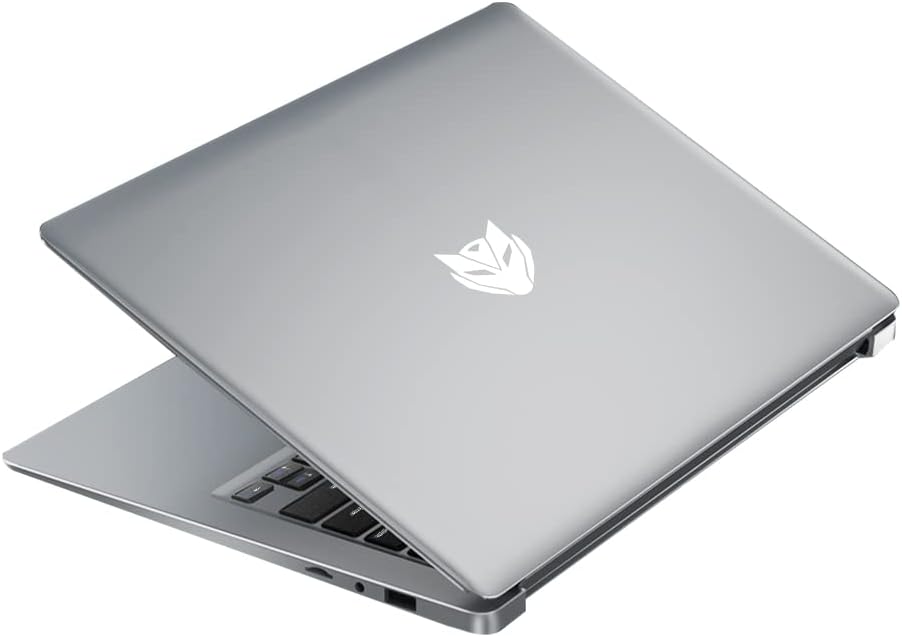
Configuración
Encendido inicial
- Desempaquetar: Retire con coidado o portátil e todos os accesorios da embalaxe.
- Conectar enerxía: Plug the power adapter into the laptop's charging port and then into a wall outlet.
- Encendido: Open the laptop lid and press the power button located on the keyboard. The laptop will boot up and guide you through the initial Windows setup process.
Cargando a batería
For first-time use, it is recommended to fully charge the laptop battery. The charging indicator light will typically show orange or red while charging and turn white or off when fully charged. A full charge provides approximately 8 hours of battery life.

Conexión de periféricos
Usa os portos dispoñibles para conectar dispositivos externos:
- Portos USB: For mice, keyboards, external hard drives, and other USB devices.
- Porto HDMI: To connect to an external monitor or TV.
- Conector de audio: Para auriculares ou altofalantes externos.
Instrucións de funcionamento
Encendido/apagado
- Para acender: Preme o botón de acendido.
- Para apagar: Fai clic no botón Inicio, despois en Acendido e selecciona "Apagar".
- Para reiniciar: Click the Start button, then Power, and select 'Restart'.
- Para durmir: Close the lid or click the Start button, then Power, and select 'Sleep'.
Usando o Touchpad
The laptop features a precision touchpad supporting multi-touch gestures for enhanced navigation:


Funcións do teclado
The keyboard includes standard keys and function keys (F1-F12) that can be activated with the 'Fn' key for special functions like adjusting brightness, volume, or toggling Wi-Fi.
Conectando a wifi
- Click the Wi-Fi icon in the system tray (usually bottom-right of the screen).
- Seleccione a rede desexada da lista.
- Introduza o contrasinal da rede se se lle solicita e faga clic en "Conectar".
Using External Displays (HDMI)
Connect an HDMI cable from your laptop's HDMI port to an external monitor or TV. The display settings can be adjusted in your operating system to extend, duplicate, or use only the external display.
Mantemento
Limpeza
- Pantalla: Use un pano suave e sen pelusa lixeiramente dampLavar con auga ou cun limpador de pantallas. Evitar produtos químicos agresivos.
- Teclado e Casing: Usa un pano suave. Para o po, podes usar unha lata de aire comprimido.
Coidado da batería
- Evite descargar completamente a batería con frecuencia.
- Do not expose the laptop to extreme temperatures.
- Se gardas o portátil durante un período prolongado, carga a batería ata aproximadamente un 50-60 %.
Almacenamento
Store the laptop in a cool, dry place away from direct sunlight and extreme temperatures. Use a protective sleeve or bag when transporting.
Actualizacións de software
Comprobe e instale regularmente actualizacións do sistema operativo e dos controladores para garantir un rendemento e unha seguridade óptimos.
Resolución de problemas
This section addresses common issues you might encounter with your Bmax laptop.
- O portátil non se acende: Asegúrate de que o adaptador de corrente estea conectado correctamente e de que a batería teña carga suficiente. Proba cunha toma de corrente diferente.
- A pantalla está en branco ou parpadea: Restart the laptop. If connected to an external monitor, try disconnecting it. Check display settings.
- Problemas de conexión wifi: Ensure Wi-Fi is enabled. Restart your router and modem. Check if other devices can connect to the network.
- Rendemento lento: Pecha as aplicacións innecesarias. Comproba se hai actualizacións en segundo plano. Asegúrate de ter espazo de almacenamento libre suficiente.
- O panel táctil non responde: Ensure the touchpad is not disabled (check function keys). Restart the laptop.
- A batería non se carga: Verify the power adapter is working correctly. Check the charging port for debris.
Se os problemas persisten, consulte a sección Garantía e asistencia para obter máis axuda.
Especificacións
Detailed technical specifications for the Bmax 14-inch Laptop (Model BMAX S14A).
| Característica | Especificación |
|---|---|
| Tamaño da pantalla | 15.6 Inches (Note: Product title states 14", specifications indicate 15.6") |
| Resolución de pantalla | 1920 x 1080 píxeles (Full HD) |
| Procesador | 1.1 GHz (Intel Celeron, 4 Processors) |
| RAM | 16 GB (DDR4 SDRAM) |
| Disco duro | 256 GB SSD (Expandable up to 1TB) |
| Peso do elemento | 2.64 libras (1.2 quilogramos) |
| Dimensións do produto | 12.9 x 8.5 x 0.9 polgadas |
| Conectividade | Bluetooth, HDMI, USB (3 Total), Wi-Fi (2.4G/5G) |
| Fonte de enerxía | Battery Powered (38WH) |
| Entrada da interface humana | Touch Pad |
Garantía e Soporte
Your Bmax laptop comes with a 12-month repair period desde a data de compra. Ademais, un Política de devolución de 30 días is available. For any technical assistance or inquiries, Bmax offers asistencia en liña as 24 horas.
For further support or to access the Bmax brand store, please visit the official Bmax store on Amazon: Bmax Amazon Store.