
Introdución
This manual provides detailed instructions for the installation, operation, and maintenance of your Gravity D96CP HiFi Audio Processor Car Stereo. Please read this manual thoroughly before using the product to ensure proper function and to prevent damage.
Información de seguridade
- Asegúrese de que todo o cableado estea conectado correctamente para evitar curtocircuítos ou danos na unidade e no vehículo.
- Non operes a unidade dun xeito que te distraia da condución. Prioriza sempre a seguridade viaria.
- Se tes dúbidas sobre algún paso, consulta cun profesional para a instalación.
- Manteña a unidade lonxe da auga e da humidade excesiva.
- Do not attempt to repair the unit yourself. Refer servicing to qualified personnel.
O que hai na caixa
Ao abrir o paquete, comproba que estean presentes todos os compoñentes:
- Gravity D96CP Car Stereo Unit
- Control remoto
- Cableado
- Manual de usuario (este documento)
Note: Additional accessories such as a trim kit, specific vehicle wiring harness, or RCA cables may be required for installation and are sold separately.
Produto rematadoview
Panel frontal

Figura 1: Fronte view of the Gravity D96CP Car Stereo. The 6.5-inch touchscreen displays the main interface with icons for various functions. Physical buttons for IR, RST, Power, Band, Volume Up/Down, and Disc Eject are located on the left side. A USB port is at the bottom left.
Panel traseiro e conexións

Figura 2: Rear panel of the Gravity D96CP Car Stereo. This view highlights the multiple RCA jacks for audio/video input and output, a TV antenna port (functionality may vary), a radio antenna input, and the main connector for the wiring harness.
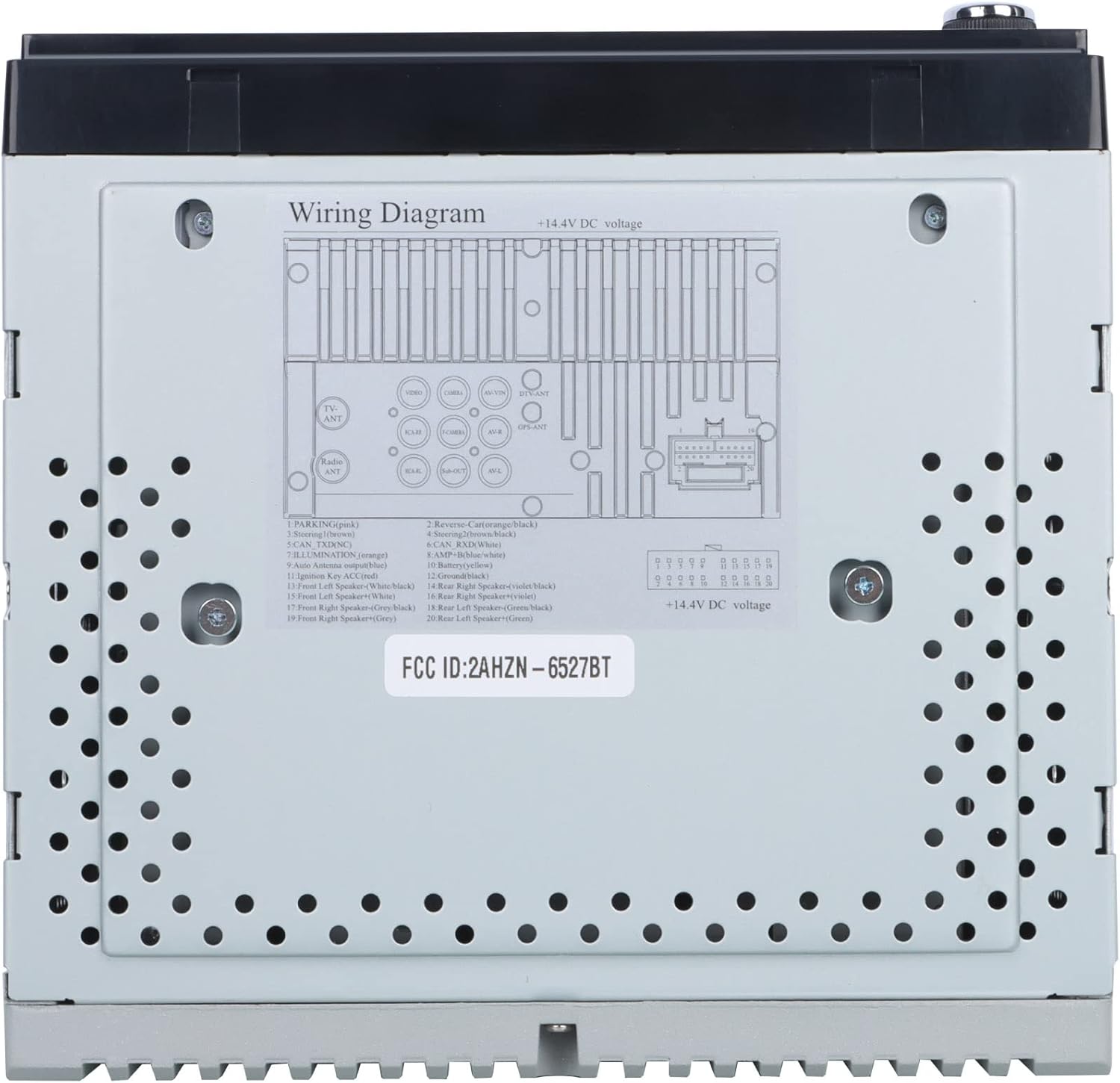
Figura 3: Detailed wiring diagram for the Gravity D96CP. This diagram illustrates the pin assignments for the main power and speaker harness, including connections for parking brake, reverse, illumination, antenna, and ampcontrol de lifier.
Configuración e instalación
Proper installation is crucial for the performance and safety of your car stereo. If you are not confident in performing the installation yourself, seek professional assistance.
Lista de verificación previa á instalación
- Asegúrate de que a batería do vehículo estea desconectada antes de comezar calquera cableado.
- Verify the stereo's dimensions fit your vehicle's dashboard opening. A trim kit may be necessary.
- Obtain a vehicle-specific wiring harness adapter if not included, to avoid cutting factory wires.
Conexións de cableado
Consulte Figura 3 for the detailed wiring diagram. Key connections include:
- Potencia (amarelo): Constant 12V supply.
- Ignition (Red): Switched 12V supply (ACC).
- Terra (negro): Conectar a un punto de terra limpo do chasis.
- Fíos dos altofalantes: Connect to corresponding vehicle speakers (Front Left, Front Right, Rear Left, Rear Right). Ensure correct polarity.
- Reverse (Orange/Black): Connect to the vehicle's reverse light circuit for automatic camera display.
- Parking (Pink): This unit may not have a dedicated parking brake interlock. Exercise caution when operating video functions while driving.
- Antena (azul): antena de potencia/ampacendido remoto do lificador.
- Micrófono externo: Conecta o micrófono externo para mellorar a calidade das chamadas.
Note: The unit features RCA jacks for video in/out and audio in/out, allowing connection of external sources or additional screens. RCA cables are not included.
Instrucións de funcionamento
Operación básica
- Encendido/apagado: Preme o botón de acendido no panel frontal.
- Control de volume: Use the VOL+ and VOL- buttons on the front panel or the touchscreen controls.
- Selección de modo: Tap the desired icon on the touchscreen (e.g., Radio, Bluetooth, USB, AUX, Phonelink, Settings).
Apple CarPlay / Android Auto
Connect your iPhone (for CarPlay) or Android phone (for Android Auto) to the stereo via a certified USB cable. The system will automatically detect and launch the respective interface. This allows access to phone functions like navigation, music, calls, and messages directly from the stereo's touchscreen or via voice commands (Siri/Google Assistant).
- Asegúrate de que o sistema operativo do teu teléfono estea actualizado.
- Use the original USB cable for optimal connection stability.
- The phone screen and stereo screen operate independently, allowing different content to be displayed on each.
Mirror Link
The Mirror Link function projects your smartphone's screen directly onto the car stereo display. Connect your phone via a USB cable, and follow the on-screen prompts to activate mirroring. Any content displayed on your phone will be synchronized in real-time on the 6.5-inch stereo screen.
Conectividade Bluetooth
- Emparejamento: Go to the Bluetooth menu on the stereo. Enable Bluetooth on your smartphone and search for available devices. Select "Gravity D96CP" (or similar name) and confirm pairing.
- Chamadas mans libres: Once paired, you can answer/make calls directly from the stereo. The external microphone picks up your voice, and audio plays through the car speakers.
- Transmisión de audio: Stream music and audio from your phone to the stereo. Control playback (play/pause, skip) via the stereo's touchscreen or your phone.
Reproductor de DVD/CD
Insert a DVD or CD into the disc slot. The unit will automatically detect the disc and begin playback. Use the touchscreen controls for playback functions (play, pause, skip, menu).
Radio
- Selecciona a icona "Radio" no menú principal.
- Use a función de busca para atopar emisoras dispoñibles ou sintonizar manualmente unha frecuencia.
- Save preferred stations to preset buttons for quick access.
Reproducción USB
Insert a USB drive into the front USB port. The unit will automatically detect compatible media files (audio, video, images) and allow you to browse and play them.
Traseira View Cámara de respaldo
Se unha parte traseira compatible view camera (sold separately) is connected and the reverse wire is properly installed, the stereo will automatically display the camera feed when the vehicle is shifted into reverse.
Mantemento
- Limpeza da pantalla: Usa un pano suave e sen fiapos para limpar con coidado a pantalla táctil. Non empregues produtos de limpeza abrasivos nin disolventes.
- Limpeza xeral: Keep the unit free from dust and debris. Use a soft, dry cloth for exterior cleaning.
- Actualizacións de firmware: Consulte o do fabricante website periodically for any available firmware updates to improve performance and add features.
Resolución de problemas
| Problema | Causa posible | Solución |
|---|---|---|
| A unidade non se acende. | Incorrect wiring (power/ground), blown fuse. | Check all power and ground connections. Inspect the fuse on the wiring harness. |
| Sen son. | Os cables do altofalante están conectados incorrectamente, o volume é demasiado baixo, o silencio está activado. | Verify speaker wiring polarity and connections. Increase volume. Check if mute is active. |
| Apple CarPlay/Android Auto not connecting or unstable. | Non-original USB cable, outdated phone OS, loose connection. | Use a certified, original USB cable. Ensure phone OS is updated. Reconnect the USB cable firmly. |
| Bluetooth connection issues or poor call quality. | Interference, phone not paired, microphone issue. | Re-pair the device. Ensure the external microphone is properly connected and positioned. |
| DVD player plays sound but no video. | Disc issue, video format incompatibility, parking brake safety feature (if present). | Try a different DVD. Ensure the video format is supported. Verify parking brake connection if applicable. |
| Screen goes black when headlights are turned on. | Illumination wire incorrectly connected. | Check the illumination wire connection (orange wire) to ensure it's correctly wired to the vehicle's dimmer circuit or constant 12V if no dimmer is desired. |
Especificacións
| Número de modelo | VGR-D96CP |
| Marca | Gravidade |
| Tamaño da pantalla | 6.5 polgadas |
| Tecnoloxía de conectividade | Auxiliar, Bluetooth, USB |
| Tipo de controlador | Android, Google Assistant, iOS |
| Características especiais | Spotify, Touchscreen, Apple CarPlay, Android Auto, Mirror Link, DVD/CD Player |
| Dispositivos compatibles | Mobile Phone, Speaker |
| Modo de saída de audio | Envolvente |
| Configuración da canle de son envolvente | 5.1 |
| Codificación de vídeo | MPEG-2 |
| Número de canles | 4 |
| Peso do elemento | 3.89 libras |
| Dimensións do paquete | 9.69 x 9.41 x 7.17 polgadas |
Información da garantía
Specific warranty details for the Gravity D96CP are not provided in the available product information. Please refer to the warranty card included with your purchase or contact Gravity customer support for detailed warranty terms and conditions.
Atención ao cliente
For technical assistance, troubleshooting beyond this manual, or inquiries regarding your Gravity D96CP car stereo, please contact Gravity customer support. Contact information is typically found on the product packaging or the manufacturer's official websitio.