
1. Introdución
Thank you for choosing the EBTOOLS 2.4G Wireless Keyboard and Mouse combo. This product is designed for comfortable and efficient use with its low-noise operation, adjustable DPI settings, and reliable 2.4G wireless connectivity. This manual provides detailed instructions for setup, operation, and maintenance to ensure optimal performance.
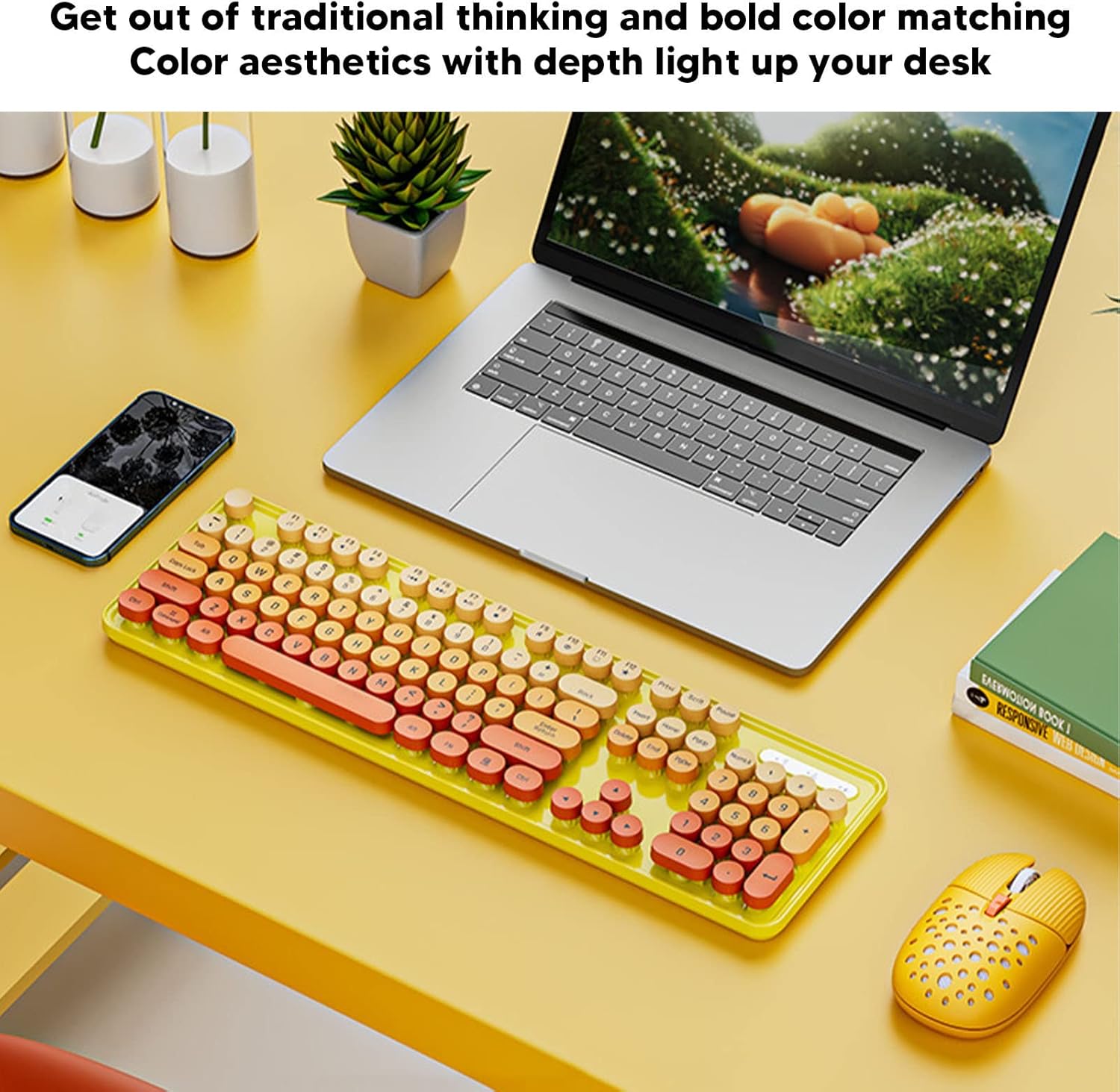
Image: The EBTOOLS 2.4G Wireless Keyboard and Mouse in mixed color yellow, displayed on a desk alongside a laptop and smartphone, showcasing its design and compact form factor.
2. Contido do paquete
- 1 x EBTOOLS 2.4G Wireless Keyboard
- 1 x EBTOOLS 2.4G Wireless Mouse
- 1 x USB Receiver (typically stored in the mouse battery compartment)
- Manual de usuario (este documento)
3. Instrucións de configuración
3.1. Instalación da batería
The keyboard and mouse require batteries for operation. Please ensure you have 1 AA battery for the keyboard and 1 AA battery for the mouse (batteries are not included).
- Localiza o compartimento da batería na parte inferior do teclado.
- Abra a tapa do compartimento da batería.
- Insert the AA battery according to the polarity indicators (+/-) inside the compartment.
- Pecha a tapa do compartimento da batería de forma segura.

Image: The underside of the EBTOOLS keyboard with the battery compartment open, showing where to insert the AA battery.
3.2. Conexión do receptor USB
The keyboard and mouse share a single 2.4G USB receiver for wireless connection.
- Locate the USB receiver. It is typically stored in the battery compartment of the mouse for safekeeping.
- Retire o receptor USB da súa ranura de almacenamento.
- Plug the USB receiver into an available USB port on your computer (desktop PC, laptop, etc.).
- The system should automatically detect and install the necessary drivers. This is a plug-and-play device.

Image: A diagram illustrating the compatibility of the keyboard and mouse with various systems, including desktop PCs, laptops, and other computers, highlighting its plug-and-play functionality.

Image: An illustration demonstrating the 2.4G wireless connection mode for the keyboard and mouse, emphasizing the ability to connect two devices wirelessly with a single receiver.
4. Instrucións de funcionamento
4.1. Axustar os DPI do rato
The mouse features three adjustable DPI (Dots Per Inch) settings to suit your preference and task requirements. You can cycle through these settings by pressing the DPI button, usually located near the scroll wheel on the mouse.
- 800 DPI: Suitable for precise tasks or slower cursor movement.
- 1600 DPI: Standard setting for general use.
- 2400 DPI: Ideal for faster cursor movement, such as gaming or navigating large screens.
4.2. Using Multimedia Keys
The keyboard is equipped with 18 multimedia keys for quick access to various functions. These keys are typically activated by pressing the Fn key in combination with the corresponding function key (F1-F12) or dedicated multimedia keys.

Imaxe: Unha detallada view of the EBTOOLS keyboard layout, highlighting the standard keys and the 18 multimedia keys, along with their respective functions such as volume control, media playback, and quick access to applications.
Common multimedia functions include:
- Volume Down / Up / Mute
- Play / Pause / Previous Track / Next Track
- Home / My Computer / Mail / Favorites
- Other system-specific functions
5. Mantemento
5.1. Limpeza
To maintain the longevity and appearance of your keyboard and mouse:
- Use un pano suave e seco para limpar as superficies.
- Para a sucidade persistente, d lixeiramenteampEnxágüe o pano con auga ou unha solución de limpeza suave. Evite produtos químicos agresivos.
- Use aire comprimido para eliminar o po e os residuos que se atopen entre as teclas do teclado.
5.2. Substitución da batería
When the keyboard or mouse becomes unresponsive or exhibits intermittent connectivity, it may be time to replace the batteries. Follow the battery installation steps in Section 3.1.

Image: An illustration depicting the energy-saving features of the keyboard and mouse, emphasizing lower power consumption and extended battery life for continuous use.
6 Solución de problemas
| Problema | Solución |
|---|---|
| O teclado/rato non responde |
|
| Conexión intermitente |
|
| O cursor do rato é errático ou non se move con suavidade |
|
7. Especificacións
| Característica | Detalle |
|---|---|
| Marca | EBTOOLS |
| Cor | Mixed Color Yellow |
| Tecnoloxía de conectividade | 2.4G Radio Frequency Wireless |
| Característica especial | Funcionamento baixo ruído |
| Dispositivos compatibles | Personal Computer (Desktop PC, Laptop) |
| Sistema Operativo | Major PC Operating Systems |
| Orientación da man (rato) | Ambidiestro |
| Pilas necesarias | Yes (1 AA for keyboard, 1 AA for mouse) |
| Número de teclas (teclado) | 104 |
| Fonte de enerxía | Alimentado por batería |
| Disposición do teclado | QWERTY |
| Configuración de DPI do rato | 800, 1600, 2400 (axustable) |
| Material | ABS |
8. Vídeos oficiais de produtos
8.1. Keyboard and Mouse Overview
Vídeo: Un overview of the EBTOOLS Keyboard and Mouse, demonstrating its features and design. This video is provided by the seller, Zhiyavex-US.
8.2. Yunseity Wireless Keyboard and Mouse Demonstration
Video: A demonstration of the Yunseity Wireless Keyboard and Mouse, showcasing its functionality and user experience. This video is provided by the seller, Zhiyavex-US.
9. Garantía e soporte
EBTOOLS products are designed for reliability and performance. For any questions, technical support, or warranty inquiries, please refer to the contact information provided with your purchase or visit the official EBTOOLS websitio. Garde o comprobante de compra para reclamacións de garantía.
The product comes with a standard return policy of 30 days from the date of purchase for refund or replacement, as per seller terms.