
Introdución
The Apitor Robot Wheels Dual Coding Robot (Model APR011) is an educational STEM toy designed to introduce children aged 5 and up to the fundamentals of coding through interactive play. This robot offers two distinct programming methods: screen-free physical button coding using activity cards and a map, and app-based graphical programming via Bluetooth. This manual provides detailed instructions for setting up, operating, maintaining, and troubleshooting your robot to ensure a rewarding learning experience.
Descrición do vídeo: An official demonstration video showcasing the Apitor Robot Wheels Dual Coding Robot in action, highlighting its features and dual coding capabilities for children aged 5-7.
O que hai na caixa
Upon unboxing your Apitor Robot Wheels, please verify that all components listed below are present:
- 1 x Robot Wheels Unit
- 48 x Coding Cards
- 12 tarxetas de actividades
- 1 x Tarxeta guía
- 1 x Space Map
- 1 x Guía do usuario (este manual)
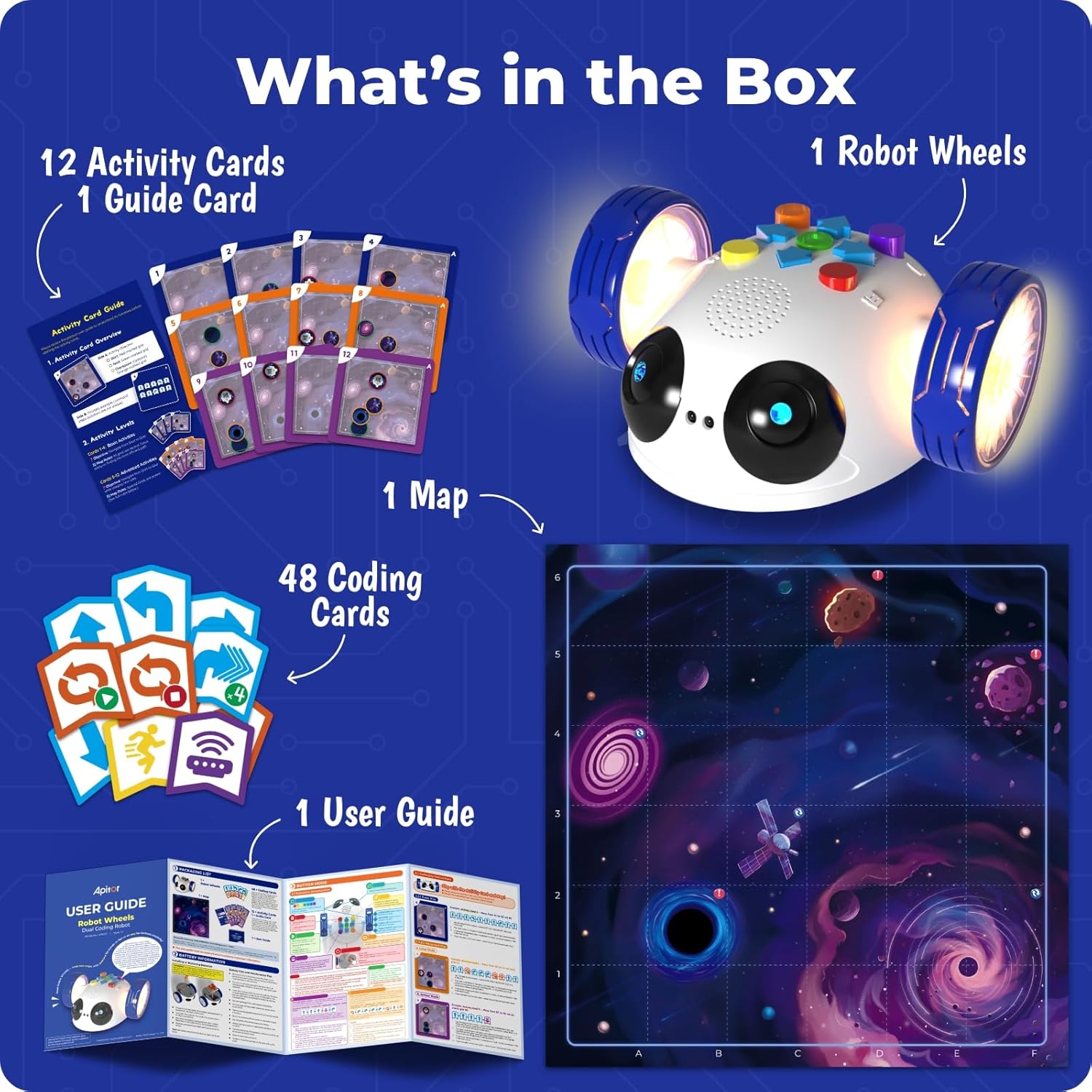
Descrición da imaxe: A visual representation of all items included in the Apitor Robot Wheels package, neatly arranged to show the robot, various cards, the space map, and the user guide.
Configuración
Instalación de baterías
The Robot Wheels unit requires 3 AA batteries (not included) for operation. Follow these steps to install the batteries:
- Locate the battery compartment on the underside of the Robot Wheels unit.
- Usando un pequeno destornillador Phillips, desenrosque a tapa do compartimento da batería.
- Insira 3 pilas AA novas, asegurándose de manter a polaridade correcta (+/-) como se indica no interior do compartimento.
- Coloque a tapa do compartimento da batería e fíxaa co parafuso.
Nota: Always use fresh batteries for optimal performance. Do not mix old and new batteries, or different types of batteries.
Preparing the Play Area
Unfold the provided Space Map and place it on a flat, clear surface. Ensure there are no obstacles that could interfere with the robot's movement, especially when using the obstacle avoidance feature.
Instrucións de funcionamento
The Apitor Robot Wheels offers two primary modes of operation: Button Mode for screen-free physical coding and App Mode for Bluetooth-controlled graphical programming.
1. Button Mode (Screen-Free Coding)
This mode allows children to program the robot directly using physical buttons and coding cards, fostering an understanding of basic coding logic without a screen.
- Encendido: Press the orange power button located on the underside of the robot. The robot's lights will illuminate.
- Selecciona unha actividade: Choose an Activity Card. Each card displays a starting position and a goal on the Space Map, along with the sequence of movements required to reach the goal.
- Coloca o robot: Position the Robot Wheels on the designated starting point on the Space Map, ensuring it faces the correct initial direction as shown on the Activity Card.
- Enter Program: Press the green 'Start/Pause' button on the robot. The robot is now ready to receive commands. Use the directional buttons (up, down, left, right) and other action buttons (e.g., loop, turn) on the robot's top panel to input the sequence of commands from the Activity Card. Each button press will be accompanied by a sound or light cue.
- Execute Program: After entering the full sequence of commands, press the green 'Start/Pause' button again to execute the program. The robot will move according to the programmed sequence.
- Clear Program: To clear the current program and start a new one, press the red 'Clear' button.
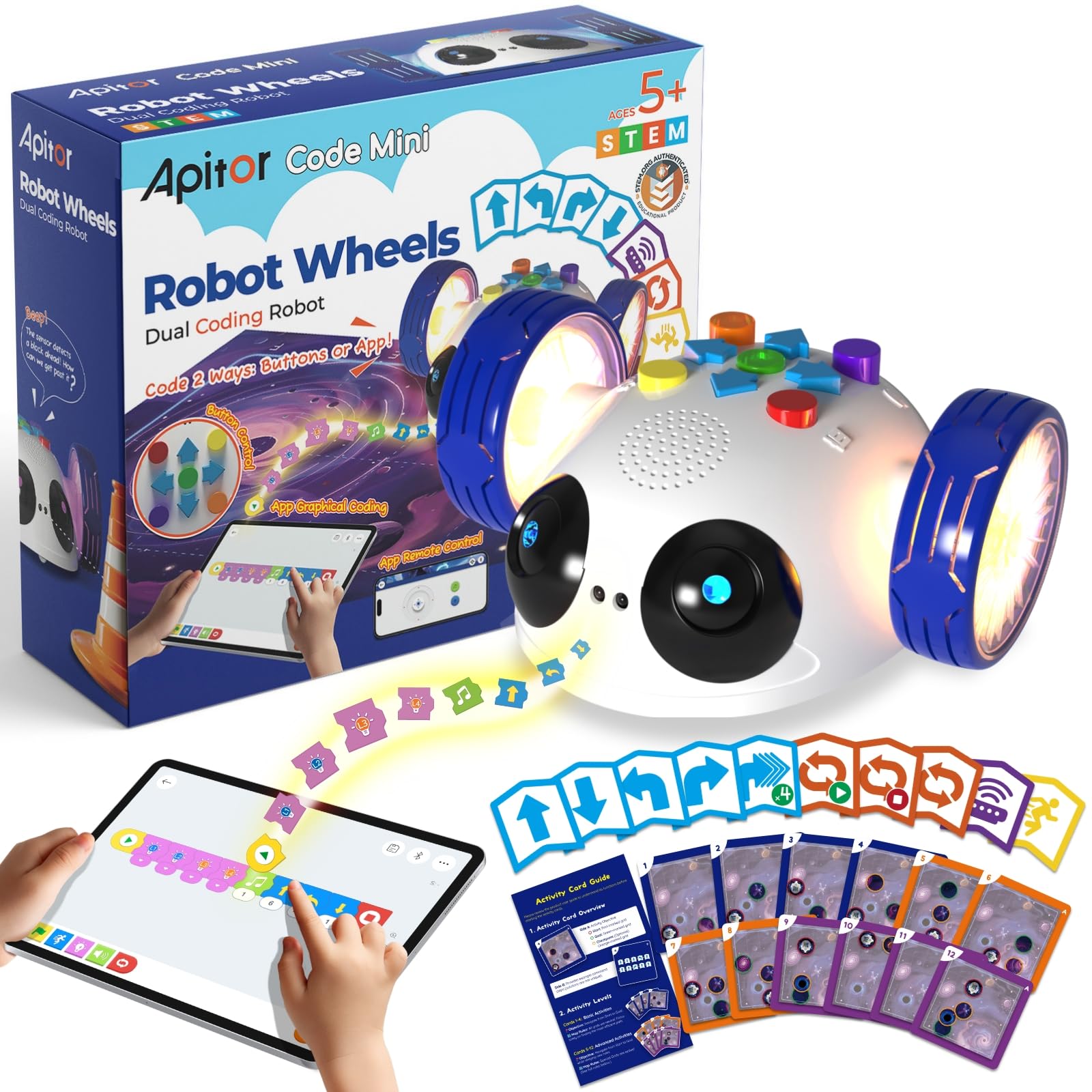
Descrición da imaxe: This image illustrates the hands-on, screen-free coding method, showing a child interacting directly with the robot's buttons and the physical coding cards on a space-themed map.
2. App Mode (Bluetooth Control)
For extended play and advanced programming, connect your Robot Wheels to the dedicated Apitor Kit app on a compatible smart device.
- Descarga a aplicación: Busca "Apitor Kit" in the Apple App Store or Google Play Store, or scan the QR codes provided in the user guide to download the free app.
- Activar Bluetooth: Asegúrate de que o Bluetooth estea activado no teu dispositivo intelixente.
- Conecta o robot: Power on the Robot Wheels unit. In the Apitor Kit app, navigate to the connection screen and select your robot from the list of available devices. The robot's lights will indicate a successful connection.
- Control remoto: Use the 'Control' interface within the app to drive the robot manually using a virtual joystick.
- Programación gráfica: Access the 'Code' interface in the app. Drag and drop colorful coding blocks to create complex sequences of movements, sounds, and light patterns. Press the 'Play' button in the app to execute your code.
- Challenges & Games: Explore the 'Challenge' section for interactive games and missions that provide structured learning opportunities and downloadable maps for continuous engagement.

Descrición da imaxe: This image demonstrates the app's graphical programming interface, where a child uses a tablet to visually construct code sequences for the robot.

Descrición da imaxe: This image shows the remote control functionality of the app, with a child using a smartphone to navigate the robot via an on-screen joystick.
Mantemento
To ensure the longevity and optimal performance of your Apitor Robot Wheels, follow these maintenance guidelines:
- Limpeza: Wipe the robot with a soft, dry cloth. Do not use harsh chemicals or abrasive cleaners. Avoid submerging the robot in water.
- Coidado da batería: Remove batteries if the robot will not be used for an extended period to prevent leakage. Dispose of used batteries responsibly.
- Almacenamento: Store the robot and its accessories in a cool, dry place, away from direct sunlight and extreme temperatures. Keep all small parts, especially the coding cards, organized and protected.
Resolución de problemas
If you encounter any issues with your Apitor Robot Wheels, please refer to the following common problems and solutions:
- O robot non se acende:
- Comprobe se as baterías están instaladas correctamente coa polaridade correcta.
- Substitúeo por pilas AA novas.
- Robot Not Moving/Responding in Button Mode:
- Ensure the green 'Start/Pause' button was pressed to enter programming mode before inputting commands, and pressed again to execute.
- Verify that the robot is on a flat surface and its wheels are not obstructed.
- Comproba o nivel da batería.
- App Connection Issues (Bluetooth):
- Asegúrate de que o Bluetooth estea activado no teu dispositivo intelixente.
- Ensure the robot is powered on and within Bluetooth range (typically 10 meters).
- Restart both the robot and the app.
- Check if the app has necessary permissions (e.g., location) enabled as required by Bluetooth protocol.
- Robot Not Following App Commands:
- Confirm the robot is successfully connected via Bluetooth in the app.
- Review your graphical code for any logical errors.
- Obstacle Avoidance Not Working:
- Ensure the infrared sensor on the front of the robot is clean and unobstructed.
- Test in different lighting conditions, as strong direct light can sometimes interfere with infrared sensors.
Especificacións
| Dimensións do produto | 5 x 5.7 x 2.6 polgadas |
| Peso do elemento | 1.65 libras |
| Número de modelo do artigo | ABR011 |
| Idade recomendada polo fabricante | 5 - 5 years (suitable for ages 5-8 and up) |
| Fonte de enerxía | 3 pilas AA (non incluídas) |
| Conectividade | Bluetooth 4.0 ou superior |
| Compatibilidade de aplicacións | Android 8 ou superior, iOS 10 ou superior |
Información de seguridade
ADVERTENCIA: PERIGO DE ASFIXIA - Pezas pequenas. Not for children under 3 years. Adult supervision is recommended during play, especially with younger children, to ensure safe handling of small components like coding cards.
Garantía e Soporte
Apitor Technology Co., Ltd. stands behind the quality of its products. For specific warranty details, please refer to the packaging or contact Apitor customer support directly. If you have any questions, require technical assistance, or need to report a defect, please visit the official Apitor website or contact their customer service team through the contact information provided on the product packaging or their websitio.