
Introdución
This manual provides essential instructions for the installation, operation, maintenance, and troubleshooting of your HIKSEMI Hikvision Wave SATA 3.0 512GB Solid State Drive. Please read this manual thoroughly before using the product to ensure proper functionality and longevity.
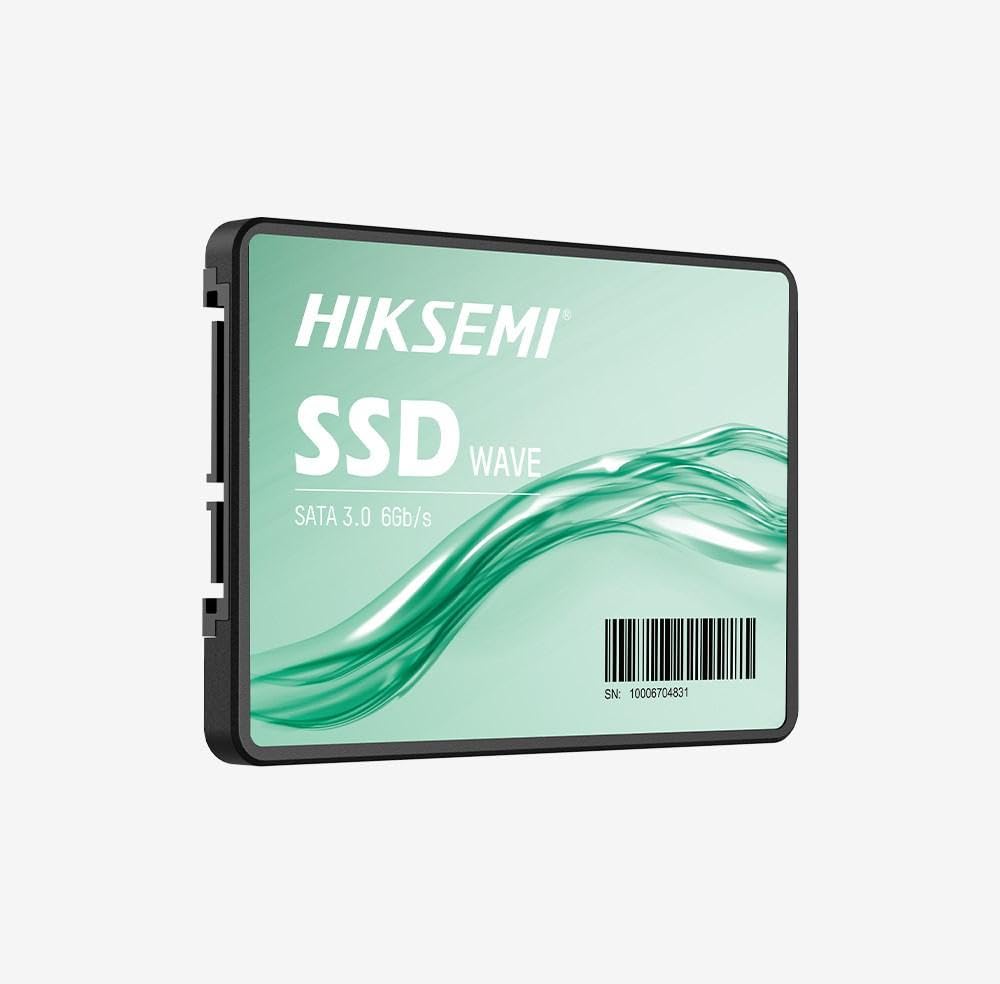
Image: HIKSEMI Hikvision Wave SATA 3.0 512GB Solid State Drive. This image displays the compact 2.5-inch form factor of the SSD, highlighting its sleek design and standard SATA interface connectors.
Información de seguridade
Observe the following safety precautions to prevent damage to the drive or injury to yourself:
- Always handle the SSD by its edges to avoid touching the circuit board or connectors.
- Ensure your computer is powered off and unplugged before installation.
- Discharge static electricity by touching a grounded metal object before handling the SSD.
- Non expoñas o SSD a humidade, temperaturas extremas ou campos magnéticos fortes.
- Non intentes desmontar nin modificar o SSD. Isto anulará a garantía.
Contido do paquete
Verifica que todos os elementos estean presentes no paquete:
- HIKSEMI Hikvision Wave SATA 3.0 512GB Solid State Drive (HS-SSD-WAVE-S-512G)
- Guía de inicio rápido (se se inclúe)
Note: SATA data and power cables are typically not included and must be purchased separately if not already present in your system.
Configuración e instalación
1. Physical Installation (Desktop PC)
- Prepara o teu sistema: Apaga o ordenador e desconecta o cable de alimentación. Abre a carcasa do ordenador.
- Localizar un compartimento para a unidade: Find an available 2.5-inch drive bay. If only 3.5-inch bays are available, you may need a 2.5-inch to 3.5-inch adapter bracket (not included).
- Montar o SSD: Secure the SSD into the drive bay using screws.
- Conectar cables:
- Conecta un extremo dun cable de datos SATA ao SSD e o outro extremo a un porto SATA dispoñible na túa placa base.
- Conecta un cable de alimentación SATA da fonte de alimentación (PSU) ao SSD.
- Pecha o caso: Reassemble your computer case and reconnect the power cord.
2. Physical Installation (Laptop)
- Prepare your laptop: Power off your laptop, unplug the power adapter, and remove the battery (if removable). Consult your laptop's manual for specific instructions on accessing the drive bay.
- Remove old drive (if applicable): Carefully remove the existing hard drive or SSD.
- Instalar o SSD: Insert the HIKSEMI Wave SSD into the drive bay. Secure it with any screws or brackets that held the previous drive.
- Remontar: Close the drive bay cover, reinsert the battery, and reconnect the power adapter.
3. Initializing and Formatting the SSD (Windows)
- Boot your computer: Acende o teu ordenador.
- Abrir Xestión de discos: Right-click on the Start button (Windows 10/11) or search for "Disk Management" (Windows 7/8). Select "Disk Management".
- Initialize the disk: A "Initialize Disk" window should appear automatically for new drives. Select GPT (GUID Partition Table) for drives larger than 2TB or for UEFI-based systems, or MBR (Master Boot Record) for older systems or drives 2TB or smaller. Click "OK".
- Create a new simple volume: Locate your new SSD (it will likely show as "Unallocated Space"). Right-click on the unallocated space and select "New Simple Volume...".
- Follow the wizard: Follow the on-screen prompts to assign a drive letter, choose a file system (NTFS is recommended for Windows), and perform a quick format.
- Your SSD is now ready for use.
Funcionamento do SSD
Once installed and formatted, your HIKSEMI Wave SSD functions like any other storage drive. You can use it for:
- Instalación do sistema operativo: Install your operating system (Windows, macOS, Linux) for faster boot times and overall system responsiveness.
- Almacenamento de aplicacións: Install frequently used applications and games to benefit from quicker loading times.
- Almacenamento de datos: Store documents, photos, videos, and other files.
The SSD utilizes the SATA 3.0 interface, providing theoretical transfer speeds up to 6 Gbps. Actual performance may vary based on your system hardware, software, and workload.
Mantemento
SSDs require less maintenance than traditional hard drives, but a few practices can help ensure optimal performance and longevity:
- Activar TRIM: Ensure your operating system has TRIM enabled. TRIM helps the SSD manage deleted data blocks efficiently, maintaining performance over time. Modern operating systems (Windows 7+, macOS 10.6.8+, most Linux distributions) typically enable TRIM by default.
- Evitar a desfragmentación: Non desfragmentes un SSD. A desfragmentación non é necesaria para os SSD e pode reducir a súa vida útil aumentando.asinciclos de escritura g.
- Actualizacións de firmware: Periodically check the HIKSEMI official website for firmware updates for your specific SSD model. Firmware updates can improve performance, stability, and compatibility. Follow the manufacturer's instructions carefully when performing updates.
- Manter o espazo libre: While not strictly necessary, keeping some free space (e.g., 10-15%) on your SSD can help maintain performance, especially for drives with smaller capacities.
- Copia de seguridade de datos: Fai copias de seguridade dos datos importantes noutro dispositivo de almacenamento con regularidade. Aínda que os SSD son fiables, ningún dispositivo de almacenamento é inmune a fallos.
Resolución de problemas
If you encounter issues with your HIKSEMI Wave SSD, refer to the following common troubleshooting steps:
- SSD non detectado:
- Comprobe todas as conexións dos cables de datos e alimentación SATA. Asegúrese de que estean ben asentadas.
- Try a different SATA port on your motherboard and a different SATA power connector from your PSU.
- Verify that the SATA controller mode in your system's BIOS/UEFI is set to AHCI (Advanced Host Controller Interface).
- Check Disk Management (Windows) or Disk Utility (macOS) to see if the drive is detected but uninitialized/unformatted.
- Rendemento lento:
- Asegúrate de que TRIM estea activado (como se describe na sección Mantemento).
- Verify that the SSD is connected to a SATA 3.0 (6 Gbps) port on your motherboard, not an older SATA 2.0 (3 Gbps) port.
- Comprobe os procesos en segundo plano que consumen recursos do sistema.
- Ensure your system drivers (especially chipset drivers) are up to date.
- Operating System Errors/Crashes:
- Executa unha utilidade de comprobación de disco (por exemplo,
chkdskin Windows) to scan for file erros do sistema. - Consider reinstalling the operating system if issues persist after checking hardware connections and drivers.
- Executa unha utilidade de comprobación de disco (por exemplo,
Especificacións
| Característica | Especificación |
|---|---|
| Número de modelo | HS-SSD-WAVE-S-512G |
| Capacidade de almacenamento dixital | 512 GB |
| Interface de disco duro | Serial ATA (SATA 3.0) |
| Factor de forma | 2.5 polgadas |
| Velocidade de lectura (máx.) | 560 megabytes por segundo |
| Velocidade de escritura (máx.) | 490 megabytes por segundo |
| Dispositivos compatibles | Escritorio, portátil |
| Característica especial | Lixeiro |
| Peso do elemento | 0.02 quilogramos |
| Fabricante | Hangzhou Hikvision Digital Technology Co., Ltd. |
Información da garantía
The HIKSEMI Hikvision Wave SATA 3.0 512GB Solid State Drive comes with a Garantía limitada de 3 anos from the date of purchase. This warranty covers defects in materials and workmanship under normal use. It does not cover damage caused by misuse, accident, modification, unauthorized repair, or improper installation.
Conserve o comprobante de compra para reclamacións de garantía.
Atención ao cliente
For technical assistance, warranty claims, or further inquiries, please visit the official HIKSEMI support websitio web ou póñase en contacto co seu departamento de atención ao cliente. Consulte a embalaxe do produto ou o manual oficial websitio para obter a información de contacto máis actualizada.
Online resources may include FAQs, driver downloads, and firmware updates.
Información de eliminación
This product contains electronic components and should not be disposed of with household waste. Please follow local regulations for the proper disposal of electronic waste. Recycling helps protect the environment and human health.