
Introdución
Grazas pola compraasing the ELECOM Wireless Mouse EX-G Bluetooth Silent S-size 5-button Multi-pairing, model M-XGS30BBSKBK. This ergonomic mouse is designed to provide a comfortable and strain-free experience, developed in collaboration with orthopedic surgeons. It features silent clicks, multi-pairing capabilities, and an antimicrobial surface for enhanced hygiene. This manual will guide you through the setup, operation, and maintenance of your new mouse.

Image: The ELECOM EX-G Bluetooth Silent Mouse, model M-XGS30BBSKBK.
Características clave
- Deseño ergonómico: Co-developed with orthopedic surgeons, the EX-G series mouse is shaped to fit the natural curve of your hand, minimizing strain on wrist and finger muscles. This design has been certified by the AskDoctors evaluation service, with 99% of 100 doctors recommending it.
- Silent Click Switches: Equipped with Panasonic silent switches for left and right clicks, as well as the scroll wheel, allowing for quiet operation in any environment, such as during web conferences or in shared workspaces.
- Multi-pairing Functionality: Connects to up to two Bluetooth-compatible devices simultaneously. Easily switch between paired devices with a dedicated button.
- Antimicrobial Surface: The mouse body and printed parts are treated with an antimicrobial coating to inhibit bacterial growth, keeping the mouse clean.
- Deseño de 5 botóns: Includes left click, right click, scroll wheel, and two side buttons (forward/back) for enhanced navigation and productivity.

Image: Comparison of the ergonomic EX-G mouse design (right) with a traditional mouse (left), illustrating the natural hand position.
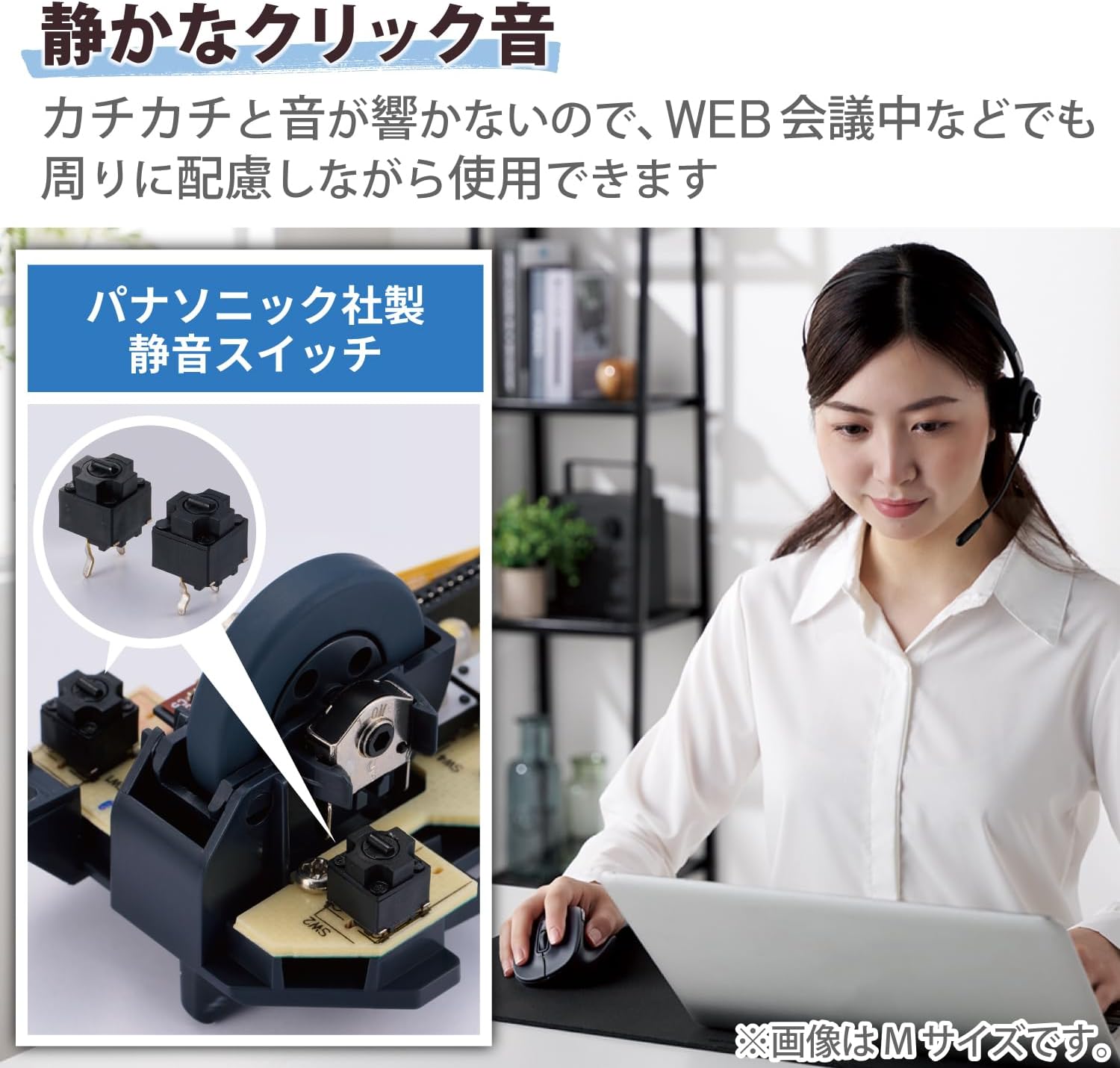
Image: A close-up of the internal Panasonic silent click switches and a user operating the mouse quietly.

Image: Illustration of the multi-pairing feature, showing indicator lights (white for device 1, green for device 2) for switching connections.

Image: Various color models of the EX-G mouse, highlighting the antimicrobial surface treatment.

Image: Diagram illustrating the functions of the 5 buttons: Left Click, Right Click, Double Click, Forward, and Back.
Configuración
1. Instalación da batería
- Abra a tapa da batería situada na parte inferior do rato.
- Insert one AAA alkaline battery (included) into the battery compartment, ensuring correct polarity (+/-).
- Pecha a tapa da batería de forma segura.
2. Emparellamento Bluetooth
- Acende o rato usando o interruptor de acendido situado na parte inferior.
- Press and hold the pairing button on the bottom of the mouse until the LED indicator starts flashing (e.g., white for device 1, green for device 2).
- On your computer or device (Windows, macOS, Android, iOS, iPadOS, ChromeOS), navigate to the Bluetooth settings.
- Busca available Bluetooth devices and select "ELECOM EX-G" or a similar name.
- Follow any on-screen prompts to complete the pairing process. The LED indicator on the mouse will stop flashing and remain solid when successfully paired.
- To pair a second device, repeat steps 2-5, ensuring the mouse is in the correct pairing mode (e.g., green LED for device 2).
Instrucións de funcionamento
Basic Mouse Functions
- Clic esquerdo: Selección e activación primarias.
- Clic dereito: Abre menús contextuais.
- Roda de desprazamento: Scrolls content vertically. Pressing the scroll wheel often acts as a middle click.
- Botóns Adiante/Atrás: Situados no lateral, estes botóns permiten unha navegación rápida web navegadores e file exploradores.
Cambio entre dispositivos emparellados
If you have paired the mouse with two devices, press the device switching button (usually located near the pairing button on the bottom or a dedicated button on top) to toggle between Device 1 (white LED) and Device 2 (green LED).
Axuste de DPI
The mouse has a maximum sensitivity of 2000 dpi. While there isn't a dedicated DPI switch mentioned, sensitivity can typically be adjusted through your operating system's mouse settings for personalized control.
Mantemento
Limpeza
- Wipe the mouse surface with a soft, dry cloth.
- Para a sucidade teimosa, lixeiramente dampEnxágüe o pano con auga ou un limpador suave e non abrasivo. Evite produtos químicos agresivos.
- Non permita que entren líquidos no corpo do rato.
Substitución da batería
When the mouse performance degrades or the indicator light suggests low battery, replace the AAA battery following the installation steps in the Setup section.
Resolución de problemas
- O rato non responde:
- Comprobe se o interruptor de acendido da parte inferior do rato está aceso.
- Asegúrate de que a batería estea instalada correctamente e non esgotada. Substitúea se é necesario.
- Verify that the mouse is paired with the correct device (check the LED indicator for Device 1 or 2).
- Try re-pairing the mouse with your device.
- Movemento errático do cursor:
- Limpa o sensor óptico da parte inferior do rato.
- Asegúrate de usar o rato sobre unha superficie axeitada. Evita superficies moi reflectantes ou transparentes.
- Comprobe se hai interferencias doutros dispositivos sen fíos.
- Scroll wheel issues (e.g., scrolling in the wrong direction, jumping):
- This can sometimes indicate a hardware issue. Ensure the scroll wheel is clean and free of debris.
- Se o problema persiste, póñase en contacto co servizo de atención ao cliente.
- Cannot connect to a second device:
- Ensure the mouse is in the correct pairing mode for the second device (green LED).
- Confirm your device's Bluetooth is enabled and discoverable.
Especificacións
| Marca | ELECOM |
| Número de modelo | M-XGS30BBSKBK |
| Cor | Negro |
| Tecnoloxía de conectividade | Bluetooth |
| Características especiais | Ergonomic Design, Silent, Multi-pairing, Wireless |
| Tecnoloxía de detección de movemento | Óptica |
| Número de botóns | 5 |
| Orientación das mans | Destro |
| Dispositivos compatibles | Bluetooth(R) HOGP compatible Windows OS, Android, macOS, iOS, iPadOS, ChromeOS devices |
| Sistemas operativos | Android 12, Chrome OS, Windows 11/10, iPadOS 16, macOS Ventura 13 |
| Número de baterías | 1 batería AAA (incluída) |
| Plataforma de hardware | Mac, PC, Tablet |
| Fonte de enerxía | Alimentado por batería |
| Mouse Max Sensitivity | 2000 ppp |
| Peso do produto | 82 gramos |
| Dimensións do produto (L x A) | 10.8 cm x 7.1 cm |
| Número de unidades | 1 unidade |
| Usos recomendados | Oficina, xogos |
Size Guide (S-size)
The S-size mouse is designed to fit hands where the length from the tip of the middle finger to the base of the palm is approximately 165mm.

Image: Diagram showing the S-size mouse dimensions (Length 108mm, Width 71mm, Height 52mm) and a hand measurement guide for optimal fit.
Garantía e Soporte
This ELECOM product comes with a 2 ano de garantía desde a data de compra. Conserve o comprobante de compra para reclamacións de garantía.
For technical support, troubleshooting assistance, or warranty service, please visit the official ELECOM websitio web ou póñase en contacto co seu departamento de atención ao cliente. Pode atopar máis información e recursos de asistencia no ELECOM Brand Store on Amazon.