
1. Introdución
This manual provides essential information for the safe and efficient operation of your DUODUOGO S2 10-inch Android WiFi Tablet. Please read it thoroughly before using the device and keep it for future reference.
2. Información de seguridade
- Non expoñas a tableta a temperaturas extremas, luz solar directa nin humidade elevada.
- Evite deixar caer a tableta nin someterla a impactos fortes.
- Use only the original charger and accessories provided with the device.
- Non intente desmontar nin reparar a tableta vostede mesmo. Póñase en contacto co servizo de atención ao cliente para obter axuda.
- Manteña o comprimido lonxe da auga e outros líquidos.
- Desfágase da batería e do dispositivo segundo a normativa local.
3. Contido do paquete
Verifica que todos os elementos estean presentes no paquete:
- DUODUOGO S2 Tablet
- Cable USB Tipo-C
- Adaptador de alimentación
- Manual de usuario (este documento)
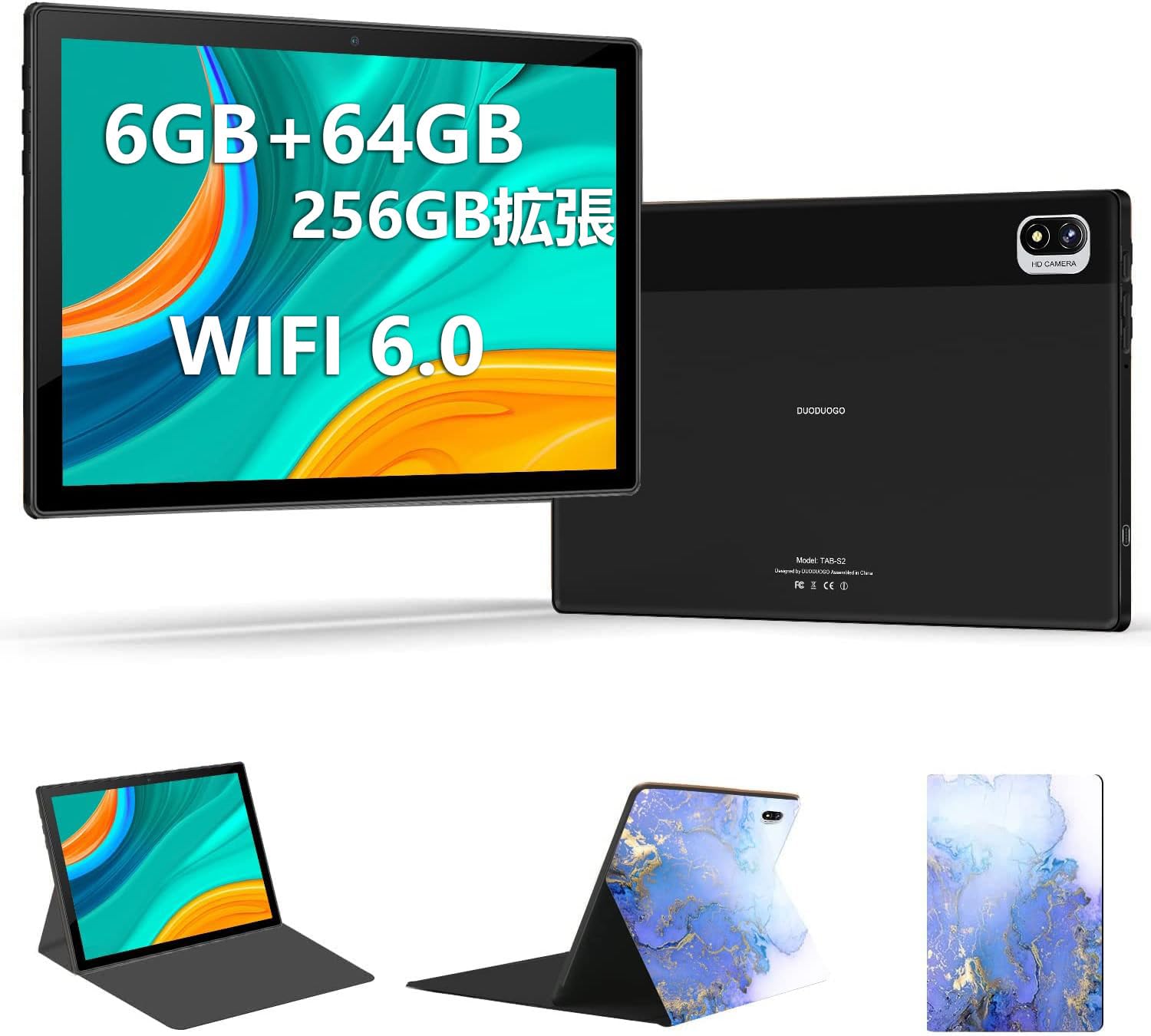
Image: DUODUOGO S2 Tablet and included accessories.
4. Disposición do dispositivo
Familiarize yourself with the physical features and ports of your DUODUOGO S2 tablet.

Image: Diagram showing the tablet's side view with labels for the power button, volume buttons (Vol+, Vol-), Type-C port, headphone jack, and TF card slot. The front and rear cameras are also indicated.
- Botón de encendido: Mantén premido para acender/apagar ou reiniciar. Preme brevemente para acender/apagar a pantalla.
- Volume Buttons (Vol+, Vol-): Axusta o volume de audio.
- Porto de tipo C: Para carga e transferencia de datos.
- Jack para auriculares: Conecta auriculares de 3.5 mm.
- Ranura para tarxetas TF: Insert a microSD card for expandable storage (up to 256GB).
- Cámara frontal: Cámara de 5MP para videochamadas e selfies.
- Cámara traseira: 8MP camera for photos and videos.
- Altofalantes dobres: Located on the sides for enhanced audio output.
5. Configuración
5.1 Cargo inicial
Before first use, fully charge the tablet using the provided USB Type-C cable and power adapter. The battery indicator on the screen will show charging progress.
5.2 Encendido/apagado
- Para acender: Press and hold the Power Button until the DUODUOGO logo appears.
- Para apagar: Press and hold the Power Button, then select "Power Off" from the options on the screen.
- Para reiniciar: Press and hold the Power Button, then select "Restart" from the options.
5.3 Asistente de configuración inicial
Ao acender por primeira vez, a tableta guiarache a través dun proceso de configuración inicial. Isto inclúe:
- Selección da lingua
- Conexión de rede wifi
- Google account setup (optional, but recommended for app downloads)
- Configuración de data e hora
5.4 Conectando a Wi-Fi
Para conectarse a unha rede wifi:
- Ir a Configuración > Rede e internet > Wi-Fi.
- Activa a wifi.
- Seleccione a rede desexada da lista.
- Introduza o contrasinal se lle solicita e toque Conectar.

Image: The tablet screen showing a video playback, highlighting its dual-band 2.4G/5G WiFi capability for stable internet connection.
6. Instrucións de funcionamento
6.1 Navegando pola interface de Android
The DUODUOGO S2 runs on Android 11. Common gestures include:
- Toca: Selecciona un elemento ou abre unha aplicación.
- Pasar o dedo: Desprazarse por pantallas ou listas.
- Beliscar: Achegar ou afastar imaxes e web páxinas.
- Prensa longa: Acceder a menús contextuais ou mover iconas.

Image: The tablet displaying the Android 11 home screen with various application icons, demonstrating the user interface.
6.2 Instalación de aplicacións
You can download and install applications from the Google Play Store. Ensure you are logged in with a Google account.
- Abre o Play Store aplicación.
- Busca a aplicación desexada.
- Toca Instalar.
6.3 Funcionamento da cámara
The tablet features a 5MP front camera and an 8MP rear camera.
- Abre o Cámara aplicación.
- Toca o botón do obturador para sacar unha foto.
- Cambia entre as cámaras dianteira e traseira usando a icona de cambio de cámara.

Image: The tablet displaying a high-resolution image, illustrating the 10.1-inch IPS HD screen and indicating the 5MP front and 8MP rear camera capabilities.
6.4 Xestión do almacenamento
The tablet comes with 64GB of internal storage. You can expand this by inserting a TF (microSD) card up to 256GB.
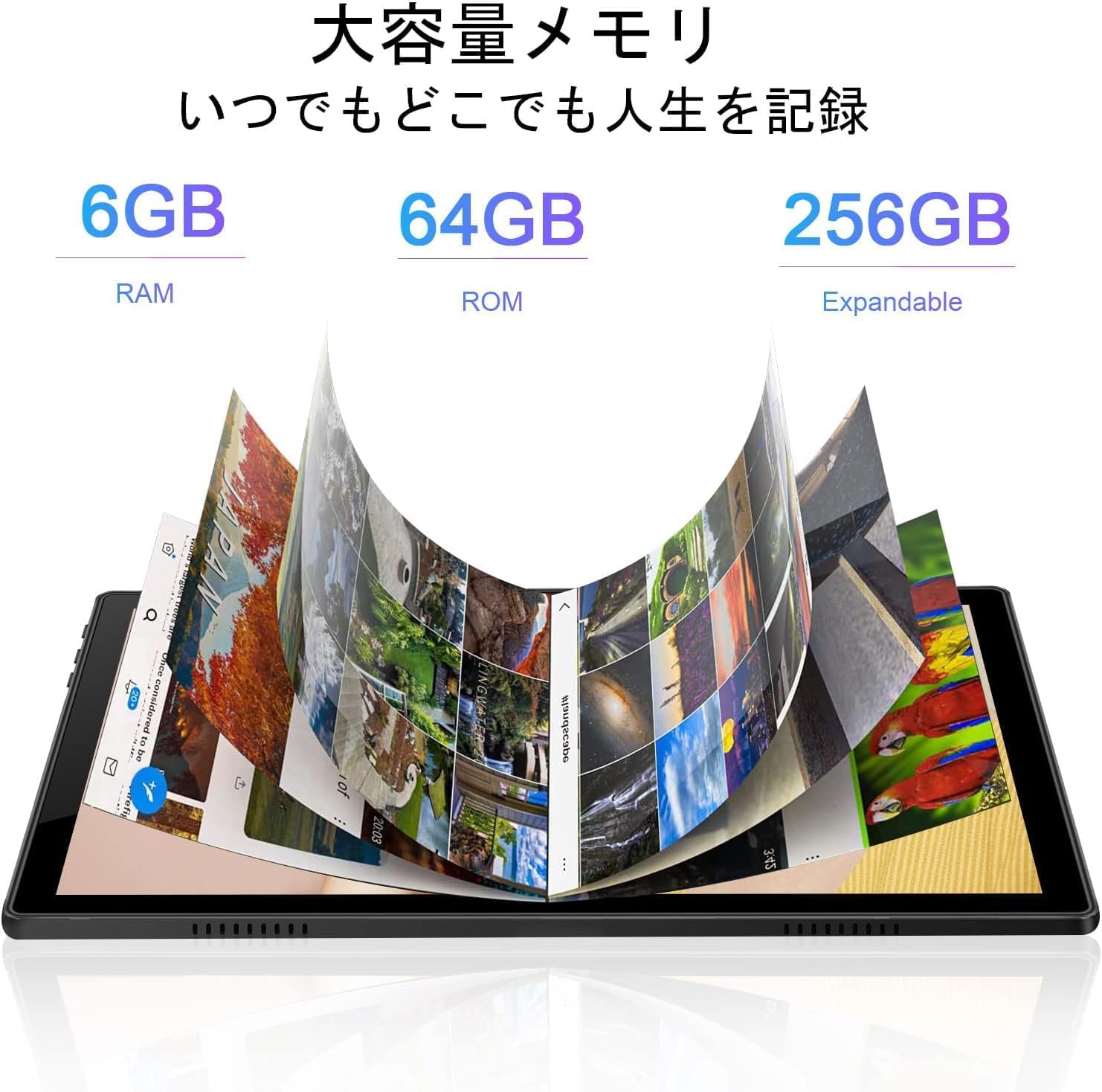
Image: A visual representation of the tablet's memory, showing 6GB RAM, 64GB internal storage (ROM), and the option to expand storage up to 256GB with a TF card.
7. Mantemento
- Limpeza: Usa un pano suave e sen fiapos para limpar a pantalla e o corpo da tableta. Non empregues produtos de limpeza abrasivos nin disolventes.
- Actualizacións de software: Comprobe e instale regularmente actualizacións do sistema para garantir un rendemento e unha seguridade óptimos. Vaia a Configuración > Sistema > Actualización do sistema.
- Coidado da batería: To prolong battery life, avoid fully discharging the battery frequently. Charge the tablet when the battery level is low.
- Optimización do almacenamento: Limpar periodicamente o innecesario files and uninstall unused apps to free up storage space and improve performance.
8 Solución de problemas
| Problema | Posible Solución |
|---|---|
| A tableta non se acende. | Ensure the battery is charged. Connect the charger and wait a few minutes before attempting to power on again. If it still doesn't turn on, perform a forced restart by holding the power button for 10-15 seconds. |
| A pantalla non responde. | Reinicia a tableta. Se o problema persiste, asegúrate de que a pantalla estea limpa e libre de residuos. |
| Non se pode conectar á wifi. | Check if Wi-Fi is enabled in settings. Ensure the Wi-Fi password is correct. Restart your router and the tablet. Try connecting to a different Wi-Fi network to isolate the issue. |
| As aplicacións fallan ou funcionan lentamente. | Pechar aplicacións en segundo plano. Borrar a caché da aplicación (Configuración > Aplicacións > selecciona a aplicación > Almacenamento e caché > Borrar caché). Asegúrate de que hai espazo de almacenamento suficiente dispoñible. Reinicia a tableta. |
| A batería esgotarase rapidamente. | Reduce screen brightness. Close unused apps. Turn off Wi-Fi or Bluetooth when not in use. Check battery usage in Configuración > Batería para identificar aplicacións que consumen moita enerxía. |
9. Especificacións
| Característica | Detalle |
|---|---|
| Marca | DUODUOGO |
| Modelo | S2 |
| Sistema Operativo | Android 11 |
| Procesador | 8 núcleos, 2.0 GHz |
| RAM | 6 GB |
| Almacenamento interno | 64 GB |
| Almacenamento ampliable | Up to 256 GB via TF (microSD) card |
| Tamaño da pantalla | 10.1 polgadas |
| Tipo de visualización | IPS HD |
| Resolución | 1280 x 800 píxeles |
| Cámara traseira | 8 MP |
| Cámara frontal | 5 MP |
| Conectividade | Wi-Fi (2.4G/5G, 802.11a/b/g/n), Bluetooth 4.3 |
| Capacidade da batería | Polímero de litio de 6000 mAh |
| Portos | USB Type-C, 3.5mm Headphone Jack, TF Card Slot |

Imaxe: Unha vez máisview of the DUODUOGO S2 tablet, visually summarizing its main features and specifications.
10. Garantía e soporte
DUODUOGO is committed to providing quality products and user experience. If you encounter any issues or have questions regarding your DUODUOGO S2 tablet, please contact our customer support.
- Atención ao cliente: Refer to the contact information provided with your purchase or on the official DUODUOGO websitio.
- Garantía: This product comes with a standard manufacturer's warranty. Please retain your proof of purchase for warranty claims.
Our support team aims to respond within 24 hours to assist you with any concerns.