
FOAOOD DQ201-B2
FOAOOD 2K Wireless Outdoor Solar Security Camera Instruction Manual
Model: DQ201-B2
1. Introdución
This manual provides detailed instructions for the installation, operation, and maintenance of your FOAOOD 2K Wireless Outdoor Solar Security Camera (Model DQ201-B2). Please read this manual thoroughly before using the product to ensure proper functionality and safety.
The FOAOOD DQ201-B2 is a 2K QHD resolution, 360° Pan-Tilt-Zoom (PTZ) outdoor security camera featuring solar power, color night vision, PIR motion detection, and two-way audio. It is designed for continuous outdoor surveillance with IP66 weather resistance.
2. Contido do paquete
Verifica que todos os compoñentes estean presentes no teu paquete:
- FOAOOD 2K Wireless Outdoor Solar Security Camera (x2)
- Panel solar (x2)
- Soporte de montaxe e parafusos
- Cable de carga USB
- Manual de usuario (este documento)

Image: Two FOAOOD DQ201-B2 cameras with solar panels, illustrating the main product components.
3. Especificacións
| Característica | Detalle |
|---|---|
| Modelo | DQ201-B2 |
| Resolución de captura de vídeo | 3 MP (2K QHD) |
| Tecnoloxía de conectividade | Sen fíos (só Wi-Fi de 2.4 GHz) |
| Tipo de montaxe | Soporte de parede |
| Características especiais | 360° PTZ, 2-Way Audio, Color Night Vision, PIR Motion Detection, IP66 Waterproof |
| Fonte de enerxía | Solar Powered with Rechargeable Lithium Polymer Battery |
| Compatibilidade do sistema operativo | Android, iOS |
| Material | Metal |
| Temperatura de funcionamento | -20°C a 60°C |
4. Guía de configuración
4.1 Carga inicial
Before installation, fully charge the camera using the provided USB cable. Connect the cable to the camera's charging port and a standard 5V USB power adapter (not included). The charging indicator will show the status.
4.2 Instalación da aplicación e creación de contas
Download the companion mobile application to your smartphone. The app is available for both Android and iOS devices.
- Para Android: Download from Google Play Store
- Para iOS: Download from Apple App Store
After installation, open the app and follow the on-screen instructions to create a new user account or log in if you already have one.

Image: A smartphone displaying the camera's mobile application, indicating app functionality.
4.3 Emparellamento da cámara coa aplicación
- Open the app and select "Add Device" or the '+' icon.
- Choose your camera model or scan the QR code on the camera/packaging.
- Ensure your phone is connected to a 2.4GHz Wi-Fi network. 5GHz Wi-Fi is not supported.
- Follow the app's instructions to connect the camera to your Wi-Fi network. This typically involves scanning a QR code generated by the app with the camera lens.
- Once connected, name your camera and complete the setup.
4.4 Montaxe da cámara e do panel solar
Select a mounting location that provides a clear view of the area you wish to monitor and receives ample direct sunlight for the solar panel. The camera is IP66 waterproof, suitable for outdoor use.
- Posicionamento: Mount the camera at a height that offers optimal coverage and detection. The solar panel should be positioned to maximize sun exposure throughout the day.
- Perforación: Use the mounting bracket as a template to mark drill holes. Drill pilot holes and insert wall anchors if necessary.
- Montaxe segura: Attach the camera and solar panel mounting brackets securely to the wall or desired surface using the provided screws.
- Conectar o panel solar: Connect the solar panel cable to the camera's charging port.

Image: A FOAOOD camera mounted outdoors, showing its 360-degree rotation capability and remote control via a mobile app.

Image: An outdoor camera installation on a wooden surface, illustrating the solar panel connection for continuous power and 2.4GHz Wi-Fi requirement.
5. Instrucións de funcionamento
5.1 En directo View e control PTZ
Open the app and select the desired camera to view the live feed. Use the on-screen controls to pan (horizontal rotation) and tilt (vertical rotation) the camera for a 360° coverage. You can also zoom in on the live feed.
5.2 Audio bidireccional
A cámara ten un micrófono e un altofalante integrados. Toca a icona do micrófono na aplicación para falar a través da cámara e escoitar o audio desde a localización da cámara.

Image: A user interacting with the two-way audio feature on the mobile app, demonstrating communication with someone near the camera.
5.3 Detección de movemento e alertas
The camera uses PIR (Passive Infrared) human detection to minimize false alarms. When motion is detected, the camera can trigger various alerts:
- Mobile Notifications: Recibe alertas instantáneas no teu teléfono intelixente.
- Alarma luminosa: The camera's built-in light will activate.
- Alarma da sirena: The camera will emit an audible siren.
You can customize detection zones, sensitivity levels, and alarm schedules within the app settings.

Image: An illustration of the camera's smart features, including customizable detection zones, scheduling, siren, and sensitivity settings.

Image: A night scene showing the camera's light alarm activated by a detected person, with a notification pop-up on a phone.
5.4 Modos de visión nocturna
The camera supports both color night vision and infrared night vision for clear monitoring in low-light conditions.
- Visión nocturna en cor: Utilizes built-in spotlights to provide full-color video at night.
- Visión nocturna por infravermellos: Uses infrared LEDs for black and white video in complete darkness, conserving power.
You can switch between these modes or set the camera to automatically select the appropriate mode based on ambient light.
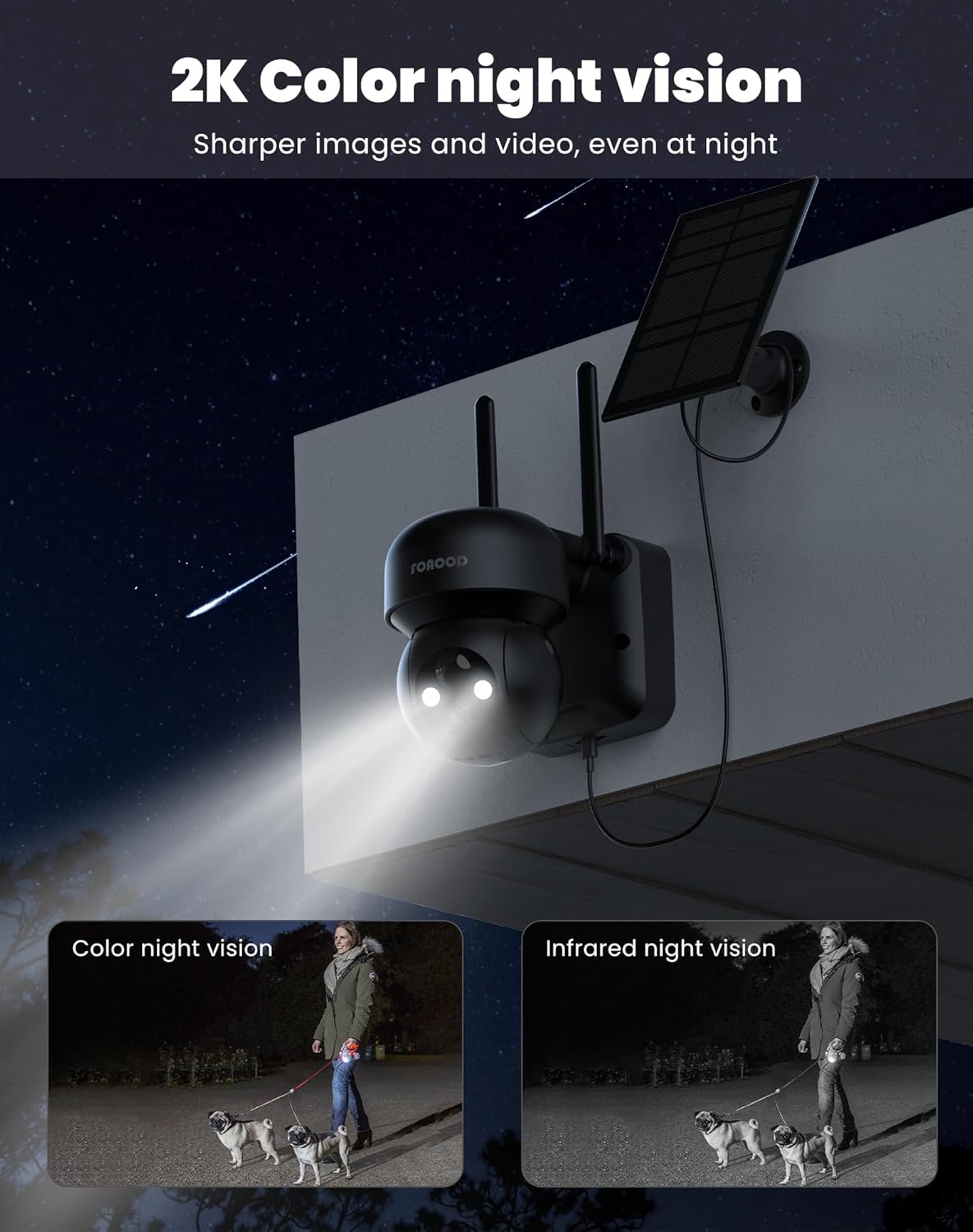
Image: A night view of the camera with its lights on, demonstrating the clarity of color night vision compared to infrared night vision.
5.5 Opcións de almacenamento
The camera supports local storage via an SD card (not included) and cloud storage (subscription may be required). Recorded footage can be accessed and reviewed through the mobile app.
5.6 Compartir en familia
You can share camera access with up to 5 family members or trusted individuals through the app, allowing multiple users to view live feeds and recordings simultaneously.

Image: A graphic depicting the family sharing function, where multiple users can access the camera feed from different locations.
6. Mantemento
- Limpeza: Limpe periodicamente a lente da cámara e o panel solar cun pano suave eamp cloth to ensure optimal performance. Avoid abrasive cleaners.
- Saúde da batería: The solar panel is designed to keep the battery charged. In prolonged periods of low sunlight, the camera can operate for 60-90 days on a full charge. If the battery level drops significantly, consider temporarily charging it via USB.
- Actualizacións de firmware: Check the app regularly for firmware updates to ensure your camera has the latest features and security enhancements.
7 Solución de problemas
- A cámara non se conecta á wifi:
- Asegúrate de que a túa rede wifi sexa de 2.4 GHz. As redes de 5 GHz non son compatibles.
- Comproba a intensidade do sinal wifi na localización da cámara.
- Reinicia o teu enrutador e a cámara.
- Asegúrate de que a cámara estea dentro do alcance do teu enrutador Wi-Fi.
- Mala calidade da imaxe:
- Limpar a lente da cámara.
- Comproba a velocidade da túa conexión a internet.
- Asegúrate de que non haxa obstáculos diante da lente.
- Solar panel not charging:
- Ensure the solar panel is positioned to receive direct sunlight for several hours daily.
- Limpar a superficie do panel solar.
- Check the connection cable between the solar panel and the camera.
- A detección de movemento non funciona ou hai demasiadas falsas alarmas:
- Adjust the PIR sensitivity settings in the app.
- Configure detection zones to exclude areas with frequent irrelevant motion (e.g., busy roads, swaying trees).
- Asegúrese de que a lente da cámara estea limpa.
8. Garantía e soporte
FOAOOD provides technical support for its products. For any issues not covered in this manual, or for warranty inquiries, please contact FOAOOD customer service.
Correo electrónico de contacto: foaood@520newice.com
Consulta a documentación da túa compra para coñecer os termos e condicións específicos da garantía.
Documentos relacionadosDQ201-B2


Ask a question about this manual
Ask about setup, troubleshooting, compatibility, parts, safety, or missing instructions. Manuals+ will review the question and use this page’s manual context to help answer it.