
Introdución
This manual provides comprehensive instructions for the installation, operation, maintenance, and troubleshooting of your Leadfan Car Stereo Radio. This unit is designed specifically for Honda Civic models from 2006 to 2011, offering advanced features such as wireless CarPlay, Android Auto, GPS navigation, Bluetooth connectivity, and a high-definition touch screen. Please read this manual thoroughly before installation and use to ensure proper functionality and safety.

Image: The Leadfan Car Stereo Radio unit, showing the 10.1-inch display, custom bezel for Honda Civic, and included accessories such as wiring harnesses, a backup camera, and a GPS module.
Contido do paquete
Verifique que todos os elementos que se indican a continuación estean incluídos no seu paquete. Se falta algún elemento ou está danado, póñase en contacto co servizo de atención ao cliente.
- 1 x Leadfan Car Android Player (Main Unit)
- 1 x Power Harness
- 1 x Antena GPS
- 1 x cable RCA
- 1 x CAM-IN (Rearview Camera Cable)
- 1 x USB Cable (2 pieces)
- 1 x Manual de usuario
- 1 x AHD Backup Camera

Image: A visual representation of all components included in the Leadfan Car Stereo package, such as the main unit, various cables (power, RCA, USB, camera), GPS module, and backup camera.
Configuración e instalación
This section outlines the steps for installing your new car stereo. Professional installation is recommended if you are unfamiliar with car audio wiring.
Compatibilidade de vehículos
This unit is specifically designed for Honda Civic models manufactured between 2006 and 2011. The included custom bezel and wiring harness ensure a seamless fit and plug-and-play installation without the need for additional accessories.

Image: A comparison showing the car's dashboard before and after the installation of the Leadfan Car Stereo, highlighting the integrated and factory-like appearance.
Conexións de cableado
- Arnés de alimentación: Connect the main power harness to your vehicle's existing wiring. Ensure all connections are secure and correctly matched (ACC, B+, GND, ILL, etc.).
- Cables RCA: Connect the RCA cables for audio output (front, rear, subwoofer) and auxiliary input as needed.
- Cables USB: Route the USB cables to a convenient location for connecting external devices or USB drives.
- Antena GPS: Monte a antena GPS nun lugar con luz despexada view of the sky, typically on the dashboard or under the windshield, and connect it to the unit.
- Traseiraview Cámara: Conecta a parte traseiraview camera cable (CAM-IN) to the unit and route the camera wiring to the rear of the vehicle. Ensure the camera receives power and the reverse trigger wire is connected to activate the camera automatically when reversing.
- WiFi/Bluetooth Antennas: Ensure the WiFi and Bluetooth antennas are properly connected for optimal signal reception.
Configuración do control do volante (SWC)
After connecting the SWC wires from the vehicle's harness to the stereo, you will need to program the steering wheel buttons through the unit's settings menu. Navigate to the 'Steering Wheel Control' or 'SWC Learning' section in the system settings and follow the on-screen instructions to assign functions to each button.

Image: The user interface for setting up steering wheel controls, showing options to learn and assign functions to physical buttons. Also displays the automatic reverse camera view con directrices de estacionamento.
Instrucións de funcionamento
This section details the primary functions and features of your Leadfan Car Stereo.
Main Interface and Navigation
The 10.1-inch HD touch screen provides an intuitive interface. Swipe left or right to access different application pages. Tap on icons to launch applications such as Phone, Music, Maps, Messages, and more.
CarPlay sen fíos e Android Auto
The unit supports wireless Apple CarPlay and Android Auto, allowing seamless integration with your smartphone. This enables access to navigation, music, calls, and messages directly from the stereo's display.
- Conexión: Ensure Bluetooth is enabled on your phone and the car stereo. Pair your phone with the stereo via Bluetooth. Once paired, the system should prompt you to enable CarPlay or Android Auto.
- Características: Access Siri or Google Assistant for voice commands, use Apple Maps or Google Maps for navigation, stream music from your preferred apps, and manage calls and messages hands-free.
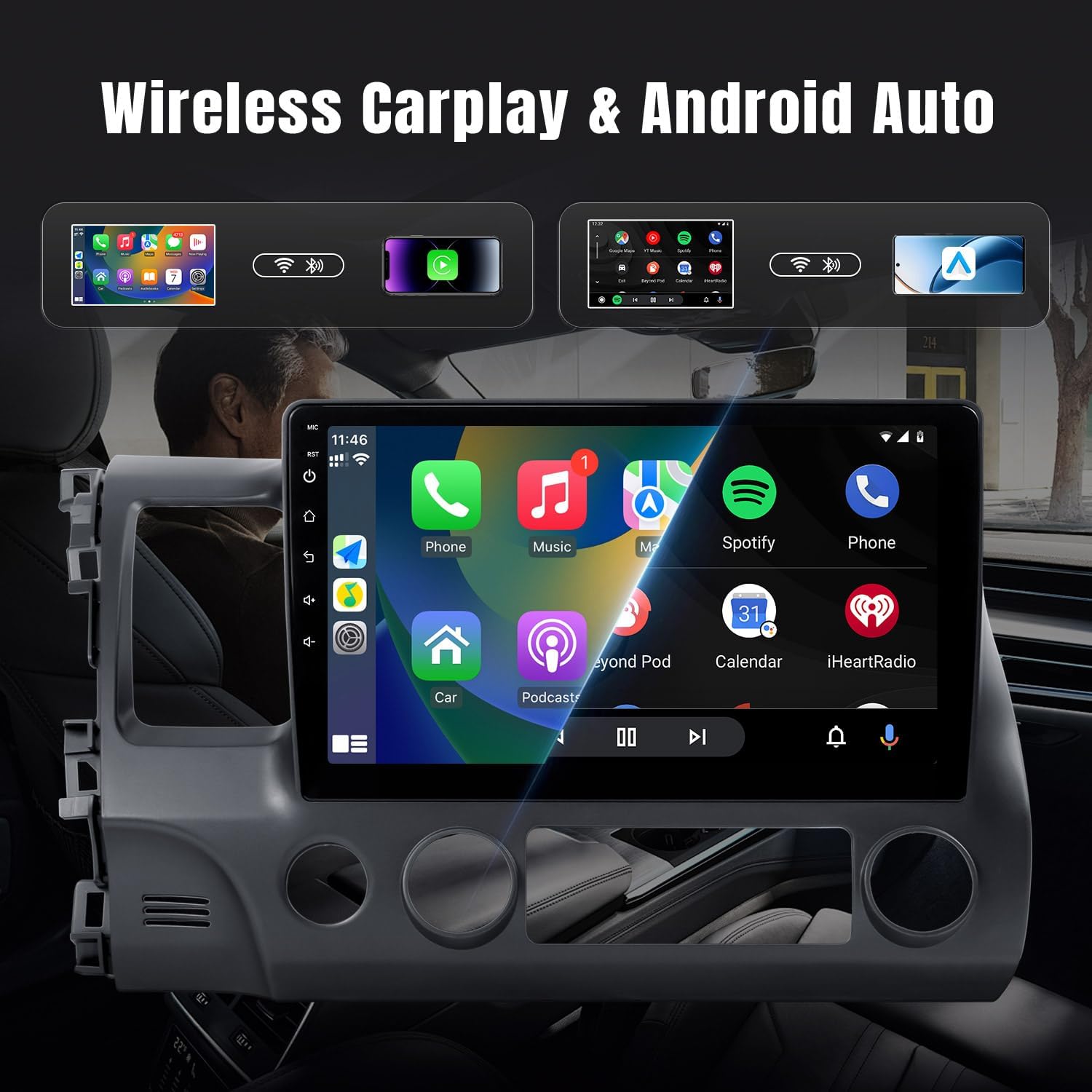
Image: The car stereo display showing the Apple CarPlay interface with various applications like Phone, Music, Maps, and Messages, demonstrating the seamless smartphone integration.

Image: An illustration demonstrating wireless CarPlay and Android Auto functionality, showing an iPhone and an Android phone wirelessly connected to the car stereo, enabling voice commands and app access.
Bluetooth Connectivity (5.0)
The built-in Bluetooth 5.0 module supports hands-free calling and wireless music playback.
- Emparejamento: Go to the Bluetooth settings on the stereo and your phone. Busca available devices on your phone and select 'Leadfan Car Stereo' (or similar name) to pair.
- Chamadas mans libres: Once paired, you can make and receive calls directly from the stereo's screen. The built-in microphone ensures clear communication.
- Transmisión de audio: Play music from your phone wirelessly through the car's speakers.

Image: The Bluetooth interface of the car stereo, displaying options for dialing, call records, contacts, and music playback, with a song currently playing.
Navegación GPS
The stereo comes with a built-in GPS receiver and pre-installed offline maps (e.g., HereWeGo). You can also use online maps when connected to Wi-Fi.
- Mapas sen conexión: Launch the pre-installed navigation app to use offline maps. Ensure maps for your region are downloaded.
- Mapas en liña: Connect the unit to a Wi-Fi hotspot (e.g., from your phone) to use online navigation apps like Google Maps, Waze, etc., downloaded from the Play Store.

Image: The GPS navigation screen on the car stereo, showing a map with a route, estimated arrival time, and distance. Icons for various navigation applications are also visible.

Imaxe: Unha división view demonstrating both GPS navigation and Wi-Fi connectivity, showing the map interface on one side and various streaming and social media applications accessible via Wi-Fi on the other.
Radio FM
The unit features a high-quality FM radio with limitless preset station storage.
- Afinación: Use the touch screen to manually tune to stations or perform an automatic scan to find and save available stations.
- Presets: Garda as túas emisoras favoritas para acceder a elas rapidamente.
Función inversa
When the vehicle is shifted into reverse gear, the screen will automatically display the view from the connected rearview camera, improving safety during parking and maneuvering.
Conexión Wi-Fi
Connect the stereo to a Wi-Fi network or a mobile hotspot to access online features, download apps from the Play Store (e.g., YouTube, Spotify, Pandora), and browse the internet.
Mantemento
Un mantemento axeitado garante a lonxevidade e o rendemento óptimo do equipo de música do teu coche.
- Limpeza da pantalla: Usa un pano suave e sen pelusa para limpar con coidado a pantalla táctil. Para manchas difíciles, limpa lixeiramenteampLimpe o pano con auga ou cun limpador de pantallas. Evite materiais abrasivos ou produtos químicos agresivos.
- Actualizacións de software: Periodically check for system software updates through the unit's settings menu (if available). Updates can improve performance, add new features, and fix bugs.
- Coidado xeral: Avoid exposing the unit to extreme temperatures, direct sunlight for prolonged periods, or excessive moisture. Ensure proper ventilation around the unit.
Resolución de problemas
Esta sección aborda problemas comúns cos que podes atoparte. Para problemas que non aparecen na lista, ponte en contacto co servizo de atención ao cliente.
| Problema | Causa posible | Solución |
|---|---|---|
| Sen Poder | Cableado incorrecto; fusible fundido; problema coa batería do vehículo. | Check power harness connections (ACC, B+). Inspect vehicle fuses. Ensure car battery is charged. |
| Sen son | Speaker wires disconnected; Volume too low; Mute function active; Incorrect audio output settings. | Verify speaker wire connections. Increase volume. Check if mute is enabled. Adjust audio settings. |
| GPS Not Working / Poor Signal | GPS antenna not connected or poorly placed; Offline maps not downloaded; No internet for online maps. | Asegúrese de que a antena GPS estea conectada de forma segura e teña unha visión clara view of the sky. Download necessary offline maps. Connect to Wi-Fi for online maps. |
| Problemas de conectividade Bluetooth | Bluetooth not enabled; Incorrect pairing process; Interference. | Ensure Bluetooth is on for both devices. Delete previous pairings and re-pair. Move away from other electronic devices. |
| CarPlay/Android Auto non se conecta | Bluetooth/Wi-Fi issues; Phone compatibility; App not running. | Check Bluetooth and Wi-Fi connections. Ensure your phone's OS is compatible. Restart phone and stereo. |
| Screen Lag / Unresponsive Touch | Too many apps running; System overload; Software glitch. | Close unnecessary applications. Restart the unit. Perform a factory reset if issues persist (backup data first). |
| Rear Camera Not Displaying | Camera not powered; CAM-IN cable loose; Reverse trigger wire not connected. | Check camera power supply. Secure CAM-IN connection. Ensure reverse trigger wire is correctly wired to the vehicle's reverse light signal. |
Especificacións
Key technical specifications for the Leadfan Car Stereo Radio:
- Número de modelo: 2G+32G+carplay for Honda Civic 2006-2011
- Tamaño da pantalla: 10.1 polgadas
- Sistema operativo: Android 12
- RAM: 2 GB
- ROM: 32 GB
- Tecnoloxía de conectividade: Bluetooth (5.0), USB, Wi-Fi
- Características especiais: Touchscreen, Wireless CarPlay, Android Auto, GPS Navigation, FM Radio, Backup Camera Support, Steering Wheel Control
- Dimensións do produto: 9.64 x 7.08 x 15.35 polgadas
- Peso do artigo: 4.38 libras
- Modo de saída de audio: Estéreo
- Tipo de montaxe: Dashboard Mount (specific to Honda Civic 2006-2011)
Garantía e Soporte
Información da garantía
This Leadfan Car Stereo Radio comes with a 1 ano de garantía desde a data de compra, cubrindo defectos de fabricación. Ademais, unha 12-Month Replacement option is available within this period for eligible issues.
Política de devolución
A 60-Day No Worry Return period is provided, allowing you to return the product if you are not satisfied.
Atención ao cliente
For any questions, technical assistance, or warranty claims, please contact Leadfan customer service. We aim to provide a quick reply within 24 hours. Lifetime after-sales consultation and technical support are available.
You can typically reach Leadfan support via the Amazon messaging system or through the contact information provided on the official Leadfan store page on Amazon.