
1. Introdución
This manual provides essential information for setting up, operating, and maintaining your Bmax Y13 13.3-inch 2-in-1 Touchscreen Laptop. Please read this manual thoroughly before using your device to ensure optimal performance and longevity.

Figure 1: The Bmax Y13 2-in-1 laptop showcasing its versatile convertible design.
2. Configuración
2.1 Desembalaxe e inspección inicial
Your Bmax Y13 laptop is carefully packaged to prevent damage during transit. Upon receiving your device, inspect the packaging for any signs of damage. Carefully remove the laptop and all accessories from the box.
Vídeo 1: Desempaquetado e primeira impresiónview of the Bmax Y13 laptop, demonstrating its physical features and included accessories.
2.2 Acendido e configuración inicial
Connect the provided power adapter to the laptop's DC port and a power outlet. Press the power button located on the side of the device. Follow the on-screen instructions to complete the initial Windows setup, including language selection, network connection, and user account creation.
2.3 System Updates and Driver Installation
After the initial setup, it is highly recommended to perform the following steps:
- Install All Windows Updates: Ensure your operating system is up-to-date for optimal security and performance.
- Install and Run 'Intel Driver Support Assistant': This tool helps identify and install the latest drivers for your Intel components, ensuring compatibility and peak performance.
3. Acabado o hardwareview
3.1 Características físicas
The Bmax Y13 features a sleek, thin all-metal body, weighing approximately 2.8 lbs (1.25 kg) and measuring 12.1" x 8.2" x 0.6". This design makes it highly portable and stylish.

Figure 2: The Bmax Y13's ultra-thin and lightweight metal body, ideal for portability.
3.2 Portos e conectividade
O portátil está equipado con varios portos para unha conectividade versátil:
- Lado dereito: Audio jack, Type-C data-only port, Micro-SD card slot, Power on/off button.
- Lado esquerdo: 12V-2A Power port, Type-C full functionality port (for data transfer, power delivery, and video out).

Figura 3: detallada view of the right-side ports on the Bmax Y13.
3.3 Teclado e panel táctil
The Bmax Y13 features a full-sized, backlit keyboard with two adjustable brightness levels (On/Off, 2-level adjustable via 'Fn+F2'). The keys offer good tactile feedback and travel for comfortable typing. The touchpad is generously sized and responsive.

Figure 4: The backlit keyboard of the Bmax Y13, illustrating the function key for backlight control.
3.4 Display and Convertible Modes
The laptop boasts a 13.3-inch Full HD (1920 x 1080) IPS multi-touch screen with a narrow bezel, providing an immersive viewing experience and excellent color reproduction. The 360-degree durable hinge allows for six versatile usage modes: Laptop, Stand, Tent, Tablet, Portable, and Drawing.

Figure 5: The Bmax Y13 in various convertible configurations.

Figure 6: Visual representation of the six versatile usage modes.
4. Instrucións de funcionamento
4.1 Uso xeral
The Bmax Y13 is designed for everyday productivity and entertainment. It handles common applications like web browsing, document editing, and media playback efficiently. The Intel Celeron N4120 Quad Core Processor (up to 2.6GHz) combined with 8GB DDR4 RAM and a 256GB SSD ensures smooth operation.
Video 2: Demonstration of the Bmax Y13's performance in web browsing, media streaming, and light gaming.
4.2 Xestos na pantalla táctil
The multi-touch screen supports 10-finger input with high precision. Common gestures include:
- Two-finger swipe: Scroll through content.
- Pinch with two fingers: Achegar ou reducir.
- Toque con tres dedos: Open search or switch applications.
- Four-finger tap: Open action center.
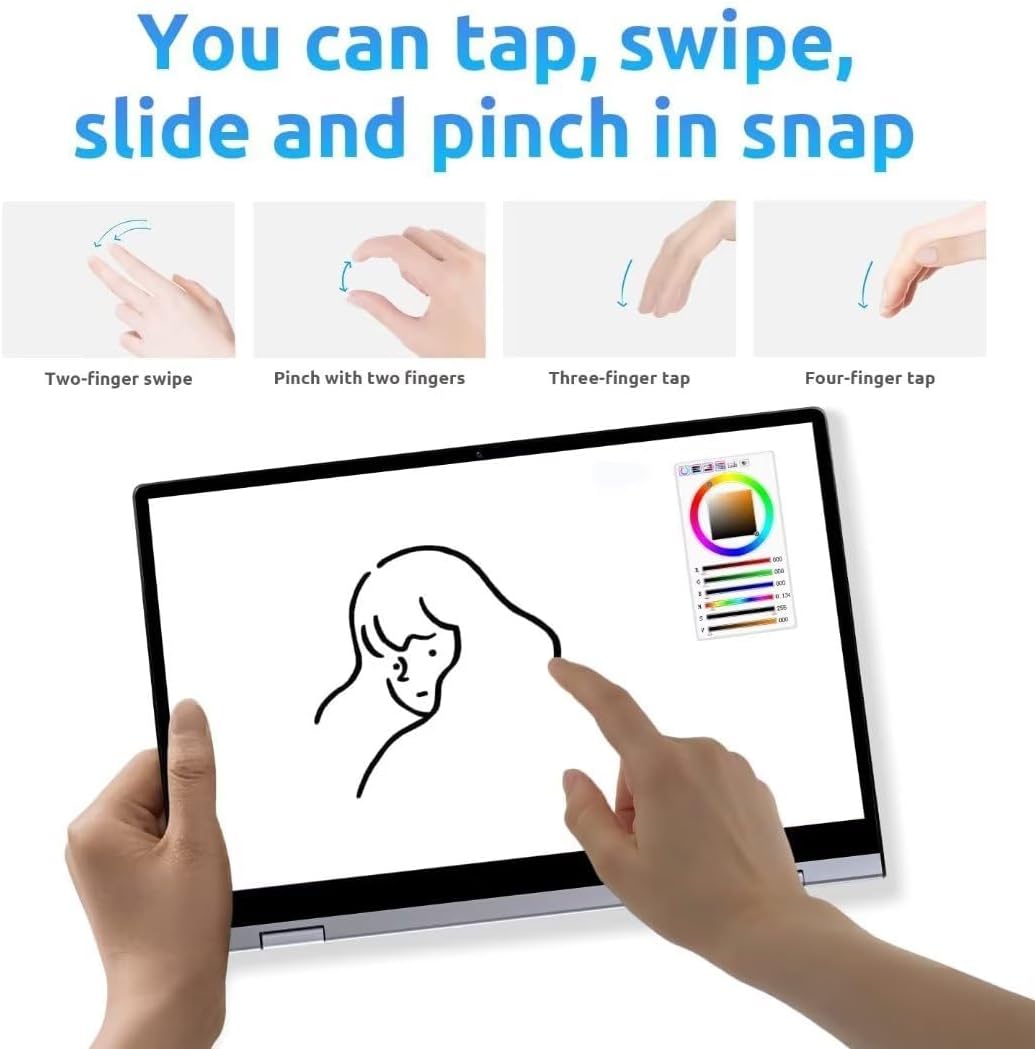
Figure 7: Common touchscreen gestures for navigation and interaction.
4.3 Wireless Screen Projection
The Bmax Y13 supports wireless screen projection, allowing you to display content from your laptop onto a larger screen or projector. This feature is particularly useful for presentations or sharing media.

Figure 8: Using the touchscreen for presentations or content display.
5. Especificacións
| Característica | Especificación |
|---|---|
| Tamaño de visualización da pantalla de pé | 13.3 polgadas |
| Resolución de pantalla | 1920 x 1080 píxeles (FHD) |
| Procesador | Intel Celeron N4120 Quad Core (up to 2.6GHz) |
| RAM | 8 GB LPDDR4 |
| Disco duro | SSD de 256 GB |
| Coprocesador gráfico | Gráficos Intel UHD 600 |
| Tipo sen fíos | 802.11a/g/n/ac, Bluetooth 5.0 |
| Sistema Operativo | OS 10 |
| Peso do elemento | 2.75 libras (1.25 kg) |
| Dimensións do produto | 12.6 x 8.2 x 0.6 polgadas |
| Duración media da batería | 6 horas |
6. Mantemento
To ensure the longevity and optimal performance of your Bmax Y13 laptop, follow these maintenance guidelines:
- Limpeza: Usa un pano suave e sen pelusa para limpar a pantalla e o exterior. Para manchas difíciles,ampEnxugue o pano con auga ou un limpador de pantallas. Evite produtos químicos agresivos.
- Temperatura: Operate the laptop within recommended temperature ranges. Avoid exposing it to extreme heat or cold, and ensure proper ventilation to prevent overheating.
- Actualizacións de software: Regularly update your operating system and drivers to benefit from performance improvements, security patches, and new features.
- Coidado da batería: For optimal battery life, avoid fully discharging the battery frequently. If storing the laptop for an extended period, charge it to about 50-70%.
7 Solución de problemas
If you encounter issues with your Bmax Y13, try the following troubleshooting steps:
- Sen enerxía: Ensure the power adapter is securely connected to both the laptop and a working power outlet. Check if the power outlet is functional.
- Problemas de pantalla: If the screen is blank or flickering, try restarting the laptop. If using an external display, ensure the cable connection is secure.
- Rendemento lento: Close unnecessary applications, check for malware, and ensure your operating system and drivers are updated. Consider freeing up storage space on the SSD.
- Conectividade Wi-Fi/Bluetooth: Ensure Wi-Fi and Bluetooth are enabled in Windows settings. Restart your router or Bluetooth device if connection issues persist.
- Pantalla táctil sen resposta: Restart the laptop. If the issue continues, check for driver updates for the touchscreen.
8. Garantía e soporte
For warranty information and technical support, please refer to the documentation included with your product or visit the official Bmax websitio. Garda o comprobante de compra para reclamacións de garantía.