
Introdución
This manual provides detailed instructions for the Contour Design Wireless Black Balance Keyboard (Model 102104). This keyboard is engineered to complement Contour Design RollerMouse and SliderMouse products, promoting an ergonomic workspace by minimizing reach and supporting a natural hand position.
Características clave
- Deseño ergonómico: Reduces forward reach to minimize wrist and shoulder strain, especially when paired with RollerMouse or SliderMouse.
- Inclinación axustable: Offers negative, neutral, and positive tilt options for personalized comfort and optimal typing posture.
- Funcionalidade completa: Includes a numeric keypad, function keys (F1-F12), media controls, and shortcut keys.
- Conectividade sen fíos: Supports both USB-A receiver (2.4GHz Contour protocol) and Bluetooth connections.
- Compatibilidade entre plataformas: Works with both PC and Mac operating systems.
- Compact Profile: Pro baixofile keys and a slim design optimize desk space.
Contido do paquete
- Contour Design Wireless Black Balance Keyboard
- Receptor USB-A
- 2 pilas AAA (preinstaladas ou incluídas por separado)
- Manual de usuario (este documento)
Configuración
1. Instalación da batería
The keyboard requires 2 AAA batteries. These are typically included with your purchase.
- Localiza o compartimento da batería na parte inferior do teclado.
- Abra a tapa do compartimento.
- Insira as 2 pilas AAA, asegurándose de manter a polaridade correcta (+/-).
- Pecha a tapa do compartimento da batería de forma segura.
2. Conectando o teclado
The Balance Keyboard offers two wireless connection methods: via USB-A receiver or Bluetooth.
Option A: USB-A Receiver (2.4GHz Wireless)
- Locate the USB-A receiver, usually found in the battery compartment or packaged separately.
- Plug the USB-A receiver into an available USB port on your computer (PC or Mac).
- Turn on the keyboard using the power switch, typically located on the side or back.
- The keyboard should automatically connect to your computer. No additional drivers are usually required.
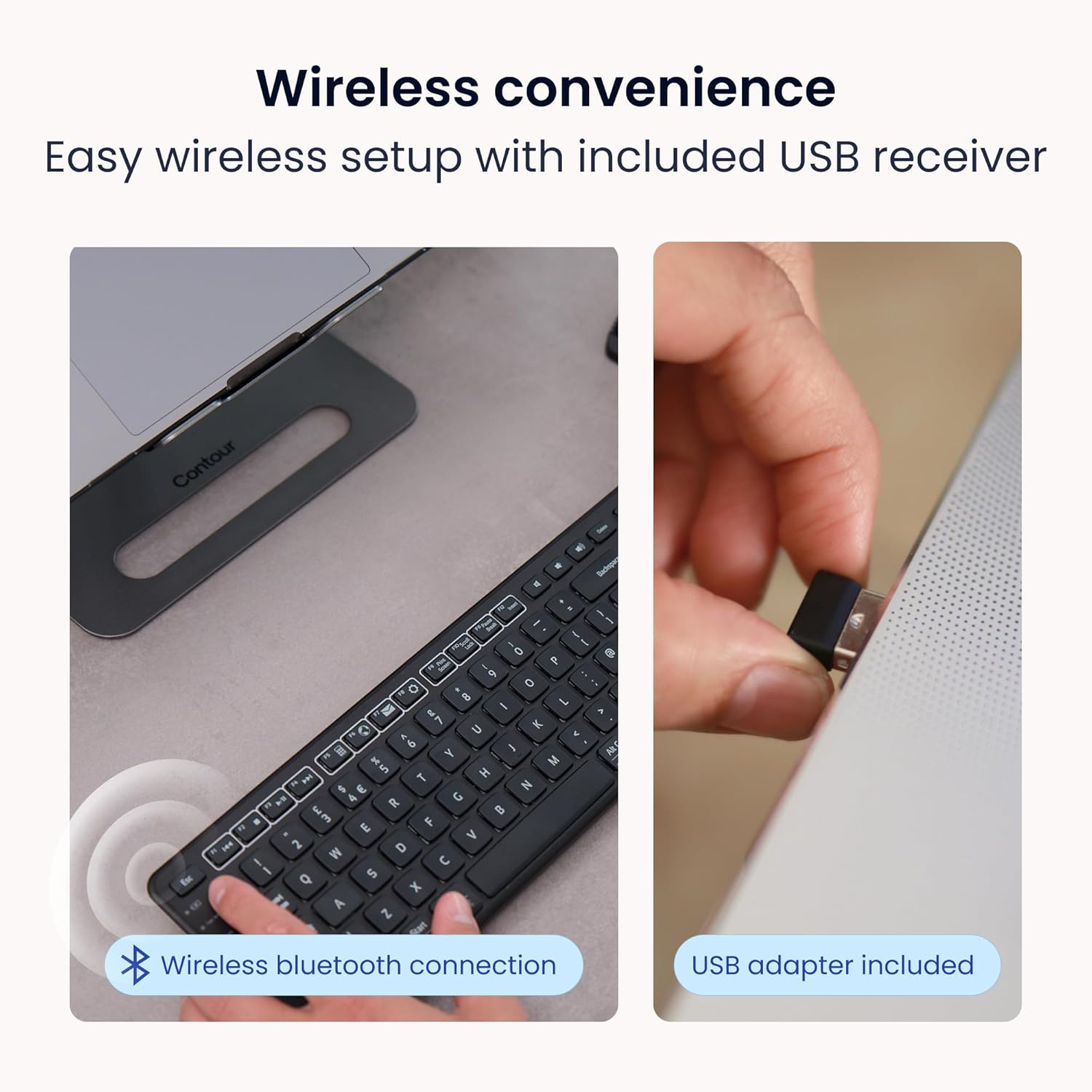
Image: Wireless convenience with USB adapter. This image shows the USB receiver being inserted into a computer port, illustrating the plug-and-play setup for wireless connectivity.
Opción B: Conexión Bluetooth
- Asegúrate de que o teclado estea acendido.
- Activate Bluetooth pairing mode on the keyboard. (Refer to the keyboard's specific button for Bluetooth pairing, often indicated by a Bluetooth icon or a dedicated pairing button).
- On your computer (PC or Mac), open Bluetooth settings.
- Busca available devices and select "Contour Balance Keyboard" or a similar name.
- Siga as indicacións en pantalla para completar o proceso de vinculación.
Instrucións de funcionamento
Basic Typing and Layout
The Balance Keyboard features a standard QWERTY layout with a full numeric keypad.

Imaxe: De arriba abaixo view of the Contour Design Wireless Black Balance Keyboard. This image displays the full keyboard layout, including the numeric keypad and function keys.
Function Keys (F1-F12) and Media Controls
The top row of keys serves dual functions. By default, they may act as media controls (e.g., volume, play/pause) or shortcuts. To access the traditional F1-F12 functions, use the Fn key, typically located near the bottom left of the keyboard. Some keyboards feature an Fn bloqueo feature to toggle between these modes.
Inclinación axustable
The keyboard is designed with adjustable legs to allow for three different tilt positions: negative, neutral, and positive. Adjusting the tilt can help optimize your typing posture and reduce wrist strain.
- Inclinación negativa: Tilts the keyboard downwards towards the user, often considered optimal for a natural hand angle.
- Neutral Tilt: The keyboard lies flat on the desk.
- Inclinación positiva: Tilts the keyboard upwards away from the user, a more traditional keyboard angle.
To adjust, locate the adjustable feet on the underside of the keyboard and extend or retract them as desired.

Image: Adjustable tilt options. This diagram illustrates the three available tilt positions: positive, neutral, and negative, demonstrating how to customize the keyboard angle for comfort.
Pairing with RollerMouse and SliderMouse
The Balance Keyboard is specifically designed to integrate seamlessly with Contour Design RollerMouse Pro and SliderMouse Pro devices. Its compact design minimizes the distance you need to reach, promoting a more centralized and ergonomic workspace.

Image: Seamless RollerMouse pairing. This image shows the Balance Keyboard positioned directly above a RollerMouse, demonstrating an ideal ergonomic setup.

Image: Natural hand position. This image illustrates a user typing on the Balance Keyboard with a RollerMouse, highlighting how the setup keeps hands close and promotes a healthier posture.

Image: Slim profile. A side view of the keyboard on a desk, emphasizing its low-profile keys and compact design that saves desk space.

Image: Ergonomic design in use. This image shows a user working with the Balance Keyboard and a RollerMouse, demonstrating how the setup reduces forward reach and minimizes wrist and shoulder strain. It also highlights compatibility with Mac and Windows, and multiple screens.
Mantemento
To ensure the longevity and optimal performance of your Balance Keyboard, follow these maintenance guidelines:
- Limpeza: Use un pano suave e sen pelusa lixeiramente dampened with water or a mild, non-abrasive cleaner to wipe the surface of the keyboard. Avoid excessive moisture. Do not spray cleaners directly onto the keyboard.
- Eliminación de po: Usa aire comprimido para eliminar o po e os residuos que hai entre as teclas.
- Substitución da batería: Replace AAA batteries when the low battery indicator (if present) illuminates, or when keyboard responsiveness decreases.
- Almacenamento: Cando non o use durante períodos prolongados, garde o teclado nun lugar seco e fresco, lonxe da luz solar directa e de temperaturas extremas.
Resolución de problemas
If you encounter issues with your Balance Keyboard, refer to the following common solutions:
| Problema | Posible Solución |
|---|---|
| Keyboard not responding (USB-A receiver) |
|
| O teclado non responde (Bluetooth) |
|
| As teclas están pegañentas ou non responden |
|
| Batería de curta duración |
|
Especificacións
| Característica | Detalle |
|---|---|
| Número de modelo | 102104 |
| Dimensións do produto | 17.5" de longo x 6" de ancho x 1.5" de alto (44.45 cm x 15.24 cm x 3.81 cm) |
| Peso do elemento | 1.28 libras (0.58 kg) |
| Tecnoloxía de conectividade | RF (2.4GHz via USB-A receiver), Bluetooth |
| Dispositivos compatibles | Mac, PC |
| Fonte de enerxía | 2 pilas AAA (incluídas) |
| Cor | Negro |
| Material | Plástico |
| Características especiais | Adjustable Tilt, Compact Keyboard, Ergonomic, Full-size Keyboard, Numeric Keypad, Plug & Play, Wireless |
Información da garantía
The Contour Design Wireless Black Balance Keyboard is backed by a 2 ano de garantía desde a data de compra. Esta garantía cobre os defectos de fabricación e garante que o produto cumpre cos estándares de rendemento especificados en condicións de uso normal. Conserve o comprobante de compra para reclamacións de garantía.
Apoio
For technical assistance, troubleshooting beyond this manual, or warranty inquiries, please contact Contour Design's customer support team.
- Websitio: Visit the official Contour Design websitio web con recursos de asistencia, preguntas frecuentes e información de contacto.
- Contacto: Consulte a embalaxe ou o manual oficial website for specific contact methods (phone, email, support portal).
Our friendly and professional support team is available to assist you.