1. Introdución
This manual provides comprehensive instructions for the PTHTECHUS Children's Smartwatch, Model A22. This device is designed for children aged 4-12 and features a 1.68-inch HD touchscreen, a variety of educational and entertainment functions, and robust construction.
Key features include 22 pre-installed games, an HD camera for photos and videos, an MP3 player, a pedometer, an alarm clock, a timer, a child lock, an audio book function, a flashlight, and a calculator. It also incorporates learning tools such as flashcards and a habit tracking system to support children's development.

Figure 1.1: PTHTECHUS Children's Smartwatch (Model A22)
2. Información de seguridade
Please read the following safety guidelines carefully before using the smartwatch to ensure safe operation and prevent damage.
- Risco de asfixia: This device contains small parts and is not suitable for children under 3 years of age.
- Seguridade da batería: Do not attempt to disassemble, strike, or throw the device into fire. The battery is not replaceable. Only use the provided charging cable and a power source in 5V/1A while charging.
- Resistencia á auga: The smartwatch is designed to withstand splashes but is not fully waterproof. Avoid submerging the watch in water or exposing it to heavy rain.
- Temperatura: Do not expose the device to extreme temperatures (hot or cold) or direct sunlight for extended periods.
- Limpeza: Use a soft, dry cloth for cleaning. Avoid using harsh chemicals or abrasive materials.

Figure 2.1: Safety warnings and product details on packaging.
3. Contido do paquete
Upon opening the gift box, please verify that all the following items are included:
- PTHTECHUS Children's Smartwatch (Model A22)
- Cable de carga USB
- Manual de usuario (este documento)

Figure 3.1: Smartwatch packaging box.
4. Configuración
4.1 Cargar o reloxo intelixente
Before first use, fully charge the smartwatch. The watch has a 500 mAh Lithium Ion battery.
- Connect the small end of the USB charging cable to the charging port on the smartwatch.
- Connect the larger end of the USB cable to a 5V/1A USB power adapter (not included) or a computer's USB port.
- The charging indicator will appear on the screen. A full charge typically takes 3-4 hours.
- Unha vez cargado completamente, desconecta o cable.
4.2 Acendido/Apagado
- Para acender: Mantén premido o botón de acendido (normalmente no lateral do reloxo) durante uns segundos ata que a pantalla se ilumine.
- Para apagar: Mantén premido o botón de acendido/apagado ata que apareza unha opción de apagado na pantalla. Toca para confirmar.
4.3 Initial Settings (Time, Date, Language)
Upon first power-on or after a factory reset, you may need to set the time, date, and language.
- From the main watch face, swipe to access the app menu.
- Tap the "Settings" icon.
- Navigate to "Time & Date" to adjust.
- Navigate to "Language" to select from the 8 available languages.
5. Instrucións de funcionamento
The smartwatch features a 1.68-inch HD touchscreen for easy navigation. Swipe left/right or up/down to browse through applications and menus.
5.1 Interface principal e navegación
- Reloxo: The default screen displays the time and date. Swipe left or right to change watch faces.
- Menú da aplicación: Swipe up or down from the watch face to access the main application menu.
- Botón Atrás: Use the physical button on the side or an on-screen arrow to go back to the previous screen.
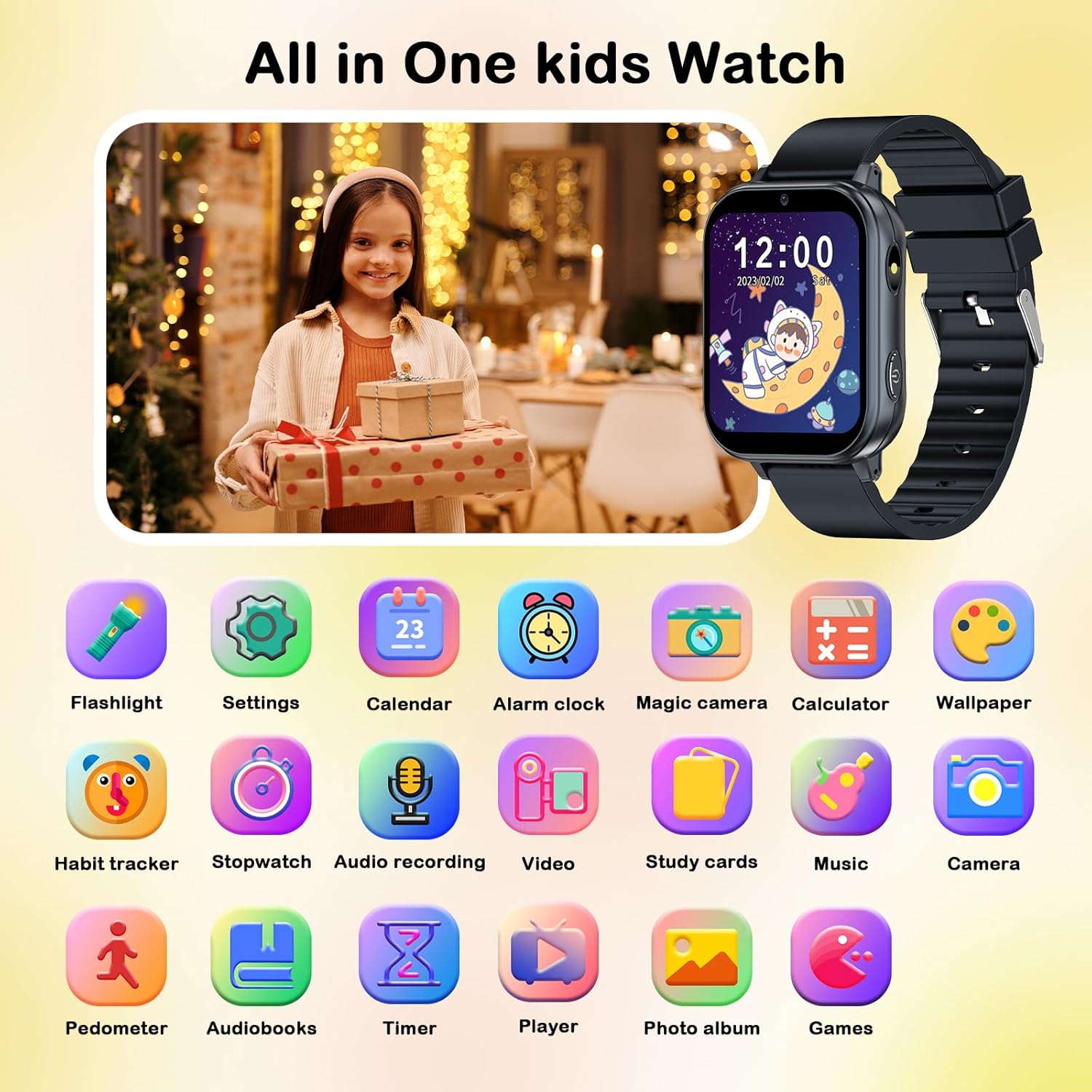
Figura 5.1: Máisview of smartwatch applications.
5.2 Características principais
5.2.1 Games (22 Educational Games)
The smartwatch includes 22 pre-installed educational games designed to enhance logical thinking, responsiveness, and hand-eye coordination. Access them via the "Games" icon in the app menu.

Figure 5.2: Games and Parental Control feature.
Control parental: The watch includes a child lock feature to manage game access. Refer to the "Child Lock" section for details.
5.2.2 HD Camera and Video Recorder
Capture photos and videos with the built-in HD camera. The watch supports pop-up head shots and includes 10 fun stickers for creative expression.
- Toca a icona "Cámara" para abrir a aplicación da cámara.
- Toca o botón do obturador para sacar unha foto ou cambia ao modo de vídeo para gravar.
- Access saved photos and videos in the "Photo Album" or "Video Player" apps.

Figure 5.3: Camera and fun stickers.
5.2.3 MP3 Player and Audio Recorder
The smartwatch functions as an MP3 player. Music files can be transferred to the watch's storage (via USB connection to a computer). It also has an audio recorder.
- Tap the "Music" icon to play MP3 files.
- Tap the "Audio Recording" icon to record voice notes.

Figure 5.4: MP3 Player, Audio Books, and Learning Cards.
5.2.4 Pedómetro
Track daily steps with the built-in pedometer. Access it via the "Pedometer" icon to view datos da actividade.
5.2.5 Alarm Clock, Timer, and Calculator
These utility functions are accessible from the app menu:
- Espertador: Configura varias alarmas para recordatorios.
- Temporizador: Use for timed activities.
- Calculadora: Realizar operacións aritméticas básicas.

Figure 5.5: Timer, Alarm Clock, Calculator, and Pedometer functions.
5.2.6 Habit Tracking and Flashcards
The watch includes educational tools to help children develop good habits and learn new concepts.
- Habit Tracking: Set reminders for daily activities like "Get Up," "Brush Your Teeth," "Breakfast," "Homework," etc.
- Flashcards: Learn about different vegetables, fruits, animals, and colors.

Figure 5.6: Habit Tracking feature.
5.2.7 Audio Books and Torch
- Audio Books: Access pre-loaded audio stories for listening.
- Facho: Activa a lanterna incorporada para a iluminación.
5.2.8 Bloqueo infantil
The child lock feature allows parents to control access to certain functions, such as games, to manage screen time. This setting can be found within the "Settings" menu.
6. Mantemento
6.1 Limpeza
To keep your smartwatch clean and in good condition:
- Limpe a pantalla e a carcasa do reloxo cun pano suave e sen fiapos.
- Para marcas difíciles, d lixeiramenteampEnxágüe o pano con auga. Non empregue produtos de limpeza agresivos, solventes nin materiais abrasivos.
- Asegúrate de que o porto de carga estea libre de po e residuos.
6.2 Coidado coa batería
- Evita descargar completamente a batería con frecuencia.
- Carga o reloxo regularmente, mesmo se non o estás a usar, para manter a batería en bo estado.
- Do not leave the watch charging for excessively long periods after it is fully charged.
7 Solución de problemas
Se tes problemas co teu reloxo intelixente, consulta as seguintes solucións habituais:
| Problema | Posible Solución |
|---|---|
| O reloxo non se acende. | Ensure the watch is fully charged. Connect it to the charger for at least 30 minutes. If it still doesn't turn on, try holding the power button for 10-15 seconds for a forced restart. |
| A pantalla non responde. | Restart the watch by holding the power button. If the issue persists, ensure the screen is clean and dry. |
| A batería esgotarase rapidamente. | Reduce screen brightness. Close unused applications. Limit continuous game playing or video playback. Ensure the watch is fully charged before use. |
| Non se pode transferir files (music/photos). | Ensure the watch is properly connected to the computer via the USB cable. Check if the watch is in data transfer mode (if prompted). Try a different USB port or cable. |
| Games are locked or inaccessible. | Check the Parental Control settings. Ensure the child lock feature is not enabled or is configured correctly. |
Se o problema persiste despois de probar estas solucións, póñase en contacto co servizo de atención ao cliente.
8. Especificacións
| Característica | Detalle |
|---|---|
| Número de modelo | A22 |
| Mostrar | 1.68 Inches HD Touchscreen (LCD) |
| Tipo de batería | Ion de litio |
| Capacidade da batería | 500 millónsamp Horario |
| Conectividade | USB (for charging and data transfer), Bluetooth |
| Material | Silicone (Strap) |
| Entrada da interface humana | Pantalla táctil |
| Dimensións (paquete) | 12.8 x 7.7 x 2.9 cm; 90 g |
| Fabricante | PTHTECUS |
9. Garantía e soporte
The PTHTECHUS Children's Smartwatch comes with a 1 ano de garantía desde a data de compra.
For any questions, technical support, or warranty claims, please contact PTHTECHUS customer service. Contact information can typically be found on the product packaging or the official PTHTECHUS websitio.
Based on the packaging, you may contact:
- Representante da UE: APEX CE SPECIALISTS GmbH, Langenhorner Chaussee 277, 22419 Hamburg, Germany. Email: info@apex-ce.de
- Representante do Reino Unido: APEX CE SPECIALISTS LIMITED, 89 Princess Street, Manchester, M1 4HT, United Kingdom. Email: info@apex-ce.de