
1. Introdución
Thank you for choosing the ONIKUMA CW908 Wired Gaming Mouse. This manual provides detailed instructions on how to set up, operate, maintain, and troubleshoot your new gaming mouse. Please read this manual carefully before use to ensure optimal performance and longevity of your device.
2. Produto rematadoview
The ONIKUMA CW908 is a high-performance wired gaming mouse designed for comfort and precision. It features 7 programmable buttons, adjustable DPI up to 7200, and vibrant RGB lighting. Its ergonomic and lightweight design ensures comfortable use during extended gaming sessions.
2.1 Compoñentes do rato
- Botón esquerdo para premer: Función de clic principal estándar.
- Botón dereito do rato: Función de clic secundario estándar.
- Roda de desprazamento: Para a función de desprazamento e clic central.
- Botón de axuste de DPI: Percorre ciclicamente a configuración de DPI.
- Botón de avance: Navega cara adiante web navegadores ou aplicacións.
- Botón de retroceso: Navega cara atrás en web navegadores ou aplicacións.
- Iluminación RGB: Integrated LED lighting for aesthetic appeal.
- Conector USB: For wired connection to your computer.
2.2 Imaxes do produto
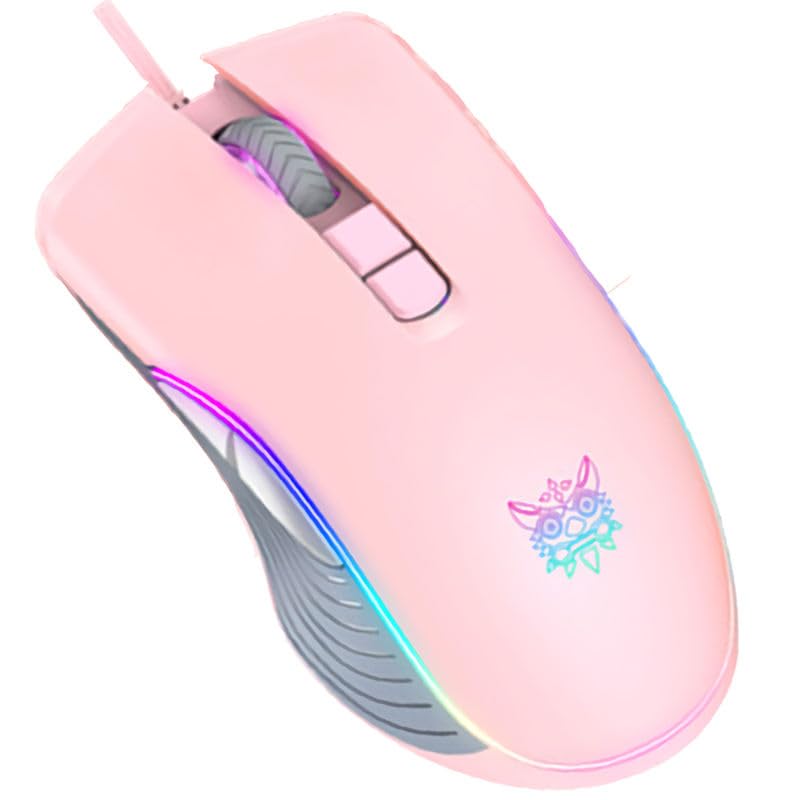
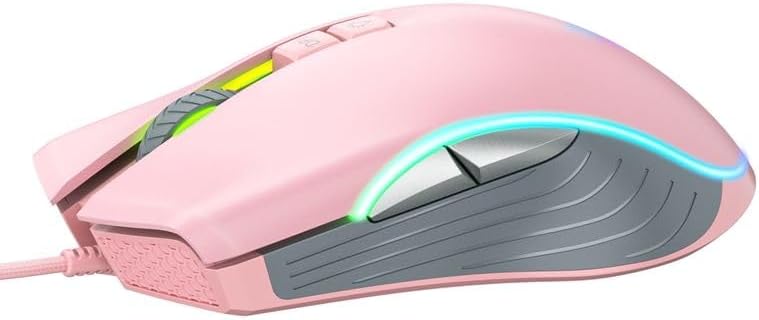
3. Instrucións de configuración
Setting up your ONIKUMA CW908 mouse is a simple plug-and-play process.
- Desembalar o rato: Retire con coidado o rato da súa embalaxe.
- Conectar ao ordenador: Plug the USB connector of the mouse into an available USB port on your personal computer or laptop.
- Instalación de controladores: Your operating system (Windows 7, Windows 98, Linux, or newer versions) should automatically detect and install the necessary drivers. This process may take a few moments.
- Listo para usar: Unha vez instalados os controladores, o rato estará listo para o seu uso inmediato. A iluminación RGB acenderase.
4. Instrucións de funcionamento
The ONIKUMA CW908 mouse offers intuitive controls for both general use and gaming.
4.1 Funcionamento básico
- Move o rato sobre unha superficie plana para controlar o cursor na pantalla.
- Use the Left Click Button for primary actions (e.g., selecting items, opening files).
- Use the Right Click Button for secondary actions (e.g., opening context menus).
- Roll the Scroll Wheel up or down to navigate through documents or web pages. Press the Scroll Wheel for its middle-click function.
4.2 Axuste de DPI
The mouse features an adjustable DPI (Dots Per Inch) setting, allowing you to change cursor sensitivity on the fly. The CW908 supports up to 7200 DPI.
- Preme o Botón de axuste de DPI (usually located behind the scroll wheel) to cycle through different DPI levels.
- Each press will switch to a predefined DPI setting, indicated by a change in the RGB lighting color or pattern (if applicable).
- Select the DPI level that best suits your task, whether it's precise aiming in games or fast navigation across multiple monitors.
4.3 Botóns laterais
The Forward and Backward buttons on the side of the mouse provide quick navigation.
- O Botón de avance typically moves forward in web navegadores ou file exploradores.
- O Botón de retroceso typically moves backward in web navegadores ou file exploradores.
5. Personalización da configuración
While the ONIKUMA CW908 offers plug-and-play functionality, advanced customization for button remapping or more intricate RGB control may require dedicated software. Please check the official ONIKUMA website for any available software downloads specific to the CW908 model.
- Configuración de DPI: As mentioned, the DPI button cycles through preset levels. Software, if available, may allow for custom DPI steps.
- Programación de botones: With compatible software, the 7 buttons can often be remapped to perform specific functions, macros, or keyboard shortcuts, enhancing your gaming and productivity.
- Iluminación RGB: Software can provide more granular control over RGB effects, colors, and brightness, beyond the default cycling modes.
6. Mantemento
Proper maintenance ensures the longevity and performance of your gaming mouse.
- Limpeza: Usa un pano suave e seco para limpar a superficie do rato. Para a sucidade persistente, limpa lixeiramenteampEnxágüe o pano con auga ou unha solución de limpeza suave. Evite produtos químicos agresivos.
- Limpeza de sensores: Ocasionalmente, pode acumularse po ou residuos arredor do sensor óptico na parte inferior do rato. Use un hisopo de algodón ou aire comprimido para limpar suavemente a área do sensor.
- Coidado do cable: Avoid sharply bending or pulling the USB cable. Store the mouse in a way that prevents the cable from being crimped or damaged.
- Almacenamento: Cando non o use, garde o rato nun ambiente limpo e seco, lonxe de temperaturas extremas.
7 Solución de problemas
Se tes problemas co teu rato ONIKUMA CW908, consulta os seguintes problemas e solucións comúns:
| Problema | Causa posible | Solución |
|---|---|---|
| O rato non responde | Conexión USB solta, porto USB defectuoso, problema co controlador. | Ensure USB cable is securely plugged in. Try a different USB port. Restart your computer. Check Device Manager for driver status. |
| O movemento do cursor é errático ou brusco | Sensor óptico sucio, superficie inadecuada da alfombrilla do rato. | Clean the optical sensor on the underside of the mouse. Use a clean, uniform-colored mouse pad. |
| O botón DPI non cambia a sensibilidade | Button malfunction, software conflict. | Ensure the mouse is properly connected. If using custom software, check its settings. Try on another computer to rule out system issues. |
| A iluminación RGB non funciona | Power issue, software setting. | Ensure the mouse is receiving power via USB. If using custom software, check lighting settings. |
8. Especificacións
| Característica | Detalle |
|---|---|
| Marca | ONIKUMA |
| Modelo | CW908 |
| Tecnoloxía de conectividade | USB con cable |
| Detección de Movemento | Óptica |
| DPI (puntos por polgada) | Ata 7200 (axustable) |
| Número de botóns | 7 |
| Características especiais | LED Lighting (RGB), Comfortable Design, Lightweight |
| Uso recomendado | Xogos |
| Dispositivos compatibles | Computadora persoal, portátil |
| Compatibilidade do sistema operativo | Linux, Windows 7, Windows 98 (and newer Windows versions) |
| Estilo | Moderno |
| Cor | Rosa |
9. Garantía e soporte
ONIKUMA products are manufactured to high-quality standards. For specific warranty information, please refer to the warranty card included with your product or visit the official ONIKUMA website. If you require technical support or have questions not covered in this manual, please contact ONIKUMA customer service through their official channels.