
1. Introdución
The Grandstream GWN7002 is a multi-WAN Gigabit VPN router designed to provide robust and secure network solutions for businesses. It features a built-in firewall and supports comprehensive wired, wireless, and VPN networks across single or multiple locations. This manual provides essential information for setting up, operating, and maintaining your GWN7002 router.
2. Produto rematadoview
The GWN7002 router offers a versatile set of ports and features to meet diverse networking requirements.
2.1 Panel frontal
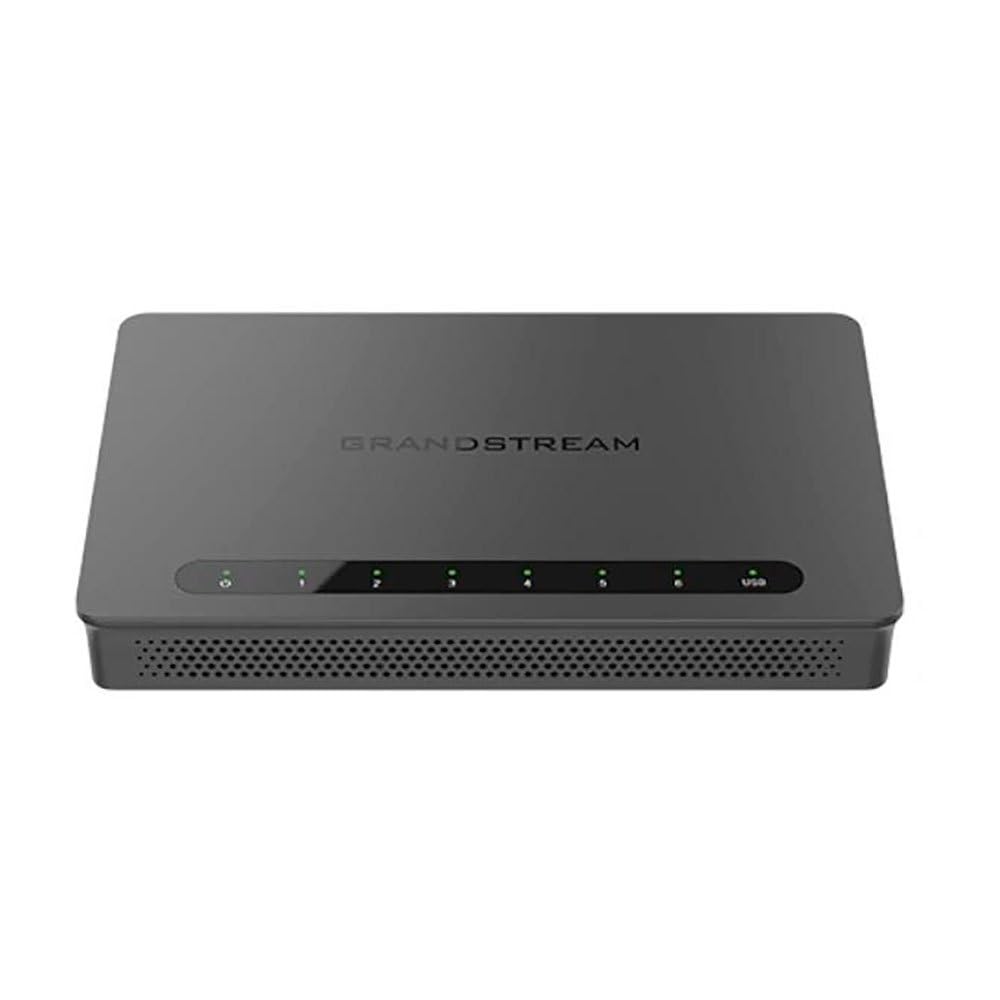
The front panel of the GWN7002 features LED indicators for power, system status, and port activity, providing a quick visual status of the device's operation.
2.2 Panel traseiro e portos
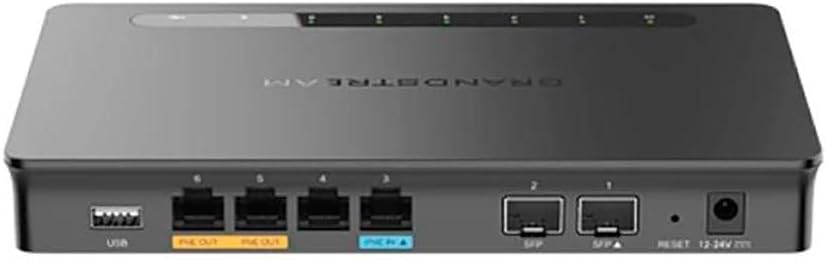
O panel traseiro inclúe varios portos para a conectividade:
- Portos WAN/LAN: Multiple Gigabit RJ45 ports for flexible WAN/LAN configuration.
- Entrada PoE: One GbE RJ45 port with IEEE 802.3af/at PoE Input, allowing the router to be powered via Ethernet.
- Saída PoE: Two GbE RJ45 ports with 48V Passive PoE output or IEEE 802.3af, capable of powering compatible devices.
- Portos SFP: Gigabit SFP ports for fiber optic connectivity.
- Porto USB: Para conectar almacenamento externo ou outros dispositivos USB.
- Botón de reinicio: Úsase para restablecer o dispositivo aos valores predeterminados de fábrica.
- Entrada de enerxía: DC power input (12-24V) for standard power adapter connection.
3. Configuración
Follow these steps for initial setup of your Grandstream GWN7002 router.
3.1 Contido do paquete
Verifique que o seu paquete conteña os seguintes elementos:
- GWN7002 Router Unit
- Adaptador de alimentación
- Guía de inicio rápido (ou documentación similar)
3.2 Instalación de hardware
- Conectar enerxía: Connect the provided power adapter to the router's DC power input. Alternatively, if using PoE, connect an Ethernet cable from a PoE switch or injector to the PoE Input port.
- Conectar á WAN: Connect your internet service provider's modem or main network line to one of the configurable WAN ports using an Ethernet cable.
- Conectar dispositivos LAN: Connect your local network devices (computers, switches, access points) to the LAN ports using Ethernet cables.
- Encendido: Ensure all connections are secure, then power on the router. Wait for the system LED indicators to stabilize.
3.3 Configuración inicial
Acceder ao enrutador web-based configuration interface for initial setup:
- Conectar a LAN: Ensure your computer is connected to a LAN port of the GWN7002.
- Acceso Web IU: Abrir a web navegador e introduza o enderezo IP predeterminado (normalmente
192.168.1.1or check the Quick Start Guide) in the address bar. - Iniciar sesión: Enter the default username and password (typically 'admin' for both, or as specified in the guide).
- Segue o Mago: The router may present an initial setup wizard. Follow the on-screen prompts to configure basic network settings, including WAN connection type, LAN IP address, and Wi-Fi settings (if applicable).
4. En funcionamento
This section covers key operational aspects of the GWN7002 router.
4.1 Configuración de rede
- Servidor DHCP: Configure the DHCP server to automatically assign IP addresses to devices on your local network.
- IP estática: Assign static IP addresses to specific devices if needed.
- VLAN: Create and manage Virtual Local Area Networks (VLANs) for network segmentation and improved security.
4.2 Configuración multi-WAN
The GWN7002 supports multiple WAN connections for enhanced reliability and bandwidth.
- Equilibrio de carga: Distribute internet traffic across multiple WAN links to optimize bandwidth utilization.
- Failover: Configure a backup WAN connection to automatically take over if the primary connection fails, ensuring continuous internet access.
4.3 VPN Support
Utilize the built-in VPN capabilities for secure remote access and site-to-site connections.
- Servidor VPN: Set up the router as a VPN server to allow remote users to securely connect to your local network.
- Cliente VPN: Configure the router to connect to an external VPN server.
- Protocolos compatibles: The router supports various VPN protocols, including IPsec, L2TP, and OpenVPN.
4.4 Cortafuegos e seguridade
- Packet Filtering: Configure rules to filter incoming and outgoing network packets based on various criteria.
- Control de acceso: Manage network access for specific devices or users.
- QoS (calidade de servizo): Prioritize network traffic for critical applications to ensure optimal performance.
5. Mantemento
Regular maintenance ensures the optimal performance and security of your router.
5.1 Actualización de firmware
Keep your router's firmware updated to benefit from the latest features, security patches, and performance improvements. Download the latest firmware from the Grandstream website and follow the instructions in the web UI to perform the upgrade.
5.2 Configuración de copia de seguridade e restauración
Regularly back up your router's configuration settings. This allows you to quickly restore your settings in case of a factory reset or device replacement.
5.3 Restablecemento de fábrica
To restore the router to its factory default settings, press and hold the Reset button on the rear panel for approximately 10 seconds while the device is powered on. Release the button when the system LEDs begin to flash. The router will reboot with default settings.
6 Solución de problemas
This section addresses common issues you might encounter with your GWN7002 router.
6.1 Sen conexión a Internet
- Verifica que o teu módem funciona correctamente e que ten unha conexión a internet activa.
- Check the Ethernet cable connection between the modem and the router's WAN port.
- Asegúrate da configuración WAN no enrutador web UI are correctly configured (e.g., DHCP, Static IP, PPPoE).
6.2 Velocidades de rede lentas
- Comproba a velocidade do teu provedor de servizos de internet.
- Ensure all Ethernet cables are Cat5e or higher for Gigabit speeds.
- Monitor network traffic in the router's web UI to identify any bandwidth-intensive applications or devices.
- Adjust QoS settings to prioritize critical traffic.
6.3 Problemas de conexión VPN
- Verify VPN server/client settings, including IP addresses, authentication methods, and encryption.
- Check firewall rules to ensure VPN traffic is not being blocked.
- Ensure the remote network is reachable.
7. Especificacións
| Dimensións do produto | 9.25 x 9.84 x 2.17 polgadas |
| Peso do elemento | 1.11 libras |
| Número de modelo do artigo | GWN7002 |
| Fabricante | Grandstream |
| Tecnoloxía de conectividade | Wi-Fi (Note: This is a wired router, Wi-Fi connectivity refers to its ability to manage Wi-Fi access points) |
| Característica especial | QoS |
| Portos | Multiple Gigabit RJ45 ports (1x PoE Input, 2x PoE Output), Gigabit SFP ports, USB port |
| Soporte VPN | Built-in VPN support for secure access |
| Multi-WAN | Supports multiple WAN connections for load balancing and failover |
| Cor | Negro |
8. Información de seguridade
Ten en conta as seguintes precaucións de seguridade para evitar danos no dispositivo ou lesións a ti mesmo:
- Non expoña o dispositivo á auga nin á humidade.
- Non coloque o dispositivo preto de fontes de calor nin baixo a luz solar directa.
- Use só o adaptador de alimentación proporcionado co dispositivo.
- Asegúrese de ventilar adecuadamente o dispositivo para evitar o sobreenriquecido.
- Non intente abrir nin reparar o dispositivo vostede mesmo. Consulte persoal de servizo cualificado.
9. Garantía e soporte
For warranty information and technical support, please refer to the documentation included with your product or visit the official Grandstream websitio. Conserve o recibo de compra para reclamacións de garantía.