
VEDINDUST 20230904
VEDINDUST HDMI Splitter Extend User Manual
Modelo: 20230904

Image: The VEDINDUST HDMI Splitter Extend device, a red compact unit with two HDMI output ports (OUT1 4K, OUT2 1080P) and two USB-A cables for input.
1. Introdución
The VEDINDUST HDMI Splitter Extend is designed to enhance your computing experience by allowing you to connect up to two external HDMI displays to a single computer. This device supports both screen mirroring and extended desktop modes, enabling efficient multitasking and expanded workspace. It is compatible with various Windows operating systems.
For optimal performance, please read this manual thoroughly before use and retain it for future reference.
2. Información de seguridade
AVISO:
- Do not use this product in high temperature, humid or corrosive environments.
- Evite expoñer o produto a temperaturas extremas ou substancias corrosivas.
- Este produto está deseñado só para uso en interiores.

Image: Product box displaying safety warnings in multiple languages (UK, DE, FR, IT, ES, NL, BE, TR, SE, PL) and manufacturer details at the bottom.
3. Contido do paquete
Verifique que todos os elementos que se indican a continuación estean incluídos no seu paquete:
- 1 x VEDINDUST HDMI Splitter Extend
- 1 x USB A-A Cable
- 1 x Manual de usuario

Image: Contents of the product package, showing the red HDMI splitter, a black USB A-A cable, and a white user manual.
4. Instrucións de configuración
4.1 Requisitos do sistema
This HDMI splitter is compatible with the following Windows operating systems:
- Windows XP
- Windows VISTA
- Windows 7
- Windows 10
- Windows 11
Note: For better compatibility, please use a Windows PC. macOS, Linux, and Chrome OS are not supported.
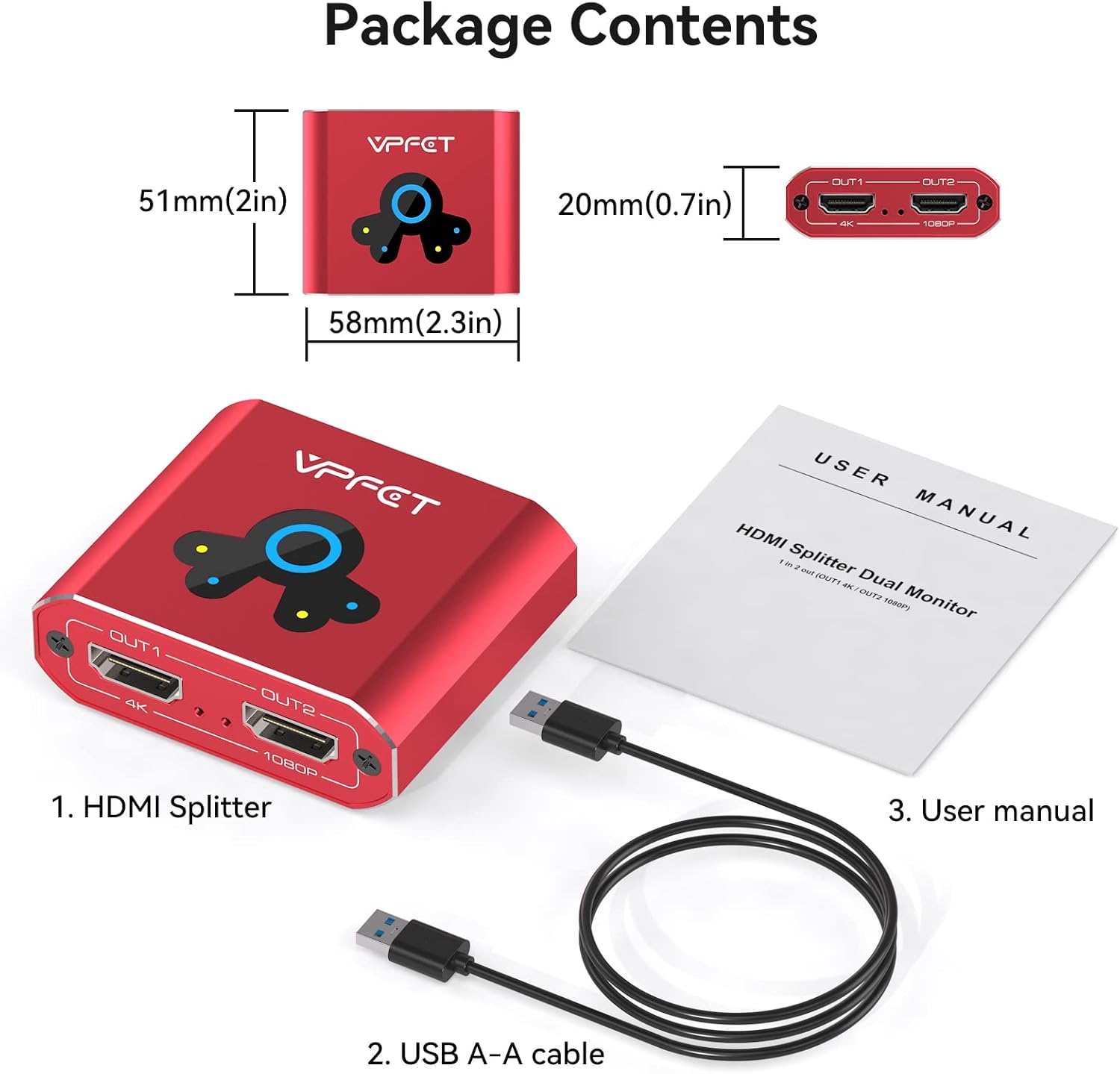
Image: Diagram illustrating system compatibility, showing a green checkmark for Windows PC and red crosses for macOS, Linux, and Chrome OS, indicating non-support.
4.2 Instalación do controlador
Before using the device, the USBDISPLAY driver must be installed. The program needs to run on the integrated graphics card of your computer.
- Locate the driver software (typically provided on a mini-CD or available for download from the manufacturer's websitio).
- Executa o instalador e siga as indicacións en pantalla para completar a instalación.
- For Windows 11 systems, you may need to add the driver to your antivirus whitelist and PC Manager whitelist to ensure proper functionality.
4.3 Conectando o dispositivo
Follow these steps to connect the HDMI splitter to your computer and monitors:
- Conecta o ENTRADA USB port of the HDMI splitter to a USB port on your computer using the provided USB A-A cable.
- Conecta o ENTRADA HDMI port of the HDMI splitter to an HDMI output port on your computer.
- Ensure both the USB port and HDMI IN port are connected to the same computer.
- Connect your primary monitor to the OUT 1 (4K) port on the HDMI splitter using an HDMI cable.
- Connect your secondary monitor to the OUT 2 (1080P) port on the HDMI splitter using an HDMI cable.

Image: Detailed diagram showing the connection flow: PC to HDMI Splitter via USB IN and HDMI IN, then HDMI Splitter to two monitors via OUT1 (4K) and OUT2 (1080P). It also indicates compatibility with Windows PC and non-compatibility with other devices like Apple TV or PlayStation.
5. Modos de funcionamento
The VEDINDUST HDMI Splitter Extend supports various display modes to suit your needs:
5.1 Screen Copy (Mirror) Mode
In this mode, your computer's display is duplicated across both connected external monitors. All three screens (laptop, OUT1, OUT2) will show the same content.

Image: Illustration of A-B-B Extended Mode 1, where the laptop screen (A) is mirrored to both external monitors (B and B), displaying identical content.
5.2 Screen Expansion (Extend) Mode
This mode allows you to extend your desktop across multiple displays, providing more screen real estate for multitasking. You can configure different content on each screen.
There are several configurations for extended mode:
- A-B-C Extended Mode: Your laptop screen (A) displays one content, the first external monitor (B) displays different content, and the second external monitor (C) displays yet another different content. This allows for three distinct displays.
- A-A-B Extended Mode: Your laptop screen (A) and the first external monitor (A) display the same content, while the second external monitor (B) displays different content. This is useful for sharing content on one screen while working on another.

Image: Diagram showing A-B-C Extended Mode 2, where the laptop (A) and two external monitors (B and C) each display unique content, expanding the desktop workspace.

Image: Diagram showing A-A-B Extended Mode 3, where the laptop (A) and one external monitor (A) mirror each other, and the second external monitor (B) displays different content, enhancing work efficiency.
To set up screen duplication or expansion, navigate to your computer's display settings (e.g., right-click on desktop > Display settings in Windows) and configure the monitors as desired.
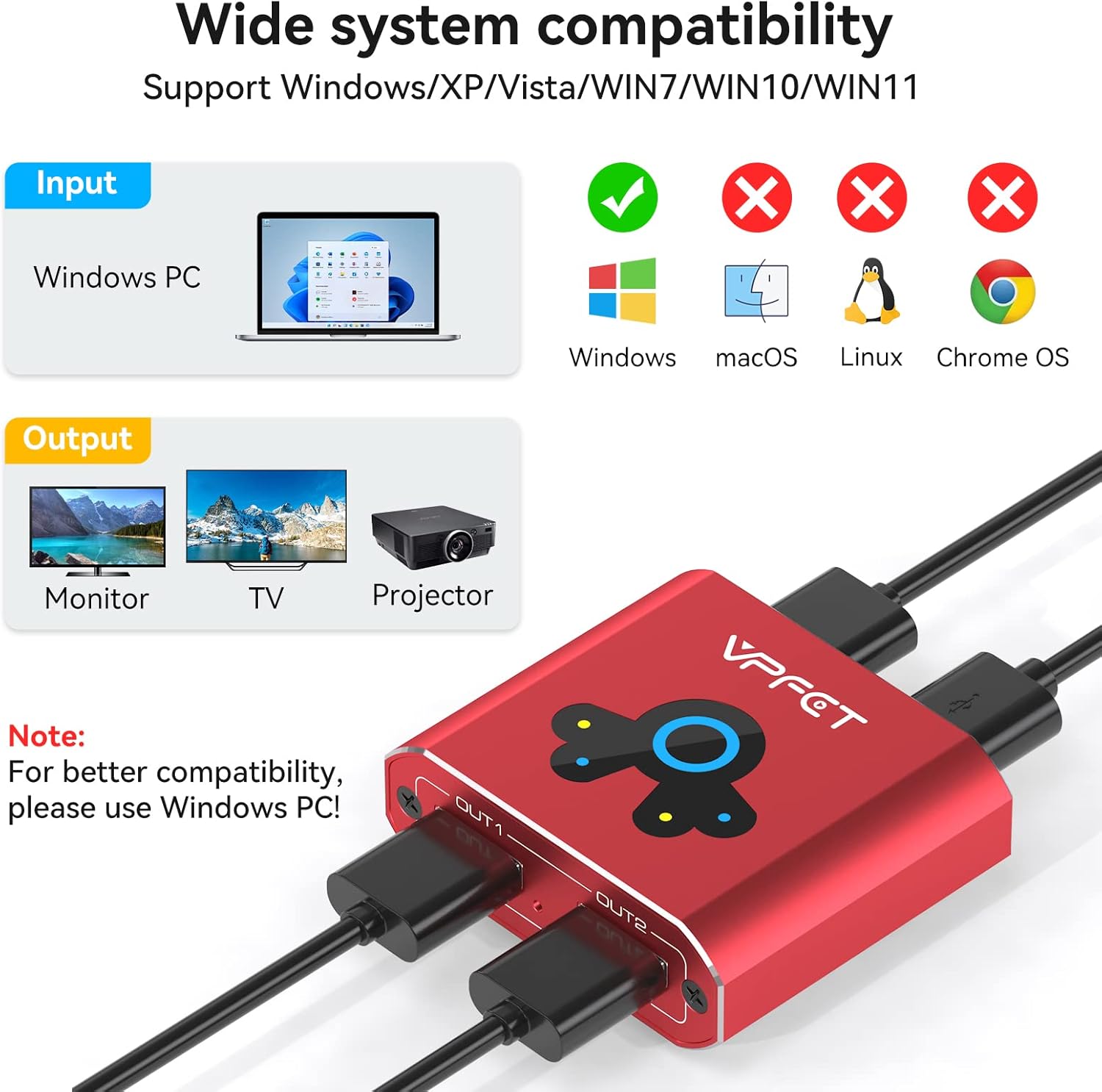
Image: Visual representation of the HDMI Extended Work Mode, demonstrating how different screens can display varied content to improve work efficiency, with a laptop and two external monitors.
5.3 Resolution Support
- Porto OUT 1: Admite resolución de ata 4K@60Hz.
- Porto OUT 2: Admite unha resolución de ata 1080p a 60 Hz.
Important Note on Resolution:
The output resolution is dependent on the USB version of the port you connect to on your computer:
- Connecting to a computer's Porto USB 3.0 will allow for 1080P resolution output.
- Connecting to a computer's Porto USB 2.0 will result in 720P resolution output.
6. Mantemento
The VEDINDUST HDMI Splitter Extend features a durable aluminum metal housing designed for effective heat dissipation and electromagnetic compatibility, contributing to a longer product lifespan.
- Manteña o dispositivo limpo limpo cun pano suave e seco.
- Avoid exposing the device to liquids or excessive dust.
- Non intente desmontar ou reparar o dispositivo vostede mesmo.
7 Solución de problemas
- No Display / Incorrect Resolution:
- Ensure the USBDISPLAY driver is correctly installed and running.
- Verify that both the USB and HDMI IN cables are securely connected to the same computer.
- Check your computer's display settings to ensure monitors are detected and configured for mirror or extend mode.
- Confirm the USB port version on your computer (USB 3.0 for 1080P, USB 2.0 for 720P).
- For Windows 11, ensure the driver is whitelisted in your antivirus and PC Manager software.
- Sen audio:
- Check your computer's sound settings to ensure the correct audio output device is selected.
- Verify that your monitors or connected audio devices have their volume turned up.
- Conexión intermitente:
- Asegúrate de que todos os cables estean firmemente conectados.
- Try using different HDMI or USB cables to rule out cable issues.
- Avoid placing the device near strong electromagnetic interference sources.
If you encounter any problems with your product that are not resolved by the above steps, please contact VEDINDUST customer support for professional solutions.
8. Especificacións
| Característica | Especificación |
|---|---|
| Número de modelo | 20230904 |
| Marca | VEDINDUST |
| Dispositivos compatibles | Monitor, PC |
| Tipo de conector | HDMI |
| Número de portos | 2 (Saída HDMI) |
| Output 1 Resolution | Ata 4K@60Hz |
| Output 2 Resolution | Ata 1080P@60Hz |
| Video Bandwidth (OUT1) | Ata 18 Gbps |
| Video Bandwidth (OUT2) | Ata 3.2 Gbps |
| Material da vivenda | Aluminio, Metal |
| Peso do elemento | 0.17 quilogramos |
| Dimensións do paquete | 14.5 x 7.7 x 5.4 cm |
| Data de primeira dispoñibilidade | 21 de setembro de 2023 |
| Valoración actual | 10 Amps |
| Tipo de enchufe de alimentación | Ningún enchufe |
9. Garantía e soporte
For any product-related issues or inquiries, please contact VEDINDUST customer support. The manufacturer is Shenzhen Videoperfect Technology Co., Ltd.
Contact information for the manufacturer (as seen on packaging):
- Fabricante: Shenzhen Videoperfect Technology Co., Ltd.
- Enderezo: Zone A, 4th Floor, Lilian technology Building, Jiaziang Community, Fenghuang Street, Guangming District, Shenzhen.
- Correo electrónico: service@video-perfects.com
Consulta a documentación da túa compra para coñecer os termos e condicións específicos da garantía.
Ask a question about this manual
Ask about setup, troubleshooting, compatibility, parts, safety, or missing instructions. Manuals+ will review the question and use this page’s manual context to help answer it.