
VssoPlor B0CKP9461G
VssoPlor Compact Wireless Keyboard Mouse Combo
Model: B0CKP9461G
Introdución
Thank you for choosing the VssoPlor Compact Wireless Keyboard Mouse Combo. This ultra-thin and portable set is designed for convenience and efficiency, making it ideal for daily use, business travel, and various computing environments. This manual provides essential information for setting up, operating, maintaining, and troubleshooting your new wireless keyboard and mouse.
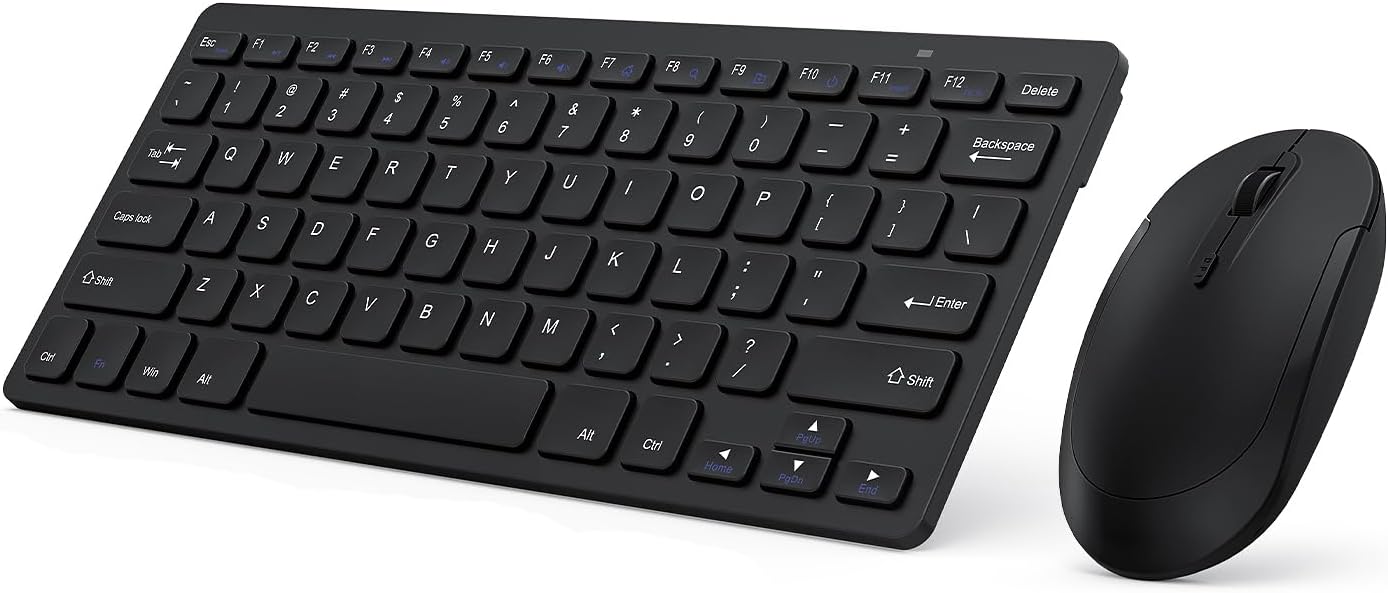
Image: The VssoPlor Compact Wireless Keyboard and Mouse Combo, featuring a sleek black design.
Características clave
- Ultra-Thin & Portable Design: Compact and lightweight, designed for easy transport and space-saving use.
- Stable 2.4GHz Wireless Connection: Provides a powerful and reliable connection up to 33 feet (10 meters) with a single Nano USB receiver.
- Experiencia de escritura silenciosa: Equipped with scissor-switch construction keys for comfortable typing with fast response and good resilience, minimizing noise.
- High Sensitivity Mouse: Features sensitive clicks with less noise and 3 adjustable DPI levels (800/1000/1200) for precise control.
- Compatibilidade ampla: Well compatible with Windows XP, Vista, 7, 8, and 10. (Note: Not fully compatible with Mac OS System).
- Función de suspensión automática: Designed to save energy by entering sleep mode after periods of inactivity.
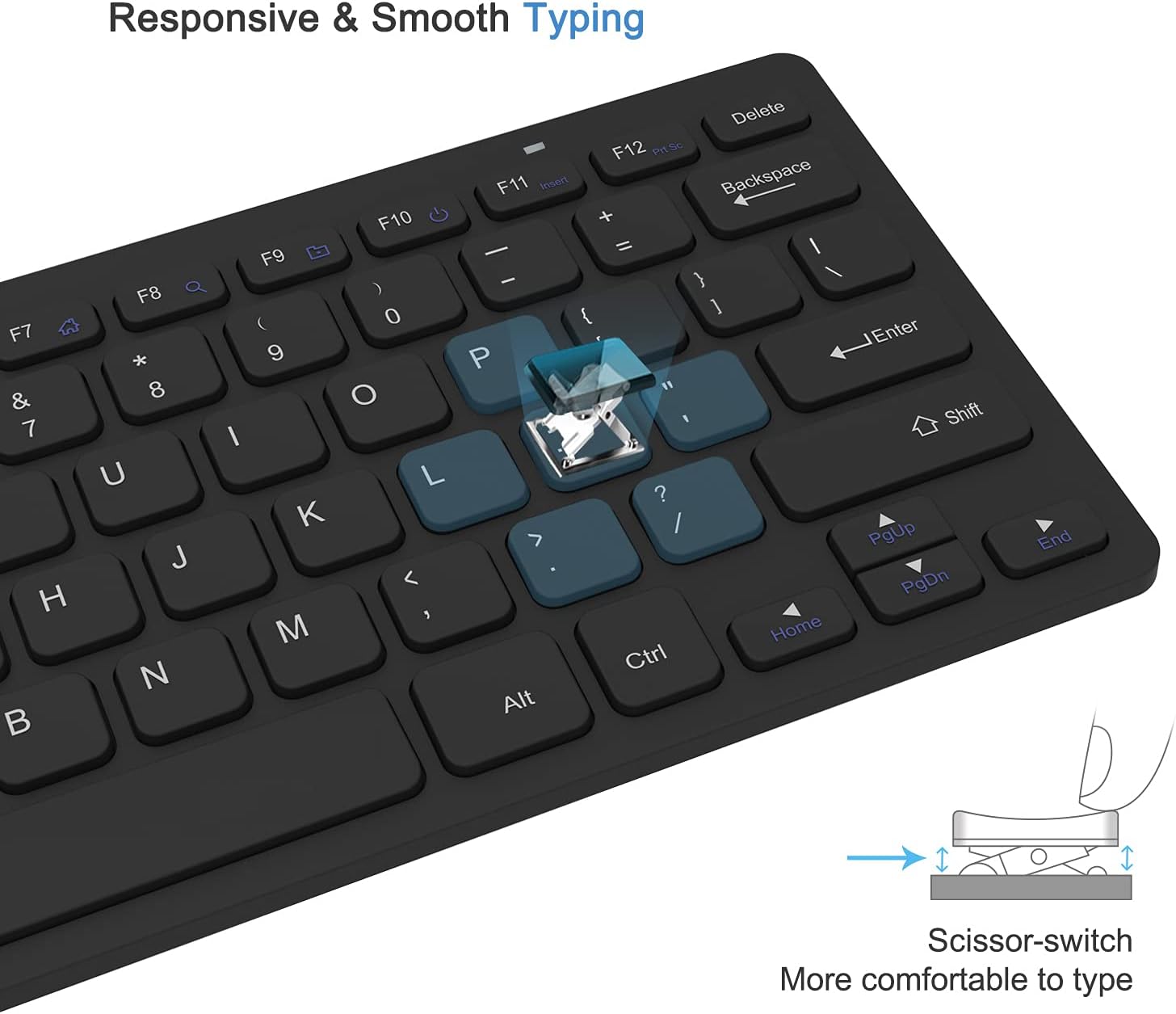
Image: Close-up of the keyboard demonstrating the scissor-switch key mechanism for responsive and smooth typing.

Image: The ultra-thin keyboard and mouse combo being easily stored in a bag, highlighting its portability for leisure, travel, and home use.
Contido do paquete
Comprobe o contido do paquete ao abrilo para asegurarse de que estea presente todos os elementos:
- 1 x Compact Wireless Keyboard
- 1 x rato sen fíos
- 1 x Nano USB Receiver (stored in the keyboard's battery compartment)
- 1 x Manual de usuario (este documento)
Instrucións de configuración
- Instalar baterías:
The keyboard requires 2 AAA batteries and the mouse requires 1 AA battery (batteries are not included). Open the battery compartments on the underside of both the keyboard and the mouse, insert the batteries according to the polarity indicators, and close the covers.
- Localizar o receptor USB:
The Nano USB receiver is conveniently stored inside the battery compartment of the keyboard. Carefully remove it.
- Conectar o receptor:
Plug the Nano USB receiver into an available USB port on your computer (desktop or laptop). Your operating system will automatically detect and install the necessary drivers. This is a plug-and-play device, requiring no additional software installation.

Image: Diagram illustrating the 2.4GHz wireless connection, showing the USB receiver plugged into a laptop and the wireless signal to the keyboard and mouse.
- Dispositivos de encendido:
Locate the power switch on the underside of both the keyboard and the mouse. Slide the switches to the "ON" position. The devices should now be connected and ready for use.
Instrucións de funcionamento
Uso do teclado
- Escritura: Begin typing as you would with any standard keyboard. The scissor-switch keys provide a comfortable and responsive experience.
- Teclas de función: The top row of keys (F1-F12) may have secondary functions (e.g., media control, volume) accessible by pressing the Fn key simultaneously. Refer to the key legends for specific functions.
- Suspensión automática: To conserve battery life, the keyboard will enter sleep mode after approximately 10 minutes of inactivity. To wake it up, press any key for 3 seconds.
Uso do rato
- Operación básica: Use the left and right click buttons for standard mouse functions. The scroll wheel allows for vertical scrolling.
- Axuste de DPI: The mouse features 3 adjustable DPI levels (800/1000/1200) for varying cursor sensitivity. Press the DPI button (usually located near the scroll wheel) to cycle through the settings and find your preferred speed.
- Suspensión automática: The mouse will enter sleep mode after approximately 8 minutes of inactivity. To wake it up, simply move the mouse or click any button.

Image: Illustration of the auto-sleep feature for both the keyboard and mouse, indicating battery requirements and how to reactivate the devices.
Mantemento
- Limpeza: Usa un pano suave e seco para limpar as superficies do teclado e do rato. Para a sucidade persistente, usa un pano lixeiramente seco.amp Pódese usar un pano con xabón suave, garantindo que non entre líquido no dispositivo. Evite produtos de limpeza abrasivos ou solventes.
- Substitución da batería: When the devices become unresponsive or exhibit delayed input, it is likely time to replace the batteries. Follow the "Install Batteries" steps in the Setup section. Always dispose of used batteries responsibly.
- Almacenamento: Cando non os use durante períodos prolongados, apague tanto o teclado como o rato para aforrar batería. Gardeos nun lugar fresco e seco, lonxe da luz solar directa e de temperaturas extremas.
Resolución de problemas
| Problema | Solución |
|---|---|
| Keyboard or mouse is unresponsive. |
|
| O movemento do cursor é errático ou lento. |
|
| Some keys on the keyboard do not work. |
|
Especificacións do produto
| Atributo | Detalle |
|---|---|
| Marca | VssoPlor |
| Modelo | B0CKP9461G |
| Tecnoloxía de conectividade | 2.4GHz Wireless USB |
| Dispositivos compatibles | Laptop, Personal Computer (Windows XP/Vista/7/8/10) |
| Dimensións do teclado (L x A x H) | Approx. 11 x 4.8 x 0.7 inches (at thickest point) |
| Dimensións do rato (L x A x H) | Aprox. 4.3 x 2.2 x 0.6 polgadas |
| Peso do elemento | 13.1 ounces (Keyboard and Mouse combined) |
| Batería de teclado | 2 pilas AAA (non incluídas) |
| Batería do rato | 1 x batería AA (non incluída) |
| DPI Levels (Mouse) | 800/1000/1200 DPI |
| Características especiais | Lightweight, Portable, Scissor-switch keys, Auto-sleep function |

Image: Detailed dimensions of the compact wireless keyboard and mouse.
Garantía e Soporte
For warranty information and technical support, please refer to the warranty card included with your product or visit the official VssoPlor website. You may also contact the seller directly through the platform where you purchased the product for assistance.
For common questions and further assistance, please visit the VssoPlor Store on Amazon.
Ask a question about this manual
Ask about setup, troubleshooting, compatibility, parts, safety, or missing instructions. Manuals+ will review the question and use this page’s manual context to help answer it.