
HP 15.6'' FHD Everyday Laptop User Manual
Model: 15.6'' FHD Everyday Laptop (Intel Core i5-1135G7)
Introdución
This manual provides essential information for setting up, operating, maintaining, and troubleshooting your HP 15.6'' FHD Everyday Laptop. Please read this manual thoroughly to ensure proper use and to maximize the performance and longevity of your device.
1. Configuración
1.1 Desembalaxe
Retire con coidado todos os compoñentes da embalaxe. Comprobe que estean presentes todos os elementos que se indican a continuación:
- HP 15.6'' FHD Everyday Laptop
- Adaptador de alimentación de CA.
- Cable de alimentación
- 32GB USB Card (Bonus Accessory)
- Guía de inicio rápido (se corresponde)
1.2 Encendido inicial
- Connect the AC power adapter to the laptop's AC smart pin port.
- Enchufe o cable de alimentación nunha toma eléctrica.
- Abre a tapa do portátil.
- Press the power button, typically located on the keyboard deck, to turn on the laptop.
- Sigue as instrucións en pantalla para completar o proceso de configuración de Windows 11 Home. Isto inclúe seleccionar a túa rexión, conectarte a unha rede Wi-Fi e crear unha conta de usuario.

Figura 1: HP 15.6'' FHD Everyday Laptop powered on, displaying Windows 11. The image highlights 12GB RAM, 512GB SSD, Intel Iris Xe Graphics, and Intel Core i5 processor.
2. Manexo do portátil
2.1 Teclado e panel táctil
The laptop features a full-size keyboard with a numeric keypad for efficient data entry. The integrated touchpad allows for precise cursor control and multi-touch gestures.
- Teclado numérico: Located on the right side of the keyboard for quick number input.
- Teclas de función: Usa o Fn en combinación coas teclas F1-F12 para varias funcións como axustar o brillo, o volume ou activar/desactivar o Wi-Fi.
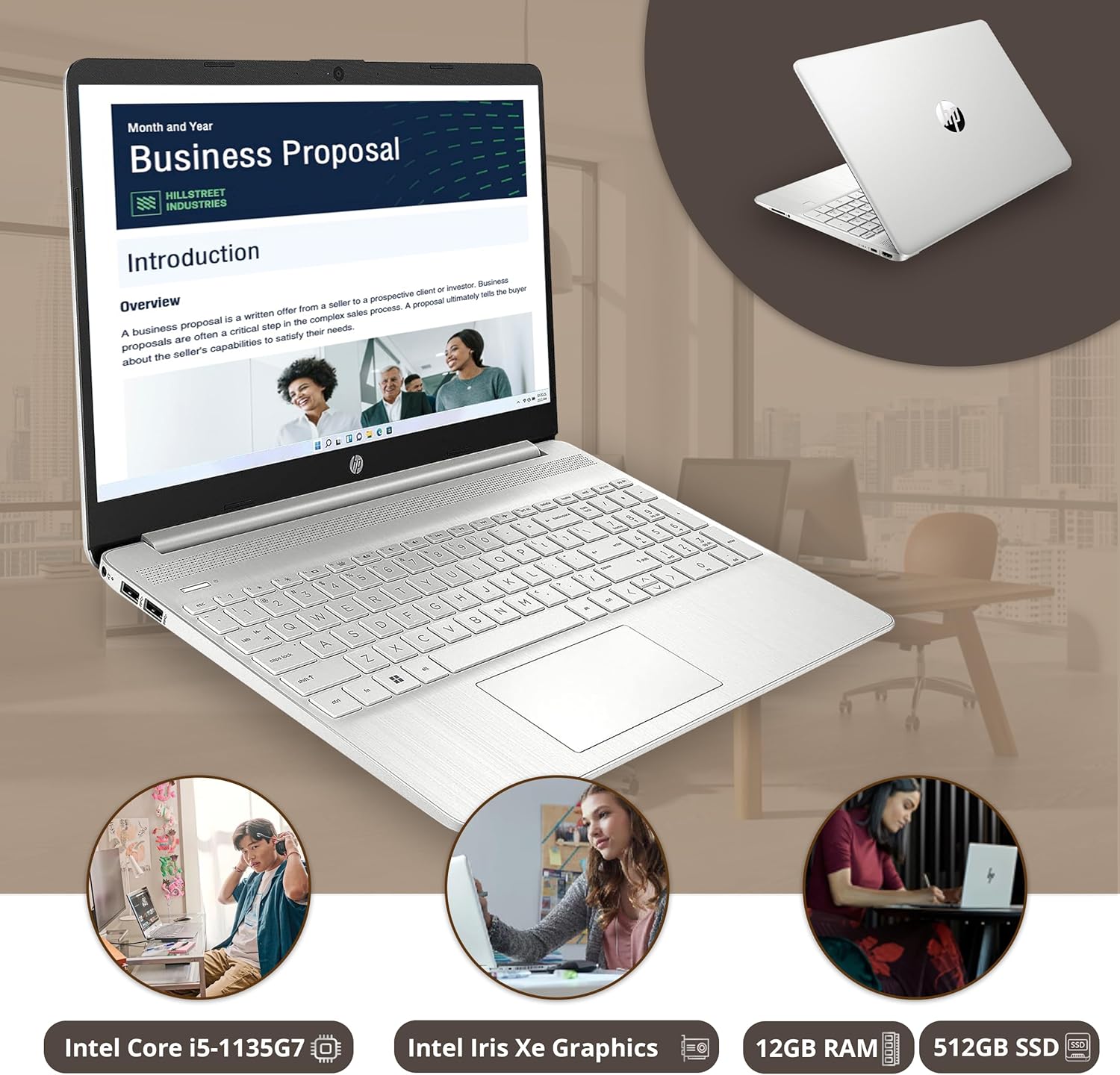
Figura 2: HP laptop in use, displaying a business proposal document. This image illustrates the laptop's design and screen clarity for productivity tasks.
2.2 Conexión de periféricos
O teu portátil está equipado con varios portos para conectar dispositivos externos:
- SuperSpeed USB Type-A (x2): For standard USB devices like mice, keyboards, or external drives.
- SuperSpeed USB Type-C (x1): A versatile port for data transfer, charging, and video output (with compatible adapters).
- HDMI 1.4: Conectar a pantallas ou proxectores externos.
- Toma combinada de auriculares/micrófono: Para entrada/saída de son.
- Multi-format SD Media Card Reader: Para ler tarxetas SD.
- Pin intelixente de CA: Para conectar o adaptador de alimentación.

Figura 3: Detallado view of the HP laptop's multi-ports, including SD Card Reader, Headphone jack, SuperSpeed USB Type-C, HDMI 2.1, AC smart pin, and SuperSpeed USB Type-A.
2.3 Conectividade sen fíos
The laptop supports Wi-Fi 6 and Bluetooth for wireless connections.
- Wi-Fi 6: Provides faster and more reliable internet connectivity. Access Wi-Fi settings via the Windows taskbar network icon.
- Bluetooth: For connecting wireless headphones, speakers, and other Bluetooth-enabled devices. Manage Bluetooth devices through Windows Settings > Bluetooth & devices.

Figura 4: HP laptop screen displaying Wi-Fi and Bluetooth connectivity icons, indicating stable connections and convenient features.
2.4 Multitarefa e entretemento
The laptop's Intel Core i5 processor and 12GB RAM enable smooth multitasking across various applications. The 15.6-inch FHD display with Intel Iris Xe Graphics provides a clear and vibrant visual experience for both work and entertainment.

Figura 5: HP laptop demonstrating effortless multitasking with multiple applications open simultaneously, including a video streaming service and a messaging app.

Figura 6: HP laptop showcasing dynamic visualization with a nature documentary playing on its 1920 x 1080 resolution screen, highlighting stunning clarity and vibrant colors.

Figura 7: HP laptop positioned on a desk, illustrating comfortable entertainment with a video call or streaming content displayed on the screen.
2.5 Uso da batería
The laptop is designed for extended battery life, allowing you to work or enjoy content throughout the day without constant recharging.

Figura 8: A user working on the HP laptop in a cafe, demonstrating the ability to power through the day with uninterrupted collaboration and increased productivity.
3. Mantemento
3.1 Limpeza
Para manter a aparencia e a funcionalidade do teu portátil:
- Use un pano suave e sen fiapos para limpar a pantalla e as superficies exteriores.
- Para manchas difíciles, aplique lixeiramenteampLimpe o pano con auga ou cun limpador de pantallas.
- Avoid spraying liquids directly onto the laptop.
- Limpa o teclado e o panel táctil regularmente para eliminar o po e os residuos.
3.2 Actualizacións de software
Keep your Windows operating system and drivers updated to ensure optimal performance and security.
- Actualizacións de Windows: Vaia a Configuración > Actualización de Windows para comprobar e instalar actualizacións.
- Actualizacións de controladores: HP provides driver updates through their support websitio web ou o software HP Support Assistant.
3.3 Coidado coa batería
Para prolongar a duración da batería:
- Evita temperaturas extremas.
- Non descargues completamente a batería con frecuencia.
- If storing the laptop for an extended period, charge the battery to around 50-70%.
4 Solución de problemas
4.1 Problemas de enerxía
- O portátil non se acende: Ensure the power adapter is securely connected to both the laptop and a working electrical outlet. Try a different outlet.
- A batería non se carga: Verify the power adapter is functioning. Check for any physical damage to the adapter or charging port.
4.2 Problemas de visualización
- Pantalla en branco: Connect an external monitor to check if the display output is working. If the external monitor works, there might be an issue with the laptop's internal display.
- Pantalla parpadeante: Update your graphics drivers. Adjust the display refresh rate in Windows settings.
4.3 Problemas de conectividade
- Wi-Fi sen conexión: Ensure Wi-Fi is enabled. Restart your router and the laptop. Check network settings in Windows.
- Dispositivo Bluetooth sen emparellamento: Ensure the Bluetooth device is in pairing mode. Check Bluetooth settings on the laptop and restart the Bluetooth service if necessary.
5. Especificacións
| Característica | Detalle |
|---|---|
| Nome do modelo | HP 15.6'' FHD Everyday Laptop |
| Procesador | Intel Core i5-1135G7 (up to 4.2 GHz, 8 MB L3 cache, 4 cores) |
| Gráficos | Gráficos Intel Iris Xe |
| Mostrar | 15.6-inch FHD (1920 x 1080) micro-edge, anti-glare |
| RAM | 12 GB DDR4 SDRAM |
| Almacenamento | Unidade de estado sólido (SSD) M.2 NVMe PCIe de 512 GB |
| Sistema Operativo | Windows 11 Home |
| Conectividade sen fíos | Wi-Fi 6 (802.11ax) and Bluetooth Combo |
| Portos | 2x SuperSpeed USB Type-A, 1x SuperSpeed USB Type-C, 1x HDMI 1.4, 1x Headphone/Microphone Combo, 1x Multi-format SD Media Card Reader, 1x AC Smart Pin |
| Cámara | HP True Vision 720p HD Camera with integrated dual array digital microphones |
| Dimensións (LxWxH) | 14.11 x 9.02 x 0.73 polgadas |
| Peso | 3.75 libras |
| Cor | Prata Natural |

Figura 9: HP laptop highlighting its ultra-portability with dimensions of 14.11 inches length, 9.53 inches width (approx), and 0.71 inches thickness.
6. Garantía e soporte
6.1 Garantía do produto
This product is sold as a renewed item. Please refer to the specific warranty terms provided by the seller or Amazon Renewed program at the time of purchase. Typically, renewed products come with a limited warranty.
6.2 Soporte técnico
Para obter asistencia técnica, descargas de controladores ou máis soporte, visite o sitio web oficial de soporte de HP website or contact their customer service. Have your product model and serial number ready when seeking support.
For issues related to your renewed purchase, contact the seller directly or Amazon Renewed support.
6.3 Política de devolución
This product is subject to a 30-day refund/replacement return policy from the date of purchase. Please consult your purchase documentation for full details.