
1. Introdución
The tenlamp G1 Live Sound Card is an integrated audio mixer designed for live streaming, podcasting, recording, singing, and gaming. This equipment bundle includes the G1 audio console and two 3.5mm studio condenser microphones, providing a comprehensive solution for audio production. This manual provides detailed instructions for setting up, operating, maintaining, and troubleshooting your G1 system.
2. Contido do paquete
Antes de continuar, comproba que todos os elementos estean presentes no teu paquete:
- tenlamp Consola de audio G1
- 2 x 3.5mm Studio Condenser Microphones
- Microphone Stands and Pop Filters
- USB-C to USB-A Cable (for power and data)
- 3.5mm TRRS Audio Cables (for mobile device connection)
- Manual de usuario
3. Produto rematadoview
The tenlamp G1 audio console features multiple inputs and outputs, along with various controls for audio mixing and effects. Familiarize yourself with the layout before setup.

Image: The tenlamp G1 Live Sound Card and two condenser microphones set up for a two-person podcast, demonstrating a typical usage scenario.
3.1 Controis do panel frontal
- Mic VOL Fader: Adjusts the input volume of the connected microphones.
- Music VOL Fader: Axusta o volume da entrada de música de fondo.
- Monitor VOL Knob: Controls the volume of the monitoring headphones.
- Output VOL Knob: Controla o volume de saída principal.
- Reverb Effect Fader: Adjusts the intensity of the reverb effect.
- Ecualizador de agudos/graves: Adjusts high and low frequencies for microphone input.
- Voice-change Buttons: Activates various voice modulation effects.
- Sound Pad Buttons: Triggers pre-loaded sound effects.
- Noise Reduction Buttons: Activates different levels of intelligent noise reduction.
3.2 Conexións do panel traseiro

Imaxe: Unha detallada view of the tenlamp G1 audio console's rear panel, showing various input and output ports including USB-C, Output, Music, Monitor, Headset, and Mic inputs.
- Porto USB-C: For power supply, data transfer to computer, and digital audio I/O. Note: Does not support USB mic connection via this port.
- Output Ports (TRRS): Connects to mobile devices for live streaming or recording.
- Entrada de música: Connects external audio sources (e.g., phone, tablet) for background music.
- Saída do monitor: Connects monitoring headphones.
- Entrada de auriculares: Connects a headset with integrated microphone.
- Mic Inputs (3.5mm): Connects the included 3.5mm condenser microphones.
4. Guía de configuración
Follow these steps to set up your tenlamp G1 Live Sound Card for optimal performance.
- Conectar micrófonos: Insert the 3.5mm plugs of the condenser microphones into the designated Mic input jacks on the rear panel of the G1 console. Secure microphones on their stands.
- Connect Monitoring Headphones: Conecta os teus auriculares ao Monitor toma de saída.
- Connect to Power/Computer: Connect the USB-C end of the provided cable to the USB-C port on the G1 console and the USB-A end to your computer's USB port or a power adapter. The device will power on.
- Connect to Mobile Device (Optional): If live streaming or recording on a mobile device, use the TRRS audio cables to connect the Saída ports on the G1 to your mobile device's headphone jack.
- Connect Music Source (Optional): If using external background music, connect your music device to the Música toma de entrada.
5. Instrucións de funcionamento
This section details how to use the various features of your tenlamp G1 Live Sound Card.
5.1 Mestura básica de audio
- Axustar o volume do micrófono: Usa o Mic VOL fader to control the loudness of your voice.
- Axustar o volume da música: Usa o Music VOL fader to balance the background music with your voice.
- Monitor Your Audio: Axustar o Monitor VOL knob to set a comfortable listening level in your headphones.
- Control Output Volume: O Output VOL knob controls the overall volume sent to your recording device or live stream.

Image: A close-up of the tenlamp G1 audio console, illustrating the various knobs and faders for fine-tuning audio parameters such as microphone volume, music volume, monitoring, output, reverb, treble/bass, and voice effects.
5.2 Redución do ruído
The G1 features intelligent noise reduction to enhance audio clarity.
- Prema o botón dedicado Redución de ruído buttons (e.g., "Denoise1", "Denoise2", "Denoise3") to activate different levels of noise cancellation. Experiment to find the best setting for your environment.

Image: The tenlamp G1 audio console displaying its noise reduction capabilities, with three distinct levels labeled "Cheer Denoise1", "Kiss Denoise2", and "Guffaw Denoise3" for clear and clean audio recording.
5.3 Special Streaming Features
Enhance your live streams and recordings with these integrated functions:
- Dodge (Auto Ducking): When activated, this feature automatically lowers background music volume when you speak into the microphone, making your voice clearer.
- Eliminar voces: This function attempts to remove the vocal track from accompaniment music, allowing you to sing over instrumental versions.
- Loopback: Enables recording of internal PC audio along with your microphone input via the USB-C connection.

Image: The tenlamp G1 audio console showcasing convenient features for streaming, including "Dodge" for auto-ducking microphone input, "Remove Vocals" to eliminate vocals from accompaniment, and "Loopback" for recording PC internal audio via USB-C.
5.4 Creating Atmosphere
Utilize the built-in effects to customize your audio environment:
- Voice Changers: Select from 4 different voice modulation effects.
- Modos de reverberación: Choose from 5 preset reverb modes to add depth to your vocals.
- Sintonización automática: Apply 12-step auto-tune for pitch correction.
- Almofadas de son: Trigger various sound effects using the dedicated buttons.
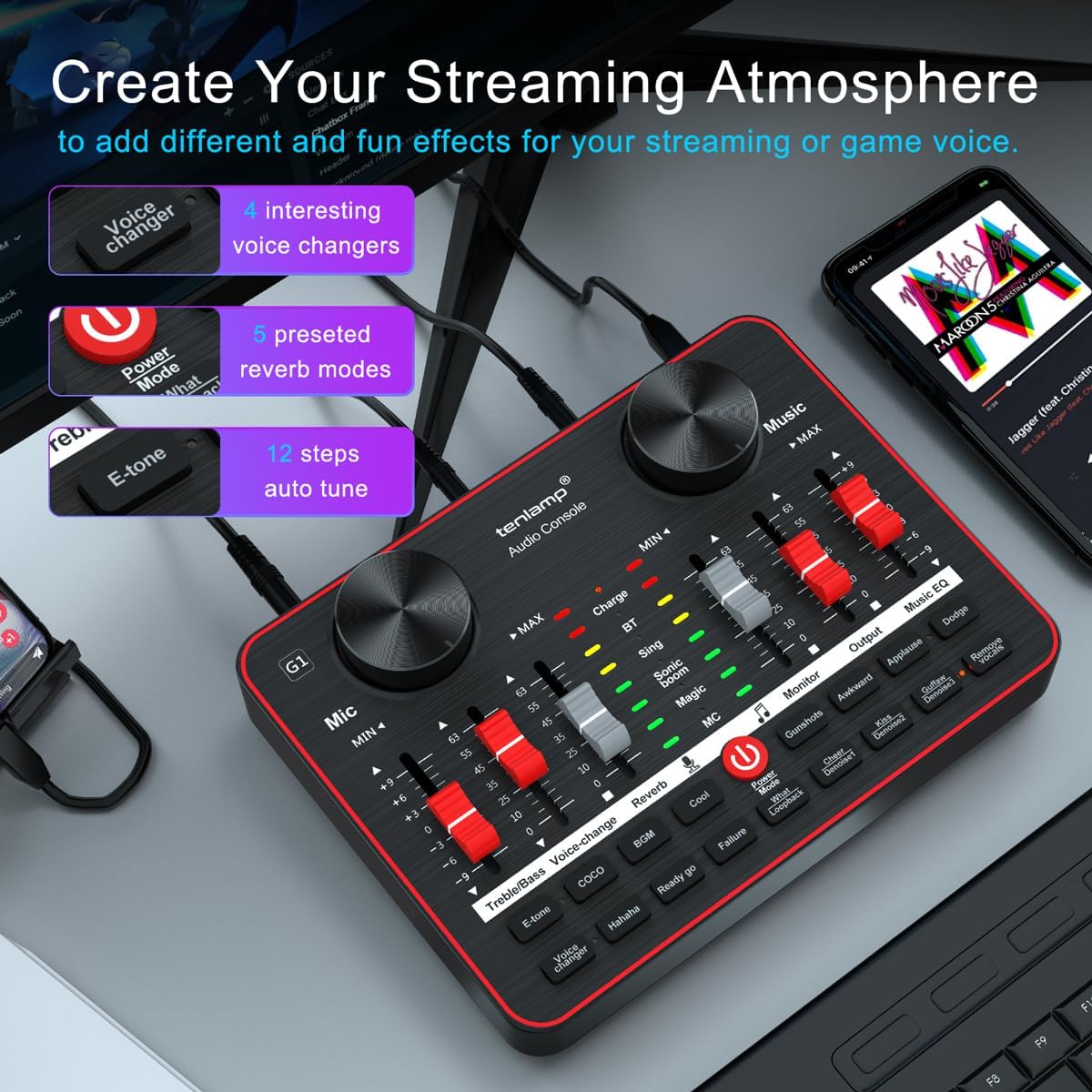
Image: The tenlamp G1 audio console highlighting features designed to create a streaming atmosphere, such as 4 interesting voice changers, 5 preset reverb modes, and 12 steps of auto-tune.
6. Mantemento
Proper care ensures the longevity and performance of your tenlamp Sistema G1.
- Limpeza: Use a soft, dry cloth to wipe the surface of the audio console and microphones. Avoid liquid cleaners or abrasive materials.
- Almacenamento: Garde o dispositivo nun lugar fresco e seco, lonxe da luz solar directa e de temperaturas extremas cando non o estea a usar.
- Xestión de cables Evite dobrar ou engarzar os cables excesivamente para evitar danos.
- Coidado do micrófono: Keep microphones dry and free from dust. Use pop filters to protect against moisture and plosives.
7 Solución de problemas
Se tes algún problema, consulta os seguintes problemas e solucións comúns:
| Problema | Causa posible | Solución |
|---|---|---|
| Sen saída de son | Incorrect cable connection, low volume settings, device not powered on. | Check all cable connections. Ensure G1 is powered. Adjust Mic VOL, Music VOL, Monitor VOL, and Output VOL faders/knobs. Verify computer/mobile device audio settings. |
| O micrófono non funciona | Microphone not properly connected, Mic VOL too low, faulty microphone. | Ensure microphone is securely plugged into the correct 3.5mm Mic input. Increase Mic VOL. Test with the second microphone to rule out a faulty unit. |
| Mala calidade de audio/ruído | High gain, environmental noise, incorrect noise reduction setting. | Lower Mic VOL if distortion occurs. Activate or adjust noise reduction levels. Ensure proper microphone placement (e.g., close to mouth, away from noise sources). |
| Dispositivo non recoñecido polo ordenador | USB cable issue, driver problem (rare for plug-and-play), computer settings. | Try a different USB port or cable. Restart your computer. Check your computer's sound settings to ensure the G1 is selected as the input/output device. |
8. Especificacións
Key technical specifications for the tenlamp G1 Live Sound Card:
- Marca: tenlamp
- Modelo: G1
- Número de canles: 5
- Tecnoloxía de conectividade: USB
- Fonte de enerxía: Eléctrico con cable (vía USB)
- Tipo de conector de saída: TRS
- Entrada de audio: USB, XLR (via 3.5mm adapter for condenser mics)
9. Garantía e soporte
For warranty information or technical support, please refer to the documentation included with your purchase or visit the official tenlamp website. You can also contact tenlamp customer service through their brand store on Amazon: