
GOOJODOQ M06 Bluetooth Keyboard and Mouse
Manual de usuario
Introdución
Thank you for choosing the GOOJODOQ M06 Bluetooth Keyboard and Mouse. This 3-in-1 device is designed to enhance your productivity across multiple platforms. This manual provides detailed instructions on how to set up, operate, and maintain your new device. Please read this manual carefully before use and keep it for future reference.
Contido do paquete
- 1 x teclado Bluetooth
- 1 x rato Bluetooth
- 1 cable de carga (USB tipo C)
- 1 x Manual de usuario
Produto rematadoview
The GOOJODOQ M06 is a versatile input solution featuring a 10-inch keyboard and a compact mouse, both utilizing Bluetooth connectivity. The keyboard supports simultaneous connection to up to three devices and is compatible with Android, iOS, and Windows operating systems. It features silent scissor-switch keys for a comfortable typing experience.
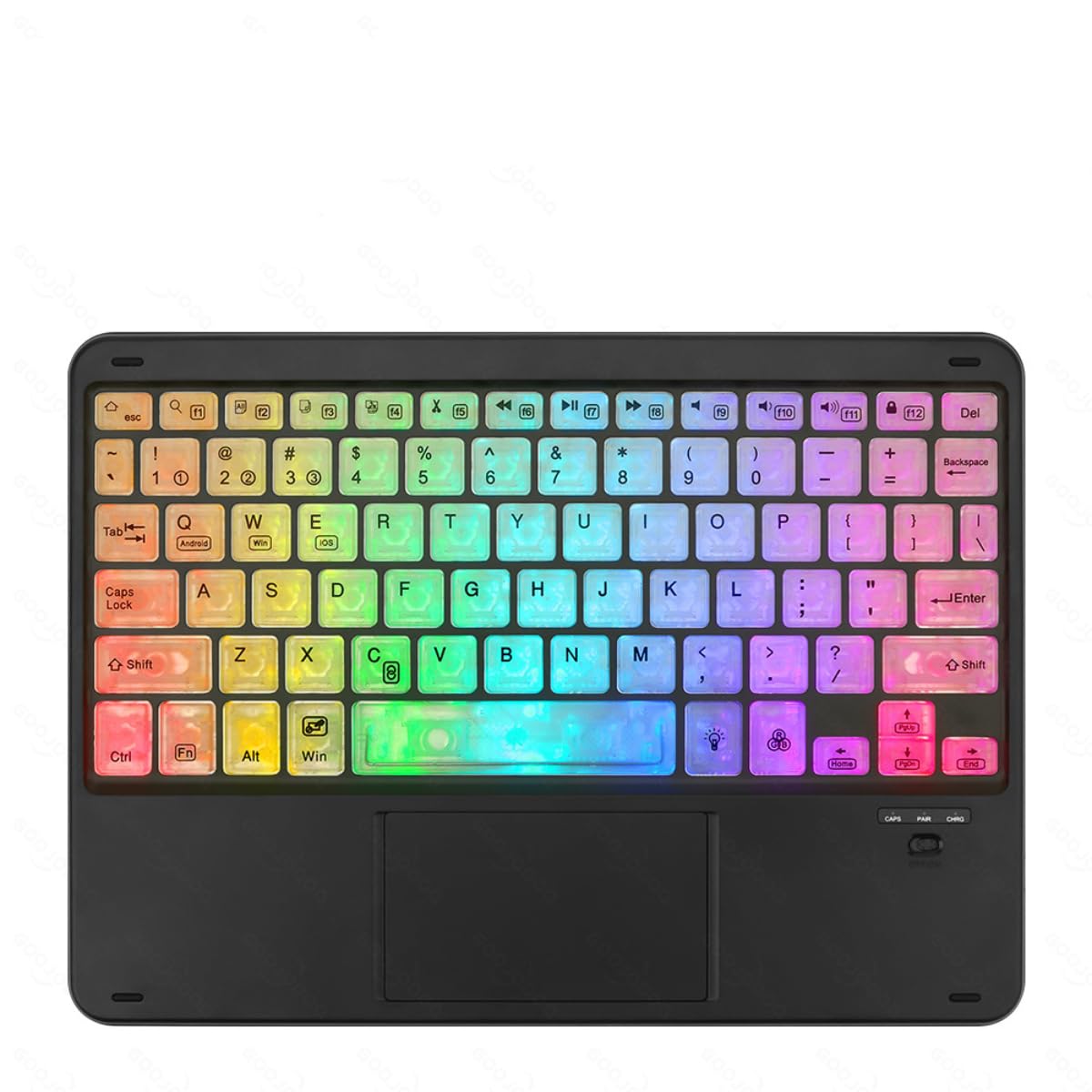
Image showing the GOOJODOQ M06 Bluetooth Keyboard and the accompanying mouse, both in black.
Setup: Bluetooth Connection
Follow these steps to connect your GOOJODOQ M06 Keyboard and Mouse via Bluetooth:
- Encendido: Turn on the power switch located on the keyboard and mouse. The Bluetooth indicator light on the keyboard will illuminate.
- Entrar no modo de emparellamento:
- For the first device, press FN + 1. The Bluetooth light will blink, indicating it's ready for pairing.
- For the second device, press FN + 2.
- For the third device, press FN + 3.
- Conectar no teu dispositivo: On your device (e.g., tablet, smartphone, computer), go to Bluetooth settings and search for available devices. Select "Bluetooth Keyboard" from the list to connect.
- Seleccionar sistema operativo: After successful connection, press the corresponding key combination to select your device's operating system:
- For Android devices, press FN + Q.
- For Windows devices, press FN + W.
- For iOS devices, press FN + E.
- Reconexión automática: Once successfully paired, the keyboard will automatically reconnect to the last used device when powered on.
Instrucións de funcionamento
Cambio entre dispositivos conectados
If you have paired the keyboard with multiple devices, you can easily switch between them by pressing the corresponding FN key combination:
- Preme FN + 1 para cambiar ao primeiro dispositivo emparellado.
- Preme FN + 2 para cambiar ao segundo dispositivo emparellado.
- Preme FN + 3 para cambiar ao terceiro dispositivo emparellado.
Ensure the target device's Bluetooth is enabled and within range for a successful switch.
Uso xeral
The keyboard features a standard QWERTY layout. The mouse operates like a conventional Bluetooth mouse. Ensure both devices are charged for optimal performance.
Mantemento
- Limpeza: Use un pano suave e seco para limpar a superficie do teclado e do rato. Para a sucidade persistente, un pano lixeiramente seco.amp Pódese usar un pano con xabón suave, garantindo que non entre líquido no dispositivo.
- Almacenamento: Garde o dispositivo nun lugar fresco e seco, lonxe da luz solar directa e de temperaturas extremas.
- Cargando: Charge the devices using the provided USB Type-C cable. Avoid using damaged cables or chargers.
- Evitar líquidos: Do not expose the keyboard or mouse to water or other liquids.
Resolución de problemas
- Dispositivo non conectado:
- Ensure both the keyboard and mouse are powered on and fully charged.
- Asegúrate de que o Bluetooth estea activado no teu dispositivo anfitrión.
- Try re-entering pairing mode (FN + 1/2/3) and re-pairing with your device.
- Ensure the correct operating system mode is selected (FN + Q/W/E).
- Move the devices closer to each other to ensure they are within Bluetooth range.
- As teclas non responden:
- Check if the keyboard is connected to the correct device (FN + 1/2/3).
- Recarga o teclado.
- Reinicia o teu dispositivo anfitrión.
- O rato non responde:
- Recarga o rato.
- Asegúrese de que o rato estea acendido.
- Re-pair the mouse with your device if necessary.
Especificacións
- Modelo: M06
- Material: ABS + Metal
- Cor: Negro
- Tamaño: 10 inches (Keyboard)
- Porto de carga: USB tipo C
- Conectividade: Bluetooth (supports 3 devices simultaneously)
- Compatibilidade: Android, iOS, Windows
- Características do teclado: Teclas de tesoira, funcionamento silencioso
Garantía e Soporte
GOOJODOQ products are designed for reliability and performance. For warranty information, please refer to the warranty card included with your purchase or visit the official GOOJODOQ website. For technical support or further assistance, please contact GOOJODOQ customer service through the contact information provided on our websitio web ou a túa plataforma de compra.