1. Introdución
Thank you for choosing the VGN X68 Mechanical Gaming Keyboard. This user manual provides detailed instructions on setting up, operating, and maintaining your new keyboard. The VGN X68 is a versatile mechanical keyboard designed for gaming and productivity, featuring three connectivity modes (wired, 2.4G wireless, and Bluetooth 5.0), vibrant RGB backlighting, and hot-swappable switches for personalized customization.

Image: The VGN X68 Mechanical Gaming Keyboard with its retail packaging, showcasino seu deseño e a iluminación RGB.
2. Contido do paquete
Verifique que todos os elementos que se indican a continuación estean incluídos no seu paquete:
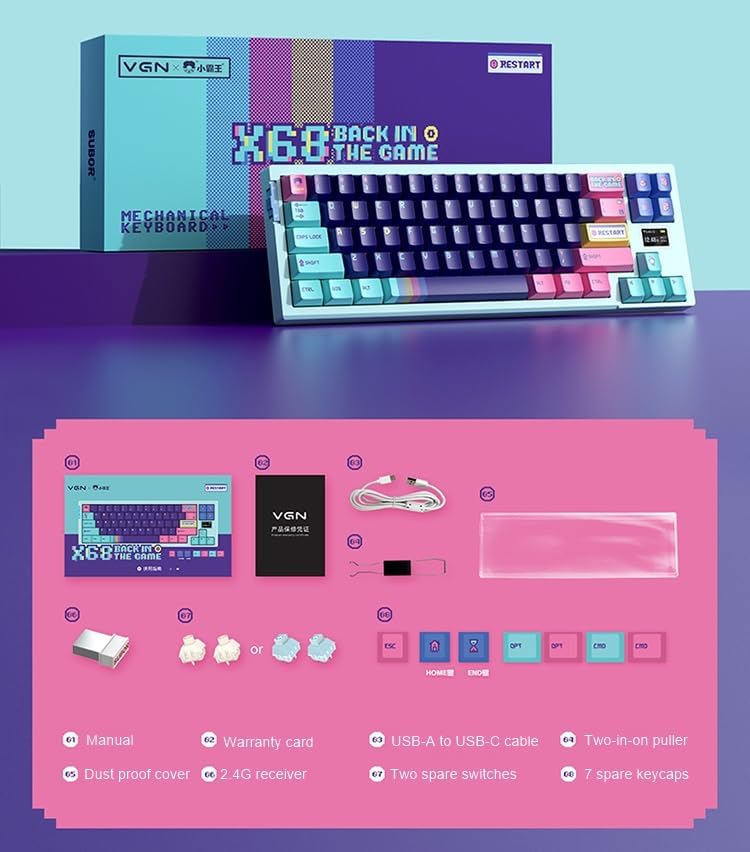
Image: A visual representation of all items included in the VGN X68 keyboard package.
- VGN X68 Mechanical Gaming Keyboard
- Manual de usuario
- Tarxeta de garantía
- Cable USB-A a USB-C
- Two-in-one Puller (for keycaps and switches)
- Funda a proba de po
- Receptor sen fíos 2.4G
- Two Spare Switches
- Seven Spare Keycaps
3. Configuración
3.1 Carga inicial
Before first use, it is recommended to fully charge the keyboard. Connect the provided USB-A to USB-C cable to the keyboard's Type-C port and a USB power source (e.g., computer USB port, wall adapter). The charging indicator will show the charging status.
3.2 Conexión do teclado
The VGN X68 supports three connection modes: Wired, 2.4G Wireless, and Bluetooth 5.0. Use the switch located on the keyboard to select your desired mode.

Imaxe: Unha detallada view of the physical switch on the keyboard used to toggle between 2.4G wireless, wired, and Bluetooth modes.
3.2.1 Modo con cable
- Set the mode switch to 'Wired' (usually indicated by a cable icon or 'USB').
- Connect the USB-C end of the cable to the keyboard and the USB-A end to your computer.
- The keyboard will be automatically recognized by your operating system (e.g., Windows 10) and ready for use.
Modo sen fíos 3.2.2 2.4G
- Set the mode switch to '2.4G' (usually indicated by a wireless icon).
- Conecta o receptor sen fíos de 2.4 G a un porto USB dispoñible do teu ordenador.
- The keyboard should connect automatically. If not, press Fn + R (or a similar key combination indicated in the manual) to initiate pairing.
3.2.3 Modo Bluetooth
- Set the mode switch to 'BT' (Bluetooth).
- No teu ordenador ou dispositivo, activa o Bluetooth e busca novos dispositivos.
- The keyboard will appear as 'VGN X68' or similar. Select it to pair.
- You may need to press Fn + 1/2/3 to select a Bluetooth profile if the keyboard supports multiple Bluetooth connections.
4. Instrucións de funcionamento
4.1 Funcións e deseño das teclas
The VGN X68 is a 61-key mechanical keyboard. Many functions are accessed via the 'Fn' key in combination with other keys. Refer to the keycap legends for specific shortcuts.
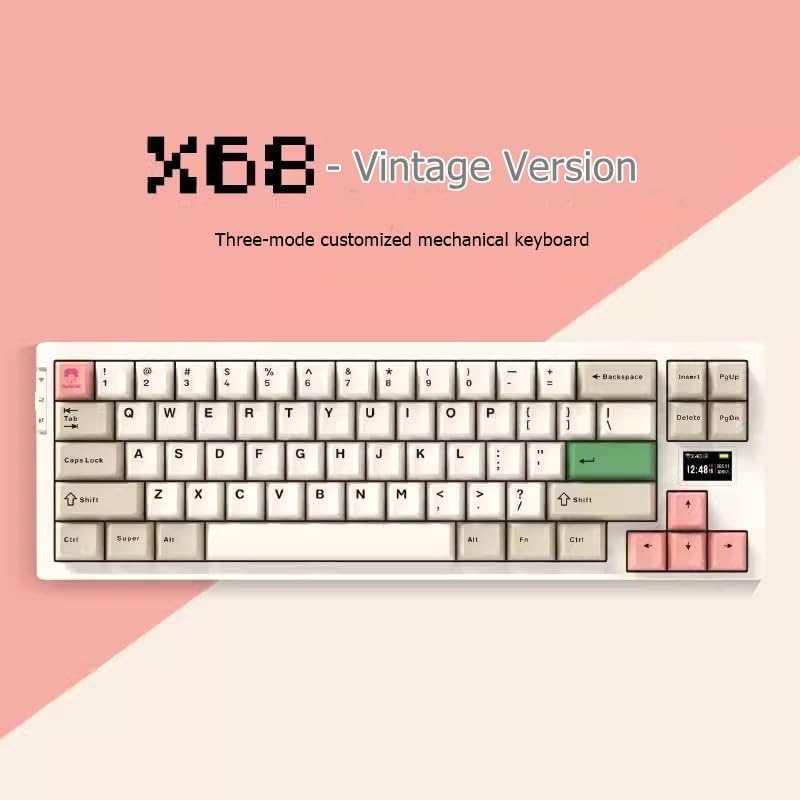
Image: The VGN X68 keyboard, showcasino seu deseño compacto e as teclas.
Control de retroiluminación RGB 4.2
The keyboard features multicolor RGB backlighting. Use the following key combinations to control the lighting effects:
- Fn + \|: Cambia entre os diferentes modos de iluminación RGB.
- Fn + ↑/↓: Axusta o brillo da luz de fondo.
- Fn + ←/→: Adjust lighting effect speed or direction.
- Fn + Supr: Cambia a cor da retroiluminación (para os modos estáticos).
4.3 Screen Display Functions
The VGN X68 features a small screen display that provides useful information at a glance:
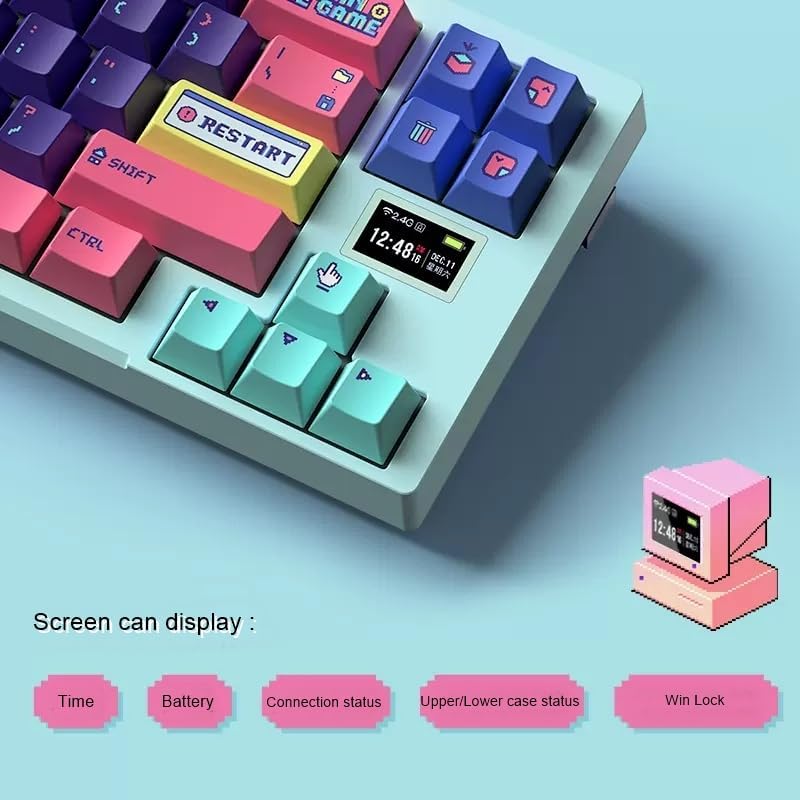
Image: A close-up of the keyboard's integrated screen, displaying icons for time, battery level, connection status, case status, and Win Lock.
- Tempo: Mostra a hora actual.
- Batería: Mostra o nivel actual da batería.
- Estado da conexión: Indicates the active connection mode (Wired, 2.4G, or Bluetooth).
- Upper/Lower Case Status: Shows if Caps Lock is enabled.
- Win Lock: Indicates if the Windows key is locked (to prevent accidental presses during gaming).
5. Mantemento
5.1 Limpeza
Para manter o rendemento e a aparencia do teclado:
- Desconecte o teclado do ordenador antes de limpalo.
- Usa un cepillo suave ou aire comprimido para eliminar o po e os residuos que hai entre as tapas das teclas.
- Limpe as tapas das teclas e a superficie do teclado cun toque lixeiro.amp, pano que non solte fiapos. Evite a humidade excesiva.
- Use the provided dust proof cover when the keyboard is not in use to prevent dust accumulation.
5.2 Substitución da tapa das teclas e do interruptor
The VGN X68 features hot-swappable switches, allowing you to easily change switches without soldering. Use the provided two-in-one puller for both keycaps and switches.
- To remove a keycap: Use the keycap puller end of the tool to gently pull the keycap straight up.
- Para eliminar un interruptor: Use the switch puller end of the tool to grasp the switch from its top and bottom clips, then gently pull it straight up.
- Para instalar un interruptor: Aliña os pines do novo interruptor cos orificios da placa de circuíto impreso e preme firmemente ata que encaixen no seu lugar. Asegúrate de que os pines non estean dobrados.
- To install a keycap: Align the keycap with the switch stem and press down firmly.
6 Solución de problemas
If you encounter issues with your VGN X68 keyboard, please refer to the following common solutions:
- O teclado non responde: Ensure the keyboard is charged. Check the connection mode switch (Wired, 2.4G, Bluetooth) and ensure it matches your connection method. For wired, try a different USB port. For wireless, ensure the receiver is properly plugged in or Bluetooth is paired.
- Chaves que non se rexistran: Check if any keycaps or switches are loose. Re-seat them if necessary. Test on another device to rule out software issues.
- Backlight not working/flickering: Ensure the keyboard is charged. Try cycling through backlight modes (Fn + \|) or adjusting brightness (Fn + ↑/↓).
- Conexión Bluetooth inestable: Ensure no other devices are interfering with the Bluetooth signal. Try re-pairing the keyboard. Ensure your device's Bluetooth drivers are up to date.
- 2.4G wireless lag: Ensure the receiver is not too far from the keyboard. Avoid placing the receiver near other wireless devices that might cause interference.
If problems persist, please refer to the Warranty and Support section.
7. Especificacións
| Característica | Especificación |
|---|---|
| Marca | Xenérico |
| Modelo | X68 |
| Fabricante | Xenio |
| Cor | Cian |
| Compatibilidade do sistema operativo | Windows 10 |
| Tecnoloxía de conectividade | Bluetooth 5.0, 2.4G sen fíos, cable tipo C |
| Descrición do teclado | Mecánica |
| Usos recomendados | Xogos |
| Característica especial | Retroiluminado |
| Número de chaves | 61 |
| Compatibilidade coa cor da retroiluminación do teclado | RGB (vermello, verde, azul) |
| Estilo | Moderno |
| Impresión de teclas | Dobre tiro |
| Material de chaveiro | Plástico PBT |
| Interruptores intercambiables en quente | Si |
| Switch Manufacturer | Kailh |
| Marca de carrocería Axis | Kailh Box |
| Full-size Keyboard | Non |
| Wrist Rest Support | Non |
8. Garantía e soporte
Your VGN X68 Mechanical Gaming Keyboard comes with a manufacturer's warranty. For any product issues, including damaged or incorrect items, please do not hesitate to contact our support team. We are committed to providing prompt assistance and will respond to your inquiries within 24 hours.
Please refer to the warranty card included in your package for specific terms and conditions.


