
Introdución
Thank you for choosing the Hecate G3m Pro Wireless Bluetooth Gaming Mouse. This manual provides detailed instructions for setting up, operating, and maintaining your new gaming mouse. Designed for performance and versatility, the G3m Pro offers three-mode connectivity, a high-precision sensor, and a lightweight, silent design to enhance your gaming experience.
Produto rematadoview
The Hecate G3m Pro features a robust design with multiple buttons and connectivity options. Familiarize yourself with the mouse components before use.
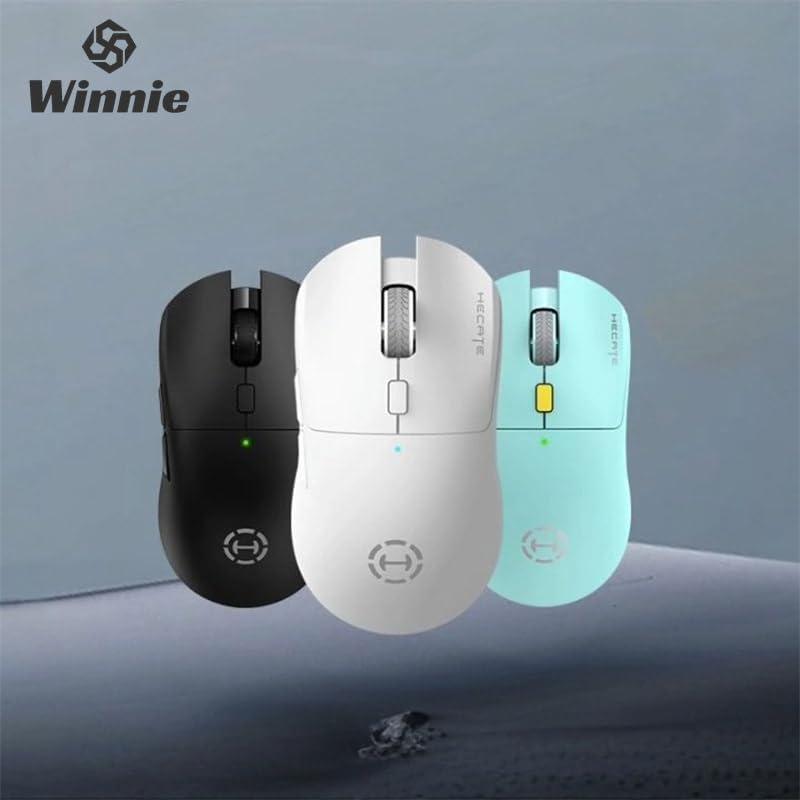
Figure 1: Hecate G3m Pro Wireless Gaming Mouse (Black)
- Botóns de clic esquerdo/dereito: Funcións estándar do rato.
- Roda de desprazamento: For scrolling and middle-click functionality.
- Botón de ciclo de DPI: Adjusts the mouse sensitivity (DPI) on the fly.
- Botóns laterais: Programmable for various in-game actions or navigation.
- Connectivity Mode Switch: Located on the underside, allows switching between 2.4GHz, Bluetooth, and Wired modes.
- Porto USB-C: Para conexión por cable e carga.
Configuración
Follow these steps to set up your Hecate G3m Pro mouse.
1. Cargar o rato
Before first use, ensure the mouse is fully charged. Connect the provided USB-C cable to the mouse's USB-C port and the other end to a USB power source (e.g., computer, wall adapter). The LED indicator will show charging status.
2. Connecting via 2.4GHz Wireless (USB Dongle)
- Locate the USB 2.4GHz receiver (dongle) usually stored in a compartment on the underside of the mouse.
- Conecte o receptor USB a un porto USB dispoñible no seu ordenador.
- Switch the connectivity mode selector on the mouse to the '2.4G' position.
- The mouse should automatically connect to your computer. The LED indicator may flash briefly and then become solid to indicate a successful connection.
3. Conectando a través de Bluetooth
- Switch the connectivity mode selector on the mouse to the 'BT' (Bluetooth) position.
- No teu ordenador ou dispositivo, vai á configuración de Bluetooth e activa Bluetooth.
- The mouse LED indicator will start flashing, indicating it is in pairing mode.
- Select 'Hecate G3m Pro' from the list of available Bluetooth devices on your computer/device to pair.
- Unha vez emparellado, o indicador LED acenderase de forma fixa.
4. Connecting via Wired Mode
- Connect the provided USB-C cable to the mouse's USB-C port.
- Conecta o outro extremo do cable USB-C a un porto USB dispoñible do teu ordenador.
- Switch the connectivity mode selector on the mouse to the 'Wired' position.
- O rato funcionará como un rato con cable e tamén cargará a súa batería interna.
Instrucións de funcionamento
Understand the functions of your mouse for optimal use.
Axuste de DPI
Press the DPI cycle button (usually located behind the scroll wheel) to cycle through different DPI settings. Each press will change the sensitivity, often indicated by a change in the LED color or a specific number of flashes. The mouse supports up to 26000 DPI.
Cambio de modo
Use the switch on the underside of the mouse to select your preferred connection mode: 2.4GHz, Bluetooth, or Wired. Switch modes according to your device and usage scenario.
Personalización de botóns
For advanced customization of buttons and macros, it is recommended to download the official Hecate software (if available) from the manufacturer's website. This software allows you to reassign button functions, create profiles, and fine-tune performance settings.
Mantemento
Proper maintenance ensures the longevity and performance of your mouse.
Limpeza
- Use un pano suave e seco para limpar a superficie do rato.
- Para a sucidade persistente, d lixeiramenteampEnxágüe o pano con auga ou unha solución de limpeza suave. Evite produtos químicos agresivos.
- Non permita que entren líquidos nos compoñentes internos do rato.
- Clean the optical sensor on the underside periodically with a cotton swab to ensure accurate tracking.
Coidado da batería
- Evite descargar completamente a batería con frecuencia.
- Cargue o rato cando o indicador de batería indique que ten pouca enerxía.
- Se garda o rato durante un período prolongado, cárgueo ao 50 % aproximadamente e gárdeo nun lugar fresco e seco.
Almacenamento
Store the mouse in a clean, dry environment away from extreme temperatures and direct sunlight. Keep it away from dust and moisture.
Resolución de problemas
If you encounter issues with your Hecate G3m Pro mouse, refer to the following common solutions.
O rato non responde
- Comprobar a batería: Ensure the mouse is charged. Connect it via USB-C cable to charge.
- Comprobar o modo de conexión: Verify that the mode switch on the underside of the mouse is set to the correct mode (2.4G, BT, or Wired) for your connection type.
- Conexión 2.4 GHz: Asegúrate de que o receptor USB estea conectado correctamente a un porto USB que funcione. Proba cun porto USB diferente.
- Conexión Bluetooth: Re-pair the mouse with your device. Go to Bluetooth settings, remove the mouse, and then add it again. Ensure your device's Bluetooth is enabled.
- Conexión por cable: Ensure the USB-C cable is securely connected to both the mouse and the computer. Try a different USB port or cable.
Inconsistent Tracking or Cursor Movement
- Sensor limpo: Limpa o sensor óptico da parte inferior do rato.
- Alfombrilla de rato: Use the mouse on a clean, uniform surface or a high-quality mouse pad. Avoid reflective or glass surfaces.
- Configuración DPI: Adjust the DPI setting using the DPI cycle button to find a comfortable sensitivity.
Os botóns non funcionan
- Interferencia de software: If using custom software, try resetting button assignments to default.
- Proba noutro dispositivo: Connect the mouse to another computer to determine if the issue is with the mouse or the original device's settings.
Especificacións
Detailed technical specifications for the Hecate G3m Pro Wireless Bluetooth Gaming Mouse.
| Característica | Descrición |
|---|---|
| Modelo | G3m Pro |
| Marca | Hecate |
| Tecnoloxía de conectividade | Sen fíos de 2.4 GHz, Bluetooth, con cable (USB-C) |
| Detección de Movemento | Optical (Paw3395 Sensor) |
| DPI (puntos por polgada) | Ata 26000 DPI |
| Aceleración | 50G |
| IPS (polgadas por segundo) | 600 |
| Número de botóns | 6 |
| Número de rolos | 1 (Roda de desprazamento) |
| Orientación das mans | Ambidiestro |
| Característica especial | Lightweight (Approx. 63g) |
| Tipo de potencia | Batería recargable |
| Uso recomendado | Xogos |
| Dispositivos compatibles | Personal Computer, Laptop, Game Console |
| Sistemas operativos | Linux, Windows XP (e versións máis recentes) |
Garantía e Soporte
Your Hecate G3m Pro Wireless Bluetooth Gaming Mouse comes with a warranty and dedicated support.
Información da garantía
All products are covered by a 12 meses de garantía desde a data de compra. Esta garantía cobre defectos de fabricación e problemas derivados do uso normal.
Atención ao cliente
If you encounter any problems with your product, such as defective or incorrect items, please do not hesitate to contact us. We are committed to providing prompt assistance and will respond to your inquiries within 24 hours. Please refer to your purchase documentation for specific contact details or visit the official Hecate support websitio.