
1. Produto rematadoview
The POLONO P31S is a compact and portable thermal label printer designed for various labeling needs in home, office, and school environments. It connects wirelessly via Bluetooth to your smartphone or tablet, allowing you to design and print labels using the dedicated mobile application. This device features a built-in cutter and operates without ink, utilizing thermal printing technology for clear, durable labels.
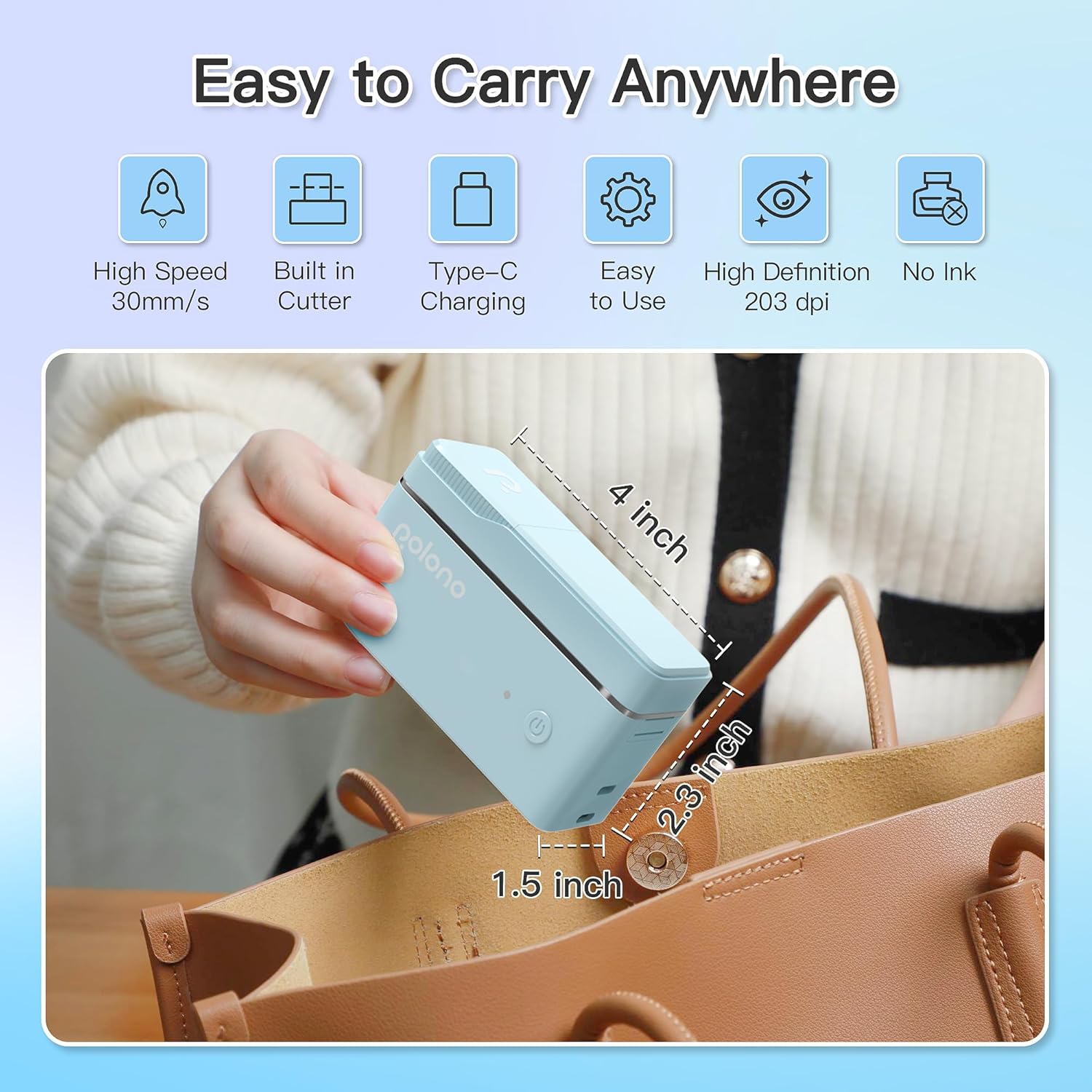
Figura 1: POLONO P31S Label Printer highlighting its compact design and dimensions (approximately 4 inches long, 2.3 inches high, 1.5 inches wide).
Características principais:
- Deseño portátil e lixeiro.
- Bluetooth connectivity for wireless printing.
- Thermal printing technology (no ink required).
- Built-in label cutter.
- Supports various label types including text, QR codes, barcodes, and images.
- Batería recargable.
2. Información de seguridade
Please read and understand all safety instructions before using the POLONO P31S label printer to prevent injury or damage to the device.
- Non desmonte, repare nin modifique o dispositivo.
- Manteña o dispositivo lonxe da auga, da humidade e das temperaturas extremas.
- Use only POLONO-approved label tapes to ensure optimal performance and prevent damage.
- Evite tocar o cabezal de impresión inmediatamente despois de imprimir, xa que pode estar quente.
- Manter fóra do alcance dos nenos.
- Use the provided charging cable or a certified equivalent.
3. Contido do paquete
Verifica que todos os elementos estean presentes no paquete:
- POLONO P31S Label Printer
- Label Tape Roll (starter roll)
- Cable de carga USB
- Manual de usuario (este documento)
4. Configuración
4.1 Carga do dispositivo
Before first use, fully charge the label printer. Connect the provided USB charging cable to the printer's charging port and to a USB power adapter (not included) or a computer's USB port. The indicator light will show charging status.
4.2 Instalación da cinta adhesiva
- Abra a tapa do compartimento das etiquetas.
- Insert the label tape roll with the printing surface facing up, ensuring it is properly seated.
- Pull a small portion of the label tape out, extending it past the cutter blade.
- Peche ben a tapa do compartimento das etiquetas.

Figura 2: Proper installation of POLONO P31S label tape. Ensure the green sticker on the tape is not removed or damaged, as it contains chip technology for optimal performance. Do not pull the label out directly; use the cutting blade.
4.3 Descarga da aplicación e conexión Bluetooth
- Download the "Labelnize" app from the Apple App Store or Google Play Store.
- Turn on the POLONO P31S label printer by pressing and holding the power button.
- Active o Bluetooth no seu teléfono intelixente ou tableta.
- Open the "Labelnize" app. The app will prompt you to allow Bluetooth access. Grant permission.
- Within the app, search for available devices and select "P31S" to connect.
- Once connected, the app will indicate a successful connection, and you are ready to create labels.
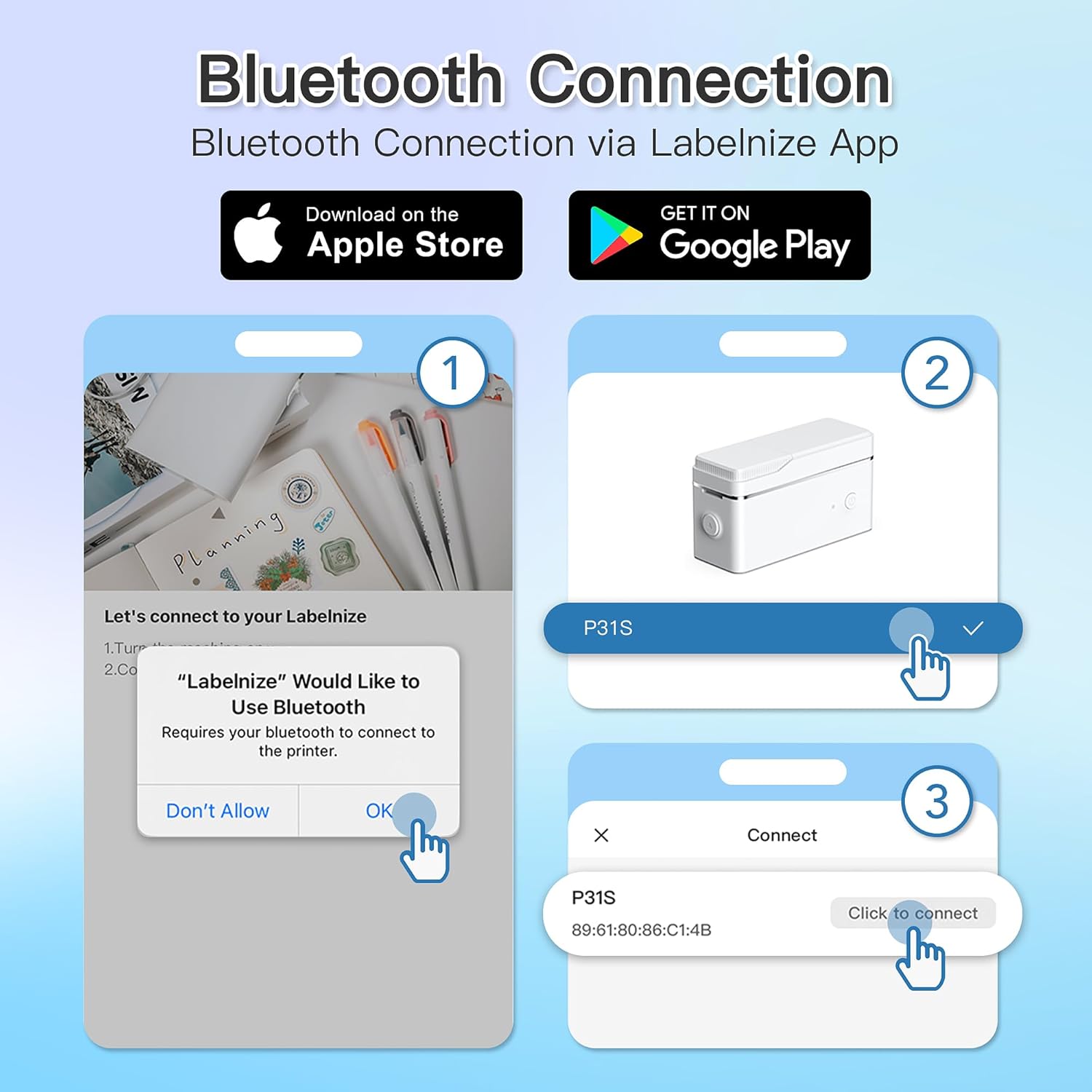
Figura 3: Steps for Bluetooth connection via the Labelnize App. Download the app, allow Bluetooth access, select "P31S" from the device list, and click "Connect".
5. Instrucións de funcionamento
5.1 Creating Labels with the Labelnize App
The Labelnize app offers a variety of tools to design your labels:
- Texto: Enter custom text, choose from over 90 fonts, adjust size, style (bold, italic), and alignment.
- Bordes: Select from over 95 border designs to frame your labels.
- Icons/Graphics: Access a library of over 670 tab icons and other graphics to enhance your labels.
- QR Code/Barcode: Generate QR codes or barcodes for various applications.
- Imaxes: Insire imaxes da galería do teu dispositivo.
- Modelos: Utilize pre-designed templates for common labeling tasks.

Figura 4: The Labelnize app interface for creating labels, offering extensive customization options including borders, fonts, and icons. The app supports multiple languages.
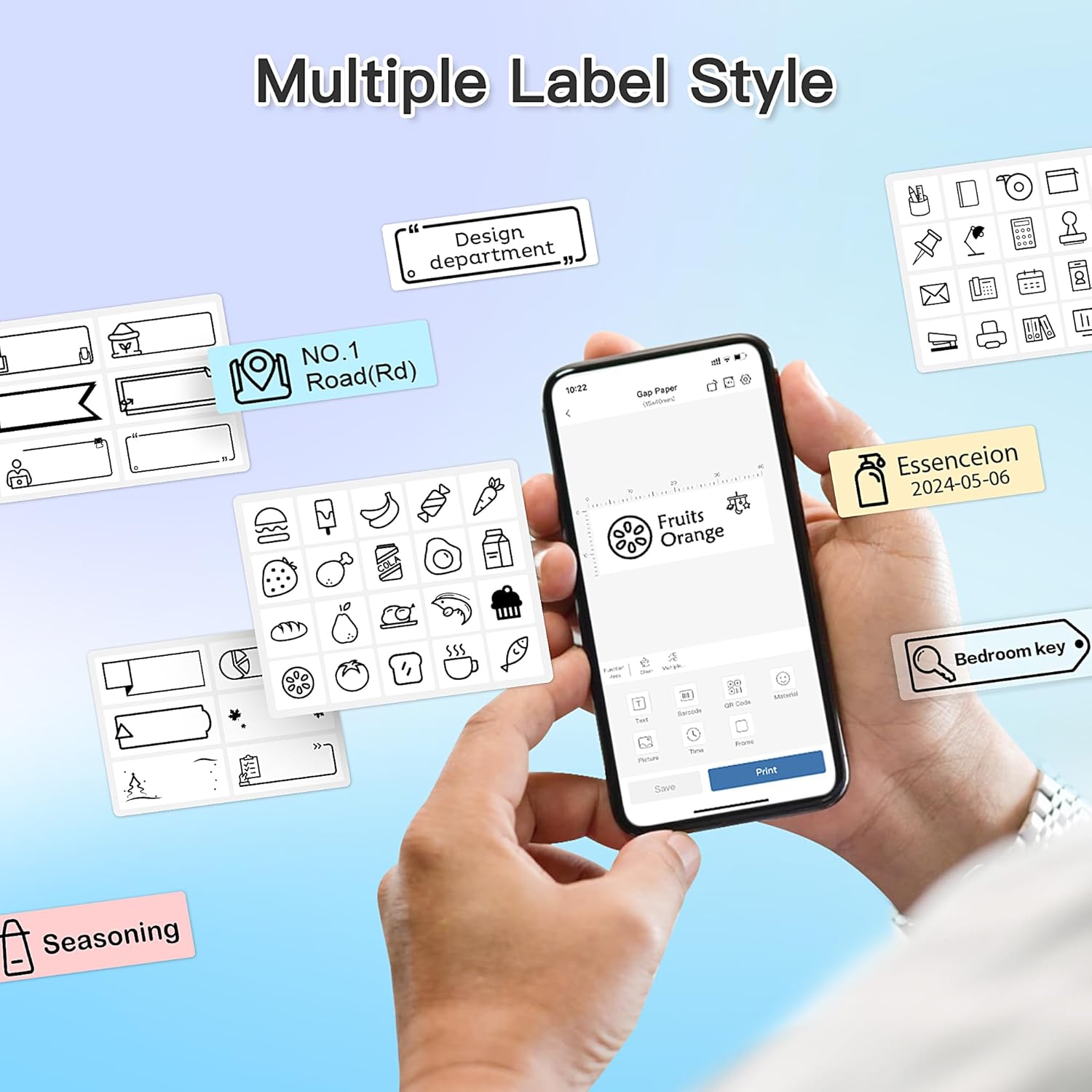
Figura 5: Examples of diverse label styles achievable with the POLONO P31S, demonstrating the flexibility in design for different organizational needs.
5.2 Impresión de etiquetas
After designing your label in the Labelnize app:
- Review o deseño da túa etiqueta na pantalla da aplicación.
- Toca o botón "Imprimir" dentro da aplicación.
- Confirm print settings (e.g., number of copies) if prompted.
- The printer will automatically feed and print the label.
5.3 Uso do cortador incorporado
The POLONO P31S features a built-in cutter for clean and precise label separation. After printing, gently press the cutter button or lever (depending on model variation) to cut the label. Do not pull the label manually to tear it, as this may damage the printer or result in uneven cuts.
6. Mantemento
6.1 Limpeza do cabezal de impresión
To maintain print quality, clean the print head periodically:
- Apague a impresora e desconecte o cable de alimentación.
- Abra a tapa do compartimento das etiquetas.
- Limpe suavemente o cabezal de impresión cun hisopo de algodónampcon alcohol isopropílico.
- Deixe que o cabezal de impresión seque completamente antes de pechar a tapa e acender a impresora.
6.2 Coidado coa batería
- Charge the battery regularly, even if the printer is not used frequently, to prolong its lifespan.
- Evite descargar completamente a batería durante períodos prolongados.
- Almacene a impresora nun lugar fresco e seco cando non estea en uso.
7 Solución de problemas
| Problema | Causa posible | Solución |
|---|---|---|
| A impresora non se acende. | Batería baixa ou sen enerxía. | Cargue a impresora mediante o cable USB proporcionado. |
| Non se pode conectar por Bluetooth. | Bluetooth is off, printer is off, or app issue. | Ensure printer is on, Bluetooth is enabled on your device, and restart the Labelnize app. Try re-pairing. |
| Mala calidade de impresión. | Dirty print head, incorrect label tape, or low battery. | Clean the print head (Section 6.1). Ensure you are using POLONO P31S compatible label tape. Charge the printer. |
| Label jam. | Improper tape installation or foreign object. | Turn off the printer, open the cover, carefully remove any jammed tape. Reinstall tape correctly. |
| Printer not responding. | Fallo temporal do software. | Restart the printer and the Labelnize app. |
8. Especificacións
| Característica | Detalle |
|---|---|
| Modelo | P31S |
| Tecnoloxía de impresión | Térmica |
| Conectividade | Bluetooth |
| Resolución de impresión | 203 x 203 DPI |
| Velocidade máxima de impresión (monocromo) | 15 ppm |
| Tamaño máximo de medios | Label rolls (2 inches / 24 millimeters) |
| Cor da tinta | Black (thermal print) |
| Fonte de enerxía | 1 batería de polímero de litio (incluída) |
| Dimensións do produto | 7.2 x 7.4 x 12.7 cm; 260 g |
| Compoñentes incluídos | Etiquetas |
9. Garantía e soporte
For warranty information and technical support, please refer to the official POLONO websitio web ou póñase en contacto co servizo de atención ao cliente. Garde o recibo da compra como proba de compra para reclamacións de garantía.
Oficial Websitio: www.polono.com (Nota: Este é un marcador de posición URL, please verify the actual official website for POLONO products.)