
Docooler 14 Inch 2-in-1 Touchscreen Laptop
Docooler 14 Inch 2-in-1 Touchscreen Laptop User Manual
Model: 14 Inch 2-in-1 Touchscreen Laptop
1. Produto rematadoview
The Docooler 14 Inch 2-in-1 Touchscreen Laptop is a versatile computing device designed for both productivity and entertainment. Featuring a 4K UHD IPS display and a 360-degree convertible design, it adapts to various usage scenarios, from traditional laptop mode to tablet mode. Powered by an Intel N95 processor, it offers efficient performance for daily tasks.

Image: The Docooler 14 Inch 2-in-1 Touchscreen Laptop in its tent configuration, showcasing its flexible design and vibrant display.
2. Contido do paquete
Comprobe que todos os elementos estean presentes no paquete:
- Docooler 14 Inch 2-in-1 Touchscreen Laptop
- Cable de carga
- Manual de usuario
3. Iniciación
3.1 Configuración inicial
- Charge the Laptop: Before first use, connect the charging cable to the laptop's USB-C port and plug it into a power outlet. Allow the battery to charge fully.
- Encendido: Press and hold the power button located on the side of the laptop until the screen illuminates.
- Configuración de Windows: Follow the on-screen prompts to complete the Windows 11 initial setup, including language selection, network connection, and user account creation.
4. Understanding Your Laptop
4.1 Características principais
- Visualización: 14-inch 4K UHD (3840x2160) IPS touchscreen with 500 Nits brightness for a clear visual experience.
- Procesador: Equipped with the 12th Gen Intel N95 CPU (4-core, 4-thread, up to 3.4GHz) for efficient performance.
- Memoria e almacenamento: 12GB LPDDR5 4800MHz high-frequency memory and 512GB/1TB NVMe SSD for fast operation and ample almacenamento.
- Deseño convertible: 360-degree flip-and-fold design allows for multiple modes of use.
- Pantalla táctil: 10-level multi-touch screen with gravity sensing for intuitive interaction.
- Seguridade: Fingerprint unlock for quick and secure access.
- Teclado: Backlit keyboard for comfortable typing in various lighting conditions.
- Conectividade: Dual-band Wi-Fi (2.4G/5.0G Hz 802.11ac) and Bluetooth for stable wireless connections.

Image: Visual representation of the laptop's 4K UHD display capabilities, highlighting its high resolution and brightness.

Image: Illustration of the Intel N95 12th Generation processor, emphasizing its role in the laptop's performance.
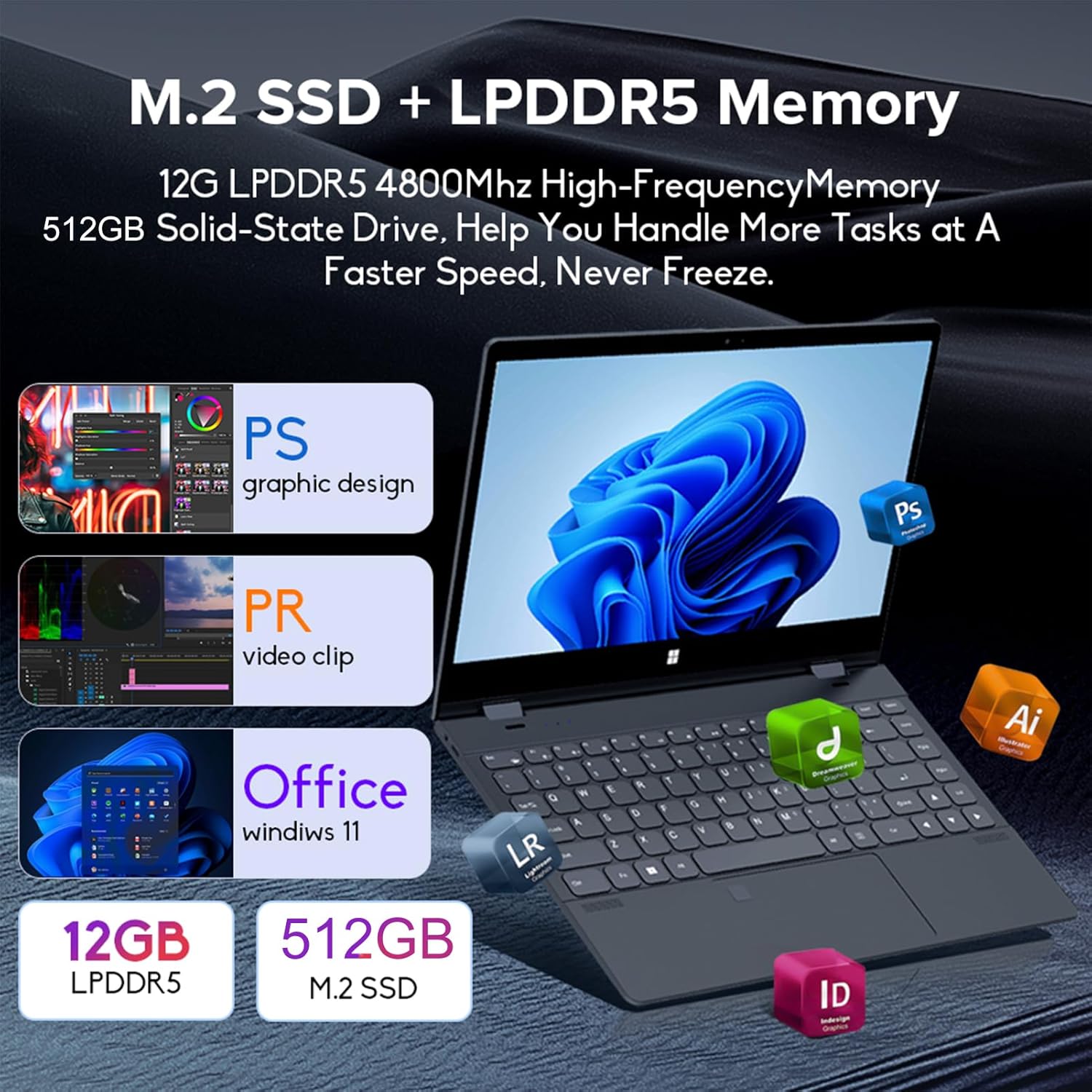
Image: Depiction of the laptop's memory and storage, showing 12GB LPDDR5 RAM and 512GB/1TB M.2 SSD, suitable for various applications.
4.2 Portos e conectores
Familiarize yourself with the available ports on your laptop:
- USB-C (Full-featured): Supports audio, video, data transmission, and PD2.0 fast charging.
- USB 3.0: Para conectar dispositivos USB.
- Entrada de audio: Para auriculares ou altofalantes externos.
- Entrada DC: Power input (if applicable, though USB-C is primary charging).
- Lector de tarxetas TF: Para tarxetas de memoria.

Imaxe: Unha detallada view of the laptop's side ports, including USB-C, USB 3.0, audio jack, and TF card slot.
4.3 Modos convertibles
The 360-degree hinge allows the laptop to transform into four distinct modes:
- Modo de caderno: Traditional laptop experience for typing and productivity.
- Modo tableta: Fold the screen back completely for a tablet experience, ideal for touch-based applications and gaming.
- Viewing Mode (Tent Mode): Stand the laptop in a tent shape for watching videos or presentations.
- Conference Mode (Stand Mode): Flip the keyboard under the screen to share content easily in a group setting.

Image: Visual guide demonstrating the four convertible modes of the laptop: Notebook, Tablet, Viewing, and Conference.
5. Funcionamento
5.1 Uso da pantalla táctil
The 10-point multi-touch screen allows for intuitive navigation. Use gestures similar to a smartphone or tablet. The gravity sensing feature enhances the experience, especially in tablet mode.

Image: Demonstrates the ease of touchscreen operation and the benefit of gravity sensing for gaming.
5.2 Using the Backlit Keyboard and Fingerprint Unlock
- Teclado retroiluminado: Press the Function (Fn) key combined with the appropriate F-key (usually F3 or F4, check keyboard icons) to toggle the keyboard backlight on/off or adjust its brightness.
- Desbloqueo de impresión dixital: Set up your fingerprint in Windows Settings > Accounts > Sign-in options. Once configured, you can unlock your laptop quickly by placing your registered finger on the fingerprint sensor.
5.3 Conexión a Wi-Fi e Bluetooth
The laptop supports dual-band Wi-Fi (2.4G/5.0G Hz 802.11ac) and Bluetooth for wireless connectivity.
- Wi-Fi: Click the Wi-Fi icon in the taskbar, select your desired network, enter the password if prompted, and click Connect.
- Bluetooth: Go to Windows Settings > Bluetooth & devices. Ensure Bluetooth is turned on, then click 'Add device' to pair with Bluetooth peripherals like headphones or mice.

Image: Visual representation of the laptop's dual-band Wi-Fi and Bluetooth connectivity features.
6. Mantemento e coidados
- Limpeza: Use un pano suave e sen pelusa lixeiramente dampened with water or a screen cleaner to clean the display. For the keyboard and chassis, use a dry, soft cloth. Avoid harsh chemicals.
- Coidado da batería: Para prolongar a duración da batería, evite descargala completamente con frecuencia. Garde o portátil nun lugar fresco e seco cando non o use durante períodos prolongados.
- Ventilación: Asegúrate de que as aberturas de ventilación do portátil non estean bloqueadas para evitar o sobrequecemento. Usa o portátil sobre unha superficie dura e plana.
- Actualizacións de software: Actualiza o teu sistema operativo e os controladores regularmente para garantir un rendemento e unha seguridade óptimos.
7 Solución de problemas
| Problema | Posible Solución |
|---|---|
| O portátil non se acende. | Ensure the charging cable is securely connected and the power outlet is functional. Allow the laptop to charge for at least 30 minutes before attempting to power on again. |
| Problemas coa conexión wifi. | Restart your router and modem. On the laptop, disable and re-enable Wi-Fi. Ensure you are within range of the Wi-Fi signal. |
| A pantalla táctil non responde. | Restart the laptop. Check for any physical obstructions on the screen. Ensure Windows updates are current. |
| A retroiluminación do teclado non funciona. | Press Fn + F-key (check keyboard icon) to toggle or adjust backlight brightness. Ensure drivers are up to date. |
| O portátil vai lento. | Close unnecessary applications. Check for background processes. Ensure sufficient free storage space. Run a system scan for malware. |
8. Especificacións técnicas
| Característica | Especificación |
|---|---|
| Tamaño da pantalla | 14 polgadas |
| Resolución | 3840 x 2160 píxeles (4K UHD) |
| Procesador | Intel N95 (up to 3.4GHz) |
| Tamaño da memoria RAM instalada | 12 GB LPDDR5 |
| Descrición do disco duro | 512GB/1TB NVMe SSD |
| Sistema Operativo | Windows 11 Home |
| Coprocesador gráfico | Gráficos Intel UHD (integrados) |
| Conectividade sen fíos | 2.4G/5.0G Hz 802.11ac Wi-Fi, Bluetooth |
| Total de portos USB | 2 (including 1 full-featured USB-C) |
| Cor | Gris prata |
| Peso do elemento | 3.46 libras (1570 gramos) |
| Dimensións do paquete | 15.35 x 9.84 x 3.35 polgadas |
| País de Orixe | China |
9. Garantía e soporte
For warranty information and technical support, please refer to the documentation provided with your purchase or visit the official Docooler websitio. Garda o comprobante de compra para reclamacións de garantía.
Docooler is committed to providing quality products and customer satisfaction. For further assistance, please contact Docooler customer service.
Note: Protection plans may be available for extended coverage. Please check with your retailer for details.
Ask a question about this manual
Ask about setup, troubleshooting, compatibility, parts, safety, or missing instructions. Manuals+ will review the question and use this page’s manual context to help answer it.