
1. Introdución
This manual provides comprehensive instructions for the ACASIS 4K60fps Video Capture Card (Model VC-007PRO). This device is designed for capturing and streaming high-quality video and audio from various sources, including gaming consoles and cameras, to a computer for live broadcasting or recording. It supports 4K60fps video capture, VRR, and features ultra-low latency.
2. Contido do paquete
Verifica que todos os elementos estean presentes no paquete do teu produto:
- ACASIS 4K60fps Video Capture Card (VC-007PRO)
- Cable HDMI
- Cable USB-C a USB-A
- Guía de instalación (este documento)
3. Produto rematadoview
The ACASIS 4K60fps Video Capture Card is a compact device with multiple ports for connectivity. Understanding its layout is crucial for proper setup and operation.

Imaxe: Fronte view of the ACASIS 4K60fps Video Capture Card, showing the HDMI In and HDMI Out ports, and the USB-C port for connection to a computer.
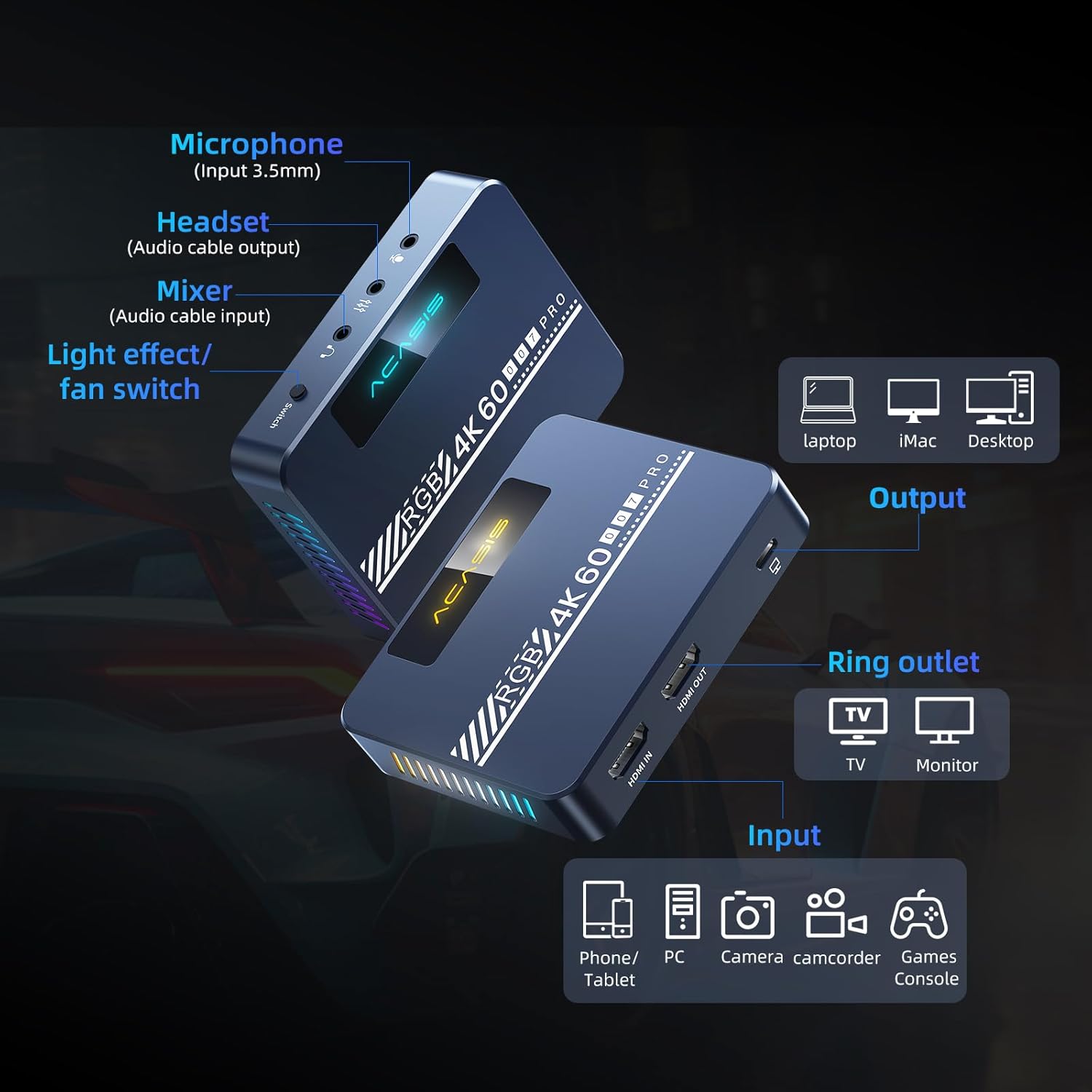
Image: Detailed diagram illustrating the various input and output ports on the capture card, including Microphone (Input 3.5mm), Headset (Audio cable output), Mixer (Audio cable input), Light effect/fan switch, HDMI IN, HDMI OUT, and USB-C output to PC/Mac.
Compoñentes clave:
- ENTRADA HDMI: Connects to the source device (e.g., game console, camera).
- Saída HDMI: Connects to a display (e.g., TV, monitor) for pass-through viewing.
- Saída USB-C: Connects to your computer (PC/Mac) for data transfer and power.
- Microphone Input (3.5mm): Para conectar un micrófono externo.
- Headset Output (3.5mm): For connecting headphones or a headset for audio monitoring.
- Mixer Input (3.5mm): For connecting an audio mixer.
- Light Effect/Fan Switch: Controls the RGB lighting and cooling fan.
4. Guía de configuración
Follow these steps to connect your ACASIS 4K60fps Video Capture Card to your devices.
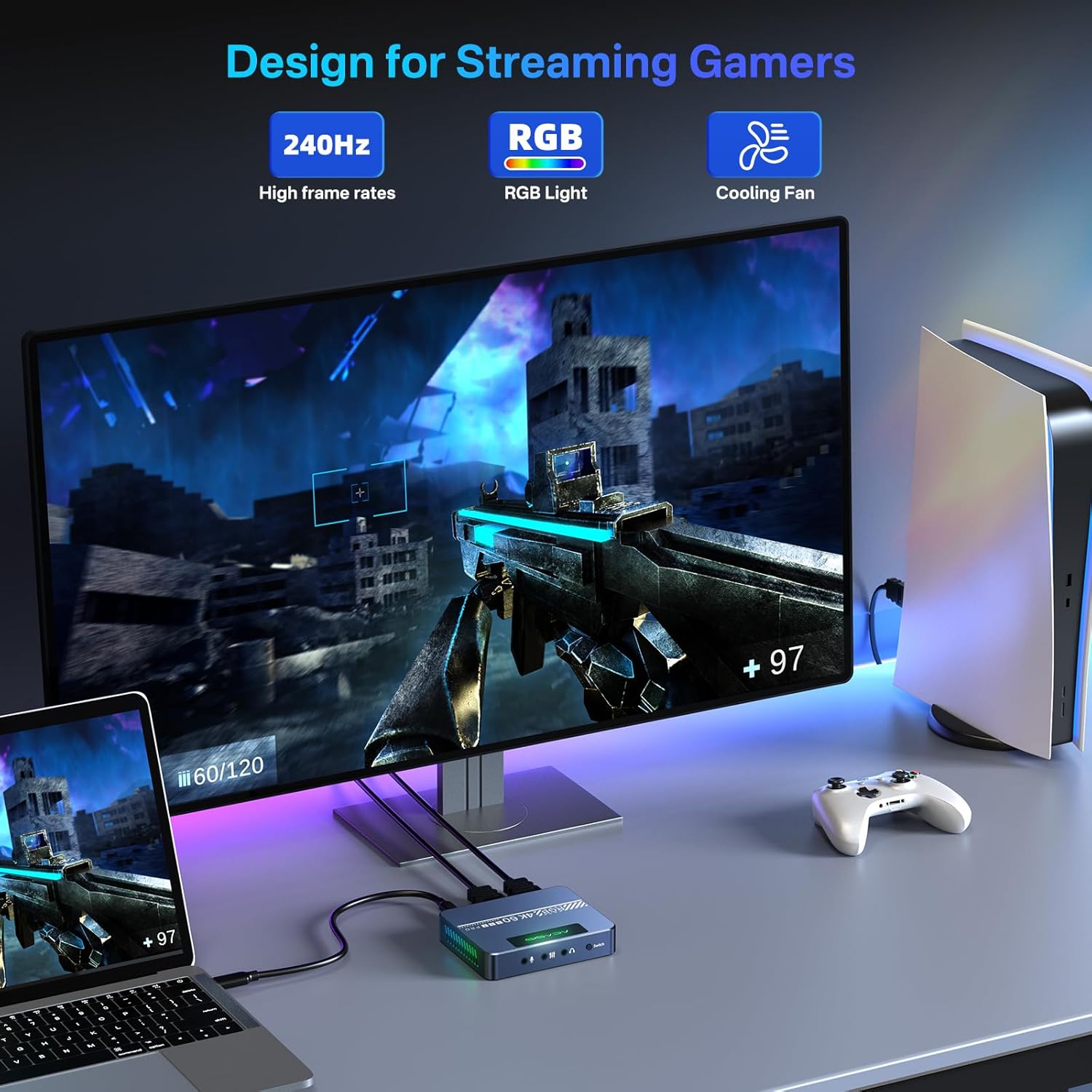
Image: A typical setup showing a game console (PS5) connected via HDMI to the capture card's HDMI IN, the capture card's HDMI OUT connected to a monitor, and the capture card's USB-C port connected to a laptop for streaming/recording.
Pasos de conexión:
- Conectar o dispositivo fonte: Use an HDMI cable to connect your source device (e.g., Xbox Series X/S, Xbox One, PS5, PS4/Pro, PC, camera) to the ENTRADA HDMI porto na tarxeta de captura.
- Conectar a pantalla (opcional): Use another HDMI cable to connect your display (e.g., TV, monitor) to the SAÍDA HDMI port on the capture card. This allows for pass-through viewing of your source device.
- Conectar ao ordenador: Connect the provided USB-C to USB-A cable (or a USB-C to USB-C cable if your computer supports it) from the capture card's Saída USB-C port to an available USB port on your computer (PC/Mac). The device is plug-and-play and typically does not require driver installation.
- Conectar dispositivos de son (opcional):
- For microphone input, connect your 3.5mm microphone to the Entrada de micrófono porto.
- For audio monitoring, connect your 3.5mm headset or headphones to the Saída de auriculares porto.
- For external audio mixing, connect your audio mixer to the Mixer Input porto.
5. Instrucións de funcionamento
This section details how to use the capture card with streaming and recording software, using OBS Studio as an example.
Software Setup (OBS Studio Example):
The ACASIS capture card is compatible with various platforms and applications, including OBS, Streamlabs, Vmix, Zoom, and Microsoft Teams. For streaming and recording, OBS Studio is a commonly used application.
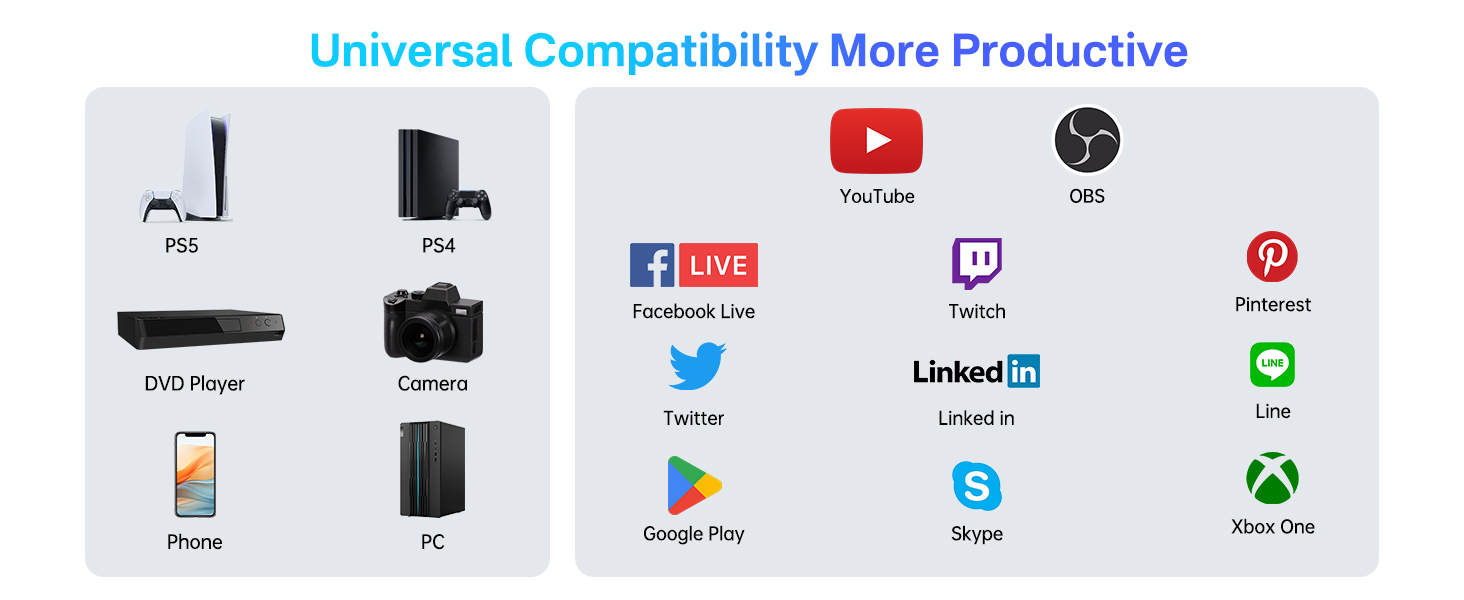
Image: A five-step guide for adding the video capture device in OBS Studio. Steps include opening OBS, clicking '+' in Sources, selecting 'Video Capture Device', creating a new source, and configuring properties.
- Open OBS Software: Launch OBS Studio on your computer.
- Engadir fonte de vídeo: In the 'Sources' panel, click the '+' icon.
- Select Video Capture Device: From the list, choose 'Dispositivo de captura de vídeo'.
- Create/Select Source: You can create a new source or select an existing device name. Click 'OK'.
- Configure Properties: In the properties window for the video capture device, set the following:
- Tipo de resolución/FPS: Set to 'Personalizado'.
- Resolución: Seleccionar '1920x1080' (or desired resolution up to 4K).
- FPS: Set to '60'.
- Formato de vídeo: Seleccionar 'YUY2'.
- Espazo de cor: Seleccionar 'Rec.709'.
- Rango de cores: Seleccionar 'Cheo'.
Recording and Streaming Settings (OBS Studio):
For optimal performance, adjust your OBS output settings. These settings are optional if you are not recording or streaming.

Image: A screenshot of OBS Studio's output settings for recording, highlighting video bitrate, encoder, audio bitrate, recording quality, and format.

Image: A screenshot of OBS Studio's output settings for streaming, showing where to enter the stream key and start streaming.
- Configuración de acceso: In OBS, go to 'Configuración' (usually in the bottom right corner).
- Output Settings (Recording): Navigate to the 'Saída' tab and then 'Gravación'.
- Calidade de gravación: Set to 'Indistinguishable Quality, Large File Tamaño' for high-quality recordings.
- Formato de gravación: 'MP4' is generally recommended for compatibility.
- Codificador: Use 'Hardware (NVENC)' if available for better performance, otherwise 'Software (x264)'.
- Bitrate de vídeo: Adjust based on desired quality and storage space (e.g., 8000 Kbps for 1080p).
- Taxa de bits de audio: Set to '128' or higher.
- Output Settings (Streaming): Navigate to the 'Saída' tab and then 'Transmisión en directo'.
- Bitrate de vídeo: Adjust according to your internet upload speed and platform recommendations.
- Codificador: Use 'Hardware (NVENC)' if available.
- Taxa de bits de audio: Set to '128' or higher.
- Configuración do vídeo: In the 'Vídeo' tab, ensure 'Base (Canvas) Resolution' e 'Resolución de saída (escalada).' are set appropriately (e.g., 1920x1080). Set 'Valores FPS comúns' to '60'.
6. VRR Support
The ACASIS capture card supports Variable Refresh Rate (VRR), which helps eliminate screen tearing and stuttering for a smoother visual experience, especially in gaming. Ensure your source device and display also support VRR for this feature to function.

Image: A side-by-side comparison demonstrating the visual difference between VRR Open (smooth image) and VRR Close (image with tearing artifacts) on a gaming display.
When VRR is active, the display's refresh rate dynamically adjusts to match the frame rate output by the source device, resulting in a more fluid and responsive experience.
7. Cooling Fan and RGB Lighting
The capture card features an upgraded cooling fan to prevent overheating during extended use, ensuring stable performance. It also includes customizable RGB lighting effects.

Imaxe: Unha interna view of the capture card highlighting the integrated cooling fan, designed to dissipate heat and maintain optimal operating temperatures.
Controis:
- OLight Effect/Fan Switch' button on the device controls both the cooling fan and the RGB lighting.
- A single press typically toggles the fan on/off.
- Double-clicking the button may cycle through RGB lighting modes or turn the lighting on/off.
8. Compatibilidade
The ACASIS 4K60fps Video Capture Card offers broad compatibility with various hardware and software platforms.

Image: A chart illustrating the universal compatibility of the capture card with various input devices (PS5, PS4, DVD Player, Camera, Phone, PC) and output platforms/applications (YouTube, OBS, Facebook Live, Twitch, Pinterest, Twitter, LinkedIn, Line, Google Play, Skype, Xbox One).
Hardware compatible:
- Gaming Consoles: Xbox Series X/S, Xbox One, PS5, PS4/Pro, Nintendo Switch
- Computers: PC (Windows), Mac (macOS)
- Cameras: DSLR, Camcorders, Action Cams
- Other HDMI Sources: DVD Players, Tablets, Phones (with appropriate adapters)
Supported Software/Platforms:
- OBS Studio
- Streamlabs OBS
- Vmix
- Zoom
- Microsoft Teams
- YouTube
- Twitch
- Facebook Gaming
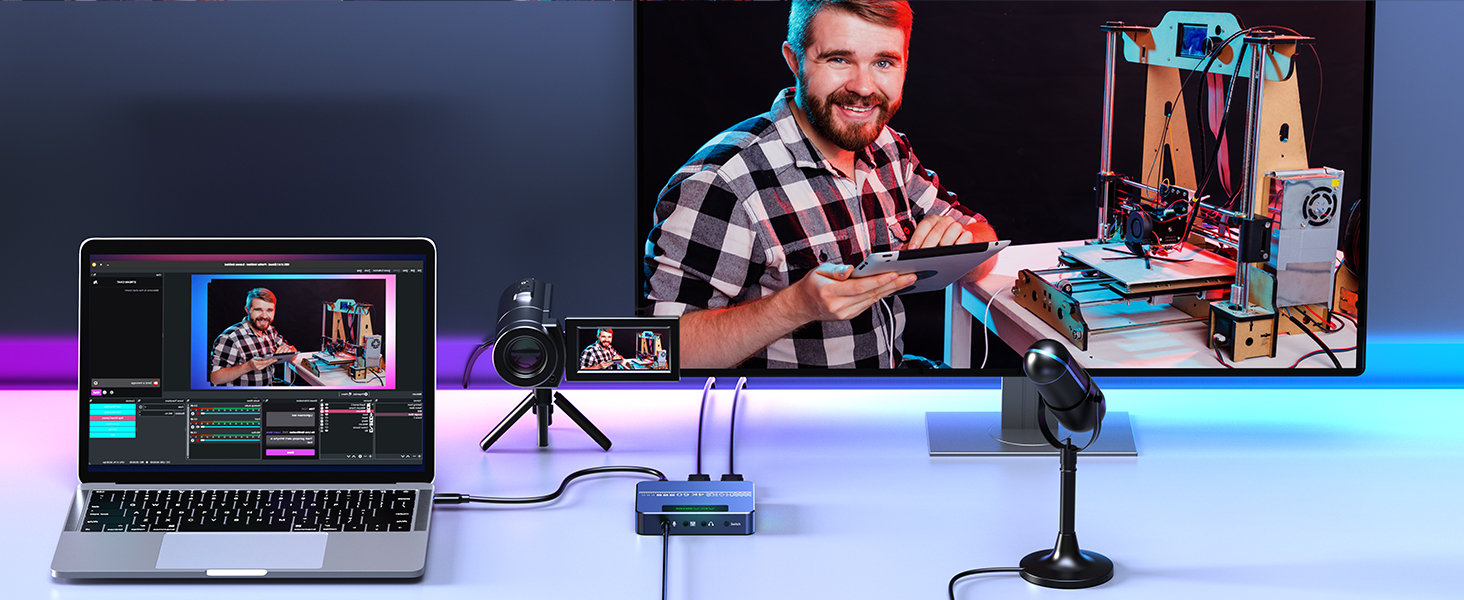
Image: A setup demonstrating the capture card's use in a video conferencing scenario, connecting a camera to a computer for enhanced video input.
9 Solución de problemas
Esta sección aborda problemas comúns cos que podes atoparte e ofrece posibles solucións.
Sen sinal / Pantalla negra:
- Comproba as conexións: Ensure all HDMI and USB cables are securely connected.
- HDCP Content: Este dispositivo DOES NOT SUPPORT HDCP. If your source device is outputting HDCP-protected content (e.g., certain streaming services, Blu-ray players), you will not get a signal. Disable HDCP on your source device if possible, or use a non-HDCP source.
- 4K Display Requirement: To achieve 4K resolution, ensure your display and source device are 4K compatible.
- Calidade do cable: Use high-quality HDMI cables that support 4K60fps transmission. Lower quality cables may cause signal issues or limit resolution/frame rate.
- Configuración do software: Verify that the capture card is correctly selected as the video source in your streaming/recording software (e.g., OBS) and that resolution/FPS settings are appropriate.
Problemas de audio:
- Check Audio Settings: In your computer's sound settings and streaming software, ensure the correct audio input (from the capture card) and output devices are selected.
- Microphone/Headset Connections: Confirm external audio devices are properly plugged into the capture card's 3.5mm ports.
Latency/Lag:
- Porto USB: Ensure the capture card is connected to a USB 3.0 (or higher) port on your computer for optimal bandwidth. USB 2.0 ports may introduce higher latency.
- Rendemento do ordenador: Ensure your computer meets the minimum system requirements for streaming/recording at your desired resolution and frame rate. Close unnecessary applications.
- Configuración de software: Adjust buffer settings in your streaming software (e.g., OBS) if available.
4K Resolution Not Working:
- 4K Monitor/Device: As noted, 4K output requires a 4K compatible monitor or device.
- Configuración do dispositivo de orixe: Ensure your source device (e.g., console) is configured to output 4K resolution.
- OBS Settings: Double-check that the resolution in OBS is set to 4K (e.g., 3840x2160) if your system supports it.
10. Especificacións
Technical specifications for the ACASIS 4K60fps Video Capture Card (Model VC-007PRO).
| Característica | Especificación |
|---|---|
| Marca | ACASIS |
| Número de modelo | VC-007PRO |
| Interface de hardware | USB tipo C |
| Resolución de captura de vídeo | 4K 60fps (Input/Pass-through), 4K 60fps (Recording) |
| Soporte do sistema operativo | Windows, macOS |
| Plataforma de hardware | Xbox Series X/S, Xbox One, PS5, PS4/Pro, PC/Mac |
| Peso do elemento | 4.2 onzas |
| Dimensións do paquete | 6.14 x 4.57 x 2.44 polgadas |
| VRR Support | Si |
| Soporte HDCP | Non |
11. Mantemento
To ensure the longevity and optimal performance of your ACASIS 4K60fps Video Capture Card, follow these maintenance guidelines:
- Limpeza: Usa un pano suave e seco para limpar o exterior do dispositivo. Evita o uso de produtos de limpeza líquidos ou materiais abrasivos.
- Ventilación: Ensure the device's ventilation openings are not obstructed to allow proper airflow for the cooling fan.
- Almacenamento: Store the capture card in a cool, dry place away from direct sunlight and extreme temperatures when not in use.
- Manexo: Handle the device with care to avoid physical damage to ports or the casing.
12. Garantía e soporte
For technical assistance, warranty information, or any inquiries regarding your ACASIS 4K60fps Video Capture Card, please contact ACASIS customer support.
- Soporte por correo electrónico: support@acasis.com
- Servizo en liña: 7x24 hours online support is available.
Please refer to the official ACASIS website or your purchase documentation for the most up-to-date warranty terms and conditions.