
1. Introdución
This manual provides comprehensive instructions for the GOHHDL Android 13 Car Stereo, model A7146A3454H1MI2. This unit is designed to integrate seamlessly into Hyundai Tucson IX35 models from 2010 to 2015, offering advanced features such as Wireless CarPlay, Android Auto, GPS navigation, Bluetooth 5.0, and a 10.1-inch IPS touchscreen. Please read this manual thoroughly before installation and operation to ensure proper use and to maximize your driving experience.
2. Contido do paquete
Verifique que todos os elementos que se indican a continuación estean incluídos no seu paquete:
- 1 x GOHHDL 4+64G Android 13 Car Stereo for Hyundai Tucson IX35 2010-2015
- 1 x cable de alimentación
- 1 x Ferramenta de instalación
- 1 x Antena GPS
- 1 cable de entrada para a cámara traseira
- 1 x cable RCA
- 2 x cable USB
- 1 x AHD Backup Camera
- 1 x micrófono
- 1 x Manual de usuario

Image: Illustration of the car stereo unit, its dimensions, and all included accessories such as cables, camera, and tools.
3. Configuración e instalación
This unit is designed for plug-and-play installation in Hyundai Tucson IX35 models from 2010-2015. Professional installation is recommended. Ensure the vehicle's power is disconnected before beginning installation.
- Remove the Original Unit: Carefully detach the existing car stereo and trim panels. Refer to your vehicle's service manual for specific instructions on panel removal.
- Conectar o arnés de cableado: Connect the provided power cable and other necessary wiring harnesses to the vehicle's corresponding ports. Ensure all connections are secure.
- Instalar a antena GPS: Monte a antena GPS nun lugar con luz despexada view of the sky, typically on the dashboard or under the windshield, away from metal obstructions.
- Install AHD Backup Camera (Optional): If using the included backup camera, install it at the rear of the vehicle and route the cable to the head unit. Connect the camera input cable to the designated port on the stereo.
- Montar a nova unidade: Secure the GOHHDL car stereo into the dashboard opening using the provided frame and mounting hardware. Reattach all trim panels.
- Encendido e proba: Reconnect the vehicle's power. Turn on the car stereo and perform initial tests for all functions, including audio, touchscreen response, radio, GPS, and camera.

Image: Comparison of the car dashboard before and after the installation of the GOHHDL Android 13 Car Stereo.
4. Instrucións de funcionamento
Apple CarPlay e Android Auto sen fíos 4.1
The unit supports both Wireless Apple CarPlay and Android Auto. Connect your smartphone via Bluetooth and Wi-Fi for wireless functionality, or use a USB cable for wired connection. This allows access to phone apps like messages, music, and maps directly on the car stereo screen, with voice control via Siri or Google Assistant.

Image: Display showing the Wireless Apple CarPlay and Android Auto interfaces with various app icons.
4.2 GPS Navigation and WiFi/Hotspot
The stereo comes with Google Maps pre-installed. Connect to a Wi-Fi network or mobile hotspot to view real-time traffic conditions. You can also download offline map data for navigation without an internet connection. The unit supports downloading and installing most apps from the Google Play Store.

Image: Screen displaying GPS navigation with a map and various online streaming and social media app icons, indicating WiFi connectivity.
4.3 Phone Mirror Link
Mirror your smartphone screen to the car stereo. This feature allows you to view your phone's content, such as GPS navigation or videos, directly on the larger display. Both iOS and Android phones can connect via Wi-Fi or USB cable. For Android devices, ensure necessary developer options permissions are enabled before connecting.

Image: Icon representing the Mirror Link function, showing a phone screen mirrored to the car stereo.
4.4 Bluetooth 5.0
The built-in Bluetooth 5.0 system and microphone enable hands-free calls, Bluetooth music streaming, and phone book synchronization. This enhances driving safety by allowing you to manage calls without handling your phone.
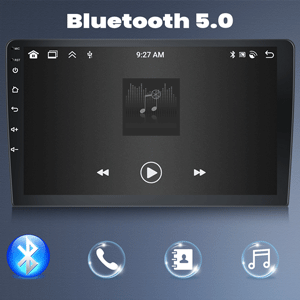
Image: Icon representing Bluetooth 5.0 connectivity.
Radio 4.5 FM/RDS
Enjoy high-quality FM/RDS radio with automatic channel search. The frequency range is 87.5-108 FM, and you can preset up to 18 channels. RDS (Radio Data System) provides additional information like station name and song title.

Image: Car stereo screen displaying the FM radio interface with frequency 87.50 MHz, alongside an image of a hand operating steering wheel controls.
4.6 Control do volante (SWC)
The unit supports the original steering wheel buttons of your car, allowing you to control audio functions conveniently and safely without taking your hands off the wheel. This includes switching songs, adjusting volume, and navigating menus.

Image: Icon representing Steering Wheel Control functionality.
4.7 DSP/EQ Setting
Utilize the DSP (Digital Sound Processor) tuning technology with customizable EQ settings. You can adjust frequency, AE, and choose between 32-band or 10-band EQ to enhance your audio listening experience.

Image: Icon representing DSP/EQ audio settings.
4.8 Función de pantalla dividida
The split-screen function allows you to run two applications simultaneously on the display. For example, you can use navigation on one side while controlling music on the other.

Image: Icon representing the Split Screen function.
Temas da interface de usuario 4.9
The unit offers 59 UI desktop themes, allowing you to customize the visual appearance of your car stereo interface to match your preferences.
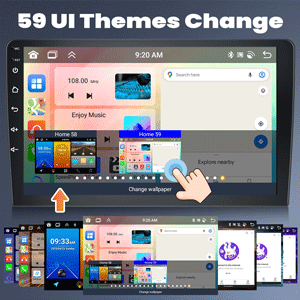
Image: Icon representing the 59 UI Themes Change feature.
4.10 AHD Backup Camera Input
The included AHD backup camera provides a 170-degree ultra-wide angle view and is waterproof. When the vehicle is shifted into reverse, the stereo automatically displays the camera feed on the screen, assisting with safe parking. The camera features night vision capabilities.
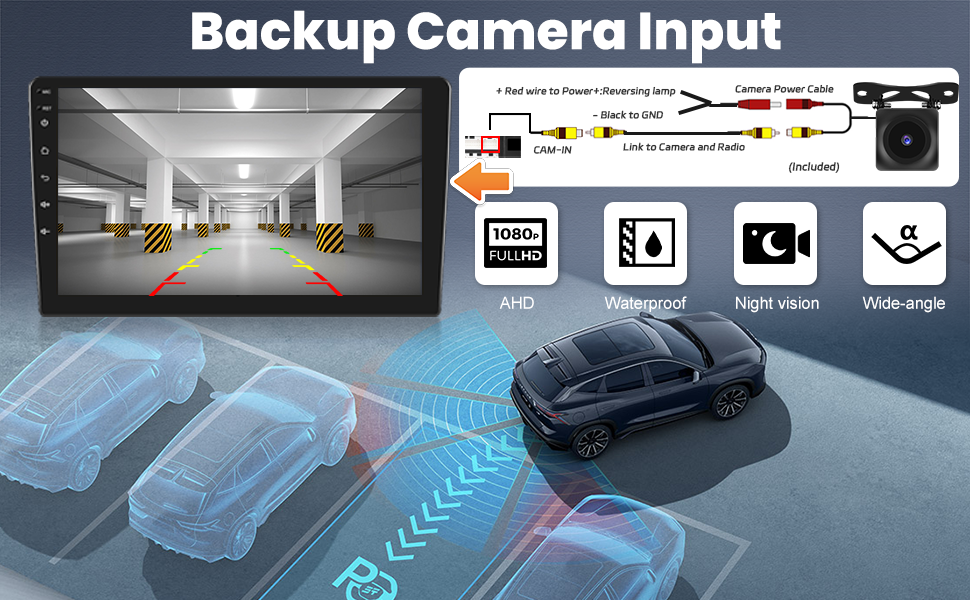
Image: Diagram showing the connection of the AHD backup camera and its features, including 1080P Full HD, waterproof, night vision, and wide-angle view.
5. Integración de medios
5.1 Product Function Display Video
Video: This video demonstrates various functions of the GOHHDL Android 13 Car Stereo, including UI navigation, app usage, and general system responsiveness.
6. Mantemento
To ensure the longevity and optimal performance of your GOHHDL car stereo, follow these maintenance guidelines:
- Limpeza: Use a soft, dry cloth to clean the screen and exterior. Avoid abrasive cleaners or solvents that may damage the surface.
- Actualizacións de software: Periodically check for software updates to ensure you have the latest features and bug fixes. Updates can typically be found in the system settings or on the manufacturer's websitio.
- Control de temperatura: Avoid exposing the unit to extreme temperatures. Prolonged exposure to direct sunlight or very cold conditions can affect performance and lifespan.
- Conexións por cable: Ensure all cables are securely connected. Loose connections can lead to intermittent functionality.
7 Solución de problemas
If you encounter issues with your car stereo, refer to the following common troubleshooting steps:
| Problema | Causa posible | Solución |
|---|---|---|
| A unidade non se acende | Conexión de alimentación solta, fusible fundido, problema coa batería do vehículo. | Check power cable connections. Inspect vehicle fuses. Verify vehicle battery health. |
| Sen son | Volume too low, incorrect audio source, loose speaker wires. | Increase volume. Select correct audio source. Check speaker wire connections. |
| A pantalla táctil non responde | System freeze, software issue. | Restart the unit (press and hold power button). If issue persists, perform a factory reset (refer to settings menu). |
| O GPS non funciona | GPS antenna not connected or obstructed, software issue. | Asegúrese de que a antena GPS estea conectada correctamente e teña unha visión clara view do ceo. Comprobe a configuración do GPS na unidade. |
| CarPlay/Android Auto non se conecta | Incorrect phone settings, incompatible cable, software issue. | Ensure Bluetooth and Wi-Fi are enabled on your phone. Try a different USB cable. Check phone permissions for Mirror Link/CarPlay/Android Auto. |
| Backup camera not displaying | Loose camera connection, incorrect camera settings. | Check camera input cable connection. Verify camera type settings in the unit's factory settings. |
If these steps do not resolve the issue, please contact GOHHDL customer support.
8. Especificacións
| Característica | Detalle |
|---|---|
| Sistema Operativo | Android 13 |
| Procesador | 8 núcleos |
| RAM | 4 GB |
| ROM | 64 GB |
| Mostrar | Pantalla táctil IPS de 10.1 polgadas |
| Resolución | 1280x720 |
| Conectividade sen fíos | Bluetooth 5.0, Wi-Fi |
| Navegación | GPS (Google Maps pre-installed, offline map support) |
| Procesamento de audio | 32EQ DSP |
| Radio | FM/RDS (87.5-108 FM) |
| Reproducción de vídeos | 1080P HD |
| Características especiais | Wireless Apple CarPlay, Android Auto, Split Screen, Mirror Link, Steering Wheel Control, 59 UI Desktop Themes, AHD Backup Camera Input |
| Vehículos compatibles | Hyundai Tucson IX35 (2010-2015) |
| Número de modelo do artigo | A7146A3454H1MI2 |
| Peso do elemento | 4.86 libras |
| Dimensións do paquete | 15.35 x 13.39 x 6.26 polgadas |
9. Garantía e soporte
GOHHDL provides the following support for this product:
- Servizo de devolución do diñeiro en 30 días: Se non estás satisfeito coa túa compra, podes optar a un reembolso dentro de 30 días.
- 24-Month After-Sales Support: The product is covered by a 24-month after-sales support period.
- 7*16 Hours Technical Support: Technical assistance is available 7 days a week, 16 hours a day, to help with installation and operation issues.
- Soporte técnico de por vida: GOHHDL offers lifetime technical support for all its products.
For technical assistance or warranty claims, please contact GOHHDL customer service through the platform where you purchased the product or refer to the contact information provided in your package.