
1. Introdución
This manual provides comprehensive instructions for the BBAUER 10ft USB Data Cable, designed for use with Verizon Orbic Journey V models ORB2210LBVZ and ORB2210. This high-quality cable facilitates both fast charging and data synchronization between your device and a personal computer or laptop. Please read this manual carefully to ensure proper usage and to maximize the cable's performance and longevity.
The BBAUER USB Data Cable is 100% brand new and supports fast charging, depending on the connected phone and USB adapter. It allows you to connect your phone to a PC/Laptop to access and synchronize contacts, emails, appointments, change ringtones, and background pictures, among other applications. The availability of these features is limited by your phone's capabilities and your service provider's default settings. Consult your phone's user manual and service provider for details.
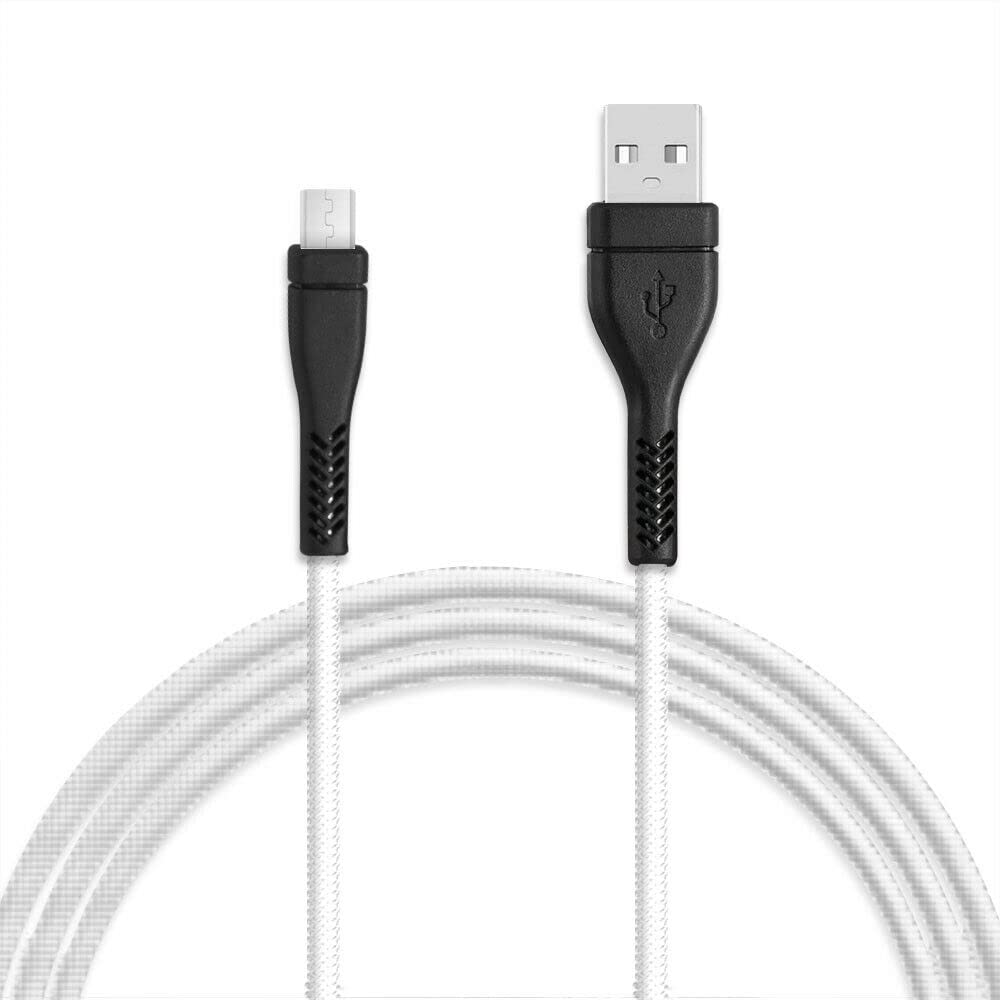
Figure 1: BBAUER 10ft USB Data Cable. This image shows the full length of the black USB cable with its connectors, illustrating its design and length.
2. Configuración
Setting up your BBAUER USB Data Cable is straightforward. Follow these steps to connect your device:
- Identificar conectores: The cable features a standard USB-A connector on one end and a compatible connector for your Verizon Orbic Journey V phone on the other.
- Conectar á fonte de alimentación ou ao ordenador:
- For charging: Insert the USB-A end into a compatible USB wall adapter or a powered USB port on a computer.
- For data transfer: Insert the USB-A end into an available USB port on your personal computer or laptop.
- Conectar ao dispositivo: Carefully insert the phone-compatible connector into the charging/data port of your Verizon Orbic Journey V phone. Ensure a secure connection.
- Verificar a conexión:
- For charging: Your phone's screen should indicate that it is charging.
- For data transfer: Your computer should recognize the connected device, and you may see a prompt on your phone to allow data access.
No additional software is typically required for basic charging and data transfer, as these functions are handled by your device's operating system.
3. Instrucións de funcionamento
3.1 Cargando o seu dispositivo
To charge your Verizon Orbic Journey V phone:
- Connect the USB-A end of the BBAUER cable to a USB wall adapter or a powered USB port.
- Connect the other end of the cable to your phone's charging port.
- Confirm that the charging indicator appears on your phone's screen. For optimal fast charging, use a compatible fast-charging wall adapter.
3.2 Sincronización de datos
To transfer data between your phone and a computer:
- Connect the USB-A end of the BBAUER cable to an available USB port on your computer.
- Connect the other end of the cable to your phone's data port.
- On your phone, you may receive a prompt asking for permission to access device data. Select the appropriate option (e.g., "Allow," "File Transfer," or "MTP").
- Your computer should now display your phone as a removable storage device or allow access through file explorer. You can then transfer files such as photos, videos, music, and documents.
Nota: The specific steps for data transfer may vary depending on your phone's operating system and your computer's settings. Refer to your phone's user manual for detailed instructions on data management.
4. Mantemento
Proper care and maintenance will extend the life of your BBAUER USB Data Cable:
- Almacenamento: When not in use, store the cable in a cool, dry place, away from direct sunlight and extreme temperatures. Avoid tightly coiling or bending the cable sharply, as this can damage internal wires.
- Limpeza: If the cable or connectors become dirty, gently wipe them with a soft, dry, lint-free cloth. Do not use liquid cleaners or solvents, as these can damage the cable.
- Manexo: Always grasp the connector head when plugging or unplugging the cable. Avoid pulling on the cable itself, as this can strain the connection points and lead to damage.
- Inspección: Inspeccione periodicamente o cable para detectar calquera signo de desgaste, desgaste ou dano no illamento ou nos conectores. Deixar de usalo se observa algún dano.
5 Solución de problemas
If you encounter issues with your BBAUER USB Data Cable, try the following troubleshooting steps:
| Problema | Causa posible | Solución |
|---|---|---|
| O teléfono non se está cargando. | Loose connection, faulty power source, damaged cable, incompatible adapter. |
|
| Carga lenta. | Low-power USB port, non-fast charging adapter, background apps on phone. |
|
| Computer not recognizing phone for data transfer. | Incorrect phone settings, driver issues, faulty USB port, damaged cable. |
|
If these steps do not resolve the issue, please refer to the "Warranty & Support" section for further assistance.
6. Especificacións
The following are the key specifications for the BBAUER 10ft USB Data Cable:
- Marca: BBAUER
- Compatibilidade do modelo: Verizon Orbic Journey V (ORB2210LBVZ, ORB2210)
- Tipo de cable: Cable de datos USB
- Tipo de conector: USB-A (Male) to Phone-compatible connector (Male)
- Lonxitude: 10 pés (aproximadamente 3 metros)
- Cor: Negro
- Funcionalidade: Fast Charging, Data Synchronization
- Uso interior/exterior: Interior, Exterior
7. Garantía e soporte
7.1 Información da garantía
Specific warranty details for the BBAUER 10ft USB Data Cable are provided by the seller or manufacturer at the time of purchase. Please retain your proof of purchase for any warranty claims. For information regarding return policies, refer to the retailer's terms and conditions where the product was purchased.
7.2 Atención ao cliente
For technical assistance, troubleshooting beyond this manual, or warranty inquiries, please contact the seller or the manufacturer directly. Contact information can typically be found on the product packaging or the retailer's websitio.
Fabricante: BBAUER