
Introdución
Thank you for choosing the Thunderobot K87 Wired Mechanical Keyboard. This manual provides essential information for the proper setup, operation, maintenance, and troubleshooting of your new keyboard. Please read this manual thoroughly before using the product to ensure optimal performance and longevity.

Figura 1: En ángulo view of the Thunderobot K87 Mechanical Keyboard.
Configuración
Contido do paquete
Before proceeding, please verify that your package contains the following items:
- Thunderobot K87 Wired Mechanical Keyboard
- Cable USB
- Manual de usuario (este documento)
Conectando o teclado
- Unpack the Thunderobot K87 keyboard and the included USB cable.
- Connect the USB-C end of the cable to the port located on the keyboard.
- Conecta o extremo USB-A do cable a un porto USB dispoñible do teu ordenador.
- O teclado será recoñecido automaticamente polo teu sistema operativo. Normalmente non se requiren controladores adicionais para a funcionalidade básica.

Figura 2: Abaixo view of the keyboard, illustrating adjustable feet and cable management options.
Instrucións de funcionamento
Funcións básicas
The Thunderobot K87 is a standard 87-key (TKL) layout mechanical keyboard. Simply plug it into your computer, and it is ready for typing. The keyboard features Red mechanical switches, known for their linear feel and quiet operation, making them suitable for both typing and gaming.
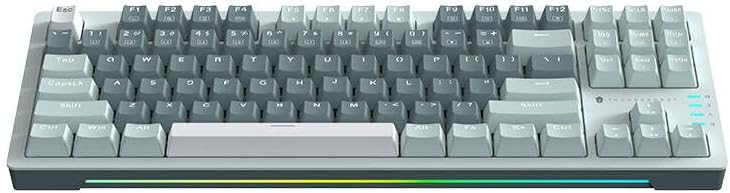
Figura 3: De arriba abaixo view of the Thunderobot K87 keyboard layout.
Teclas multimedia e de función
The keyboard includes a Function (Fn) key, typically located near the right Alt key. This key, when pressed in combination with the F1-F12 keys, activates various multimedia and system functions. Refer to the keycap legends for specific functions.
- Fn + F1-F12: Typically control media playback, volume, and other system shortcuts.
- Fn + tecla Windows: Locks/unlocks the Windows key to prevent accidental presses during gaming.
Control de retroiluminación
The Thunderobot K87 keyboard features customizable RGB backlighting. Specific key combinations allow you to change lighting modes, brightness, and speed. Consult the keyboard's keycap legends or the manufacturer's website for detailed instructions on lighting customization.

Figura 4: Fronte view showing the RGB lighting strip.

Figura 5: Pro lateralfile view demonstrating keycap height and keyboard angle.
Mantemento
Limpeza do teclado
Unha limpeza regular axuda a manter a aparencia e a funcionalidade do teclado.
- Desconectar: Desconecte sempre o teclado do ordenador antes de limpalo.
- Eliminación de po: Usa unha lata de aire comprimido para eliminar o po e os residuos que hai entre as tapas das teclas.
- Limpeza de superficies: Limpe suavemente as teclas e a superficie do teclado cun pano suave e sen fiapos.amplimpa con auga ou cunha solución de limpeza suave e non abrasiva. Evite a humidade excesiva.
- Evitar: Do not use harsh chemicals, solvents, or abrasive materials, as these can damage the keyboard's finish or keycap legends.
Almacenamento
When not in use for extended periods, store the keyboard in a dry, cool place away from direct sunlight and extreme temperatures. Consider covering it to prevent dust accumulation.
Resolución de problemas
If you encounter issues with your Thunderobot K87 keyboard, please refer to the following common solutions:
| Problema | Causa posible | Solución |
|---|---|---|
| O teclado non responde | Conexión USB solta, porto USB defectuoso, problema co controlador. | Ensure USB cable is securely connected. Try a different USB port on your computer. Restart your computer. |
| Teclas específicas que non funcionan | Residuos baixo a tapa da tecla, avaría do interruptor. | Use compressed air to clear debris. If the issue persists, contact customer support. |
| A retroiluminación non funciona ou é incorrecta | Lighting mode disabled, software conflict. | Check keyboard's lighting control key combinations (Fn + specific keys). Ensure no conflicting software is running. |
| Keyboard input lag | USB port issues, system performance. | Try a different USB port. Close unnecessary background applications. |
If the problem persists after trying these solutions, please contact Thunderobot customer support for further assistance.
Especificacións
| Característica | Detalle |
|---|---|
| Número de modelo | JM03NQ002 |
| Marca | Thunderbot |
| Conectividade | Con cable (USB) |
| Tipo de cambio | Interruptores mecánicos vermellos |
| Maquetación | 87-key (Tenkeyless) |
| Retroiluminación | RGB |
| Fabricante | Thunderbot |
| ASIN | B0CWS77B83 |
| Garantía | 2 years manufacturer |
Información da garantía
The Thunderobot K87 Wired Mechanical Keyboard (Model JM03NQ002) comes with a 2 anos de garantía do fabricante from the date of purchase. This warranty covers defects in materials and workmanship under normal use. It does not cover damage caused by accident, misuse, abuse, neglect, unauthorized modification, or improper installation.
To claim warranty service, please retain your proof of purchase. For detailed warranty terms and conditions, or to initiate a warranty claim, please contact Thunderobot customer support.
Apoio
For technical assistance, product inquiries, or warranty claims, please visit the official Thunderobot website or contact their customer support team. Please have your product model number (JM03NQ002) and proof of purchase ready when seeking support.
Official Thunderobot Websitio: www.thunderobot.com (Nota: isto é un marcador de posición) URL como sen apoio específico URL was provided in the product data. Refer to your product packaging or official Thunderobot documentation for the correct support contact information.)