
amazon basics B0CX226DLQ
amazon basics Wireless Bluetooth Keyboard User Manual
Model: B0CX226DLQ
Introdución
This manual provides essential information for the setup, operation, and maintenance of your amazon basics Wireless Bluetooth Keyboard. Designed for seamless multi-device connectivity, this keyboard allows you to effortlessly switch between up to three devices running on iOS, Windows, or Android operating systems. Its compact and lightweight design, combined with noiseless keys and a built-in rechargeable battery, makes it an ideal solution for versatile typing needs on the go.

Imaxe: De arriba abaixo view of the amazon basics Wireless Bluetooth Keyboard, showcasing its compact layout and grey and black color scheme.
Contido do paquete
Ao abrir o paquete, asegúrese de que estean presentes todos os seguintes elementos:
- 1 x amazon basics Wireless Bluetooth Keyboard
- 1 x cable de carga USB tipo C
- 1 x Manual de usuario (este documento)
Configuración
1. Cargar o teclado
The keyboard features a built-in rechargeable battery. Before first use, it is recommended to fully charge the keyboard.
- Locate the Type-C charging port on the side of the keyboard.
- Connect one end of the provided USB Type-C charging cable to the keyboard's charging port.
- Conecta o outro extremo do cable a unha fonte de alimentación USB (por exemplo, un porto USB do ordenador ou un adaptador de parede USB).
- A luz indicadora de carga acenderase. Unha vez cargada completamente, a luz pode cambiar de cor ou apagarse, dependendo do modelo.

Imaxe: Un primeiro plano lateral view of the keyboard, highlighting the Type-C charging port and the ON/OFF power switch.
2. Acendido/apagado
To power on the keyboard, slide the ON/OFF switch located on the side of the keyboard to the "ON" position. To power off, slide it to the "OFF" position.
3. Emparellamento Bluetooth
The keyboard supports connection to up to three devices simultaneously. Follow these steps to pair your devices:
- Asegúrate de que o teclado estea acendido.
- Preme o Fn tecla simultaneamente cunha das teclas do canal Bluetooth (BT1, BT2, ou BT3) for approximately 3-5 seconds until the corresponding indicator light flashes rapidly. This indicates the keyboard is in pairing mode.
- No teu dispositivo (teléfono intelixente, tableta, portátil), vai á configuración de Bluetooth e activa Bluetooth.
- Busca available devices. The keyboard will appear as "amazon basics Keyboard" or similar.
- Select the keyboard from the list to connect. If prompted, enter the displayed code on the keyboard and press Entra.
- Unha vez conectado, o indicador luminoso deixará de parpadear e permanecerá fixo durante uns segundos antes de apagarse.
- Repeat these steps for up to two additional devices using the other BT channel keys.

Image: The keyboard positioned between a laptop, tablet, and smartphone, visually representing its multi-device connectivity feature.
Operación do teclado
1. Cambio entre dispositivos
After pairing multiple devices, you can easily switch between them:
- Simplemente prema o Fn key simultaneously with the desired Bluetooth channel key (BT1, BT2, ou BT3) to switch to the corresponding paired device.
- The keyboard will automatically connect to the selected device.
2. Compatibilidade do sistema operativo
The keyboard is designed to be compatible with various operating systems. Some keys may have dual functions or specific behaviors depending on the OS.
- iOS: Compatible with iPhones and iPads.
- Windows: Fully functional with Windows PCs and laptops.
- Android: Works seamlessly with Android smartphones and tablets.
- MacOS: Compatible with MacBooks and iMacs.
- Chrome OS: Supports Chrome OS devices.
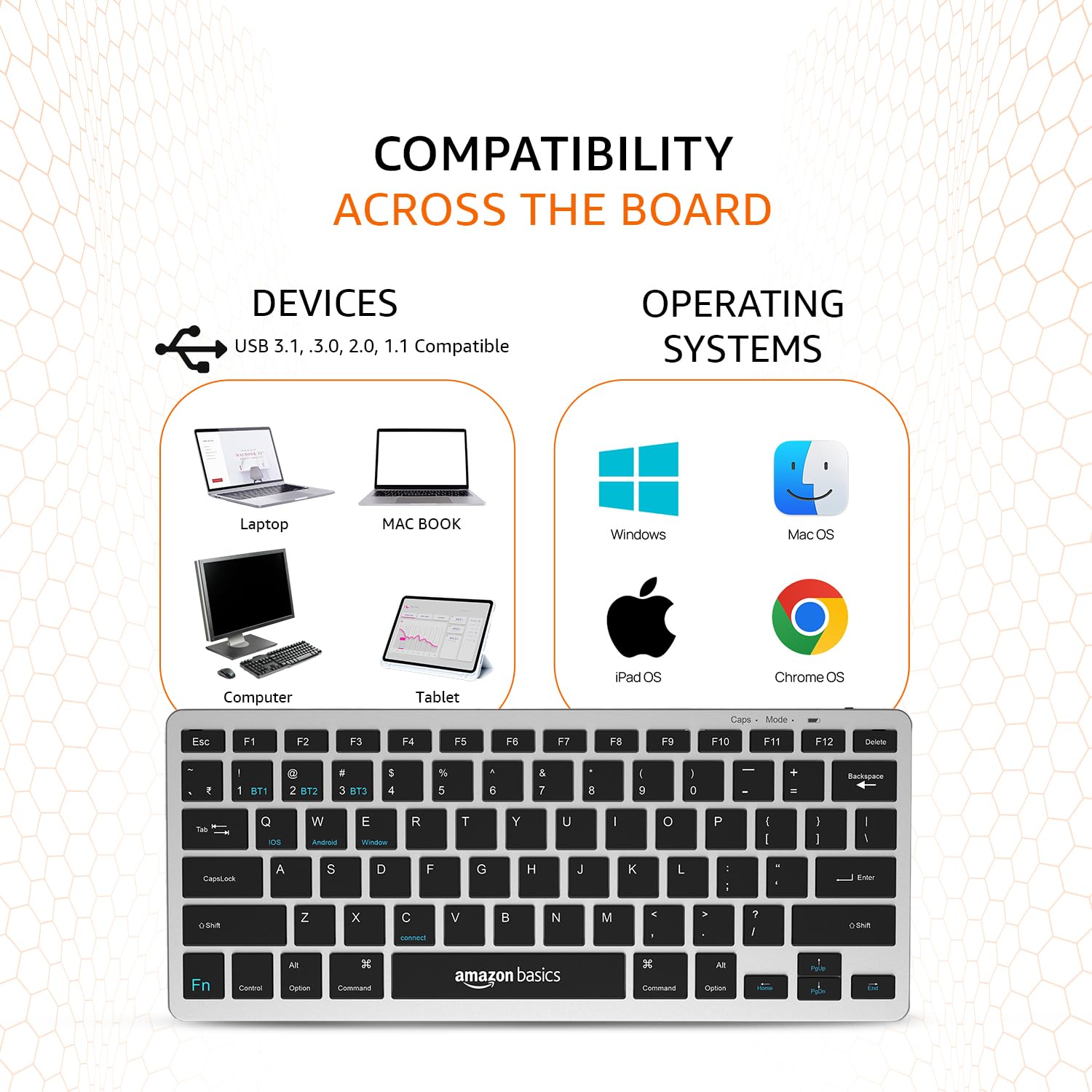
Image: A visual representation of the keyboard's broad compatibility, showing various device types and operating system logos it supports.
3. Teclas de función especial
The keyboard features a dedicated Fn key that, when pressed in combination with other keys, activates special functions. Refer to the keycap legends for specific functions (e.g., media controls, volume, screen brightness).
Mantemento
Un mantemento axeitado garante a lonxevidade e o rendemento óptimo do teu teclado.
- Limpeza: Usa un pano suave, seco e sen fiapos para limpar a superficie do teclado. Para a sucidade persistente, lixeiramenteampEnxágüe o pano con auga ou un limpador suave e non abrasivo. Evite a humidade excesiva.
- Coidado da batería: To preserve battery life, avoid fully discharging the keyboard frequently. If storing for an extended period, charge the battery to about 50% and power off the keyboard.
- Almacenamento: Store the keyboard in a cool, dry place away from direct sunlight, extreme temperatures, and corrosive materials.
- Manexo: Evita deixar caer o teclado nin sometelo a impactos fortes. Non intentes desmontalo, xa que isto anulará a garantía.
Resolución de problemas
If you encounter issues with your amazon basics Wireless Bluetooth Keyboard, refer to the following common troubleshooting steps:
- Keyboard Not Connecting/Pairing:
- Asegúrate de que o teclado estea acendido e completamente cargado.
- Asegúrate de que o Bluetooth estea activado no teu dispositivo.
- Move the keyboard closer to your device to ensure it's within range.
- Forget or remove the keyboard from your device's Bluetooth list and attempt to re-pair it.
- Try pairing with a different device to rule out an issue with your primary device's Bluetooth.
- As teclas non responden ou escriben dúas veces:
- Check the keyboard's battery level and recharge if low.
- Ensure the keyboard is properly connected to your device. Try switching to another BT channel and back.
- Clean the keys and surrounding areas to remove any debris that might be obstructing key presses.
- Restart both the keyboard (power off/on) and your connected device.
- Latencia ou resposta tardía:
- Ensure there are no other strong wireless signals or devices interfering with the Bluetooth connection.
- Reduce the distance between the keyboard and your device.
- Check for any pending software updates on your device that might improve Bluetooth performance.
- Problemas de carga:
- Verify that the Type-C cable is securely connected to both the keyboard and the power source.
- Proba a usar un porto USB ou un adaptador de alimentación diferente.
- Asegúrate de que o cable de carga non estea danado.
If the issue persists after trying these steps, please contact amazon basics customer support for further assistance.
Especificacións
| Característica | Detalle |
|---|---|
| Marca | conceptos básicos de amazon |
| Modelo | Wireless Bluetooth Keyboard (B0CX226DLQ) |
| Tecnoloxía de conectividade | Bluetooth |
| Disposición de teclas | 78-Key Compact Layout |
| Tipo de chave | Noiseless Keys |
| Dispositivos compatibles | Portátil, Tablet, Smartphone |
| Compatibilidade do sistema operativo | iOS, Windows, Android, Mac OS, Chrome OS |
| Tipo de batería | Built-in Rechargeable Lithium Polymer |
| contido de enerxía da batería | 1.48 vatios horas |
| Porto de carga | USB tipo C |
| Material | ABS de alta calidade |
| Dimensións do produto (LxWxH) | 28.5 cm x 12 cm x 1.45 cm |
| Peso do elemento | 290 g |
| País de Orixe | India |
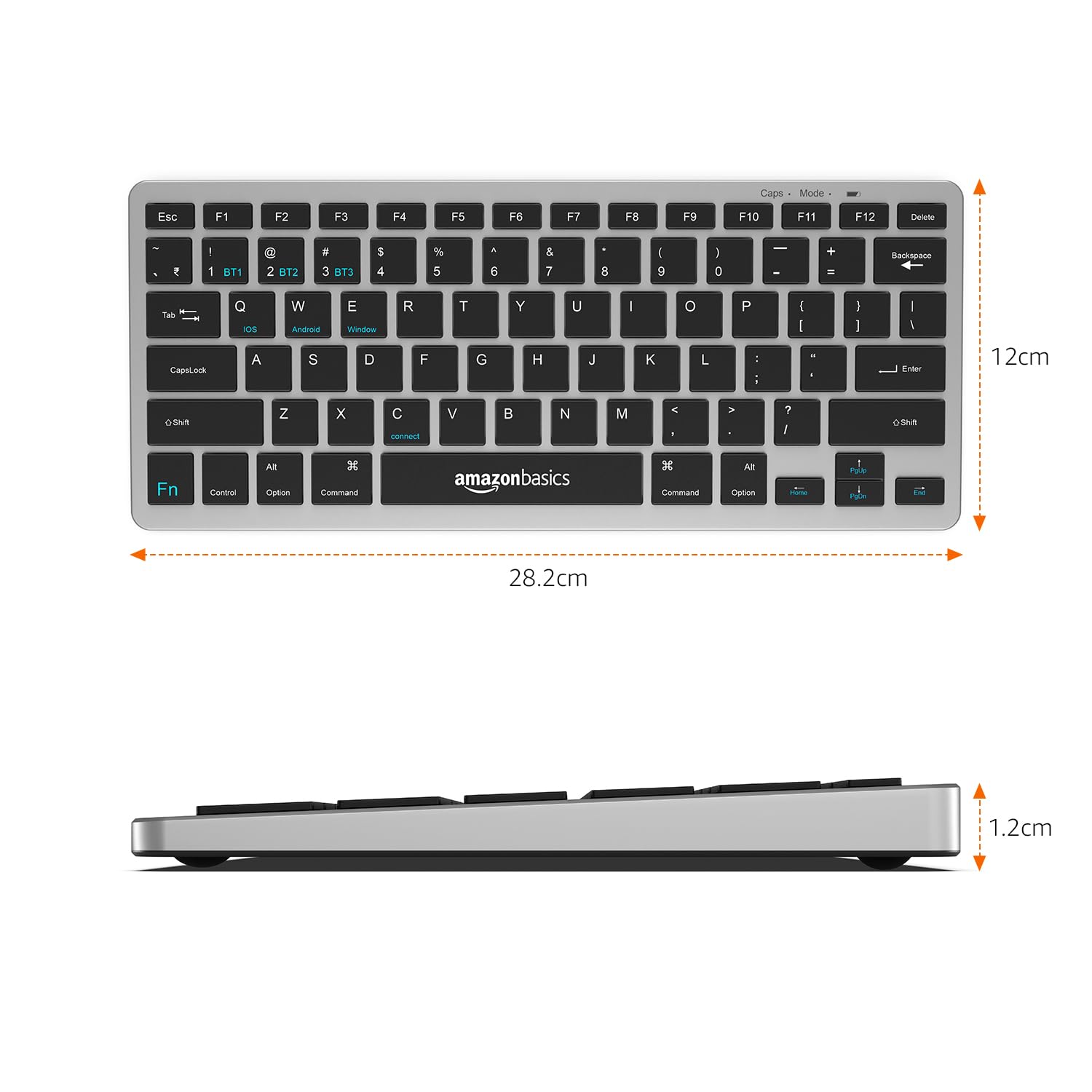
Image: The keyboard with overlaid measurements indicating its length (28.5 cm), width (12 cm), and thickness (1.2 cm).
Garantía e Soporte
For information regarding the product warranty, please refer to the warranty card included in your package or contact amazon basics customer support directly. Warranty terms and conditions may vary by region and purchase date.
If you require further assistance, have questions, or need to report an issue that cannot be resolved using the troubleshooting guide, please contact amazon basics customer support through their official websitio ou a información de contacto proporcionada coa súa compra.
For the latest support information and FAQs, visit the official amazon basics support page.
Ask a question about this manual
Ask about setup, troubleshooting, compatibility, parts, safety, or missing instructions. Manuals+ will review the question and use this page’s manual context to help answer it.