
Womier M68 HE
Manual do usuario do teclado para xogos Womier M68 HE con interruptor magnético de disparo rápido ao 60 %
Marca: Womier
Model: M68 HE
1. Rematadoview
The Womier M68 HE is a 60% compact gaming keyboard featuring rapid trigger magnetic switches. Designed for high-performance gaming, it offers hyper-fast response times, customizable actuation, and vibrant RGB lighting. Its durable construction includes a metal PCB plate and PBT topographic keycaps, providing a stable and responsive typing experience.

Figure 1: Womier M68 HE keyboard on a desk setup.

Figure 2: Close-up of the Womier M68 HE keyboard with RGB lighting.
2. Configuración
2.1. Contido do paquete
Verifica que todos os elementos estean presentes no paquete:
- Womier M68 HE Keyboard
- Cable trenzado USB-A a USB-C
- Extractor de interruptores e extractor de teclas
- 2x Spare Outemu Magnetic Switches
- Manual de instrucións

Figure 3: Womier M68 HE Package Contents.
2.2. Conectando o teclado
- Localiza o porto USB-C na parte traseira do teclado.
- Connect the provided USB-A to USB-C cable to the keyboard and your computer.
- Ensure the operating system switch (Win/Mac) on the back of the keyboard is set to your desired system.
- The keyboard is plug-and-play; no additional drivers are typically required for basic functionality.
2.3. Instalación de software
For advanced customization, including rapid trigger settings, key remapping, and RGB effects, download the official Womier M68 HE software from the manufacturer's websitio. Siga as instrucións que aparecen na pantalla para a instalación.
3. Instrucións de funcionamento
3.1. Basic Key Functions (FN Combinations)
The Womier M68 HE utilizes FN key combinations for various functions due to its compact 60% layout. Refer to the diagram below for common combinations:

Figure 4: FN Key Combinations for Womier M68 HE.
- FN + WIN: Turn on/off WIN function.
- FN + frecha cara arriba: Brillo de luz de fondo +
- FN + frecha cara abaixo: Backlight brightness -
- FN + Retroceso: Switch between 15 backlight modes.
- FN + Frecha esquerda: Backlight speed -
- FN + Frecha dereita: Velocidade de retroiluminación +
- FN + Barra espaciadora: Restaurar a configuración de fábrica.
- FN + Ctrl: Cambia as cores da luz de fondo.
3.2. Control da iluminación RGB
The keyboard features 16.8 million RGB lighting colors with 15 pre-set lighting effects. Adjust brightness and speed using the knob or FN+key combinations. You can also select single color effects or turn off the backlight entirely.
3.3. Disparador rápido e actuación axustable
The Womier M68 HE's magnetic switches offer a rapid trigger feature and adjustable actuation distance from 0.3mm to 4mm. This allows for precise control, activating or deactivating keys based on travel distance rather than a fixed point. Each key can be personalized in 0.1mm increments via the software.
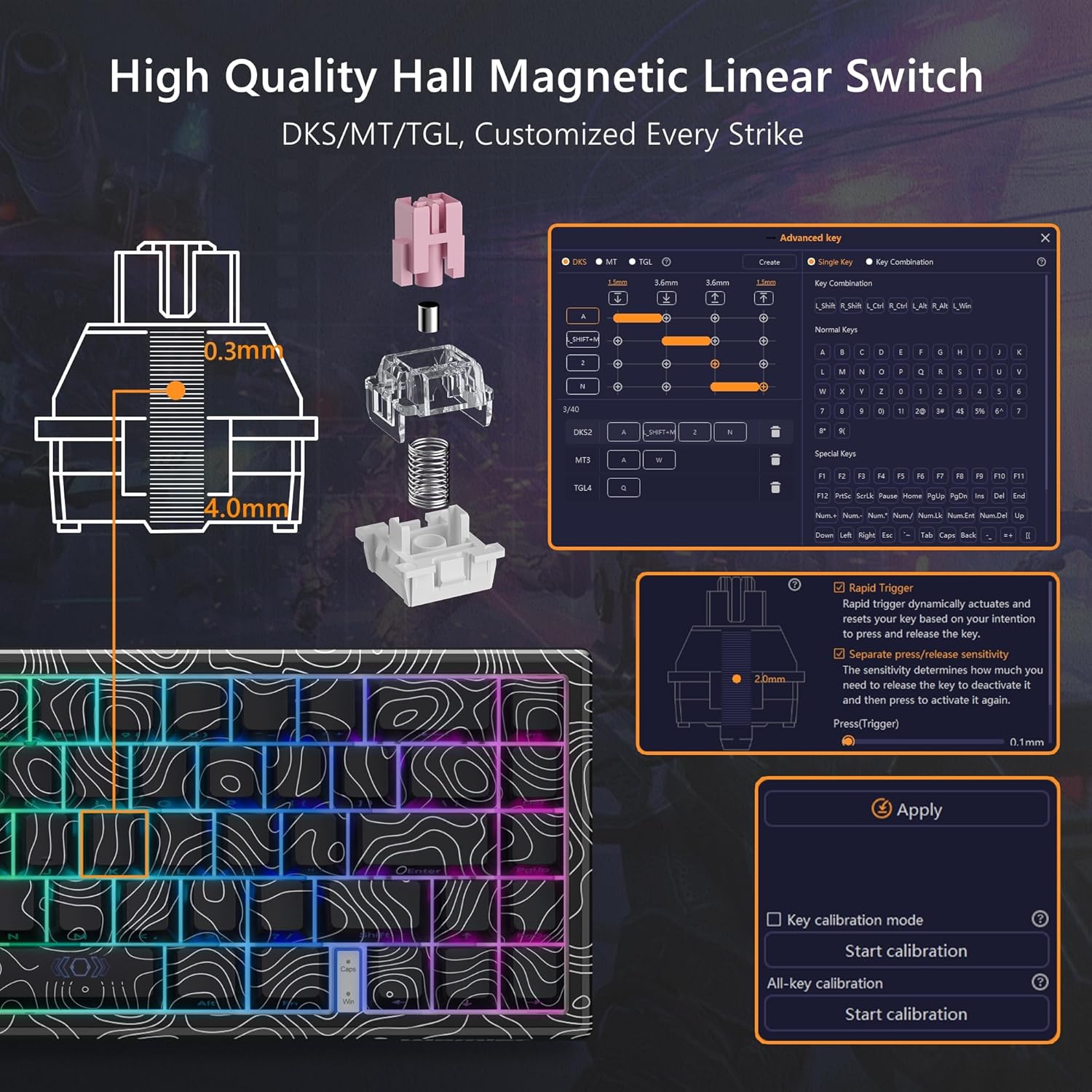
Figure 5: Hall Magnetic Linear Switch Actuation Diagram.

Figure 6: Adjustable Actuation Distance for Magnetic Switches.
Video 1: Demonstration of the Womier M68 HE Rapid Trigger Gaming Keyboard features.
3.4. Software de personalización
The dedicated software allows for comprehensive management of the keyboard. You can customize macros, key bindings, set DKS, MT, TGL features, and adjust lighting modes, brightness, and effects.

Figure 7: Womier M68 HE Customization Software Interface.
Vídeo 2: Rematadoview of the M68 HE 60% Gaming Keyboard's rapid trigger and mechanical features.
4. Mantemento
4.1. Limpeza
To maintain optimal performance and appearance, regularly clean your keyboard. Use a soft brush or compressed air to remove dust and debris from between the keycaps. For stubborn dirt, gently wipe the keycaps and keyboard surface with a slightly damp, pano que non solte fiapos. Evite o uso de produtos químicos agresivos ou materiais abrasivos.
4.2. Substitución da tapa das teclas e do interruptor
The Womier M68 HE uses Outemu magnetic switches. These switches are hot-swappable, allowing for easy replacement or customization. Use the provided switch puller to carefully remove switches. Note that only Outemu magnetic switches are compatible with this keyboard.

Figure 8: Internal Structure of the Womier M68 HE Keyboard.
5 Solución de problemas
5.1. O teclado non responde
- Asegúrate de que o cable USB-C estea conectado correctamente tanto ao teclado como ao ordenador.
- Tenta conectar o teclado a un porto USB diferente do teu ordenador.
- Verify the Win/Mac switch on the back of the keyboard is set correctly for your operating system.
- Reinicia o teu ordenador.
5.2. Problemas de iluminación RGB
- Check FN key combinations for brightness and mode adjustments (refer to Section 3.1).
- Ensure the lighting is not turned off via the software.
- If using customization software, ensure the settings are applied correctly.
5.3. Accidental Keystrokes / Rapid Trigger Sensitivity
- Adjust the actuation distance for individual keys using the customization software (refer to Section 3.3). A higher actuation point (e.g., 3mm-4mm) requires a deeper press, reducing accidental triggers.
- Perform key calibration through the software to ensure accurate switch recognition.
5.4. Software Not Detecting Keyboard
- Asegúrate de que o teclado estea conectado correctamente mediante USB.
- Reinstall the customization software.
- Check for any available software updates.
6. Especificacións
| Característica | Detalle |
|---|---|
| Marca | Womier |
| Modelo | M68 HE |
| Tecnoloxía de conectividade | USB-C (con cable) |
| Tipo de cambio | Hall Effect Magnetic Switches (Outemu) |
| Distancia de actuación | Axustable de 0.3 mm a 4 mm |
| Taxa de votación | Ata 8000 Hz |
| Disposición do teclado | 60% Compact (67 keys) |
| Chaves | PBT Topographic, Side-Printed |
| Retroiluminación | 16.8 Million RGB (15 pre-set effects) |
| Dispositivos compatibles | PC (Mac/Windows) |
| Material | Metal, Polybutylene Terephthalate |
7. Garantía e soporte
7.1. Información da garantía
The Womier M68 HE keyboard comes with a 1-year warranty from the date of purchase. This warranty covers manufacturing defects and malfunctions under normal use. Please retain your proof of purchase for warranty claims.
7.2. Atención ao cliente
For technical assistance, warranty claims, or any other inquiries, please contact Womier customer support through their official websitio web ou a información de contacto que se inclúe na embalaxe do produto.
Ask a question about this manual
Ask about setup, troubleshooting, compatibility, parts, safety, or missing instructions. Manuals+ will review the question and use this page’s manual context to help answer it.