
VGN N75BLUE
VGN N75 Gaming Keyboard User Manual
Model: N75BLUE | Brand: VGN
1. Introdución
Welcome to the user manual for your VGN N75 Gaming Keyboard. This manual provides essential information on setting up, operating, maintaining, and troubleshooting your new keyboard. The VGN N75 is a compact, numeric keyless mechanical keyboard designed for an optimal gaming and typing experience.

Figure 1.1: VGN N75 Gaming Keyboard with RGB lighting enabled.

Figura 1.2: En ángulo view of the VGN N75 keyboard, highlighting its compact form factor.
2. Información de seguridade
Please read the following safety guidelines carefully before using your VGN N75 keyboard:
- Manteña o teclado lonxe de líquidos e humidade excesiva para evitar danos.
- Evite expoñer o teclado a temperaturas extremas (quente ou frío).
- Do not attempt to disassemble or modify the keyboard. This may void your warranty and cause damage.
- Use only the provided USB-C cable for connection.
- Manéxeo con coidado para evitar danos físicos por caídas ou impactos.
3. Características do produto
The VGN N75 keyboard is engineered with several features to enhance your typing and gaming experience:
- Deseño compacto ao 75 %: The US82 key numeric keyless design offers a space-saving solution compared to full-size keyboards, providing more desk space for mouse movement.
- Advanced Internal Construction: Features multiple buffer layers and specially tuned stabilizers for a smooth, quiet, and consistent typing experience.
- VGN "Dynamic Silver" Mechanical Switches: Equipped with VGN's original linear mechanical switches, offering a responsive feel and vibrant RGB illumination.
- Deseño distintivo: The "Caribbean Blue" model features striking keycap colors, adding a unique aesthetic to your setup.
- Integrated Metal Volume Knob: A conveniently located metal rotary knob allows for quick and precise volume adjustments, useful for both work and gaming.
- Iluminación RGB personalizable: Enjoy dynamic and customizable RGB backlight options to personalize your keyboard's appearance.

Figure 3.1: The compact 75% layout of the VGN N75, demonstrating its space-saving advantage over a traditional full-size keyboard.

Figure 3.2: Detail of the VGN N75's unique "Dynamic Silver" mechanical switches, known for their linear feel and RGB compatibility.

Figure 3.3: An exploded diagram illustrating the multiple buffer layers and components within the VGN N75 keyboard, contributing to its smooth and quiet operation.

Figure 3.4: Close-up of the metal volume knob, providing convenient audio control.
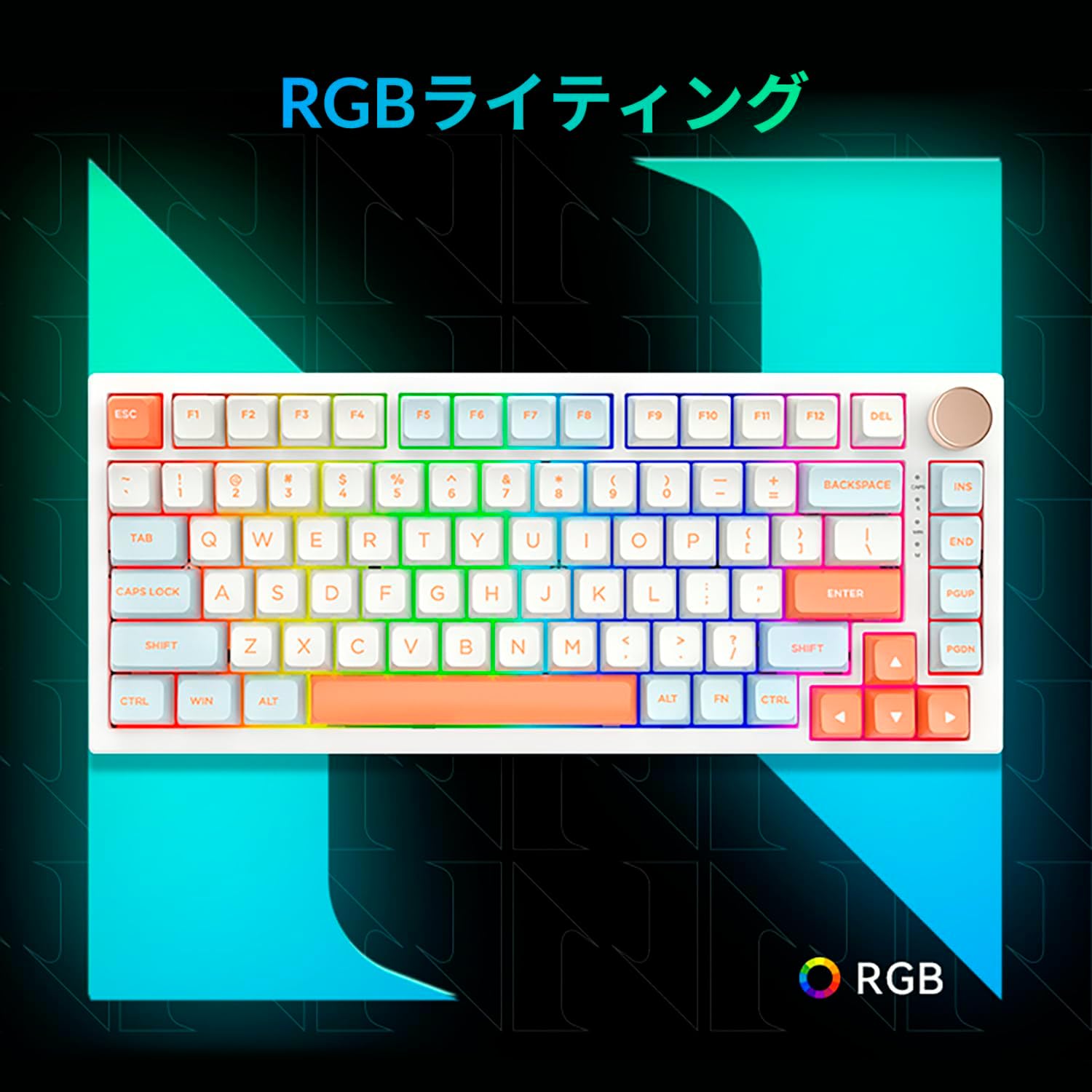
Figure 3.5: The VGN N75 keyboard displaying its customizable RGB lighting, enhancing the visual appeal.
4. Guía de configuración
Follow these steps to set up your VGN N75 keyboard:
- Descomprimir o teclado: Carefully remove the keyboard and all included accessories (USB cable, keycap puller, replacement key) from the packaging.
- Conecta o cable USB-C: Insert one end of the provided USB-C cable into the USB-C port on the keyboard.
- Conéctate ao teu dispositivo: Plug the other end of the USB-C cable into an available USB port on your computer or laptop.
- Instalación do controlador (automática): The keyboard is plug-and-play. Your operating system should automatically detect and install the necessary drivers. No manual driver installation is typically required.
- Proba inicial: Open a text editor or any application to test the keys and ensure all functions are working correctly.
5. Instrucións de funcionamento
This section details the basic operation of your VGN N75 keyboard:
5.1. Funcións básicas das teclas
The VGN N75 features a standard US82 key layout. All keys function as labeled. For specific key combinations or software-defined macros, refer to any accompanying software documentation (if applicable, not included in this manual).
5.2. Using the Rotary Knob
- Control de volume: Xire o botón no sentido das agullas do reloxo para aumentar o volume e no sentido contrario para diminuír o volume.
- Silenciar/Activar o silencio: Press the knob to mute or unmute audio.
5.3. Control da iluminación RGB
The VGN N75 supports RGB lighting. While specific key combinations for lighting modes are not provided in the product description, most RGB keyboards allow cycling through effects using function key combinations (e.g., Fn + F-keys or dedicated lighting keys). Experiment with the 'Fn' key in combination with other keys (like arrow keys or Ins/Del/Home/End/PgUp/PgDn) to discover lighting controls.
6. Mantemento
Un mantemento axeitado prolongará a vida útil do teu teclado:
- Limpeza:
- Desconecte o teclado do ordenador antes de limpalo.
- Use un pano suave e sen pelusa lixeiramente dampEnxágüe con auga ou unha solución de limpeza suave para limpar as teclas e o marco.
- Para o po e os residuos entre as teclas, use aire comprimido.
- Non pulverices líquido directamente sobre o teclado.
- Substitución da tapa das teclas e do interruptor:
- The keyboard comes with a keycap puller and a replacement key.
- To remove a keycap, gently use the keycap puller to grip the keycap and pull upwards.
- To replace a keycap, align it with the switch stem and press down firmly until it clicks into place.
- Nota: The VGN N75 features hot-swappable switches, allowing for easy replacement without soldering. To remove a switch, use a switch puller (not explicitly listed as included, but implied by "hot-swappable") to gently pry it out. Align the new switch's pins with the sockets and press firmly until it seats correctly.
7 Solución de problemas
If you encounter issues with your VGN N75 keyboard, try the following solutions:
- O teclado non responde:
- Asegúrate de que o cable USB-C estea conectado correctamente tanto ao teclado como ao ordenador.
- Tenta conectar o teclado a un porto USB diferente do teu ordenador.
- Reinicia o teu ordenador.
- Proba o teclado noutro ordenador para descartar un problema específico do sistema.
- Chaves sen rexistro:
- Check for any physical obstructions under the keycap.
- If a specific key is not working, consider replacing its switch if you have a switch puller and replacement switches.
- Problemas de iluminación RGB:
- Asegúrate de que o teclado estea correctamente alimentado.
- Try cycling through lighting modes using the keyboard's function key combinations.
- Rotary Knob Not Working:
- Check for any physical obstructions around the knob.
- Asegúrate de que o teclado estea conectado correctamente.
8. Especificacións
| Atributo | Detalle |
|---|---|
| Marca | VGN |
| Número de modelo | N75BLUE |
| Serie | N75 |
| Cor | Azul |
| Descrición do teclado | Mecánica |
| Número de chaves | 82 |
| Tecnoloxía de conectividade | USB-C |
| Tipo de fonte de enerxía | Alimentación USB |
| Dispositivos compatibles | Portátil |
| Usos recomendados do produto | Xogos |
| Keyboard Backlight Colour Support | RGB |
| Material | Plástico |
| Compoñentes incluídos | Keycap Puller, Replacement Key, USB Cable |
| Dimensións do paquete | 42.1 x 18.8 x 6.5 cm; 1.1 kg |
| Data de primeira dispoñibilidade | 22 de marzo de 2024 |
9. Garantía e soporte
The VGN N75 Gaming Keyboard comes with a 1-year warranty from the date of purchase, as indicated in the product listing. This warranty covers manufacturing defects under normal use.
For warranty claims, technical support, or further inquiries, please contact your point of purchase or the official VGN support channels. Keep your proof of purchase for warranty validation.
Nota: O desmontaxe ou a modificación non autorizada do produto pode anular a garantía.
Ask a question about this manual
Ask about setup, troubleshooting, compatibility, parts, safety, or missing instructions. Manuals+ will review the question and use this page’s manual context to help answer it.