
MAIWO K10635N
MAIWO K10635N Dual Bay HDD/NVMe M.2 SSD Clone Converter User Manual
Model: K10635N
1. Introdución

Figure 1.1: MAIWO K10635N Product Overview. This image displays the main view of the MAIWO K10635N converter, highlighting its compact design and various ports.
The MAIWO K10635N is a versatile dual-bay converter designed for both 2.5" and 3.5" SATA HDDs/SSDs, and M-key NVMe M.2 SSDs. It supports high-speed 10Gbps data transfer via its Type-C interface and features an independent offline cloning function, allowing direct disk-to-disk copying without a computer. Its screw-less, open design facilitates easy installation and efficient heat dissipation.
This manual provides detailed instructions for setting up, operating, and maintaining your MAIWO K10635N converter, ensuring optimal performance and longevity.
2. Características do produto
- Dual Bay Compatibility: Supports 2.5" SATA HDD/SSD, 3.5" SATA HDD, and M-key NVMe M.2 SSDs.
- Clonación sen conexión: Enables direct disk-to-disk cloning (SATA to NVMe or NVMe to SATA) without requiring a computer.
- Clone Progress Indicators: Four LED lights (25%, 50%, 75%, 100%) clearly indicate cloning progress.
- Transferencia de datos de alta velocidade: USB Type-C interface with up to 10Gbps transfer speed.
- Instalación sen ferramentas: Screw-less design for quick and easy insertion and removal of drives.
- Disipación de calor eficiente: Open design helps maintain optimal operating temperatures for drives.
- U.A.S.P. Support: Improves data transfer speed by up to 30% on Windows 8 and above.
- Ampla compatibilidade: Compatible con sistemas operativos Windows, macOS e Linux.
- Modo de suspensión automático: Enters sleep mode after 10 minutes of inactivity to conserve power and extend drive lifespan.
3. Especificacións
| Característica | Detalle |
|---|---|
| Número de modelo | K10635N |
| Dimensións do produto | 4.25 x 1.73 x 0.94 polgadas (108 x 35 x 24 mm) |
| Peso do elemento | 12.3 onzas (350 gramos) |
| Interface | USB Type-C (to host), SATA, M-key M.2 NVMe |
| Velocidade de transferencia de datos | Ata 10 Gbps (USB 3.2 Xen. 2) |
| Supported SSD Sizes (NVMe) | 2230, 2242, 2260, 2280 |
| Fonte de alimentación | DC 12V 3A (36W Independent Power) |
| Compatibilidade | Windows, macOS, Linux |
| Cor | Negro |

Figure 3.1: Transmission Bandwidth Overview. This image illustrates the potential read and write speeds for 2.5"/3.5" SATA drives and M.2 NVMe SSDs when connected via the MAIWO K10635N, highlighting the 10Gbps transmission capability.
4. Guía de configuración
Follow these steps to set up your MAIWO K10635N converter for use.
4.1. Identificación de compoñentes

Figure 4.1: MAIWO K10635N Component Overview. This diagram labels the Power Button, Clone Button, Power Light, Clone Progress Indicators (25%, 50%, 75%, 100%), NVMe Drive Indicator, SATA Drive Indicator, Clone Mode Button, and Type-C port.
4.2. Instalación da unidade
- Insert 2.5"/3.5" SATA Drive: Gently slide your 2.5-inch or 3.5-inch SATA HDD/SSD into the SATA port on the side of the converter until it is firmly seated. The screw-less design allows for easy insertion.

Figure 4.2: Inserting a SATA Drive. This image demonstrates the parallel insertion of a SATA drive into the designated slot on the converter.
- Insert M.2 NVMe SSD: Insert your M.2 NVMe SSD into the M.2 slot on the top of the converter. Gently push down the SSD and spin the silicone cork to fix it in place.
4.3. Power and Connection
- Conectar o adaptador de alimentación: Connect the provided 12V 3A power adapter to the DC 12V input port on the converter. Ensure the connection is secure.

Figure 4.3: Power Connection. This image illustrates connecting the 36W independent power adapter to the MAIWO K10635N, ensuring stable power supply for operation.
- Connect to Device (for Data Transfer): If you intend to use the converter for data transfer with a computer, connect the Type-C data cable from the converter's Type-C port to an available USB Type-C port on your computer.

Figure 4.4: Easy Connection. This image shows the MAIWO K10635N connected to a laptop via its Type-C cable, with both a SATA drive and an NVMe SSD installed, ready for data access.
- Encendido: Press the Power button on the converter. The Power Light will illuminate, and the Drive Indicators (SATA or NVMe) will light up if drives are detected.
5. Instrucións de funcionamento
5.1. Data Transfer Mode (Connected to PC)
When connected to a computer, the MAIWO K10635N functions as an external drive enclosure, allowing you to access data on your installed HDD/SSD.
- Ensure drives are properly installed and the converter is powered on and connected to your computer via the Type-C cable.
- Your operating system (Windows, macOS, Linux) should automatically detect the connected drives.
- Access the drives through "This PC" (Windows), "Finder" (macOS), or your file manager (Linux) to read or write data.
- The Drive Indicator light will flash during read/write operations.
5.2. Offline Clone Mode
The offline clone function allows you to duplicate data from a source drive to a target drive without needing a computer. Important: Back up all critical data on the target drive before cloning, as it will be overwritten. Ensure the target drive's capacity is equal to or larger than the source drive's capacity.

Figure 5.1: Offline Copy Modes. This image shows the two available cloning directions: copying data from a SATA drive to an NVMe SSD, or from an NVMe SSD to a SATA drive.
- Inserir unidades: Insira o unidade de orixe into the designated source slot and the unidade de destino into the designated target slot.
- If cloning SATA to NVMe: SATA drive is source, NVMe SSD is target.
- If cloning NVMe to SATA: NVMe SSD is source, SATA drive is target.
- Select Clone Mode: Use the "Clone Mode Button" (toggle switch) to select the desired cloning direction (SATA to NVMe or NVMe to SATA). Refer to Figure 4.1 for button location.
- Initiate Clone:
- Ensure the converter is powered on and not connected to a computer.
- Long-press the "Clone Button" for 5 seconds. The Clone Indicator lights will flash.
- Within 5 seconds of the lights flashing, press the "Clone Button" again briefly to confirm and start the cloning process.

Figure 5.2: Clone Operation Steps. This image details the two main steps for initiating an offline clone: selecting the mode and long-pressing the clone button, then confirming to start the process.
- Monitor de progreso: The four LED lights (25%, 50%, 75%, 100%) will illuminate sequentially to indicate the cloning progress. The Clone Indicator light will flash during cloning.
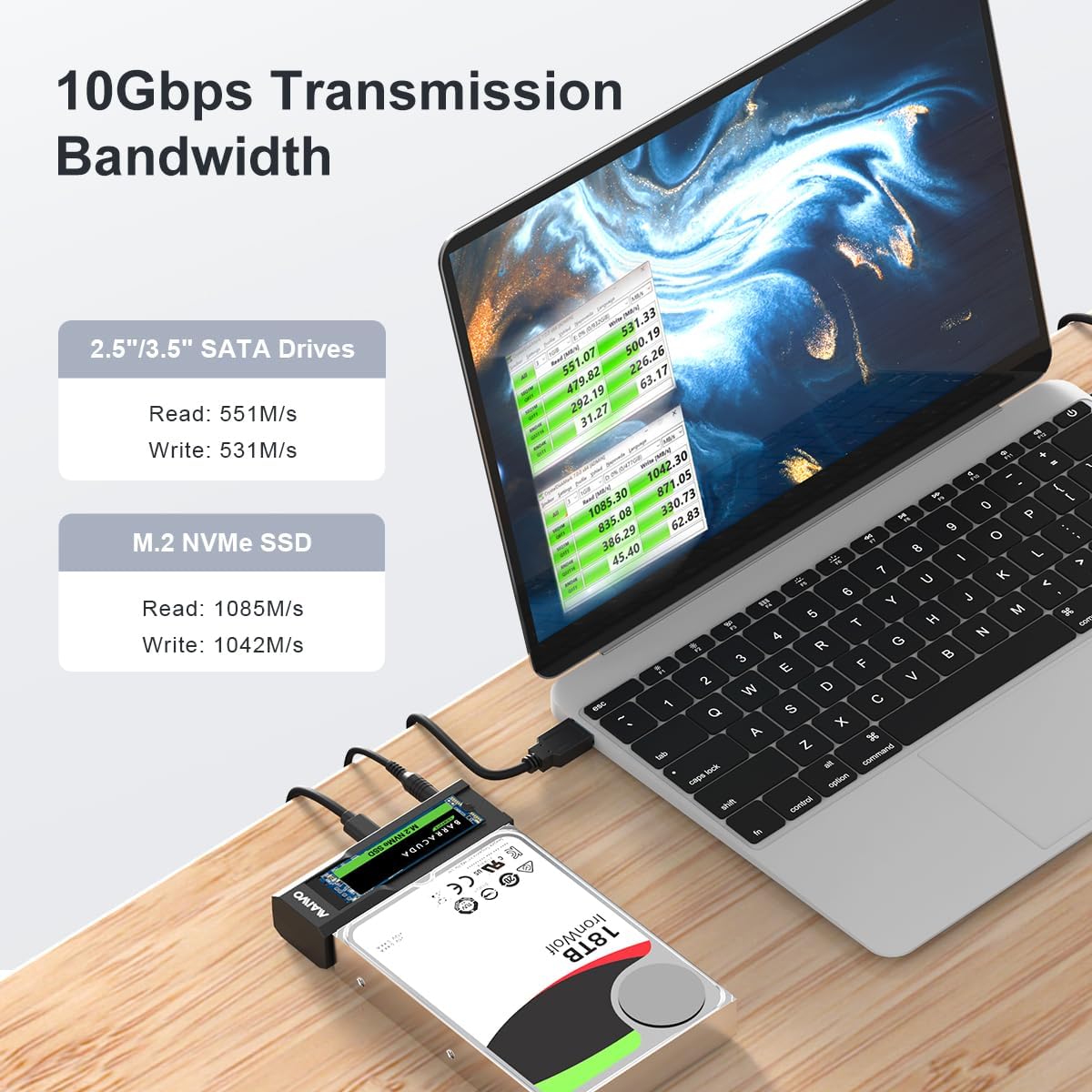
Figure 5.3: Clear Indicator Light. This diagram explains the meaning of the Drive Indicator (flashes for read/write, off in sleep mode) and Clone Indicator lights (flashes during clone, solid when finished).
- Finalización: Once all four LED lights are solid (100%), the cloning process is complete. The Clone Indicator light will remain solid.
- Apagado: Safely power off the converter and remove the drives.
6. Mantemento
- Limpeza: Use a soft, dry cloth to clean the exterior of the converter. Do not use liquid cleaners or solvents.
- Almacenamento: Garde o conversor nun lugar fresco e seco, lonxe da luz solar directa e de temperaturas extremas.
- Manexo: Handle the device with care to avoid physical damage. Avoid dropping or subjecting it to strong impacts.
- Suspensión automática: The device features a 10-minute auto-sleep function to reduce power consumption and extend the lifespan of your drives when not in use.
7 Solución de problemas
| Problema | Causa posible | Solución |
|---|---|---|
| Dispositivo non recoñecido polo ordenador. | Loose cable connection, insufficient power, driver issue, drive not formatted. |
|
| Offline clone fails or does not start. | Target drive capacity too small, incorrect clone mode selected, improper button press sequence, drive errors. |
|
| Velocidade lenta de transferencia de datos. | USB port limitation, drive performance, cable quality, U.A.S.P. not active. |
|
8. Garantía e soporte
For warranty information, technical support, or service inquiries regarding your MAIWO K10635N converter, please refer to the warranty card included with your product or contact MAIWO customer support directly through their official websitio web ou o vendedor ao que lle comprou o produto.
Conserve o comprobante de compra para reclamacións de garantía.
Documentos relacionados - K10635N
 |
MAIWO Dual Bay External Hard Drive Docking Station with Offline Clone - User Manual User manual for the MAIWO dual bay external hard drive docking station, featuring offline cloning, USB 3.0, UASP support, and capacity for 2.5/3.5 inch SATA HDDs/SSDs up to 36TB. |
 |
Estación de acoplamento para discos duros de dobre baía MAIWO con clonación sen conexión: guía do usuario Guía completa para a base de acoplamento para discos duros de dobre baía MAIWO, que abrangue a configuración, a clonación sen conexión e a conectividade USB 3.0 para discos duros/SSD SATA de 2.5/3.5 polgadas, tarxetas CF e SD. |
 |
Manual do usuario da estación de acoplamento para SSD MAIWO K3016CL M.2 Manual de usuario da estación de acoplamento para SSD M.2 MAIWO K3016CL, que detalla as especificacións, os puntos de atención, unha guía de instalación rápida e as guías de funcionamento para a clonación e os modos PC. |
 |
MAIWO K25272 Dual Bay 2.5-inch HDD/SSD Enclosure User Manual Comprehensive user manual for the MAIWO K25272 Dual Bay 2.5-inch SATA HDD/SSD Enclosure. Learn about installation, RAID configurations (RAID 0, RAID 1, JBOD, Normal), specifications, and troubleshooting. |
 |
FIDECO M2288 Dual M.2 NVMe SATA Docking Station User Manual User manual for the FIDECO M2288 Dual M.2 NVMe SATA Docking Station, including instructions for PC mode operation, hard disk initialization, and offline cloning. |
 |
Manual do usuario da caixa RAID NVMe de dobre baía MAIWO Manual de usuario da caixa RAID NVMe de dobre baía MAIWO, no que se detallan as súas características, configuración e configuracións RAID. Admite SSD NVMe USB 3.2 Gen2x2 de 20 Gbps e M.2. |
Ask a question about this manual
Ask about setup, troubleshooting, compatibility, parts, safety, or missing instructions. Manuals+ will review the question and use this page’s manual context to help answer it.