
1. Introdución
This manual provides detailed instructions for the setup, operation, maintenance, and troubleshooting of your JOMAA Wireless Bluetooth Keyboard and Mouse Combo. This combo offers versatile connectivity options, RGB backlighting, and an ergonomic design for enhanced user comfort and productivity across multiple devices.
2. Contido do paquete
Asegúrate de que todos os artigos estean presentes no teu paquete:
- JOMAA Wireless Bluetooth Keyboard
- JOMAA Wireless Bluetooth Mouse
- Cable de carga USB-A a tipo C
- USB Wireless Receiver (stored inside the mouse)
- Manual de usuario (este documento)
3. Configuración
3.1 Carga dos dispositivos
Both the keyboard and mouse are equipped with built-in rechargeable lithium batteries. Before initial use, or when the battery is low (indicated by flashing lights), charge both devices using the provided USB-A to Type-C cable.
- Connect the Type-C end of the cable to the charging port on the keyboard/mouse.
- Conecta o extremo USB-A a unha fonte de alimentación (por exemplo, un porto USB do ordenador ou un adaptador de parede USB).
- Charging indicators will show the charging status.

Image: Type-C rechargeable feature of the JOMAA keyboard and mouse.
3.2 Conexión do rato
The mouse supports two connection methods: 2.4G wireless via USB dongle and Bluetooth.
3.2.1 2.4G Wireless Connection (USB Dongle)
- Locate the USB wireless receiver stored in the compartment on the underside of the mouse.
- Conecta o receptor USB a un porto USB-A dispoñible no teu ordenador ou dispositivo.
- Turn on the mouse using the power switch on its underside. The mouse should connect automatically.
3.2.2 Conexión Bluetooth
- Acenda o rato usando o interruptor de alimentación que se atopa na parte inferior.
- Press the Bluetooth button on the bottom of the mouse to switch to Bluetooth mode. The indicator light will flash, indicating it's in pairing mode.
- No teu dispositivo (portátil, tableta, teléfono intelixente), vai á configuración de Bluetooth e busca novos dispositivos.
- Select "BT5.0 Mouse" from the list of available devices to pair.
3.3 Conexión do teclado
The keyboard supports 2.4G wireless via USB dongle (shared with mouse) and two Bluetooth channels.
3.3.1 2.4G Wireless Connection (USB Dongle)
- Ensure the USB wireless receiver is plugged into your device.
- Acende o teclado usando o interruptor de acendido.
- Press the 'Fn' key + '1' key to activate the 2.4G wireless channel. The keyboard should connect automatically.
3.3.2 Bluetooth Connection (Channels 2 & 3)
- Acende o teclado.
- Press 'Fn' + '2' or 'Fn' + '3' to select a Bluetooth channel. The indicator light for the selected channel will flash, indicating pairing mode.
- No teu dispositivo, vai á configuración de Bluetooth e busca novos dispositivos.
- Select "Wireless Keyboard" from the list to pair.
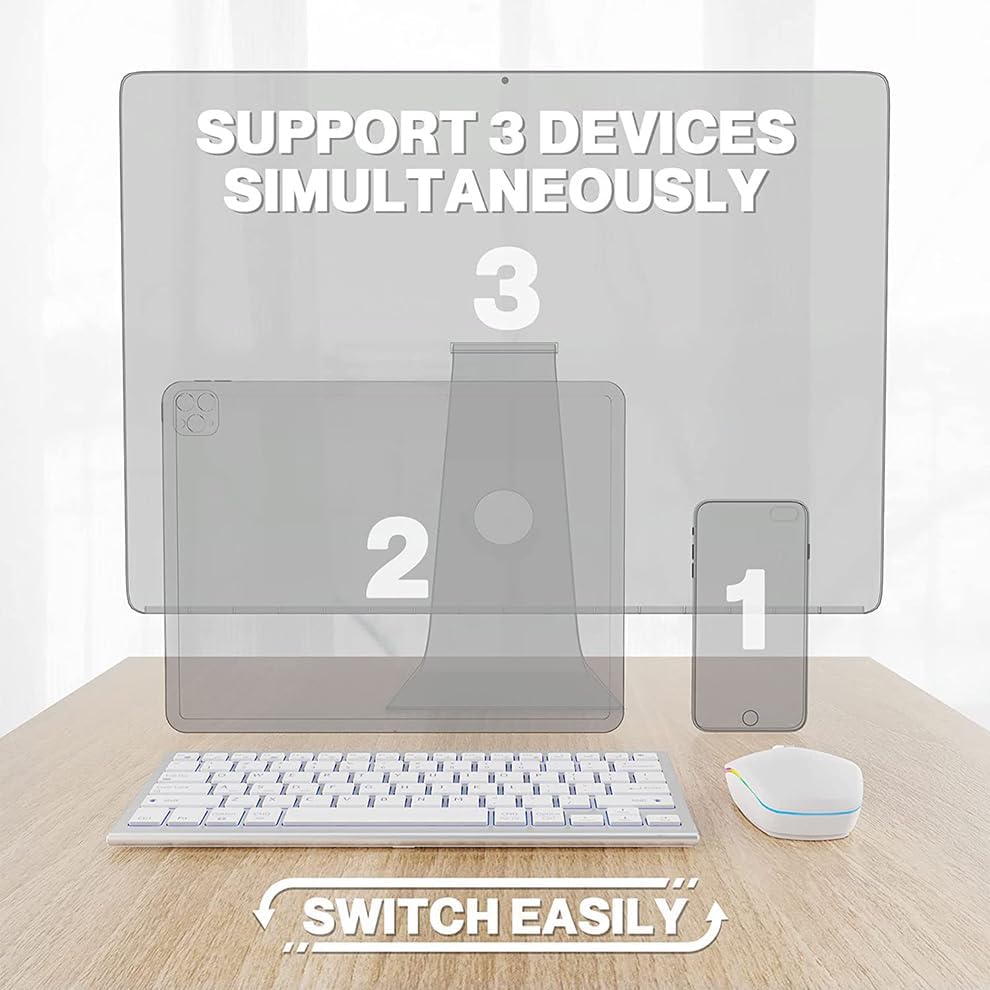
Image: Multi-device connectivity of the JOMAA keyboard and mouse.
4. Instrucións de funcionamento
4.1 Cambio entre dispositivos
Both the keyboard and mouse can connect to up to three devices and switch between them seamlessly.
- Teclado: Press 'Fn' + '1' (for 2.4G USB), 'Fn' + '2' (for Bluetooth 1), or 'Fn' + '3' (for Bluetooth 2) to switch to the desired connected device.
- Rato: Use the switch on the underside of the mouse to toggle between 2.4G wireless and Bluetooth modes.

Image: Switching between devices on the keyboard.
4.2 Keyboard Backlighting (RGB)
The keyboard features adjustable RGB backlighting with multiple color options and effects.
- Preme o Botón RGB (often labeled with a sun or light icon, typically F12 or similar) to cycle through different backlight colors and effects (e.g., pulse, solid red, green, blue, yellow, purple, teal, white).
- Adjust brightness using dedicated function keys (refer to keyboard legends for specific keys, often Fn + F11/F12 or similar).
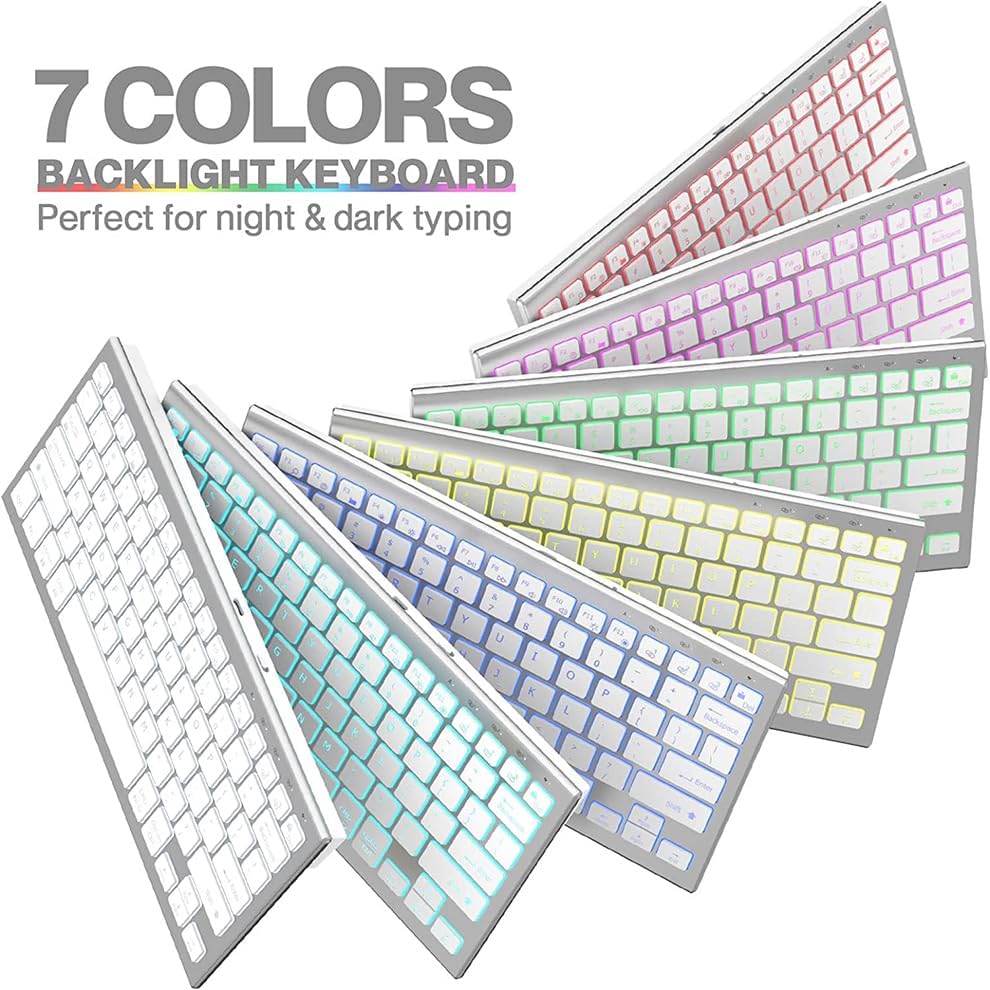
Image: JOMAA keyboard with 7-color backlighting.
4.3 Quiet Typing and Clicking
The keyboard utilizes scissor-switch keys for a quiet typing experience, and the mouse is designed for silent clicks, minimizing disturbance in quiet environments.
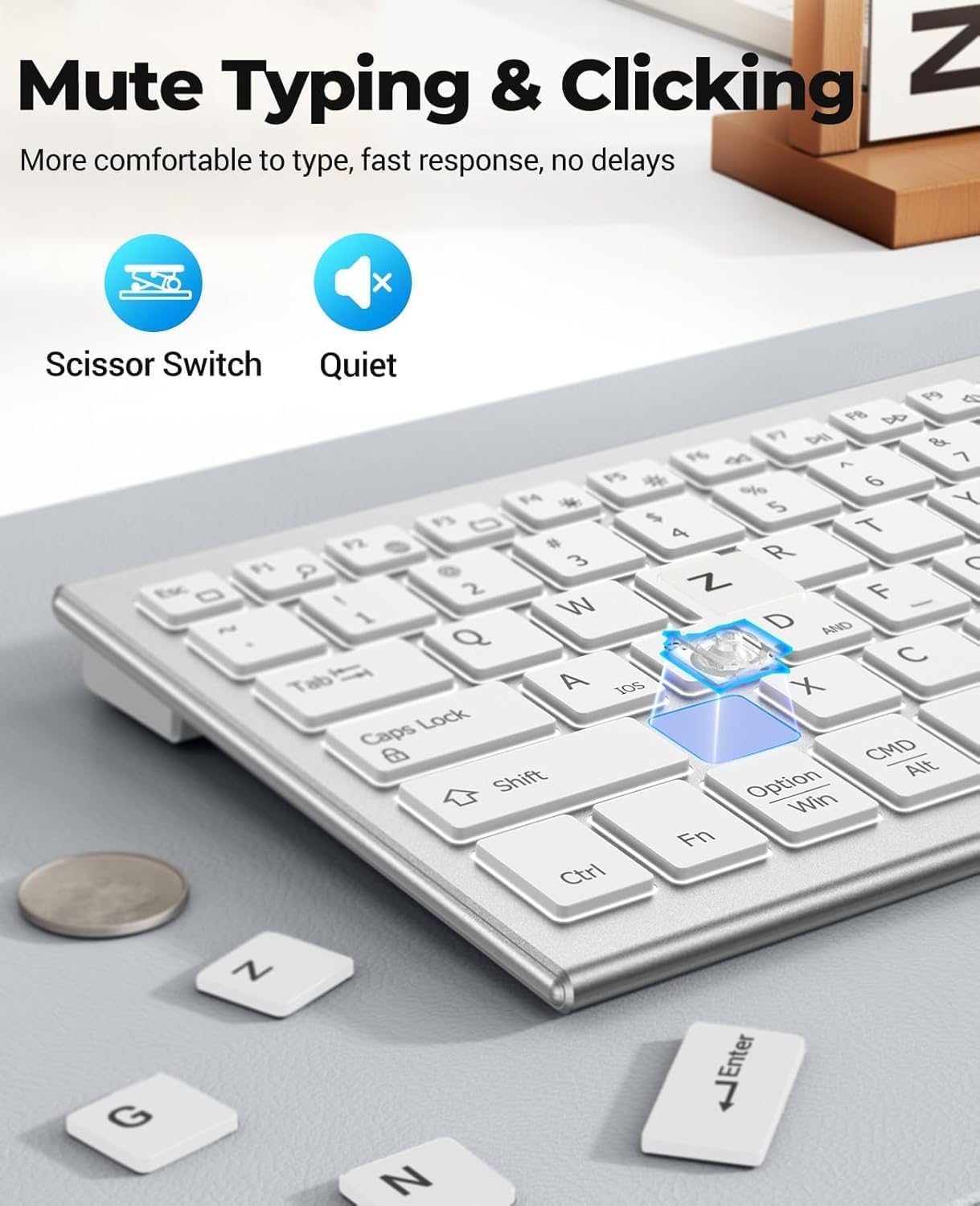
Image: Quiet typing and clicking features.
4.4 Deseño ergonómico
The keyboard features a slight incline for comfortable typing, and the mouse's curvature is designed to fit the palm, reducing fatigue during extended use.

Image: Ergonomic design and dimensions of the keyboard and mouse.
4.5 Axuste de DPI do rato
The mouse offers 3 adjustable DPI levels (800/1200/1600) to suit different user preferences and tasks. Use the DPI button on the mouse to cycle through these settings.

Image: Mouse features including DPI adjustment and quiet click.
5. Mantemento
5.1 Xestión da batería
The devices feature smart power-saving management. They will enter a sleep mode after 5 minutes of inactivity to conserve battery. Move the mouse or press any key on the keyboard to wake them up.
- A full charge provides approximately 365 days of standby time.
- Recharge when the low battery indicator flashes.
5.2 Limpeza
To clean your keyboard and mouse, use a soft, dry cloth. For stubborn dirt, a slightly damp Pódese usar un pano con xabón suave, garantindo que non entre líquido nos dispositivos. Evite produtos químicos agresivos ou materiais abrasivos.
6 Solución de problemas
6.1 Problemas de conexión
- Dispositivo non se conecta: Ensure both the keyboard and mouse are turned on and fully charged. For 2.4G wireless, verify the USB dongle is securely plugged in. For Bluetooth, ensure Bluetooth is enabled on your device and the keyboard/mouse is in pairing mode.
- Conexión intermitente: Move the devices closer to your computer to reduce interference. Ensure no other wireless devices are causing interference.
6.2 A retroiluminación non funciona
- Check if the keyboard battery is low. Backlighting may be disabled to conserve power.
- Press the RGB button (F12 or similar) to ensure the backlight is not turned off or set to a very dim setting.
6.3 Mouse Cursor Jumps or is Unresponsive
- Limpa o sensor do rato na parte inferior.
- Proba a usar o rato nunha superficie diferente.
- Adjust the DPI setting to see if it improves responsiveness.
7. Especificacións
| Marca | XOMAA |
| Cor | Branco |
| Tecnoloxía de conectividade | 2.4G, Bluetooth |
| Característica especial | 7 Color Backlit |
| Dispositivos compatibles | Portátil, Ordenador persoal, Smartphone |
| Son necesarias pilas | Yes (1 Lithium Ion battery included for each device) |
| Fonte de enerxía | Alimentado por batería |
| Orientación das mans | Ambidextrous (Mouse) |
| Compatibilidade do sistema operativo | Mac, Windows |
| Número de teclas (teclado) | 81 |
| Descrición do teclado | Multimedia |
8. Garantía
This product comes with a three-month manufacturer's warranty. Please retain your proof of purchase for warranty claims. The warranty covers manufacturing defects but does not cover damage caused by misuse, accidents, or unauthorized modifications.
9. Apoio
For further assistance, technical support, or warranty inquiries, please contact JOMAA customer service through the retailer where you purchased the product or visit the official JOMAA websitio para información de contacto.
10. Vídeo de demostración do produto
Video: Demonstration of the use of a keyboard and mouse set. This video provides a visual guide on connecting the keyboard and mouse, switching between devices, and showcasing the RGB lighting features.