
1. Introdución
Welcome to the user manual for your Bmax Y13 Pro 2-in-1 Touchscreen Laptop. This device combines the functionality of a laptop with the versatility of a tablet, featuring a 13.3-inch Full HD IPS touch display and a 360-degree flip design. Powered by an Intel 12th Gen N100 processor, 16GB DDR5 RAM, and a 512GB SSD, it is designed for efficient performance in various tasks, from work and study to daily entertainment. This manual provides essential information for setting up, operating, maintaining, and troubleshooting your device.
2. Contido do paquete
Verifique que todos os elementos estean presentes no seu paquete:
- Bmax Y13 Pro 2-in-1 Touchscreen Laptop
- Adaptador de alimentación/cargador
3. Produto rematadoview
The Bmax Y13 Pro is designed for flexibility and performance. Below are key features and components.

Figura 3.1: The Bmax Y13 Pro 2-in-1 Touchscreen Laptop, showcasincoa súa pantalla de 13.3 polgadas e o seu elegante deseño.
3.1 Características principais
- Intel 12th Gen N100 Processor: Efficient performance for daily computing.
- 13.3" FHD IPS Touch Display: Vibrant visuals and interactive control.
- 360° Flip Design: Transforms between laptop, tablet, tent, and stand modes.
- 16GB DDR5 RAM & 512GB SSD: Fast multitasking and ample almacenamento.
- Teclado retroiluminado: Enhanced typing experience in low-light conditions.
- Conectividade: Dual-band WiFi 5, Bluetooth 4.2, USB Type-C ports, Micro SD slot.
3.2 Procesador e rendemento

Figura 3.2: Diagram illustrating the Intel 12th Gen N100 Processor with its 4 cores, 4 threads, 6M cache, 6W power consumption, and 3.40GHz turbo frequency.
The laptop is equipped with an Intel 12th Gen N100 processor, featuring 4 cores and 4 threads, designed for balanced power and energy efficiency. It operates at up to 3.4GHz, suitable for everyday computing tasks.
3.3 Memoria e almacenamento

Figura 3.3: Visual representation of the laptop's 16GB LPDDR5 RAM and 512GB SSD storage, highlighting M.2 2280 expansion capability.
With 16GB LPDDR5 RAM and a 512GB SSD, the Bmax Y13 Pro offers substantial capacity for multitasking and rapid data access. Storage can be expanded via a microSD card.
3.4 Display and Convertible Design

Figura 3.4: Details of the 13.3-inch FHD 1920x1080 IPS display, featuring a slim 5mm bezel and 81.7% screen-to-body ratio.
The 13.3-inch FHD (1920x1080) IPS touchscreen display provides clear and vibrant visuals. Its slim bezel design enhances the viewing experience. The 360° flip design allows for multiple usage modes:

Figura 3.5: The Bmax Y13 Pro shown in laptop, tent, stand, and tablet modes, demonstrating its 360° convertible functionality.
- Modo portátil: Uso tradicional do portátil para escribir e ser produtivo.
- Modo tenda: Ideal for presentations or watching videos in confined spaces.
- Modo de soporte: Perfect for media consumption or video calls.
- Modo tableta: Fully folded back for touchscreen interaction.
3.5 Teclado e panel táctil
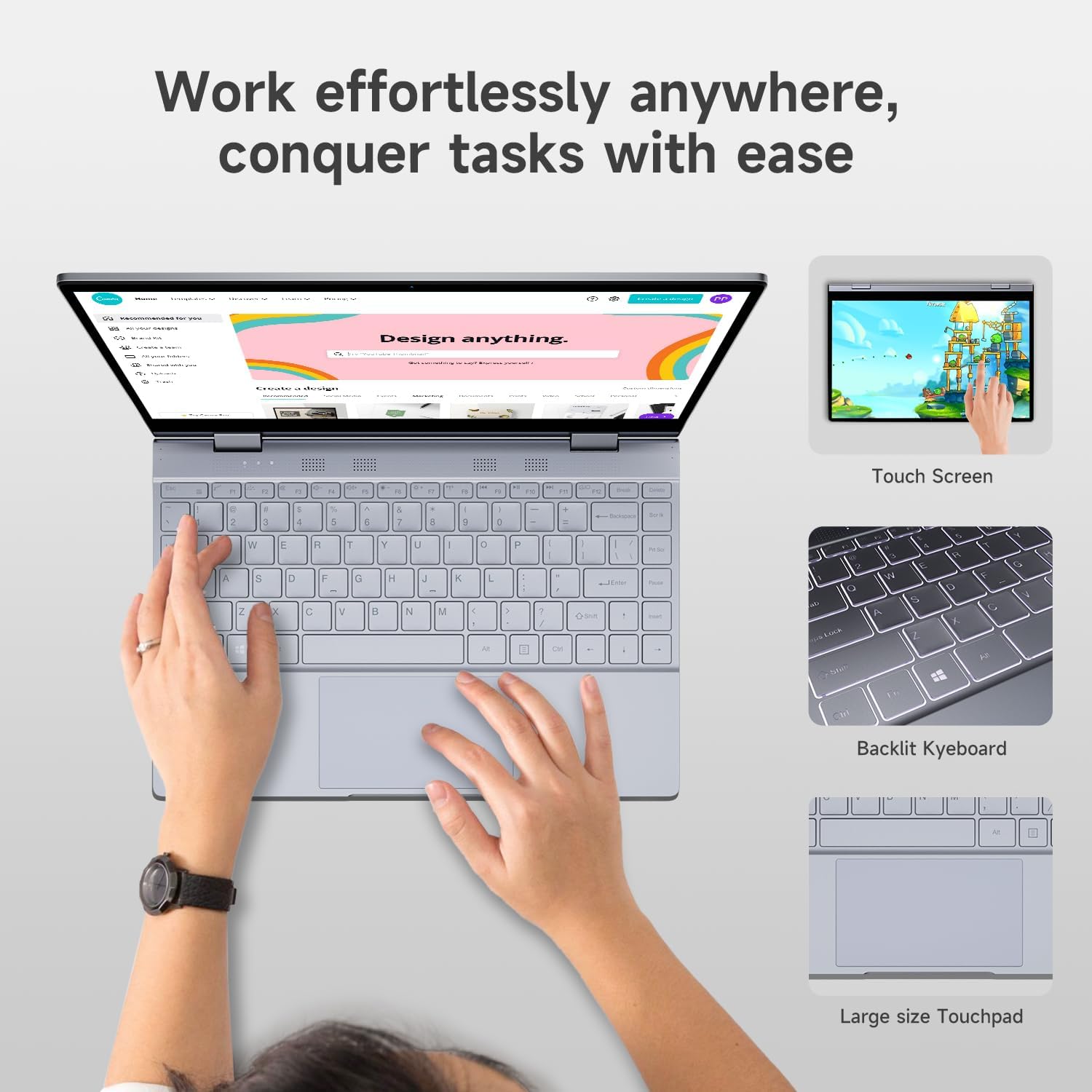
Figura 3.6: Close-up of the Bmax Y13 Pro's backlit keyboard and large touchpad, designed for comfortable input.
The laptop features a backlit keyboard for comfortable typing in various lighting conditions and a large touchpad for precise navigation.
3.6 Portos e conectividade

Figura 3.7: Detallado view of the laptop's ports, including two Type-C ports (one full-featured, one for data transmission), a 3.5mm headset jack, a Micro SD slot, and the power button.
The Bmax Y13 Pro includes multiple ports for diverse connectivity needs:
- 2 x USB Type-C ports (one full-featured, one for data transmission)
- 1 x 3.5mm Headset Jack
- 1 x Ranura Micro SD
Wireless connectivity is provided by Dual-band WiFi 5 and Bluetooth 4.2.
4. Configuración
4.1 Carga inicial
Before first use, connect the provided power adapter to the laptop's Type-C charging port and a power outlet. Allow the device to charge for at least 30 minutes, or until the battery indicator shows sufficient charge, before powering it on.
4.2 Acendido e configuración inicial
- Press and hold the Power Button (located on the side, near the Micro SD slot) until the screen illuminates.
- Follow the on-screen prompts to complete the Windows operating system setup. This typically includes selecting your language, region, connecting to a Wi-Fi network, and creating a user account.
- Ensure your device is connected to the internet to download necessary updates during the setup process.
5. Instrucións de funcionamento
5.1 Uso da pantalla táctil
The 13.3-inch display supports multi-touch gestures. You can interact with the operating system and applications directly on the screen using your fingers. Common gestures include:
- Toca: Equivalente a un clic do rato.
- Mantén premido: Equivalente a un clic co botón dereito.
- Pinch-to-Zoom: Usa dous dedos para ampliar ou reducir a imaxe.
- Pasar o dedo: Navigate through content or activate system functions (e.g., opening Action Center).
5.2 Cambio entre modos
The 360° hinge allows you to seamlessly switch between laptop, tent, stand, and tablet modes. Simply rotate the screen to your desired configuration. The operating system may automatically detect the mode change and adjust the display and input methods accordingly (e.g., enabling Tablet Mode in Windows).
5.3 Funcións do teclado
The keyboard includes standard keys and function keys (F1-F12) that can be activated with the Fn key for special functions like adjusting brightness, volume, or enabling/disabling Wi-Fi. The keyboard backlight can typically be toggled using a dedicated function key combination (refer to keyboard icons).
5.4 Conexión de periféricos
- USB tipo C: Use the Type-C ports to connect compatible devices, external displays, or for charging.
- Conector para auriculares de 3.5 mm: Conecte auriculares ou altofalantes externos.
- Ranura Micro SD: Insira unha tarxeta Micro SD para ampliar o almacenamento.
- Bluetooth: Pair Bluetooth devices (e.g., mice, keyboards, headphones) through Windows settings.
- Wi-Fi: Connect to wireless networks via Windows network settings.
6. Mantemento
6.1 Limpeza do portátil
- Pantalla: Use un pano suave e sen pelusa lixeiramente dampLavar con auga ou cun limpador de pantallas. Evitar produtos químicos agresivos.
- Teclado e chasis: Usa un pano suave. Para a sucidade persistente, un pano lixeiramente seco.amp cloth is acceptable. Ensure no liquid enters openings.
- Portos: Use aire comprimido para limpar con coidado o po dos portos.
6.2 Coidado coa batería
- Evita as temperaturas extremas, xa que poden reducir a duración da batería.
- Para unha duración óptima da batería, evite descargala completamente de forma continua ou manteña ao 100 % de carga durante períodos prolongados.
- If storing the laptop for a long time, charge it to about 50-60% before turning it off.
6.3 Actualizacións de software
Regularly check for and install operating system updates (Windows Update) and driver updates to ensure optimal performance and security.
7 Solución de problemas
Esta sección aborda problemas comúns cos que podes atoparte.
7.1 Problemas de alimentación e carga
- O portátil non se acende: Ensure the laptop is charged. Connect the power adapter and wait a few minutes before attempting to power on again.
- O portátil non carga: Verify the power adapter is securely connected to both the laptop and the power outlet. Try a different outlet. Ensure the Type-C port used for charging is functional.
- Laptop gets hot while charging: It is normal for laptops to generate some heat during charging or heavy use. If the heat is excessive or causes discomfort, ensure proper ventilation and avoid using the laptop on soft surfaces that block vents.
7.2 Display and Touchscreen Problems
- A pantalla está en branco: Ensure the laptop is powered on. Try adjusting screen brightness. Connect to an external monitor to check if the issue is with the laptop's display.
- A pantalla táctil non responde: Restart the laptop. Ensure there are no physical obstructions or excessive dirt on the screen. Check for updated display drivers.
7.3 Problemas de conectividade
- Wi-Fi sen conexión: Check if Wi-Fi is enabled in Windows settings. Restart your router and the laptop. Ensure you are entering the correct Wi-Fi password.
- Dispositivo Bluetooth sen emparellamento: Ensure Bluetooth is enabled on both the laptop and the device. Place devices close to each other. Try removing and re-pairing the device.
7.4 Problemas xerais de rendemento
- Rendemento lento: Close unnecessary applications. Check for sufficient free storage space. Run a virus scan. Ensure Windows and drivers are up to date.
- System crashes/freezes: Perform a system restart. Check for recent software installations that might be causing conflicts.
8. Especificacións
| Característica | Especificación |
|---|---|
| Marca | Bmáx |
| Nome do modelo | Y13 pro |
| Tamaño de visualización da pantalla de pé | 13.3 polgadas |
| Resolución de pantalla | 1920 x 1080 píxeles (FHD IPS) |
| Procesador | Intel 12th Gen N100 (up to 3.4 GHz) |
| RAM | 16 GB DDR5 |
| Disco duro | SSD de 512 GB |
| Coprocesador gráfico | Gráficos Intel UHD |
| Sistema Operativo | OS |
| Tipo sen fíos | 802.11a/b/g/n/ac (WiFi 5) |
| Bluetooth | 4.2 |
| Número de portos USB 3.0 | 2 (Tipo C) |
| Peso do elemento | 2.75 libras |
| Dimensións do produto | 12 x 8.1 x 0.57 polgadas |
| Batería | 38.0Wh Lithium Polymer (up to 6-8 hours usage) |
| Características especiais | Backlit Keyboard, Memory Card Slot (Micro SD) |
9. Información da garantía
The Bmax Y13 Pro laptop typically comes with a 12-month repair period desde a data de compra. Ademais, un Política de devolución de 30 días may apply, subject to the retailer's terms and conditions. Please retain your proof of purchase for warranty claims. For specific warranty details and terms, refer to the documentation included with your product or contact Bmax customer support.
10. Apoio
For further assistance, technical support, or inquiries regarding your Bmax Y13 Pro laptop, please refer to the following resources:
- Soporte en liña: Visit the official Bmax websitio web con preguntas frecuentes, descargas de controladores e información de contacto de soporte.
- Apoio ao comercio minorista: Contact the retailer from whom you purchased the device for return or exchange policies.
- Soporte por correo electrónico: Check the Bmax website for dedicated email support channels.
Bmax offers 24-hour online support for after-sales service.