
1. Introdución
This manual provides instructions for the NYXI Striker Retro Mechanical Gaming Keyboard (Model: CA01). This keyboard features multi-device connectivity, hot-swappable switches, RGB backlighting, and a customizable display screen. It is compatible with Windows, macOS, and iOS systems.

Image 1.1: The NYXI Striker Retro Mechanical Gaming Keyboard, showcasing its GameCube-inspired design and full layout.
2. Contido do paquete
Verifica que todos os elementos estean presentes no paquete:
- NYXI Striker Retro Mechanical Gaming Keyboard
- Tirador de chaves
- Cable USB (USB-C a USB-A)
- Additional Switches (5x Red, 5x Blue)
- 2.4GHz Wireless Receiver (stored in keyboard compartment)

Image 2.1: All components included with the NYXI Striker Retro Mechanical Gaming Keyboard.
3. Produto rematadoview
The NYXI Striker keyboard features a 97-key layout with several distinct components:
- Teclas: Dual-color keycaps for a comfortable typing experience.
- Interruptores mecánicos: Hot-swappable switches for customization.
- Retroiluminación RGB: Per-key RGB illumination with various effects.
- Pantalla de visualización: A pixelated dot matrix screen for animations and status.
- Rodillo de volume: A dedicated roller for audio adjustment.
- Connectivity Switch: Located on the side/back for switching between wired, 2.4G, and Bluetooth modes.
- Porto USB-C: Para conexión por cable e carga.
- 2.4GHz Receiver Compartment: A dedicated slot to store the wireless receiver.
- Pés axustables: Tres stage tilt stands for ergonomic positioning.

Imaxe 3.1: Arriba view of the keyboard, showing the full key layout and integrated display screen.

Imaxe 3.2: Pro lateralfile do teclado.

Image 3.3: Location of the 2.4GHz wireless receiver compartment.

Image 3.4: Three-level adjustable tilt stand for ergonomic comfort.
4. Configuración
4.1 Carga inicial
Before first use, connect the keyboard to a USB power source using the provided USB-C cable to ensure it is fully charged. The keyboard can be used while charging in wired mode.
4.2 Modos de conectividade
The NYXI Striker keyboard supports three connection modes: Bluetooth 5.0, 2.4GHz wireless, and USB wired. Use the switch located on the keyboard to select your desired mode.
- Modo con cable USB:
- Set the mode switch on the keyboard to the wired (USB) position.
- Connect the USB-C end of the cable to the keyboard and the USB-A end to your computer.
- O teclado será recoñecido automaticamente polo teu sistema operativo.
- Modo sen fíos de 2.4 GHz:
- Retrieve the 2.4GHz USB receiver from its compartment on the keyboard.
- Set the mode switch on the keyboard to the 2.4G wireless position.
- Conecta o receptor USB de 2.4 GHz a un porto USB dispoñible do teu ordenador.
- O teclado debería conectarse automaticamente.
- Modo Bluetooth 5.0:
- Set the mode switch on the keyboard to the Bluetooth position.
- The keyboard supports up to 5 Bluetooth channels. Press Fn + 1/2/3/4/5 to select a Bluetooth channel. The display screen will indicate the selected channel.
- Para entrar no modo de vinculación, manteña premido Fn + 1/2/3/4/5 for 3-5 seconds until the indicator light flashes rapidly or the display screen shows a pairing icon.
- No teu dispositivo (ordenador, tableta, teléfono), vai á configuración de Bluetooth e busca novos dispositivos.
- Select "NYXI Striker" from the list of available devices to pair.
- Once paired, the indicator light will become solid, and the display screen will confirm the connection.

Image 4.1: Compatible operating systems for the keyboard.
5. Instrucións de funcionamento
5.1 Encendido/apagado
The keyboard powers on automatically when connected via USB or when a wireless mode is selected and the battery has charge. To conserve battery, ensure the keyboard is switched off when not in use for extended periods.
5.2 Cambio entre dispositivos/modos
To switch between connected Bluetooth devices, press Fn + 1/2/3/4/5 to select the desired paired channel. To switch between wired, 2.4G, and Bluetooth modes, use the physical switch on the keyboard.
5.3 Control da retroiluminación RGB
The keyboard features 22 RGB lighting modes. Use the following key combinations to control the backlighting:
- Fn + Ctrl esquerda: Percorrer os diferentes efectos de iluminación RGB.
- Fn + Arrow Up/Down: Axusta os niveis de brillo.
- Fn + Arrow Left/Right: Adjust lighting effect speed.

Image 5.1: RGB Hybrid Underglow lighting in action.
5.4 Funcionamento da pantalla de visualización
The integrated display screen can show various animations and status indicators. Use the NYXI Driver App for advanced customization of the display screen content.
Rodillo de 5.5 volumes
Rotate the dedicated roller on the top right of the keyboard to adjust the system volume. Pressing the roller typically mutes/unmutes audio.
6. Características clave
The NYXI Striker keyboard is designed with several advanced features to enhance your user experience:
- Conexión multidispositivo: Supports Bluetooth 5.0, 2.4GHz wireless, and USB wired modes. It also features a built-in five-channel mode for seamless switching between multiple devices (Windows, Android, macOS, iOS, iPad systems).
- Hot-Swappable and Gasket Structure: The keyboard supports hot-swappable switches, allowing for easy replacement without soldering. Its gasket structure, constructed with PC+ABS material, provides a soft and elastic typing feel, reducing noise and improving overall acoustics.
- Personalized Aesthetics: Features 22-color RGB backlighting with various glow modes and effects. The display screen supports 4 dynamic matrix display modes, which can be customized further via software.
- NYXI Driver App - Macro Customization: A dedicated software application allows for extensive macro customization, key remapping, and lighting management. This app supports wired, 2.4G, and Bluetooth connections for flexible setup.
- Deseño confort: Integrates a precision volume roller, anti-slip silicone pads for stability, and a three-stage tilt stand for adjustable ergonomic comfort during extended use.

Image 6.1: Gasket structure for enhanced typing experience.

Image 6.2: Hot-swappable PCB for easy switch replacement.
6.1 Using the NYXI Driver App
The NYXI Driver App provides advanced customization options for your keyboard. Download the application from the official NYXI websitio.
- Personalización de macros: Crea e asigna macros complexas a teclas.
- Configuración de iluminación: Fine-tune RGB effects, colors, and animations.
- Display Screen Customization: Upload custom images or animations to the dot matrix display.

Image 6.3: NYXI Driver App interface for macro customization.
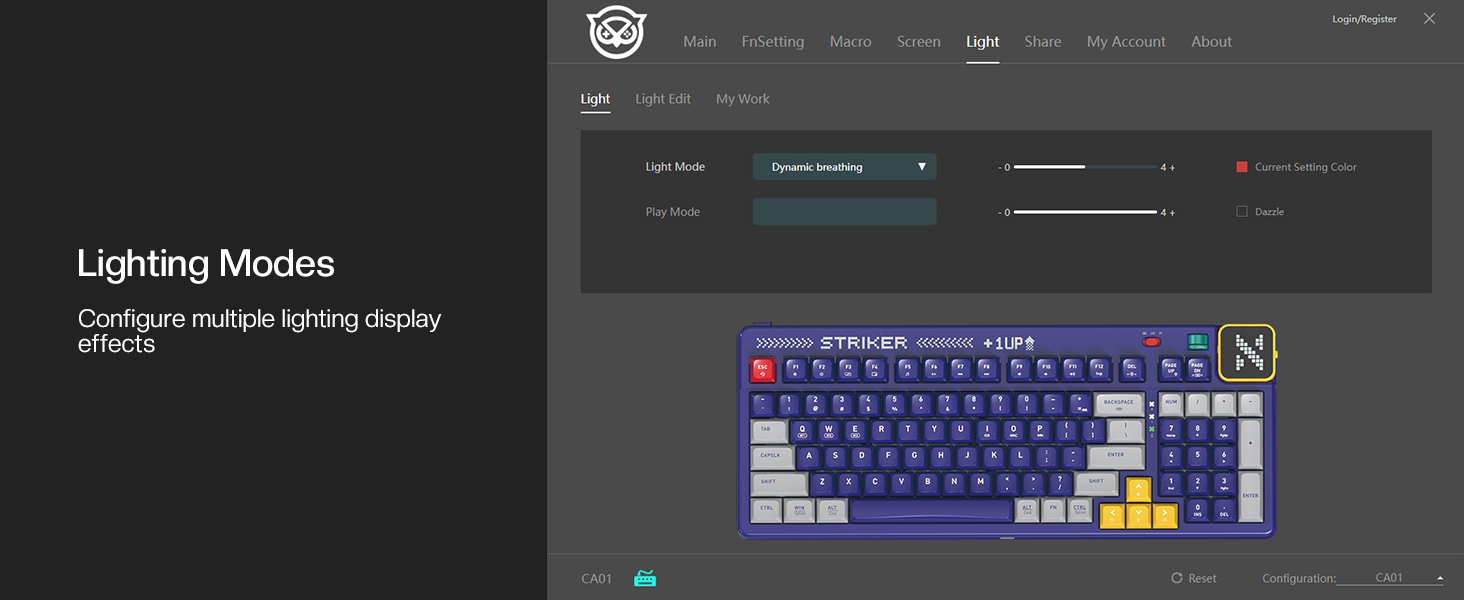
Image 6.4: NYXI Driver App interface for lighting mode configuration.

Image 6.5: NYXI Driver App interface for dot matrix screen customization.
7. Mantemento
7.1 Limpeza
- Usa un pano suave e seco para limpar a superficie do teclado.
- For deeper cleaning, use the provided keycap puller to remove keycaps and clean dust or debris with compressed air.
- Avoid using harsh chemicals or abrasive materials that could damage the keyboard finish or keycap legends.
7.2 Almacenamento
Store the keyboard in a cool, dry place away from direct sunlight and extreme temperatures. If storing for an extended period, ensure the keyboard is fully charged and then powered off.
8 Solución de problemas
- O teclado non responde:
- Ensure the keyboard is powered on and the correct connectivity mode (wired, 2.4G, or Bluetooth) is selected.
- For wireless modes, check battery level. Recharge if necessary.
- For 2.4GHz, ensure the receiver is properly plugged into a USB port.
- For Bluetooth, ensure it is paired correctly and the selected channel (Fn + 1-5) matches the paired device. Try re-pairing.
- Try connecting via USB wired mode to rule out wireless issues.
- RGB lights not working/displaying correctly:
- Ensure RGB is enabled (check the NYXI Driver App if installed).
- Cambia os modos de iluminación usando Fn + Ctrl esquerda.
- Axusta o brillo usando Fn + Frecha cara arriba.
- Chaves que non se rexistran:
- If a specific key is not working, the switch might be faulty. Utilize the hot-swappable feature to replace the switch with one of the spares provided.
- Asegúrate de que non haxa residuos aloxados debaixo da tapa das teclas ou do interruptor.
- Connectivity issues (lag, disconnections):
- For wireless modes, ensure the keyboard is within range of the receiver/device and there are no significant obstructions.
- Minimizar as interferencias doutros dispositivos sen fíos.
- Ensure the keyboard's battery is sufficiently charged.
If issues persist, please refer to the Warranty & Support section for further assistance.
9. Especificacións
| Característica | Detalle |
|---|---|
| Número de modelo | CA01 |
| Tecnoloxía de conectividade | Sen fíos 2.4G, Bluetooth 5.0, USB-C con cable |
| Descrición do teclado | Mecánica |
| Número de chaves | 97 chaves |
| Dispositivos compatibles | macOS, Windows 7 or later, iOS |
| Características especiais | Backlit (RGB), Customizable Display Keys, Gasket Structure, Hot-Swappable |
| Soporte de cores de retroiluminación do teclado | RGB (22 modos) |
| Estilo | NGC Retro |
| Dimensións do produto | 15.32" de longo x 6.08" de ancho x 1.3" de alto (38.91 x 15.44 x 3.3 cm) |
| Peso do elemento | 3.56 libras (1.61 kg) |
| Fabricante | NYXI |
10. Garantía e soporte
10.1 Información da garantía
NYXI products are covered by a limited warranty against defects in materials and workmanship. Please refer to the official NYXI website or your purchase documentation for specific warranty terms and conditions, including duration and coverage details.
10.2 Atención ao cliente
For technical assistance, troubleshooting, or warranty claims, please contact NYXI customer support through their official website. You may need to provide your product model number (CA01) and proof of purchase.
Thank you for choosing the NYXI Striker Retro Mechanical Gaming Keyboard.