
1. Introdución
Thank you for choosing the Imagebon 9-inch Portable Carplay Screen. This device is designed to enhance your driving experience by bringing advanced Android capabilities, seamless smartphone integration, and versatile multimedia options directly to your vehicle. With its powerful hardware and user-friendly interface, you can enjoy navigation, entertainment, and connectivity on the go.
2. Características do produto
- Powerful Android System: Equipped with an 8-Core CPU, 4GB RAM, and 64GB ROM, running on Android 13 for smooth and efficient performance.
- Integración perfecta de teléfonos intelixentes: Supports wireless Apple CarPlay and Android Auto for hands-free calls, navigation, and app control via Bluetooth or Wi-Fi.
- Enhanced Multimedia Experience: Access popular streaming apps like YouTube, Netflix, and TikTok directly from the Google Play Store.
- Versatile Audio Outputs: Connect to your car's audio system via Bluetooth, USB, AUX, or FM transmission.
- Espello da pantalla: Utilize AirPlay and Miracast to mirror your device's screen for easy access to maps, videos, and music.
- Navegación GPS: Built-in GPS with support for offline maps (Google Maps, Waze, Apple Map, Sygic) when connected to Wi-Fi or a phone hotspot.
- Soporte de actualización OTA: Receive over-the-air updates to keep your device's software current.
- Dash Cam Compatibility: Grava footage directly to the device's internal storage or an SD card (dash cam not included).

Figura 2.1: Máisview of the Imagebon Portable Carplay Screen interface.

Figure 2.2: Highlighting the advanced hardware configuration.
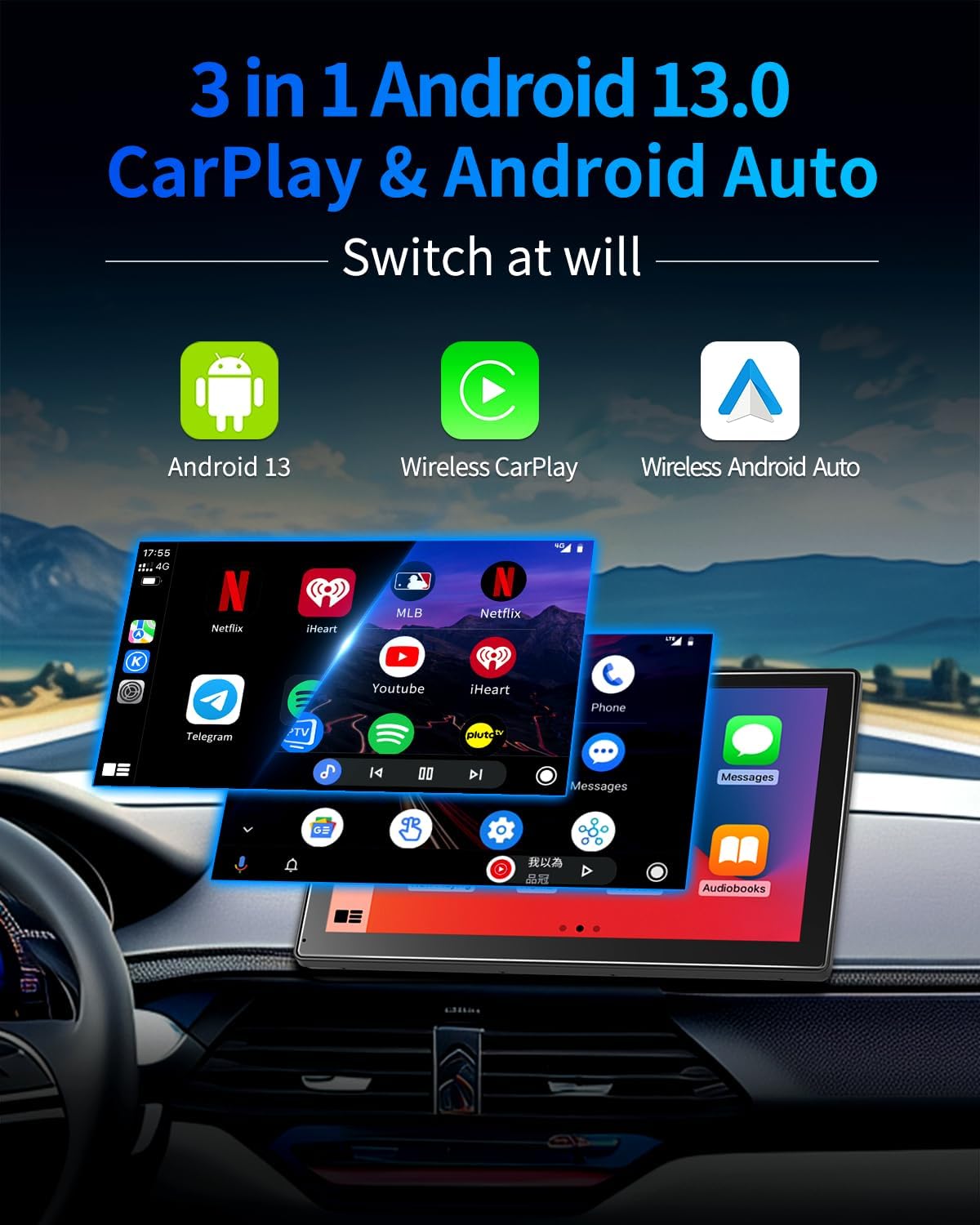
Figure 2.3: Demonstrating 3-in-1 connectivity options.
3. Que hai na caixa
- Imagebon Portable Carplay Screen
- Cable AUX
- Cargador de coche
- Antena GPS
- 3M Sticky Mount

Figura 3.1: Todos os compoñentes incluídos no paquete.
4. Guía de configuración
4.1 Carga inicial
Before first use, ensure the device is charged for at least 10 minutes using the original car charger or a 5V/3A charging head.
4.2 Montaxe do dispositivo
- Attach the 3M Sticky Mount securely to a flat, clean surface on your car's dashboard.
- Connect the portable carplay screen to the mounted stand.
4.3 Conexión de periféricos
- Plug the car charger into your car's cigarette lighter socket and connect the USB-C end to the carplay screen.
- Connect the GPS antenna to the designated GPS port on the device and place it on your dashboard for optimal signal reception.
- For audio output through your car's speakers, connect the provided AUX cable from the carplay screen's AUX output to your car's AUX input. Alternatively, use FM transmission (refer to Operating Instructions).
Video 4.1: Imagebon 4+64GB Android 13 Car Stereo - Demonstrates product features and setup.
5. Instrucións de funcionamento
5.1 CarPlay sen fíos e Android Auto
- Asegúrate de que Bluetooth e Wi-Fi estean activados no teu smartphone.
- On the carplay screen, select either 'CarPlay' or 'Android Auto' from the main menu.
- Follow the on-screen prompts to pair your phone via Bluetooth. Once paired, the system will automatically connect for wireless CarPlay or Android Auto.
- Enjoy hands-free navigation, music, calls, and messages.
5.2 Navegación GPS
The device comes with pre-installed navigation apps like Google Maps. Connect to Wi-Fi (via your phone's hotspot or an external Wi-Fi source) to download offline maps or use real-time navigation. The external GPS antenna ensures accurate positioning.

Figure 5.1: GPS Navigation options available.
5.3 Reprodución multimedia
Connect to Wi-Fi to access the Google Play Store and download your favorite streaming apps (Netflix, YouTube, TikTok, Spotify, etc.). You can also play music, videos, and view images from a connected USB flash drive or SD card.
5.4 Configuración do sistema
Access the 'Settings' icon from the main menu to customize various aspects of the device, including Wi-Fi, Bluetooth, display brightness, audio output, and system updates (OTA).
6. Especificacións
| Característica | Detalle |
|---|---|
| Dimensións do produto | 2 x 9 x 5.59 polgadas |
| Peso do elemento | 2.81 libras |
| Tamaño da pantalla | 9 polgadas |
| Sistema Operativo | Android 13 |
| CPU | 8 núcleos |
| Memoria (RAM) | 4 GB |
| Almacenamento (ROM) | 64 GB |
| Tecnoloxía de conectividade | Bluetooth, WiFi |
| Características especiais | Android Auto, Apple CarPlay, Digital Display Screen, GPS Navigation, Multimedia Playback, OTA Upgrade |
| Modo de saída de audio | Stereo (via Bluetooth, USB, AUX, FM) |
| Dispositivos compatibles | Teléfono intelixente |
| Método de control | Toca |
7 Solución de problemas
7.1 O dispositivo non se acende
- Ensure the car charger is securely plugged into both the device and the car's cigarette lighter.
- Verify that the car's power outlet is functioning correctly.
- Check if the device has sufficient charge (initial charge of 10+ minutes recommended).
7.2 Sen saída de audio
- If using AUX: Ensure the AUX cable is fully inserted into both the device and your car's AUX input. Select AUX as the input source on your car stereo.
- If using FM: Tune your car stereo to the same FM frequency displayed on the carplay screen. Adjust the volume on both the device and your car stereo.
- If using Bluetooth: Ensure your phone is successfully paired and connected to the carplay screen via Bluetooth. Check volume levels on both devices.
7.3 Wireless CarPlay/Android Auto Connectivity Issues
- Ensure your phone's Bluetooth and Wi-Fi are active.
- Esquece o dispositivo da configuración de Bluetooth do teu teléfono e volve emparellalo.
- Restart both the carplay screen and your smartphone.
- Ensure the carplay screen's firmware is up to date via OTA update.
8. Mantemento
To ensure the longevity and optimal performance of your Imagebon Portable Carplay Screen, follow these maintenance guidelines:
- Limpeza: Use a soft, lint-free cloth to clean the screen and exterior. Avoid abrasive cleaners or solvents that may damage the surface.
- Temperatura: Avoid exposing the device to extreme temperatures (hot or cold) for prolonged periods, as this can affect battery life and internal components.
- Almacenamento: If storing the device for an extended period, ensure it is fully charged and kept in a cool, dry place.
- Cables: Manexe todos os cables e conectores con coidado para evitar danos.
9. Garantía e soporte
Imagebon products are manufactured to high-quality standards and are backed by a manufacturer's warranty. Please refer to the warranty card included in your package for specific terms and conditions.
For technical support, troubleshooting assistance, or any inquiries regarding your product, please contact our customer support team:
Correo electrónico: Imagebons@outlook.com
Our support team is available 24/7 online to answer your questions and resolve any arising issues.