
1. Produto rematadoview
The NEWSKILL Chiron Pro is an ambidextrous wireless gaming mouse designed for precision and comfort. It features a high-performance optical sensor, programmable buttons, and customizable RGB lighting.

Imaxe: En ángulo view of the NEWSKILL Chiron Pro Wireless Gaming Mouse, showcasing its ergonomic shape and design.
2. Contido do paquete
- NEWSKILL Chiron Pro Wireless Gaming Mouse
- Receptor sen fíos USB de 2.4 GHz
- Cable de carga/datos de USB-C a USB-A
- Manual de usuario (este documento)
3. Instrucións de configuración
3.1 Carga inicial
Before first use, it is recommended to fully charge the mouse. Connect the provided USB-C cable to the mouse's front port and the USB-A end to a powered USB port on your computer or a USB wall adapter. A full charge takes approximately 2 hours and provides up to 80 hours of usage.

Imaxe: Fronte view do rato, destacando o porto de carga USB-C.
3.2 Wireless Connection (2.4GHz)
- Locate the USB 2.4GHz wireless receiver. It is typically stored in a compartment on the underside of the mouse.
- Conecte o receptor USB a un porto USB dispoñible no seu ordenador.
- Acenda o rato usando o interruptor ON/OFF situado na parte inferior do rato.
- Your computer should automatically detect and install the necessary drivers. The mouse is ready for use once the RGB lighting activates.
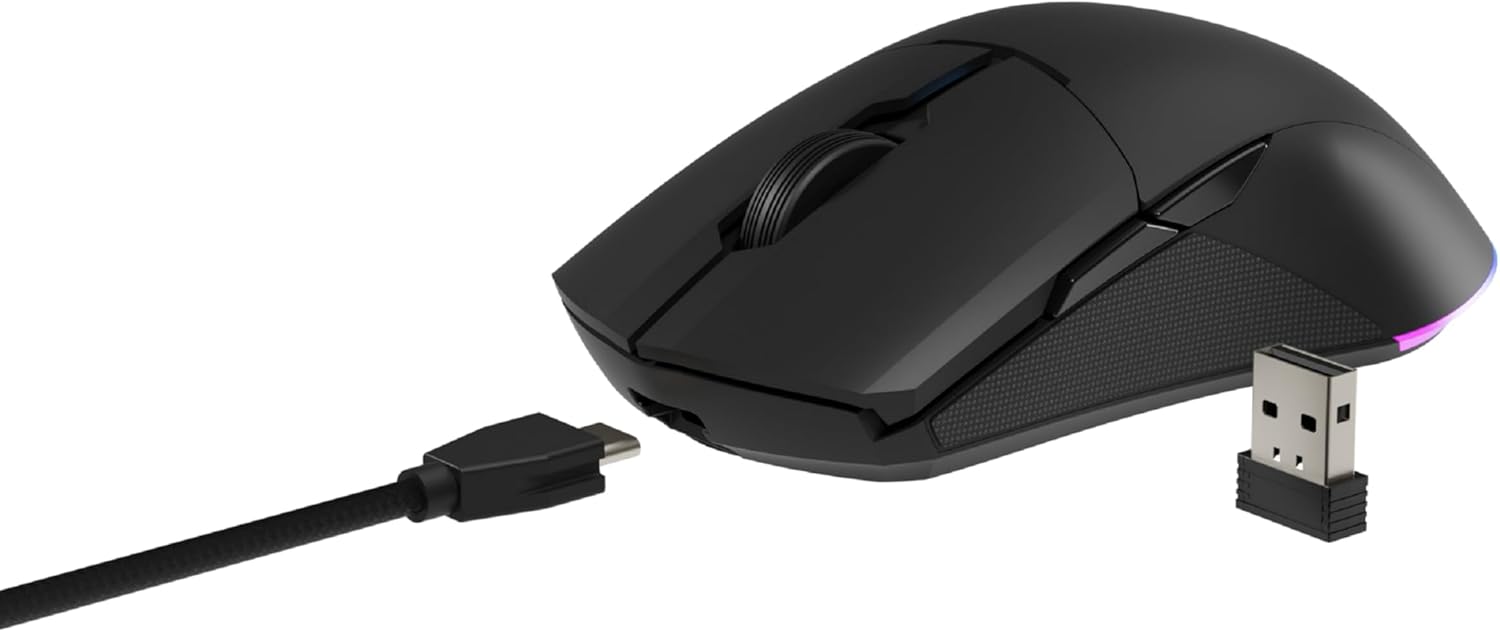
Image: The NEWSKILL Chiron Pro mouse shown with its USB-C cable and the 2.4GHz wireless receiver.
3.3 conexión por cable
The mouse can also be used in wired mode. Simply connect the USB-C cable to the mouse and the USB-A end to your computer. The mouse will function as a wired device and charge simultaneously.
4. Instrucións de funcionamento
4.1 Funcións básicas
- Botón esquerdo para premer: Acción primaria.
- Botón dereito do rato: Menú contextual/de acción secundaria.
- Roda de desprazamento: Desprazarse cara arriba/abaixo, premer co botón central.
- Side Buttons (8 programmable): Default functions may vary, but are customizable via software.

Imaxe: Lateral view of the mouse, showing the textured grip and two side buttons.
4.2 Axuste de DPI
The mouse features a Pixart PMW3335 optical sensor with up to 16000 configurable DPI. The DPI button on the underside of the mouse allows you to cycle through preset DPI levels. For fine-tuning and custom DPI settings, use the advanced software.

Image: Underside of the mouse, showing the DPI button, optical sensor, and ON/OFF switch.
4.3 Personalización da iluminación RGB
The Chiron Pro features customizable RGB lighting. To personalize lighting effects, colors, and brightness, download and install the dedicated NEWSKILL software from the official website. The software also allows for button remapping and macro creation.

Image: The NEWSKILL Chiron Pro mouse displaying its customizable RGB lighting.
5. Mantemento
5.1 Limpeza
Para manter un rendemento óptimo, limpa o rato regularmente. Usa un pano suave e seco para limpar a superficie. Para a sucidade persistente, limpa lixeiramente.amp Pódese usar un pano con xabón suave, garantindo que non entre líquido no rato. Evite produtos de limpeza abrasivos ou solventes.
5.2 Coidado coa batería
To prolong battery life, avoid fully discharging the mouse frequently. Charge the mouse when the battery indicator suggests low power. Store the mouse in a cool, dry place when not in use for extended periods.
6 Solución de problemas
- O rato non responde:
Ensure the mouse is turned ON. Check if the USB receiver is securely plugged into a working USB port. If using wired mode, ensure the USB-C cable is properly connected. Try a different USB port. - Problemas de conexión sen fíos:
Ensure the mouse is within range of the USB receiver (typically up to 10 meters). Avoid placing the receiver near other wireless devices that might cause interference. Re-pair the mouse if necessary (refer to software instructions). - DPI or button issues:
Ensure the NEWSKILL software is installed and up-to-date. Check your settings within the software. Reset to default settings if custom configurations are causing issues. - Problemas de carga:
Verify the USB-C cable is not damaged and is properly connected. Try a different USB port or charging adapter. Ensure the mouse is not in an extremely hot or cold environment during charging. - Missing USB Receiver:
The USB receiver is typically stored in a compartment on the underside of the mouse for safekeeping. Please check this compartment thoroughly. If it is genuinely missing, contact customer support.
7. Especificacións
| Característica | Especificación |
|---|---|
| Marca | NOVAS HABILIDADES |
| Nome do modelo | CHIRON PRO |
| Número de modelo | 10831240 |
| Cor | Negro |
| Tecnoloxía de conectividade | Wireless (2.4GHz), USB (Wired) |
| Tipo de sensor | Optical (Pixart PMW3335) |
| DPI | Ata 16000 DPI |
| Número de botóns | 8 (programable) |
| Cambiar a vida útil | Huano switches (up to 20 million clicks) |
| Orientación das mans | Ambidiestro |
| Duración da batería | Ata 80 horas |
| Tempo de carga | Aprox. 2 horas |
| Dimensións do produto | 12.4 x 6.75 x 0.1 cm |
| Peso do produto | 500 g |
| Sistemas operativos compatibles | Windows 10, Windows 7, Windows Vista, Windows XP, Linux |
8. Garantía e soporte
8.1 Información da garantía
NEWSKILL products are covered by a manufacturer's warranty. For specific warranty terms and conditions, please refer to the warranty card included with your product or visit the official NEWSKILL websitio. Garda o comprobante de compra para reclamacións de garantía.
8.2 Atención ao cliente
If you encounter any issues or have questions regarding your NEWSKILL Chiron Pro Wireless Gaming Mouse, please visit the official NEWSKILL support website or contact their customer service team. You can find contact information on the NEWSKILL websitio: www.newskillgaming.com