1. Introdución
This manual provides detailed instructions for the installation, operation, and maintenance of your ASUS B760M-AYW WiFi motherboard. Designed for Intel LGA 1700 processors (13th and 12th Gen), this mATX motherboard offers robust performance and connectivity for your personal computer build. Please read this manual thoroughly before proceeding with installation to ensure proper setup and functionality.
2. Produto rematadoview
The ASUS B760M-AYW WiFi motherboard is engineered to support the latest Intel processors, providing a stable and high-performance foundation for your system. Key features include:
- Socket Intel LGA 1700: Compatible with 13th and 12th Generation Intel Core processors.
- Conectividade ultrarrápida: Features PCIe 4.0, two PCIe 4.0 M.2 slots, Realtek 2.5Gb Ethernet, WiFi 6, and front USB 3.2 Gen 1 support.
- Refrixeración integral: Equipped with VRM heatsink, M.2 heatsink, PCH heatsink, hybrid fan headers, and Fan Xpert 2+ for efficient thermal management.
- Iluminación RGB Aura Sync: Includes onboard Addressable Gen 2 headers for customizable RGB LED strips, easily synchronized with Aura Sync-compatible hardware.

Image 1: The ASUS B760M-AYW WiFi motherboard, its retail packaging, and the included WiFi antenna. The motherboard features an LGA 1700 socket, DDR5 slots, PCIe 4.0, and M.2 slots.
3. Configuración e instalación
3.1 Precaucións de seguridade
- Desconecte sempre a fonte de alimentación antes de instalar ou retirar calquera compoñente.
- Use unha pulseira antiestática para evitar danos por descarga electrostática (ESD) nos compoñentes.
- Suxeite os compoñentes polos bordos, evitando o contacto cos pines ou os circuítos.
3.2 Instalación de compoñentes
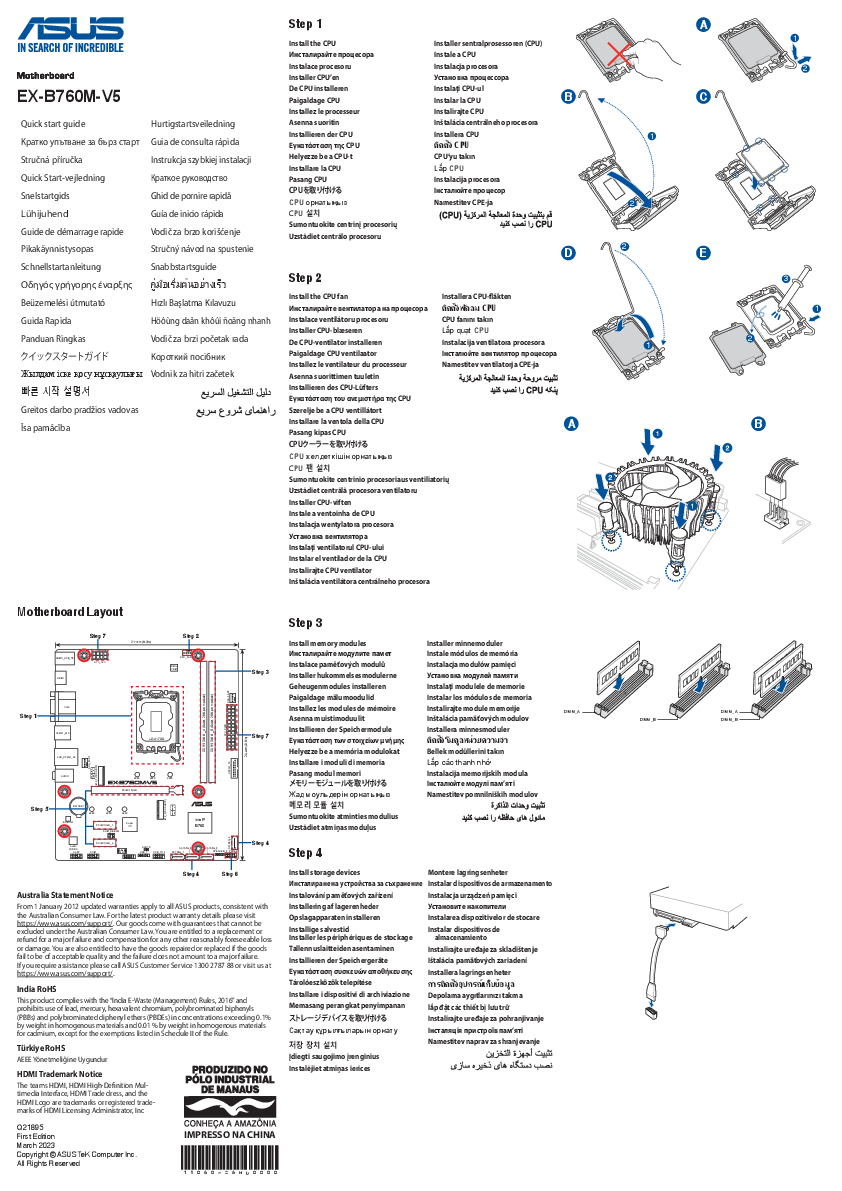
- Instalación de CPU: Carefully align your Intel LGA 1700 processor with the socket, ensuring the notches match. Lower the CPU into the socket and secure it with the retention arm.
- Instalación de memoria DDR5: Open the clips on the DDR5 DIMM slots. Align the memory modules with the slot key and press firmly until the clips snap into place. Refer to the motherboard manual for recommended dual-channel configurations.
- Instalación de SSD M.2: Insert your PCIe 4.0 M.2 SSD into the designated M.2 slots. Secure it with the provided screw or M.2 Q-Latch mechanism. If applicable, install the M.2 heatsink over the SSD.
- Instalación da tarxeta PCIe: Insert your graphics card or other PCIe expansion cards into the appropriate PCIe 4.0 slots. Ensure they are fully seated and secured with the case's retention mechanism.
3.3 Power and Data Connections
- Conectores de alimentación ATX: Conecta o conector de alimentación ATX de 24 pines e o conector de alimentación da CPU de 8 pines da fonte de alimentación á placa base.
- Dispositivos SATA: Connect SATA data cables from your storage drives (HDDs/SSDs) to the SATA 6 Gbps ports on the motherboard. Connect SATA power cables from your power supply to the drives.
- Conectores do panel frontal: Connect the power switch, reset switch, HDD LED, and power LED cables from your PC case to the front panel header. Refer to the motherboard diagram for correct pin assignments.
- Cabeceiras USB: Connect front panel USB 3.2 Gen 1 and USB 2.0 cables to the corresponding headers on the motherboard.
- Cabeceira de son: Connect the front panel audio cable to the AAFP header.
- Antena WiFi: Screw the included WiFi antenna onto the two antenna connectors on the rear I/O panel.
4. Instrucións de funcionamento
4.1 Arranque inicial e configuración da BIOS/UEFI
Upon first power-on, press the DEL or F2 key repeatedly during startup to enter the BIOS/UEFI setup utility. Here you can configure system settings such as boot order, date/time, and enable/disable various features. Save changes before exiting.
4.2 Instalación do controlador
After installing your operating system, install the necessary drivers for the motherboard components. These include chipset drivers, LAN drivers, audio drivers, and WiFi drivers. Drivers can be found on the ASUS support website for your specific motherboard model or on the included support DVD (if applicable).
4.3 ASUS Software Utilities
ASUS provides various software utilities to enhance your user experience, such as:
- Caixa de armería: A central hub for managing drivers, utilities, and Aura Sync lighting.
- Sincronización de aura: For customizing and synchronizing RGB lighting effects across compatible components.
- Fan Xpert 2+: Para un control avanzado do ventilador e unha optimización da refrixeración do sistema.
5. Mantemento
5.1 Limpeza
Regularly clean your PC to prevent dust buildup, which can lead to overheating and component failure. Use compressed air to remove dust from heatsinks, fans, and other components. Ensure the system is powered off and unplugged before cleaning.
5.2 Actualizacións de firmware e controladores
Consulta periodicamente o soporte técnico de ASUS website for updated BIOS/UEFI firmware and drivers. Keeping your system up-to-date can improve stability, performance, and compatibility with new hardware or software. Follow the instructions provided by ASUS for updating firmware.
6 Solución de problemas
Se tes problemas coa túa placa base, considera os seguintes pasos comúns para a súa resolución:
- Sen alimentación/Sen arranque: Double-check all power connections (24-pin ATX, 8-pin CPU). Ensure the power supply is functional.
- Sen visualización: Verify that the graphics card is properly seated and connected to the monitor. If using integrated graphics, ensure the monitor is connected to the motherboard's video output. Try reseating RAM modules.
- Inestabilidade/fallos do sistema: Ensure all drivers are installed and up-to-date. Check CPU and GPU temperatures. Test memory modules individually.
- Problemas de conectividade de rede: Verify Ethernet cable connection or WiFi antenna installation. Ensure network drivers are installed.
- Reinicio da BIOS: If system settings prevent booting, clear the CMOS by removing the CMOS battery for a few minutes or using the CLRTC jumper (refer to the full motherboard manual for location).
For persistent issues, consult the comprehensive troubleshooting guide on the ASUS support websitio web ou póñase en contacto co soporte técnico de ASUS.
7. Especificacións
| Característica | Especificación |
|---|---|
| Marca | ASUS |
| Número de modelo | 90MB1FK0-M0IAY0 |
| Socket do procesador | LGA 1700 |
| Procesadores compatibles | Intel Core de 13.ª xeración, Intel Core de 12.ª xeración |
| Tecnoloxía da memoria | DDR5 |
| Interfaz da tarxeta gráfica | PCI Express 4.0 |
| M.2 Ranuras | Two PCIe 4.0 M.2 slots |
| Ethernet | Ethernet de 2.5 Gb de Realtek |
| Conectividade sen fíos | WiFi 6 |
| Portos HDMI | 1 |
| Portos USB | Front USB 3.2 Gen 1 (additional rear I/O ports) |
| Dimensións do produto (LxWxH) | 30.5 x 4.9 x 23.4 cm |
| Peso do elemento | 1.35 kg |
8. Garantía e soporte
ASUS products are manufactured to the highest quality standards. This motherboard comes with a limited warranty. For detailed warranty terms and conditions, please refer to the warranty card included with your product or visit the official ASUS support websitio.
For technical assistance, driver downloads, or further information, please visit the ASUS support website or contact your local ASUS service center. You can find contact information and support resources at www.asus.com/support/.