
Introdución
This manual provides detailed instructions for the installation, operation, and maintenance of your Inefala 2+64G Android 15 CarPlay Car Stereo. Please read this manual thoroughly before using the product to ensure proper function and safety.
Compatibilidade de vehículos
This upgraded replacement dash kit is designed for Chevrolet Chevy Malibu models from 2011 to 2015.
Importante: Antes da compraasing and installation, verify that the power cable port on the detail page matches your original car's port. If the back of your car's CD player resembles the "Not Fit" image below, this product is not compatible. Contact customer service for suitable product advice if needed.

Image: Compatibility check for Chevrolet Chevy Malibu. Shows a comparison of the dashboard before and after installation, highlighting compatible and incompatible CD player types.
Contido do paquete
O paquete inclúe os seguintes elementos:
- Inefala Android Radio for Chevrolet Chevy Malibu
- 1 x cable de alimentación
- 1 x Original USB Cable
- 1 x Radio Antenna
- 1 x CANBUS
- 1 x RCA Harness
- 1 x Antena GPS
- 1 x AHD Backup Camera
- 1 cable de entrada para a cámara traseira
- 1 x micrófono externo
- 2 x cables USB
- 1 x Installation Tool & Accessories

Image: Visual representation of the package contents and the dimensions of the head unit.
Guía de instalación
Pre-Installation Test
Before full installation, perform a quick test:
- Connect the red and yellow wires of the car stereo together, then connect them to the positive pole of the 12V battery.
- Connect the black wire to the negative pole of the battery.
- If the car stereo functions normally during this test, proceed with the full installation. If not, recheck the wiring and contact support if issues persist.
Conexións de cableado
Refer to the port details and wiring diagrams for correct connections.
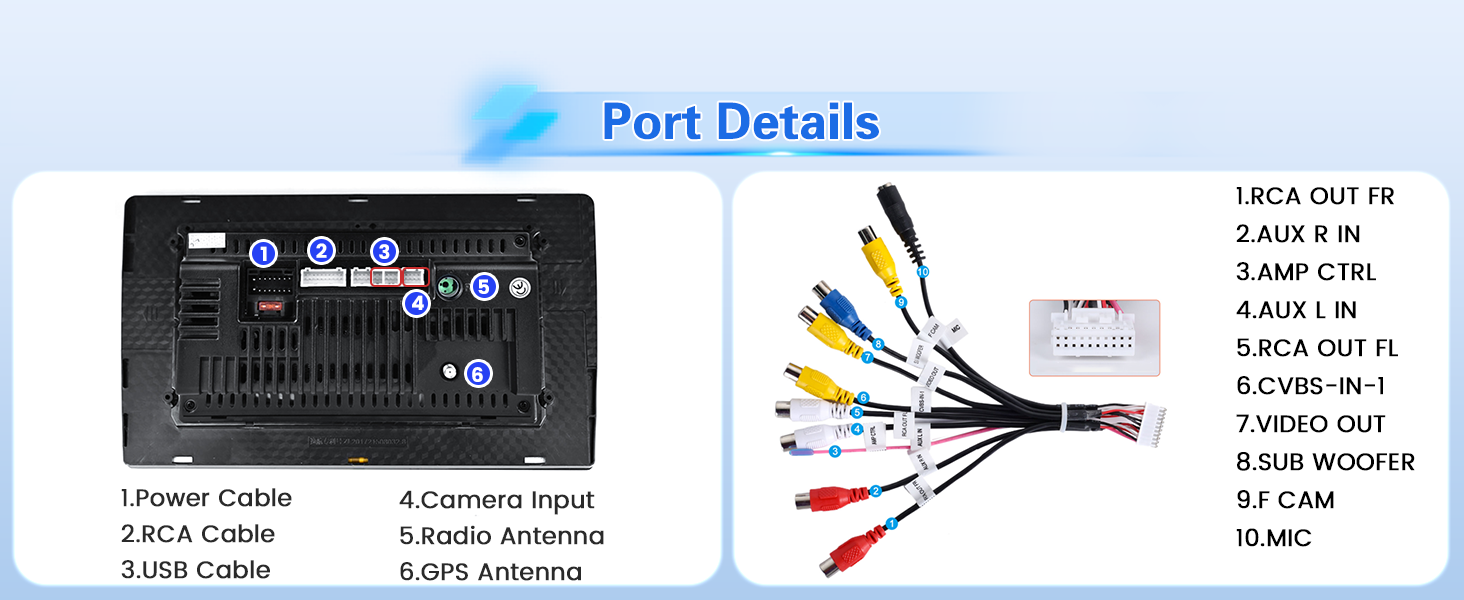
Imaxe: Detallada view of the car stereo's ports and corresponding wiring harness connections.
Backup Camera Wiring
The waterproof AHD camera is included for reverse assistance. Follow these steps for wiring:
- Connect Cable 1 and Cable 5: Connect the positive pole of the car reversing light cable.
- Connect Cable 2: Connect the negative pole of the car reversing light cable.
- Connect Cable 3 and Cable 4: Connect to the reverse trigger wire of the power cable (labeled "Reverse/Back"). No need to connect if without this wire. Pull it out and connect it if the last step doesn't work.
Nota: The reversing input must be plugged in even when the reversing camera is not used. Otherwise, your WiFi and Bluetooth signals may be affected.

Image: Diagram illustrating the connection points for the AHD backup camera.
Configuración do control do volante
The unit supports steering wheel controls for quick reactions and adjustments.
- Without CANBUS box: Activation of steering wheel controls requires key learning in settings.
- With CANBUS box:
- Connect the 20-pin white port in the power cable to the CANBUS itself, and the remaining 8-pin white port to the corresponding port on the back of the radio.
- Match the car model in "Settings - Factory Setting (Password 1234) - Can Settings".
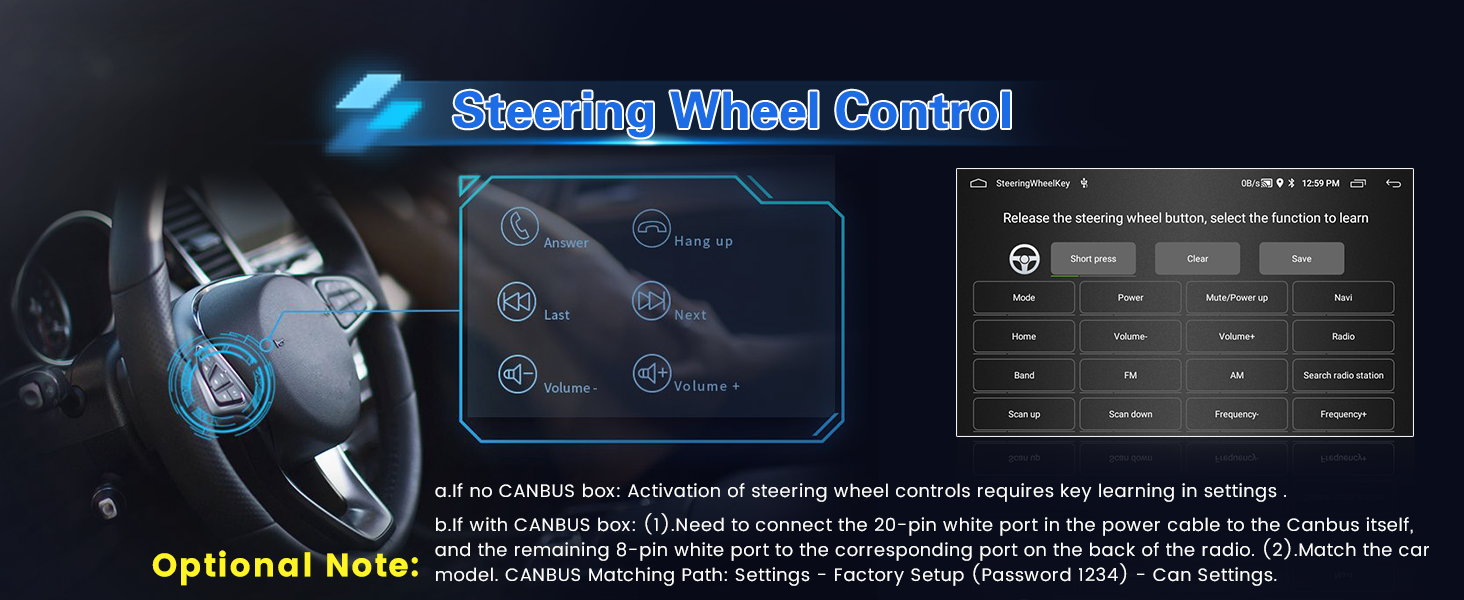
Image: Interface for learning and configuring steering wheel controls.
Instrucións de funcionamento
Your Inefala car stereo features a 9-inch 1024x600 HD touchscreen with an Android 15 operating system, offering a range of functions for an enhanced driving experience.
User Interface and Themes
The device features a specially designed blue main UI and 28 desktop themes. Long press on the desktop's blank space to switch between different themes.
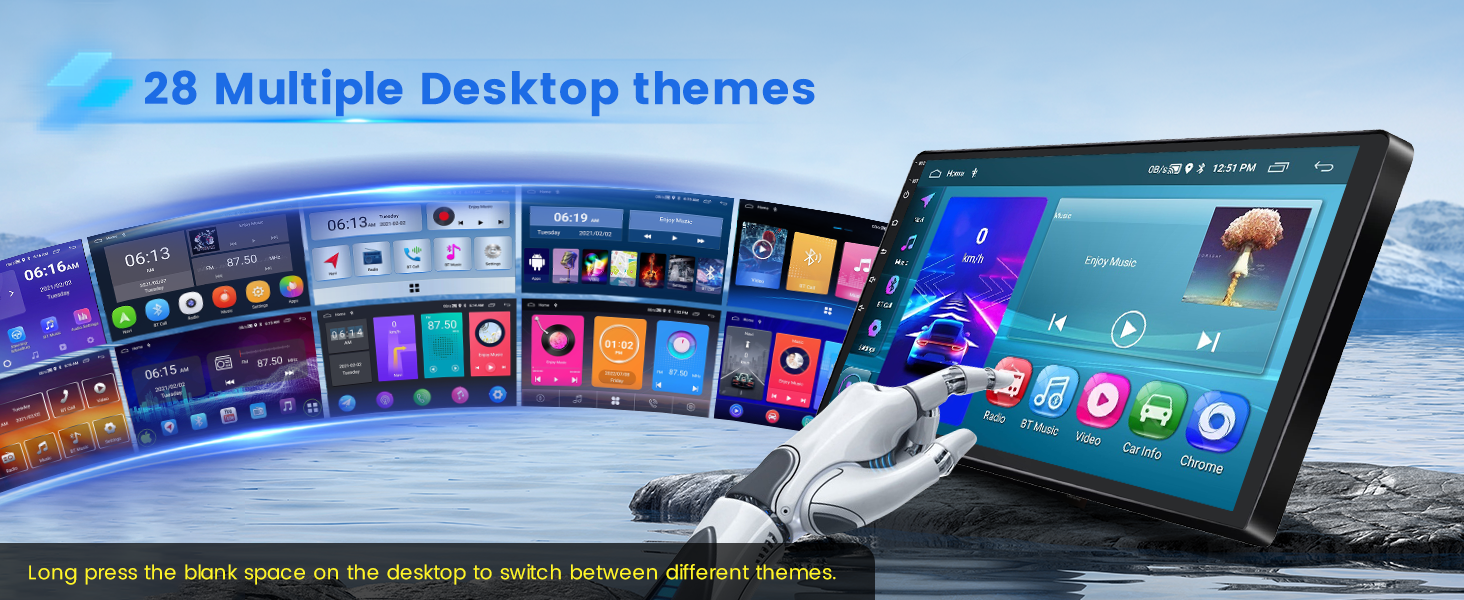
Image: Displays various desktop themes available on the car stereo.
CarPlay sen fíos e Android Auto
Enjoy seamless integration with your smartphone via wireless or wired CarPlay and Android Auto. This allows for voice control and access to phone functions like music, navigation, calls, and messages.
- Conexión sen fíos:
- Turn on your phone's Bluetooth, search for the car stereo's Bluetooth, and pair it.
- Click the "CPLink" / "Android Auto" app on the car stereo. (If your cell phone is Android, you may need to install the "Android Auto" app in advance).
- Wait for a few seconds, and the CarPlay/Android Auto wireless connection will happen automatically.
- After the first successful connection, simply turn on Bluetooth, and it will start automatically. You can then use functions like voice assistant, navigation, music playback, and hands-free calls.
- Conexión por cable:
- Connect your iOS/Android cell phone via the phone's original USB cable.
- Click the "CPLink" / "Android Auto" app on the car stereo. (If your cell phone is Android, you may need to install the "Android Auto" app in advance).
- Wait for a few seconds, and the CarPlay/Android Auto wired connection will happen automatically.
Nota: For some Samsung and Huawei phones, Android Auto and Mirror Link functionality may not be fully supported. The phone needs to support Google Services and have the "Android Auto" app installed.

Image: Illustrates the wireless and wired connection methods for CarPlay and Android Auto.
Mirror Link (iOS/Android)
Synchronize your cell phone's content, such as videos and navigation, to the car stereo's larger screen using the phone's original USB cable. Compatible with iOS phones (one-way control) and Android phones (two-way control).
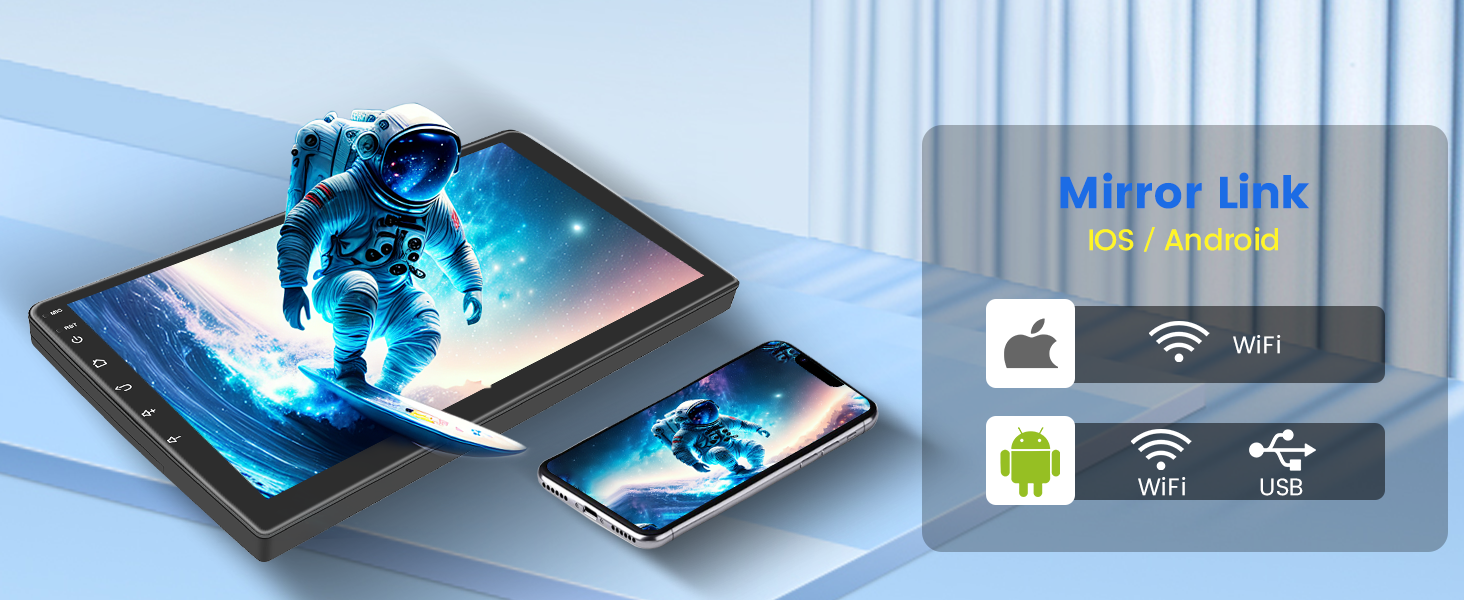
Image: Depicts the Mirror Link feature, showing content mirrored from a smartphone to the car stereo.
GPS Navigation & WiFi Connection
The unit supports both offline and online GPS navigation. You can download free offline maps (e.g., Waze) or use online maps. With WiFi connectivity, you can download various apps like YouTube and TikTok for entertainment.
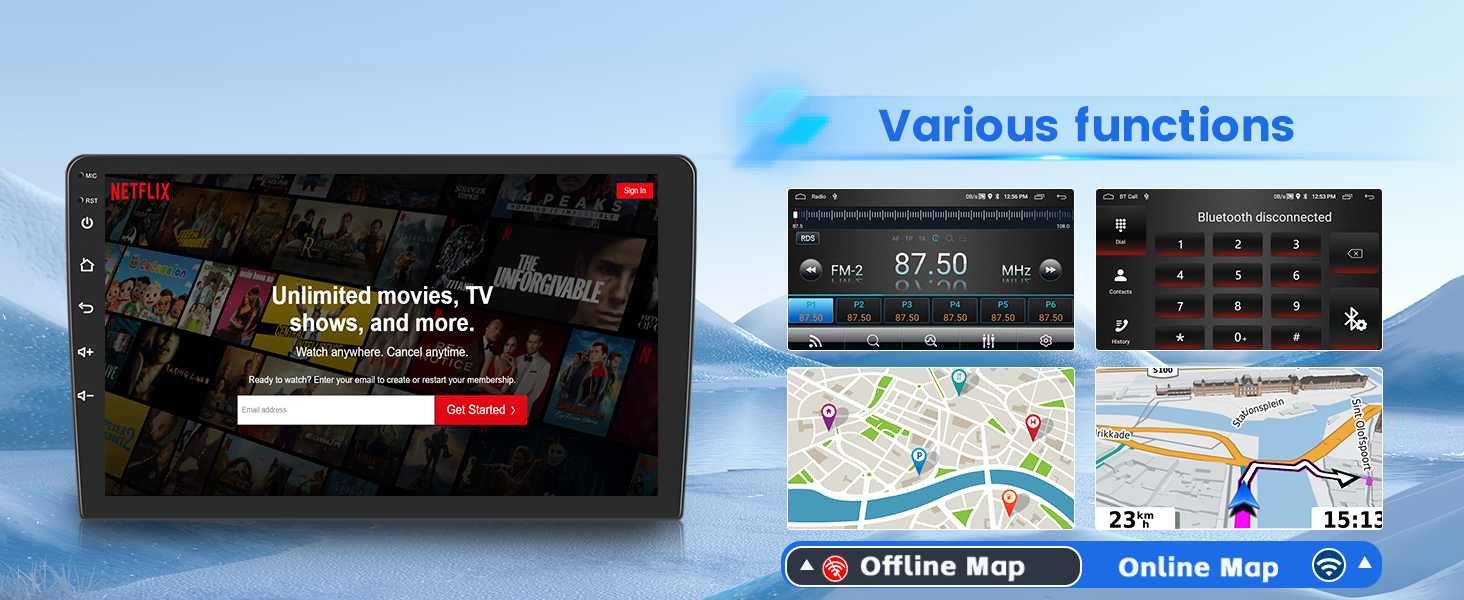
Image: Shows GPS navigation interface and various apps available via WiFi connection.
Audio Features: EQ & Split Screen
Adjust your audio experience with the built-in EQ settings, offering presets like pop, rock, and jazz, or a customizable user profile. The split-screen function allows you to display multiple applications simultaneously, such as navigation and FM radio.

Image: Displays the equalizer (EQ) settings interface for audio customization.
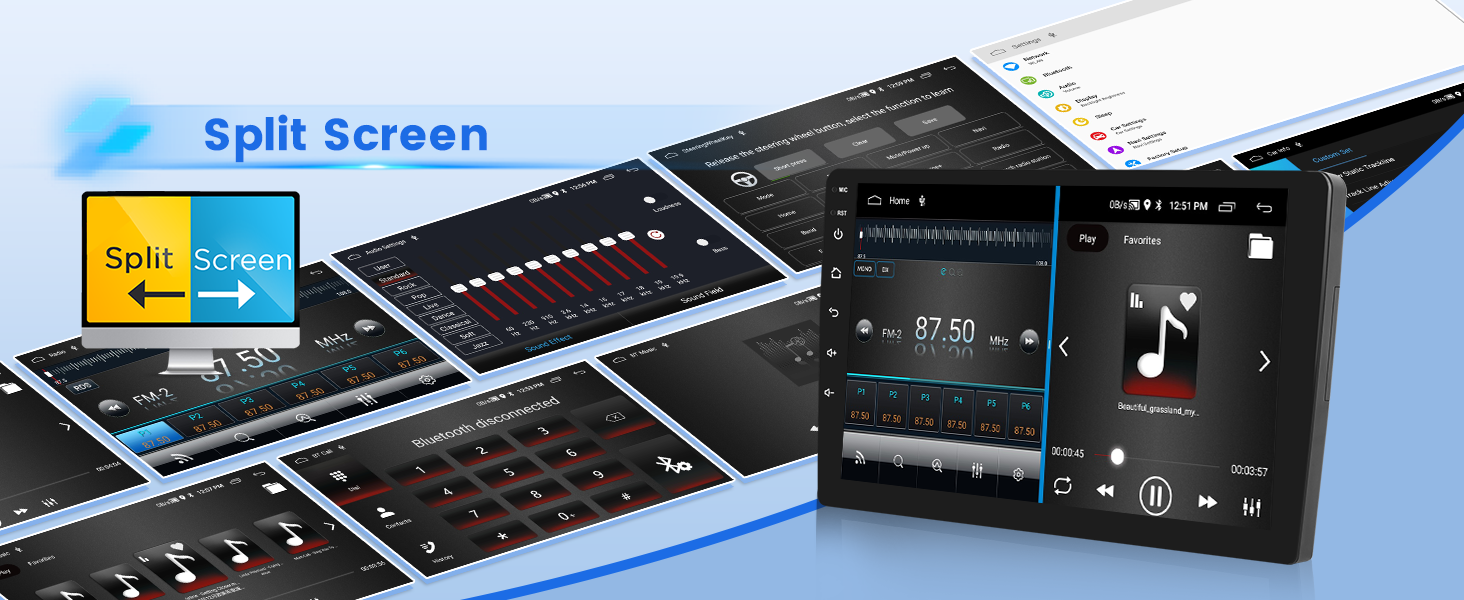
Image: Demonstrates the split-screen feature, showing two applications running side-by-side.
Bluetooth & FM/RDS Radio
The built-in Bluetooth 4.2 module enables music playback, hands-free calls, and phonebook download. The FM/RDS radio allows you to listen to music, weather forecasts, traffic updates, and news. You can save up to 18 favorite radio stations.
USB DVR Support
The unit supports USB DVR (Digital Video Recorder) functionality, allowing you to record your drives. A USB DVR camera is optional and sold separately.

Image: Shows the car stereo screen displaying a DVR recording, with an optional USB DVR camera.
Vídeo Demostración
Video: This video demonstrates the various functions and user interface of the Inefala Android car radio, including theme switching, music playback, EQ settings, radio, video playback, file management, settings, and CarPlay/Android Auto connections.
Especificacións do produto
| Característica | Detalle |
|---|---|
| Marca | Inefala |
| Nome do modelo | RM |
| Tipo de servizo do vehículo | Coche |
| Tamaño da pantalla | 9 polgadas |
| Resolución | 1024 x 600 |
| Sistema Operativo | Android |
| Capacidade de almacenamento da memoria | 64 GB |
| Tipo de pantalla táctil | Capacitiva |
| Tipo de visualización | LCD |
| Tecnoloxía de conectividade | Bluetooth, USB, Wi-Fi, Wireless |
| Tipo de mapa | En todo o mundo |
| Modo de saída de audio | Estéreo |
| Tipo de montaxe | Montaxe do panel de control |
| Entrada de interface humana | Micrófono, pantalla táctil |
| Dispositivos compatibles | Teléfono intelixente |
| Método de control | Toca |
| Sistema de navegación por satélite compatible | GPS |
| Protocolo de conectividade | Bluetooth, WiFi |
| Compatibilidade do ano modelo | 2011-2015 Chevrolet Chevy Malibu |
Resolución de problemas
- Steering Wheel Control Issues: If steering wheel controls are not functioning, ensure the CANBUS box is correctly connected (if applicable) and the car model is matched in "Settings - Factory Setting (Password 1234) - Can Settings". For units without a CANBUS box, perform key learning in settings.
- Abnormal Dashboard Display (Chinese Characters): If the dashboard displays abnormal Chinese characters, contact customer service to obtain the necessary upgrade package.
- Power Cable Port Mismatch: Double-check that the provided power cable port matches your original car's port.
- Missing or Damaged Accessories: If the wiring harness is different or accessories are missing/damaged, contact the customer service department for assistance.
- CarPlay/Android Auto/Mirror Link Connectivity: Ensure your phone supports Google Services and has the "Android Auto" app installed for Android Auto. Note that some Samsung and Huawei phones may have limited compatibility.
- WiFi/Bluetooth Signal Issues: Ensure the reversing input is plugged in, even if a camera is not used, as it can affect WiFi and Bluetooth signals.
Garantía e Soporte
Your Inefala car stereo comes with a 1 ano de garantía.
For any questions, technical support, or issues, please contact Inefala Direct customer service. You can typically find contact information on the seller's page or through your purchase platform.
Como chegar a nós:
- Click "Inefala Direct" on the product page.
- Click "Ask a question".
- Provide details of your issue, including relevant pictures or videos, to help resolve the problem faster.
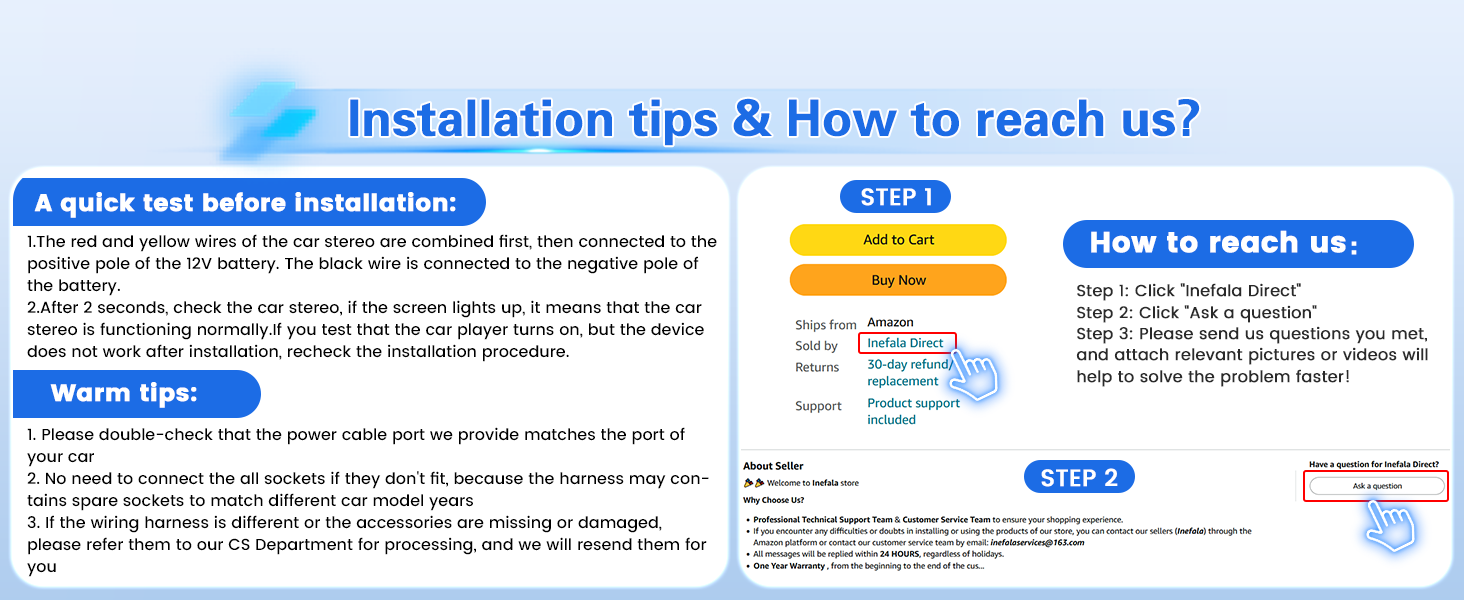
Image: Instructions on how to contact customer support via the seller's page.