
Introdución
Thank you for choosing the TECKNET TK-MS317 Bluetooth Wireless Mouse. This manual provides detailed instructions for setting up, operating, and maintaining your mouse to ensure optimal performance. Please read this manual thoroughly before use and retain it for future reference.
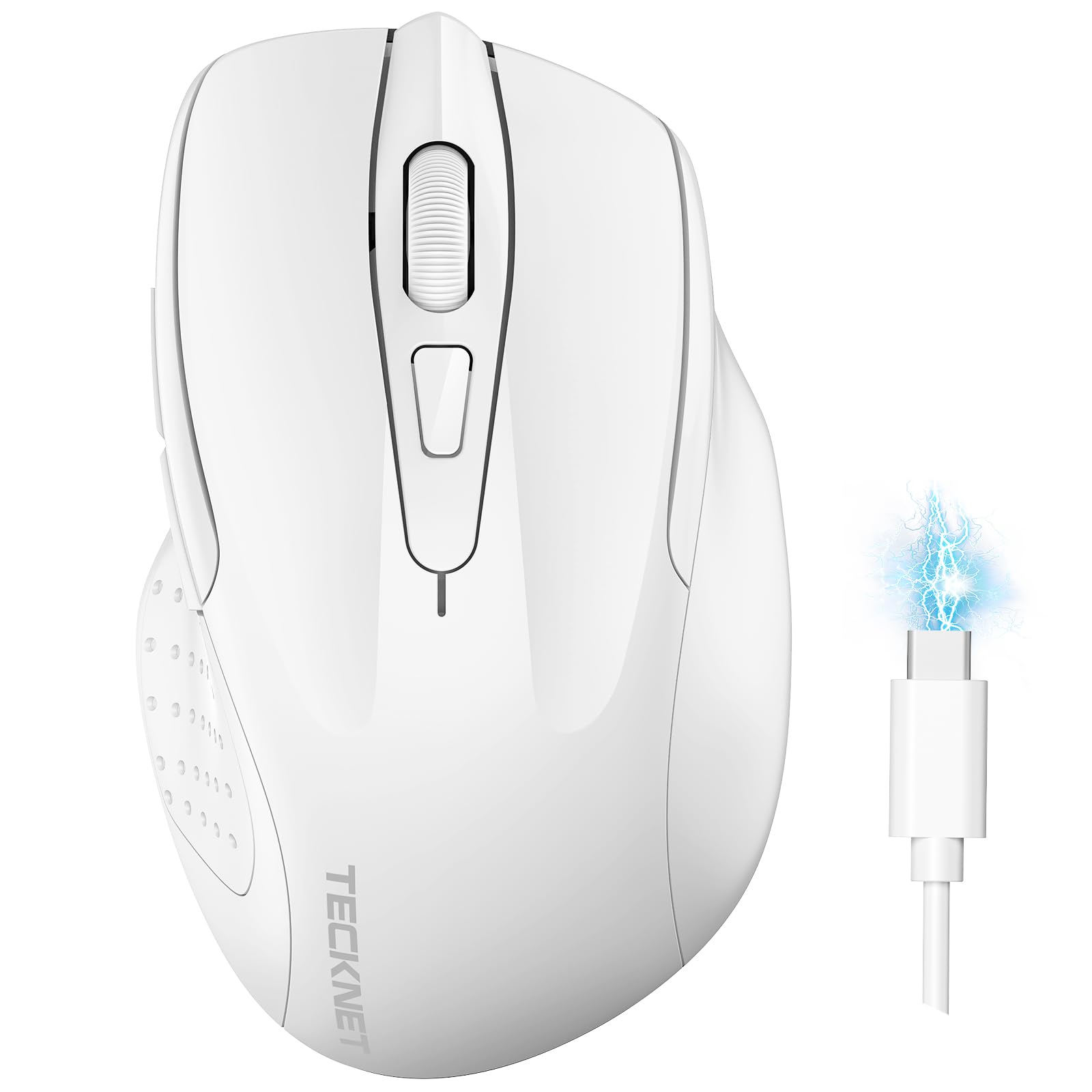
Image: The TECKNET TK-MS317 Bluetooth Wireless Mouse, showcasing its ergonomic design and sleek white finish.
Características do produto
- Modos de conexión triplos: Supports Bluetooth 5.0, Bluetooth 3.0, and 2.4GHz wireless connectivity, allowing seamless switching between up to two devices.
- DPI axustable: Six adjustable DPI levels (800/1200/1600/2400/3200/4800) for precise control and adaptability to various tasks.
- Batería recargable: Equipped with a 700 mAh rechargeable battery, providing extended usage on a single charge. Can be used while charging via USB-C.
- Clics silenciosos: Designed for quiet operation, reducing click noise by 90% for a focused work environment.
- Deseño ergonómico: Contoured shape fits comfortably in the palm, reducing hand fatigue during prolonged use.
- Aforro de enerxía: Features a key-wake function and automatic sleep mode to conserve battery life.
- Compatibilidade universal: Compatible with Windows 11/10/8/7/XP/Vista, Mac OS, Linux, Android, and iOS (BT 5.0 for iOS 10.4+).

Image: Illustration highlighting the silent click feature of the mouse, showing a quiet work environment.

Image: Diagram illustrating the ergonomic curvature of the TECKNET TK-MS317 mouse, designed for comfortable hand fit.
Instrucións de configuración
1. Cargar o rato
Before first use, or when the battery is low, connect the mouse to a power source using the provided USB-C cable. The charging indicator light will illuminate. A full charge typically takes about two hours and can last for 1 to 2 months of intensive use.

Image: The TECKNET TK-MS317 mouse connected via a USB-C cable for charging, highlighting its 700mAh battery capacity.
2. Conexión mediante unha rede sen fíos de 2.4 GHz
- Locate the USB 2.4G receiver, usually stored in a compartment on the underside of the mouse.
- Conecta o receptor USB a un porto USB-A dispoñible do teu ordenador.
- Cambie o selector de modo na parte inferior do rato á posición "2.4G".
- The mouse should automatically connect to your computer. If not, try moving the mouse or restarting your computer.
3. Conexión por Bluetooth (BT5.0 / BT3.0)
- Switch the mode selector on the bottom of the mouse to either "BT5.0" or "BT3.0" position.
- Press and hold the Bluetooth pairing button (usually located near the mode switch) for 3-5 seconds until the indicator light starts flashing, indicating pairing mode.
- No teu dispositivo (ordenador, portátil, tableta, teléfono intelixente), vai á configuración de Bluetooth.
- Busca new devices. You should see "TECKNET Mouse" or a similar name appear in the list.
- Select the mouse to pair. Once connected, the indicator light on the mouse will stop flashing.
- To switch between paired Bluetooth devices or to the 2.4G mode, simply use the mode selector switch on the bottom of the mouse.

Image: Diagram showing the three connection modes (2.4G, Bluetooth 5.0, Bluetooth 3.0) of the TECKNET TK-MS317 mouse, connecting to a laptop and a tablet.
Instrucións de funcionamento
1. Axuste de DPI
The mouse features a DPI button, typically located behind the scroll wheel. Press this button to cycle through the six available DPI settings: 800, 1200, 1600, 2400, 3200, and 4800. Select the DPI that best suits your task and preference for cursor speed and precision.

Image: Visual representation of the TECKNET TK-MS317 mouse highlighting its 6 levels of adjustable DPI, up to 4800 DPI.
2. Cambio de modo
Use the physical switch on the underside of the mouse to select your desired connection mode: 2.4G, BT5.0, or BT3.0. This allows you to quickly switch between different devices without re-pairing.
3. Modo de aforro de enerxía
The mouse will automatically enter sleep mode after a period of inactivity to conserve battery. To wake the mouse, simply move it or click any button.
Mantemento
1. Limpeza
Para limpar o rato, use un pano suave e seco. Para a sucidade persistente, use un pano lixeiramente seco.amp cloth with mild soap can be used, ensuring no liquid enters the mouse. Avoid using harsh chemicals or abrasive materials.
2. Coidado da batería
- Evite descargar completamente a batería con frecuencia.
- Garde o rato nun lugar fresco e seco cando non o use durante períodos prolongados.
- Usa só o cable USB-C fornecido ou un equivalente certificado para cargar.
Resolución de problemas
- O rato non responde:
- Asegúrate de que o rato estea cargado.
- Check if the mode switch is set correctly (2.4G, BT5.0, or BT3.0).
- Para o modo 2.4G, asegúrate de que o receptor USB estea conectado correctamente.
- Para o modo Bluetooth, asegúrate de que o Bluetooth estea activado no teu dispositivo e que o rato estea emparellado. Tenta volver emparellalo se é necesario.
- Try connecting the mouse to a different USB port or device to rule out port/device issues.
- Conexión intermitente:
- Achegue o rato ao receptor/dispositivo.
- Evite usar o rato en superficies metálicas, xa que poden interferir cos sinais sen fíos.
- Asegúrate de que non haxa outras fontes fortes de interferencia sen fíos nas proximidades.
- O movemento do cursor é errático:
- Limpa o sensor óptico da parte inferior do rato.
- Tenta usar o rato nunha superficie diferente ou nunha alfombrilla de rato.
- Adjust the DPI setting to a lower value.
Especificacións
| Número de modelo | TK-MS317 |
| Marca | TECNET |
| Modos de conexión | Sen fíos de 2.4 GHz, Bluetooth 5.0, Bluetooth 3.0 |
| Niveis de DPI | 800, 1200, 1600, 2400, 3200, 4800 |
| Número de botóns | 6 |
| Tipo de batería | Built-in 700 mAh Rechargeable Lithium Battery |
| Porto de carga | USB-C |
| Peso | 150 gramos |
| Compatibilidade | Windows 11/10/8/7/XP/Vista, Mac OS, Linux, Android, iOS (10.4+ for BT 5.0) |
Garantía e Soporte
TECKNET offers a 36-month warranty for registered users of this product. If you encounter any issues with your TECKNET TK-MS317 Bluetooth Wireless Mouse, please do not hesitate to contact our professional customer service team for assistance.
For warranty claims or technical support, please visit the official TECKNET websitio web ou consulte a información de contacto que se inclúe na embalaxe do produto.