
Introdución
This manual provides detailed instructions for the installation, operation, and maintenance of your aigo AF12 3-in-1 ARGB Fan Kit. Please read this manual thoroughly before use to ensure proper functionality and longevity of the product.
Características do produto
The aigo AF12 3-in-1 ARGB Fan Kit offers efficient cooling and customizable lighting for your computer system. Key features include:
- Modelo: AF123IN1-BK
- Cantidade de ventiladores: 3 x 120mm fans
- Velocidade do ventilador: 800-2000 rpm (±10%)
- Fan Noise Level: ≤30 dBA
- Fluxo de aire: 86.6 CFM
- Presión estática: 1.27mm-H²O
- Working Current (Motor): ≤0.2A (12V)
- Working Current (Light): ≤0.48A (5V)
- Dimensións: 120 x 120 x 25 mm
- Iluminación ARGB: Addressable RGB lighting for customizable effects.
Contido do paquete
Verifique que todos os elementos que se indican a continuación estean presentes no seu paquete:
- 3 x aigo AF12 ARGB Fans
- Parafusos de montaxe
- ARGB Controller (if included in kit)
- Cables (Power, ARGB Sync)
Guía de instalación
Follow these steps to properly install your aigo AF12 ARGB fans into your computer case.
- Prepara o teu sistema: Power off your computer and disconnect it from the power source. Open your computer case.
- Identificar as localizacións de montaxe: Determine the desired locations for your fans (e.g., front, top, rear, bottom of the case). Ensure proper airflow direction.
- Montar os ventiladores: Position each fan in its chosen location. Use the provided mounting screws to secure the fans to the case. Ensure the fan blades are not obstructed.
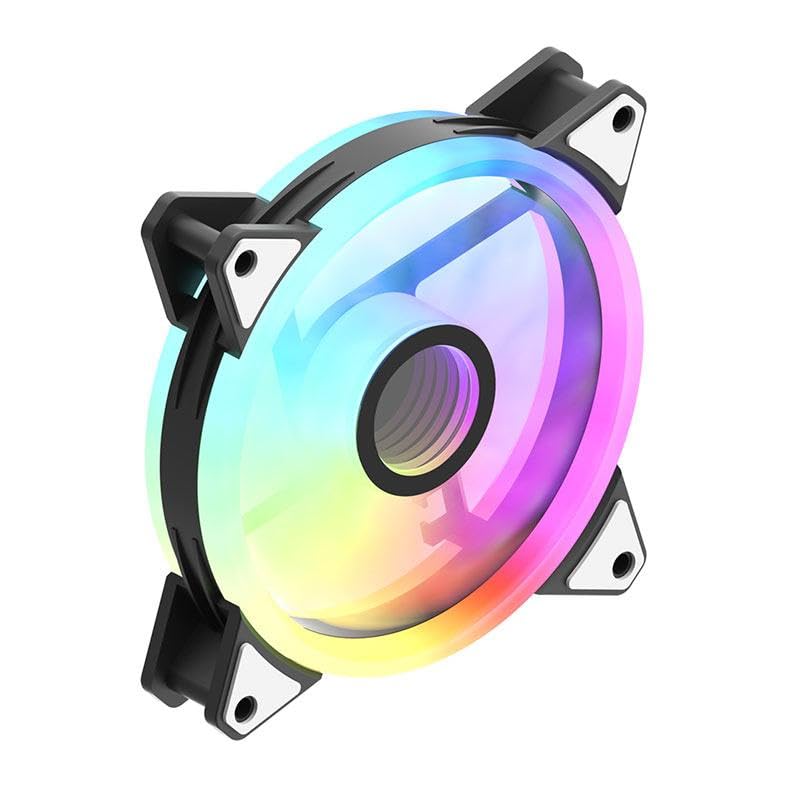
Image: An aigo AF12 fan viewed from an angle, highlighting the mounting points on its corners. This illustrates how the fan is secured.
- Conectar os cables de alimentación: Connect the 3-pin power connector from each fan to an available fan header on your motherboard or fan controller.
- Connect ARGB Cables: Connect the ARGB cable from each fan to the ARGB controller (if applicable) or directly to a compatible 5V 3-pin ARGB header on your motherboard. Ensure correct pin orientation to avoid damage.
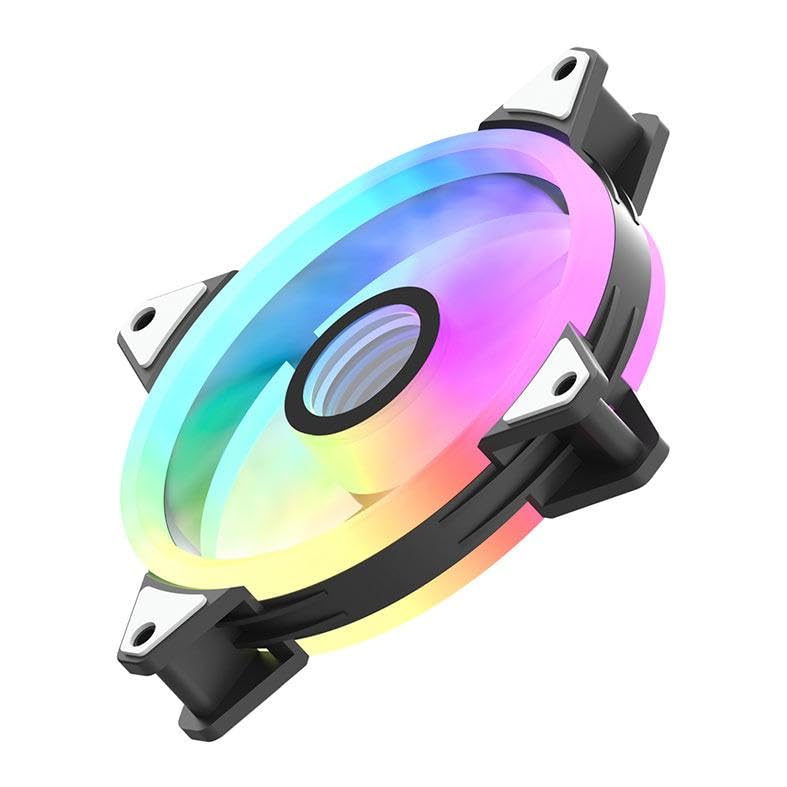
Imaxe: Un profesional secundariofile of the aigo AF12 fan, illustrating the thickness and potential locations for cable connections on the frame.
- Xestión de cables Route cables neatly to prevent interference with other components and to improve airflow.
- Pechar a caixa e acender: Close your computer case, reconnect the power, and power on your system.
Instrucións de funcionamento
Once installed, your aigo AF12 ARGB fans will operate automatically based on your system's fan control settings. The ARGB lighting can be controlled via your motherboard's software or a dedicated ARGB controller.
Control de velocidade do ventilador
Fan speed can typically be adjusted through your motherboard's BIOS/UEFI settings or through fan control software provided by your motherboard manufacturer. Refer to your motherboard manual for specific instructions.
Control de iluminación ARGB
If connected to a 5V 3-pin ARGB header on your motherboard, use your motherboard's ARGB synchronization software (e.g., ASUS Aura Sync, MSI Mystic Light Sync, GIGABYTE RGB Fusion, ASRock Polychrome Sync) to customize lighting effects, colors, and patterns.
If using a dedicated ARGB controller (often included with fan kits), refer to the controller's specific instructions for lighting adjustments.
Mantemento
Regular maintenance ensures optimal performance and extends the lifespan of your fans.
- Limpeza do po: Periodically clean dust from the fan blades and housing using compressed air or a soft brush. Ensure the system is powered off before cleaning.
- Comprobación do cable: Verify that all cables are securely connected and free from damage.
- Monitorización do ruído: Listen for unusual noises, which may indicate a fan bearing issue or obstruction.
Resolución de problemas
If you encounter issues with your aigo AF12 ARGB fans, refer to the following common solutions:
Os ventiladores non xiran
- Comprobar a conexión de alimentación: Ensure the fan's 3-pin power connector is securely plugged into the motherboard or controller.
- Check BIOS Settings: Verify that fan headers are enabled in your motherboard's BIOS/UEFI settings.
- Test Another Header: Try connecting the fan to a different fan header to rule out a faulty header.
As luces ARGB non funcionan
- Comprobar a conexión ARGB: Ensure the 5V 3-pin ARGB connector is correctly and securely plugged into the motherboard or controller. Verify the pin orientation.
- Check Software: Confirm that your motherboard's ARGB software is installed and configured correctly.
- Compatibilidade: Ensure your motherboard has a compatible 5V 3-pin ARGB header. This product is not compatible with 12V 4-pin RGB headers.
Ruído excesivo
- Comproba se hai obstáculos: Asegúrate de que ningún cable ou outros compoñentes estean en contacto coas aspas do ventilador.
- Parafusos de montaxe: Verify that all mounting screws are tightened to prevent vibrations.
- Acumulación de po: Limpa calquera po das aspas do ventilador.
Especificacións técnicas
| Característica | Especificación |
|---|---|
| Marca | aigo |
| Modelo | AF123IN1-BK |
| Cantidade de ventilador | 3 x 120 mm |
| Velocidade do ventilador | 800 ± 2000 ± 10% RPM |
| Ruído do ventilador | ≤ 30 dBA |
| Fluxo de aire | 86.6 CFM |
| Presión estática | 1.27mm-H²O |
| Working Current (Motor) | ≤ 0.2A (12V) |
| Working Current (Light) | ≤ 0.48A (5V) |
| Dimensións | 120 x 120 x 25 mm |
| Tipo de conector de alimentación | 3-pin |
| Voltage | 12 voltios |
| Método de arrefriamento | Aire |
| Dispositivos compatibles | Escritorio |
| Peso do elemento | 10.6 onzas |
Garantía e Soporte
This aigo product comes with a 12 meses de garantía desde a data de compra, cubrindo defectos de fabricación.
For technical support, warranty claims, or further assistance, please visit the official aigo store or contact their customer service through the details provided on their websitio.
Official aigo Store: aigo Store on Amazon