
1. Introdución
This manual provides instructions for the Attoe Wireless Bluetooth Mouse, Model MXY0614. This device features dual-mode connectivity (Bluetooth and 2.4G wireless), a transparent design with RGB backlighting, and a rechargeable battery. Please read this manual carefully before use to ensure proper operation and maintenance.
2. Contido do paquete
Verifica que todos os elementos estean presentes no paquete:
- 1 x Attoe Wireless Bluetooth Gaming Mouse
- 1 cable de carga (tipo C)
- 1 x manual de instrucións

Figura 2.1: Contido do paquete
3. Características do produto
- Magnetic Top Cover: The top cover is secured by strong magnetic adsorption, allowing for easy access to the USB receiver and precise alignment.
- Retroiluminación RGB: Features an RGB water-cooled light band for customizable lighting effects.
- Pantalla de batería: Four indicator lights show the remaining battery level.
- Recargable: Built-in 400mAh lithium polymer battery, charged via Type-C port. Full charge takes approximately 2-3 hours.
- Dual Mode Connection: Supports both Bluetooth (BT) and 2.4G wireless modes.
- Suspensión automática: Automatically enters deep sleep mode after 10 minutes of inactivity to conserve power.
- Ampla compatibilidade: Compatible with Windows 2000/XP/win7/win8/win10, Vista 32-bit, IOS, Linux, and Mac OS.
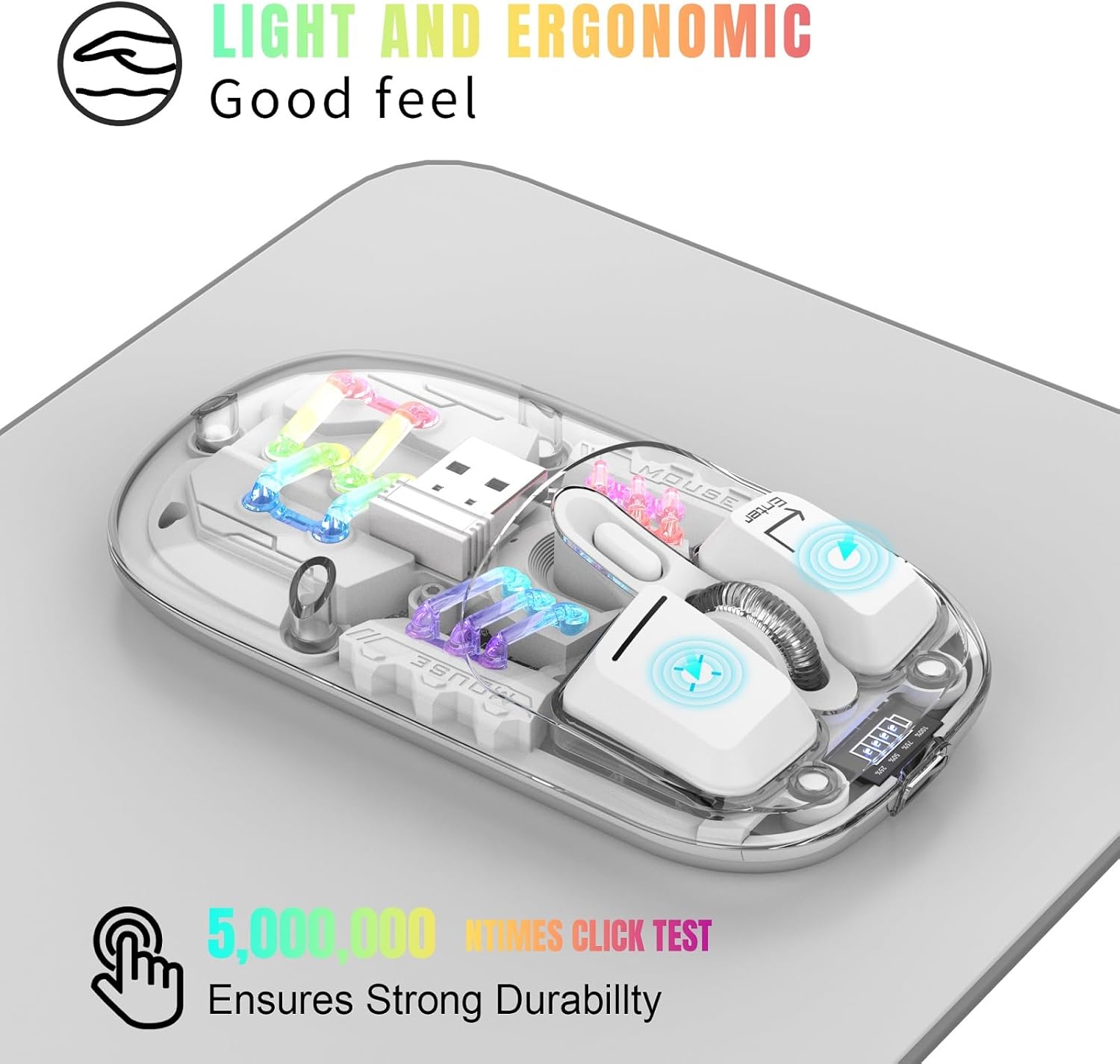
Figure 3.1: Ergonomic Design and RGB Lighting

Figure 3.2: Magnetic Top Cover
4. Produto rematadoview

Figure 4.1: Mouse Components and Controls
The diagram above identifies the key components and controls of the mouse, including the left and right buttons, scroll wheel, DPI adjustment, battery indicator, Type-C charging port, and the location of the 2.4G USB receiver.
5. Instrucións de configuración
5.1. Conexión sen fíos 2.4G
- Retire a tapa superior magnética do rato.
- Saque o receptor USB 2.4G da súa ranura de almacenamento.
- Insira o receptor USB nun porto USB dispoñible do seu ordenador ou dispositivo.
- Flip the mouse over and locate the mode switch on the bottom. Slide the switch to the "2.4G" position.
- The mouse will automatically connect to your device. No additional software is required.
5.2. Conexión Bluetooth
- Flip the mouse over and locate the mode switch on the bottom. Slide the switch to the "BT" position.
- Press and hold the left, middle (scroll wheel), and right buttons simultaneously for 3 seconds to enter Bluetooth pairing mode. The RGB lights will flash to indicate pairing mode.
- No teu dispositivo (ordenador, portátil, tableta), abre a configuración de Bluetooth.
- Busca new Bluetooth devices and select "BT5.0 Mouse" or a similar name from the list.
- Confirm the pairing on your device. The mouse's RGB lights will stop flashing once successfully paired.

Figure 5.1: Dual Mode Connectivity
Video 5.1: Demonstrating the connection process and features of the Transparent Gaming Mouse.
6. Instrucións de funcionamento
6.1. Control da iluminación RGB
- Cambiar o modo de luz: Click the dedicated light mode switch button (refer to Figure 4.1) to cycle through 11 different RGB lighting effects.
- Acender/apagar luces: Long press the light mode switch button for 3 seconds to turn the RGB lights on or off.
6.2. Axuste de DPI
The mouse features adjustable DPI settings. Click the DPI button (refer to Figure 4.1) to cycle through available DPI levels (e.g., 800, 1200, 1600 DPI). Each click will change the cursor sensitivity.
6.3. Cargar o rato
- Connect the provided Type-C charging cable to the charging port on the front of the mouse.
- Conecta o outro extremo do cable a unha fonte de alimentación USB (por exemplo, un porto USB do ordenador ou un adaptador de parede USB).
- The battery display lights will indicate charging status. A full charge typically takes 2-3 hours.
- The 4 small lights on the battery display indicate the remaining battery level.
6.4. Función de repouso automático
To conserve battery life, the mouse will automatically enter a deep sleep mode if left unused for more than 10 minutes. To wake the mouse, simply move it or press any button.
7. Mantemento
- Manteña o rato limpo limpándoo cun pano suave e seco. Evite o uso de produtos químicos agresivos ou materiais abrasivos.
- Ensure the Type-C charging port is free from dust and debris.
- Store the USB receiver inside the mouse when not in use to prevent loss.
- Avoid exposing the mouse to extreme temperatures or direct sunlight.
8 Solución de problemas
- O rato non responde: Ensure the mouse is charged. Check the mode switch (2.4G or BT) is correctly set. For 2.4G, ensure the USB receiver is properly inserted. For Bluetooth, re-enter pairing mode and re-pair with your device.
- Conexión intermitente: Ensure the mouse is within the 10-meter wireless range. Avoid obstructions between the mouse and the receiver/device.
- As luces RGB non funcionan: Check if the lights are turned off by long-pressing the light mode switch. Ensure the mouse has sufficient battery.
- O movemento do cursor é errático: Limpa o sensor óptico da parte inferior do rato. Asegúrate de usar o rato sobre unha superficie axeitada.
9. Especificacións
| Característica | Especificación |
|---|---|
| Número de modelo | MXY0614 |
| Conectividade | Bluetooth (BT) + 2.4G Wireless |
| Botóns | 4 buttons (Left, Right, Scroll Wheel/Middle, DPI) |
| DPI | 1600 DPI (Adjustable) |
| Voltage / Actual | DC 5 V/400 mA |
| Distancia de conexión sen fíos | 10 metros |
| Cambiar vida | 20 millóns de ciclos |
| Batería | Polímero de litio de 400 mAh integrado (recargable) |
| Porto de carga | Tipo-C |
| Peso do produto | 40 g (1.41 onzas) |
| Dimensións do produto | 113 x 58 x 25mm (4.45 x 2.28 x 0.98 polgadas) |
| Compatibilidade | Windows 2000/XP/win7/win8/win10, Vista 32-bit, IOS, Linux, Mac OS |

Figura 9.1: Dimensións do produto
10. Garantía e soporte
For any questions or issues regarding your Attoe Wireless Bluetooth Mouse, please contact our after-sales service. We are committed to providing a satisfactory resolution.
Contact information for support can typically be found on the product packaging or the official Attoe websitio.