
1. Introdución
This manual provides essential instructions for the proper setup, operation, and maintenance of your Azpen A1083 10.36-inch Android Tablet. Please read this manual thoroughly before using your device to ensure optimal performance and longevity.
2. Contido do paquete
Verifica que todos os elementos estean presentes na embalaxe do teu produto:
- Azpen A1083 10.36-inch Android Tablet
- Surface Style Keyboard Folio Case
- Cable de carga
- Adaptador de alimentación
- Guía de inicio rápido

Image: The Azpen A1083 tablet and its accompanying keyboard folio, displayed alongside their retail packaging. This image illustrates the complete product set as it would appear upon unboxing.
3. Configuración
3.1 Carga inicial
- Connect the charging cable to the tablet's USB-C port.
- Plug the other end of the cable into the power adapter.
- Insira o adaptador de corrente nunha toma de corrente.
- Allow the tablet to charge until the battery indicator shows a full charge (approximately 3-4 hours for the first charge).
3.2 Acendido/Apagado
- Para acender: Press and hold the Power button (located on the side of the tablet) until the Azpen logo appears on the screen.
- Para apagar: Press and hold the Power button until a menu appears. Select 'Power off' and confirm.
- Para reiniciar: Press and hold the Power button until a menu appears. Select 'Restart' and confirm.
3.3 Connecting the Keyboard Folio
The included keyboard folio connects via a Pogo Pin connector, requiring no Bluetooth pairing.
- Align the tablet with the Pogo Pin connectors on the keyboard folio.
- Gently press the tablet onto the connectors until it securely snaps into place.
- The keyboard will automatically activate.
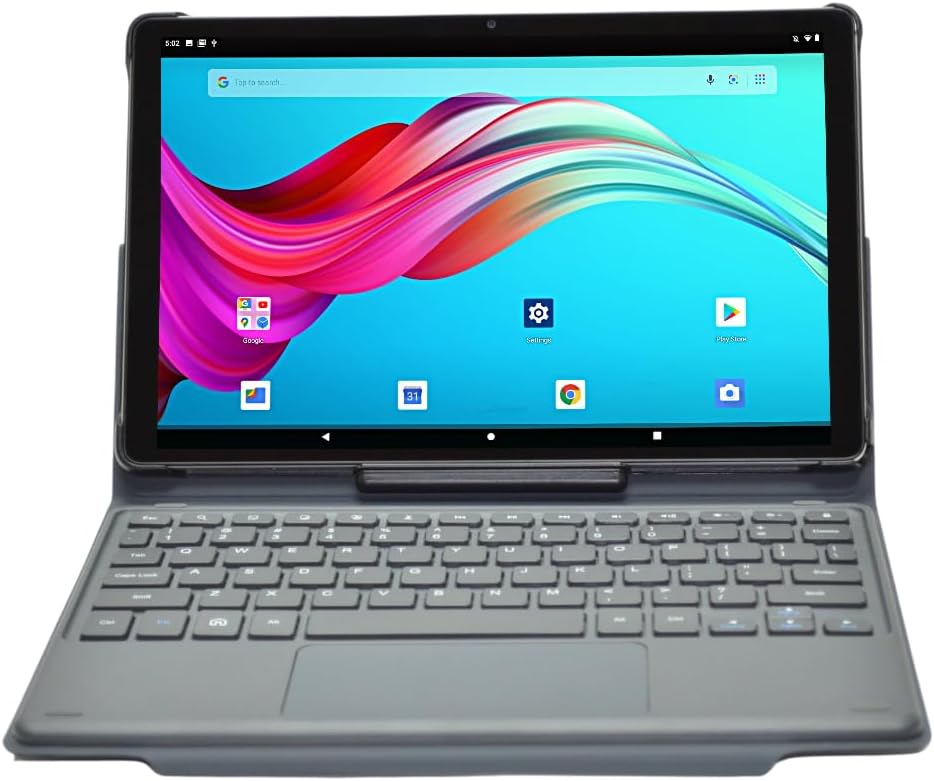
Image: The Azpen A1083 tablet securely attached to its Pogo Pin keyboard folio, displaying the Android home screen. This illustrates the tablet in its ready-to-use configuration.
4. Instrucións de funcionamento
4.1 Navegación básica en tableta
- Pantalla táctil: The tablet features a hypersensitive glass capacitive touchscreen for intuitive interaction.
- Pasar o dedo: Swipe left, right, up, or down to navigate between screens, open notifications, or access quick settings.
- Toca: Tap icons to open applications or select options.
- Pinch-to-Zoom: Usa dous dedos para ampliar ou reducir as imaxes e web páxinas.

Image: An infographic highlighting key features of the Azpen A1083 tablet, including Android 13, 2K HD display, 6GB RAM, 128GB storage, Pogo Pin keyboard, and Google Assistant compatibility. This provides a visual summary of the tablet's capabilities.
4.2 Using the Keyboard Folio
The keyboard folio provides a physical keyboard and trackpad for enhanced productivity.
- Escritura: Use the physical keys for text input in documents, emails, and web navegación.
- Trackpad: The integrated trackpad functions like a mouse, allowing for precise cursor control.
- Multi-Angle Case: The folio case allows for multiple viewing angles, providing flexibility for different tasks such as typing, viewing media, or drawing.
Imaxe: Múltiple views of the Azpen A1083 tablet within its multi-angle keyboard case, demonstrating various adjustable positions for typing and viewing. This highlights the versatility of the case design.
4.3 Funcións da cámara
The tablet is equipped with a 5MP front camera and an 8MP rear camera.
- Open the 'Camera' application from the home screen or app drawer.
- Select between front and rear cameras using the camera switch icon.
- Toca o botón do obturador para capturar fotos ou iniciar/deter a gravación de vídeo.
4.4 Asistente de Google
The Azpen A1083 supports Google Assistant for voice commands and smart assistance.
- Activar: Say "Hey Google" or "Ok Google" to activate the assistant.
- Comandos: Use voice commands for tasks such as setting alarms, checking weather, playing music, or opening applications.
5. Mantemento
5.1 Limpeza da tableta
- Usa un pano suave e sen fiapos para limpar a pantalla e o corpo da tableta.
- Para manchas difíciles, aplique lixeiramenteampEnxágüe o pano con auga ou unha solución de limpeza específica para pantallas. Evite produtos químicos agresivos.
- Do not spray cleaning solutions directly onto the tablet.
5.2 Actualizacións de software
Regularly check for and install software updates to ensure your tablet has the latest features and security patches.
- Vaia a "Configuración" > "Sistema" > "Actualización do sistema".
- Siga as instrucións na pantalla para descargar e instalar as actualizacións dispoñibles.
5.3 Coidado coa batería
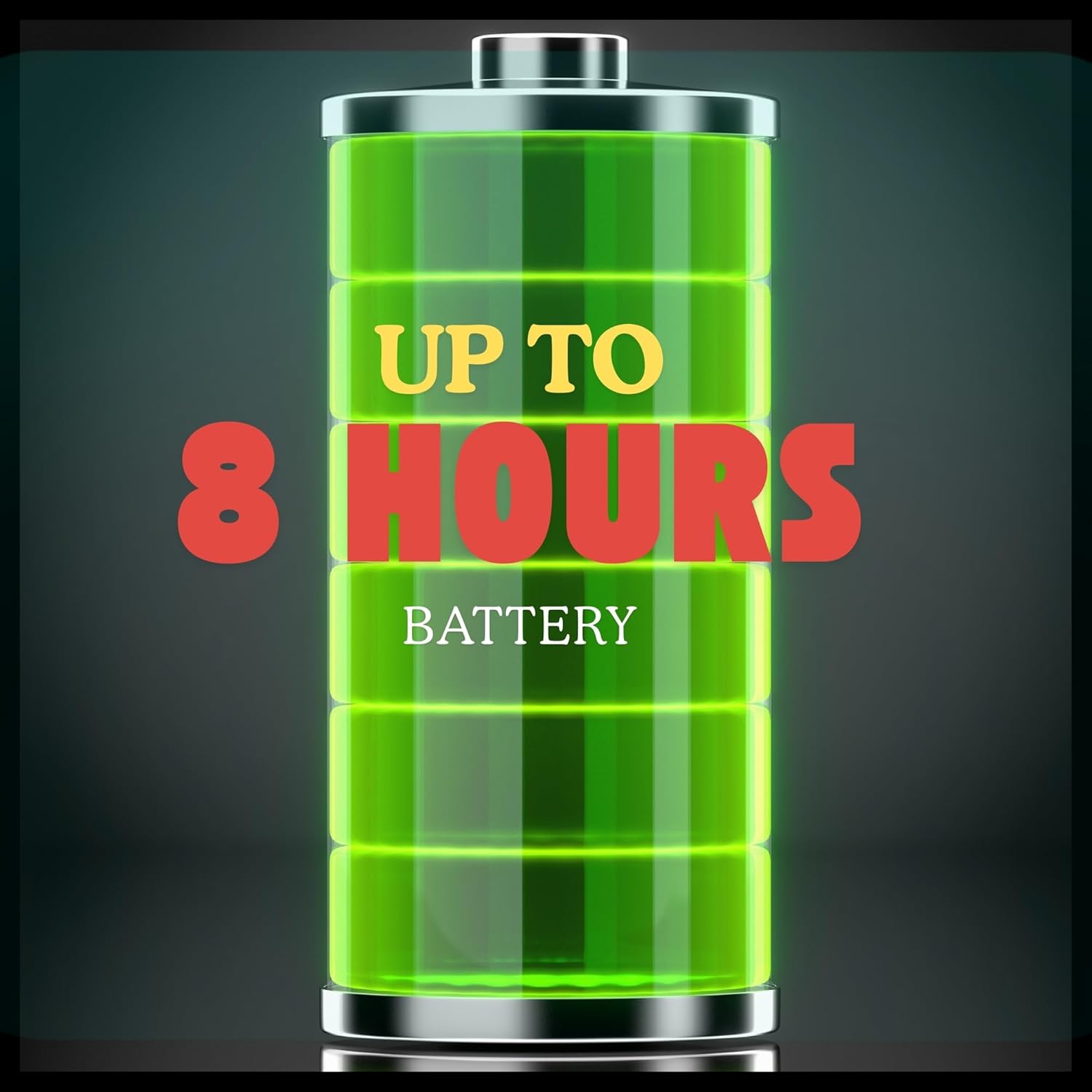
The Azpen A1083 offers up to 8 hours of battery life under typical usage conditions.

Image: A graphic representation of a battery with the text "UP TO 8 HOURS BATTERY" prominently displayed, indicating the tablet's expected battery duration. This visually communicates the device's power autonomy.
- Evita as temperaturas extremas, xa que poden prexudicar o rendemento da batería.
- Non deixes a tableta completamente descargada durante períodos prolongados.
- For optimal battery health, avoid constantly charging the tablet to 100% and letting it drain to 0%.
6 Solución de problemas
| Problema | Causa posible | Solución |
|---|---|---|
| A tableta non se acende | Batería baixa; Fallo do sistema | Carga a tableta durante polo menos 30 minutos. Mantén premido o botón de acendido/apagado durante 10-15 segundos para forzar o reinicio. |
| O teclado non responde | Improper connection; Software glitch | Ensure the Pogo Pins are clean and securely connected. Detach and reattach the tablet to the keyboard. Restart the tablet. |
| Rendemento lento | Too many apps running; Low storage | Close unnecessary applications. Clear cache and temporary files. Uninstall unused apps. |
| Problemas de conectividade wifi | Problema co enrutador; contrasinal incorrecto | Restart your Wi-Fi router. Forget the network on the tablet and reconnect with the correct password. |
7. Especificacións

Imaxe: A parte traseira view of the Azpen A1083 tablet, clearly displaying the 'azpen' brand logo and 'Model: A1083' text. This image helps in identifying the specific model of the device.
| Característica | Detalle |
|---|---|
| Número de modelo | A1083 |
| Tamaño de visualización | 10.36 polgadas |
| Resolución de pantalla | 2000 x 1200 pixels (2K FHD IPS) |
| Procesador | Mediatek 8183 Octa Core CPU 2.0 GHz |
| RAM | 6 GB |
| Almacenamento | 128 GB |
| Sistema Operativo | Android 13 |
| Cámara frontal | 5 MP |
| Cámara traseira | 8 MP |
| Conectividade sen fíos | 802.11ac |
| Peso do elemento | 3 libras |
| Dimensións do produto | 9.7 x 6.2 x 0.29 polgadas |
8. Información da garantía
Azpen products typically come with a limited manufacturer's warranty. For detailed information regarding the warranty period, coverage, and terms and conditions for your Azpen A1083 tablet, please refer to the warranty card included in your product packaging or visit the official Azpen websitio.
9. Atención ao cliente
If you encounter any issues not covered in this manual or require further assistance, please contact Azpen customer support:
- Websitio: Visit the official Azpen website for FAQs, support resources, and contact options.
- Tenda en liña: Azpen Store on Amazon