
ShanWan Q36-XPS-KABRILAN
Manual do usuario do mini controlador de xogo Bluetooth ShanWan do tamaño de chaveiro
Model: Q36-XPS-KABRILAN
1. Introdución
This manual provides comprehensive instructions for the ShanWan Bluetooth Gamepad Keychain Sized Mini Controller. Please read this manual carefully before use to ensure proper operation and to maximize your gaming experience. This device is designed for use with Android phones and tablets, PS4/Slim/Pro, iPhone, iPad, Nintendo Switch, and Windows PCs.
2. Produto rematadoview
The ShanWan Mini Controller is a compact and versatile gamepad designed for portability and multi-platform compatibility. It features 17 buttons and a D-Pad, all within a keychain-sized form factor.
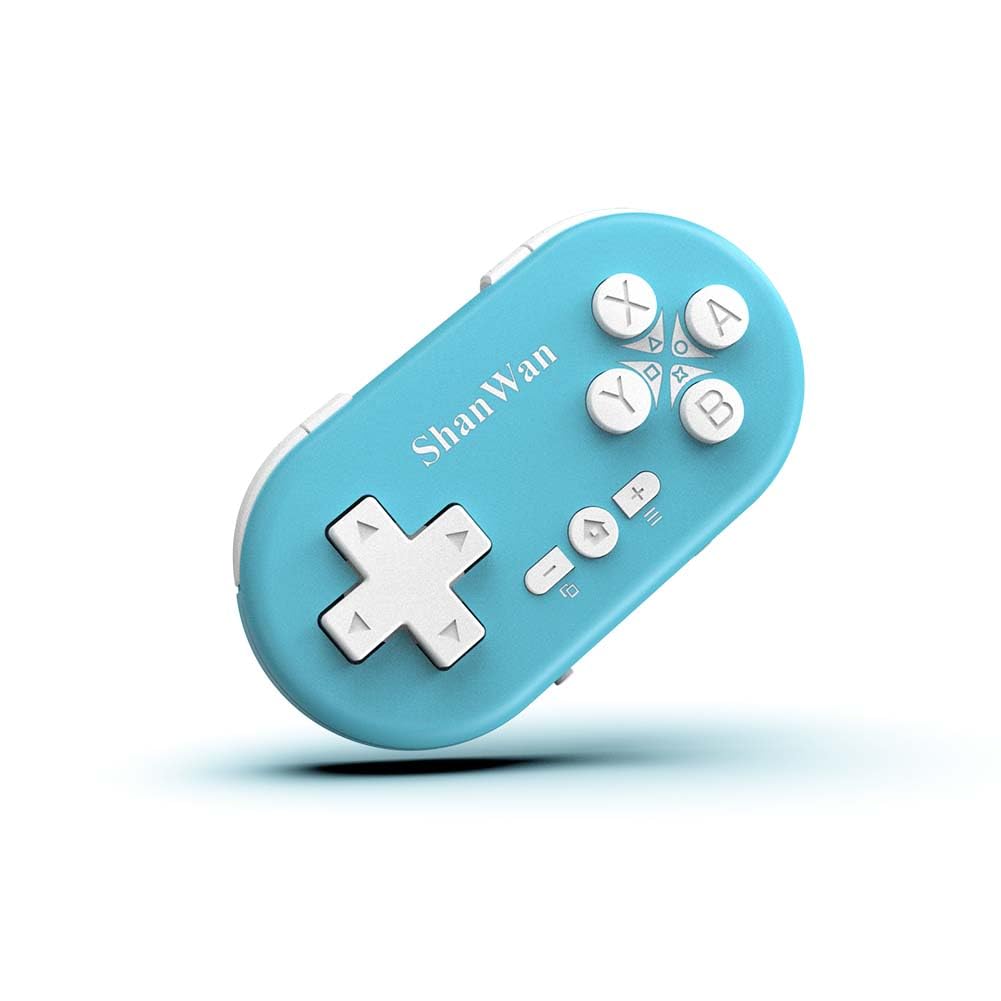
Figure 2.1: ShanWan Mini Bluetooth Gamepad, showcasinpolo seu deseño compacto e a disposición dos botóns.

Figure 2.2: Dimensions of the ShanWan Mini Bluetooth Gamepad, measuring 2.83 inches in length, 1.57 inches in width, and 0.55 inches in thickness.
2.1 Contido do paquete
- ShanWan Bluetooth Gamepad Keychain Sized Mini Controller
- Cable de carga USB
- Manual de usuario (este documento)
3. Especificacións
| Característica | Detalle |
|---|---|
| Número de modelo | Q36-XPS-KABRILAN |
| Conectividade | Bluetooth sen fíos |
| Compatibilidade | Android, iOS, Windows, Nintendo Switch, PlayStation 4 |
| Capacidade da batería | Polímero de litio de 180 mAh (incluída) |
| Tempo de carga | Aproximadamente 1 hora |
| Tempo de funcionamento | Ata 5-6 horas |
| distancia wireless | Ata 10 metros (33 pés) |
| Dimensións do produto | 2.83 x 1.57 x 0.55 polgadas |
| Peso do elemento | 1.44 onzas (aprox. 41 gramos) |
| Características especiais | Gyroscope motion sensing, One-button wake-up function |
4. Configuración e emparellamento
4.1 Carga do controlador
Before first use, fully charge the controller. Connect the provided USB charging cable to the controller's charging port and the other end to a USB power source (e.g., computer, USB wall adapter). The charging indicator light will show the charging status and turn off when fully charged. A full charge typically takes about 1 hour.
4.2 Acendido/Apagado
- Encendido: Press and hold the Home button (usually the button with a house icon) for a few seconds until the indicator lights turn on.
- Apagado: Press and hold the Home button for approximately 5 seconds until the indicator lights turn off. The controller will also automatically power off after a period of inactivity to conserve battery.
4.3 Instrucións de emparellamento Bluetooth
The controller supports multiple platforms. Ensure the mode switch on the controller is set to the correct platform before pairing.
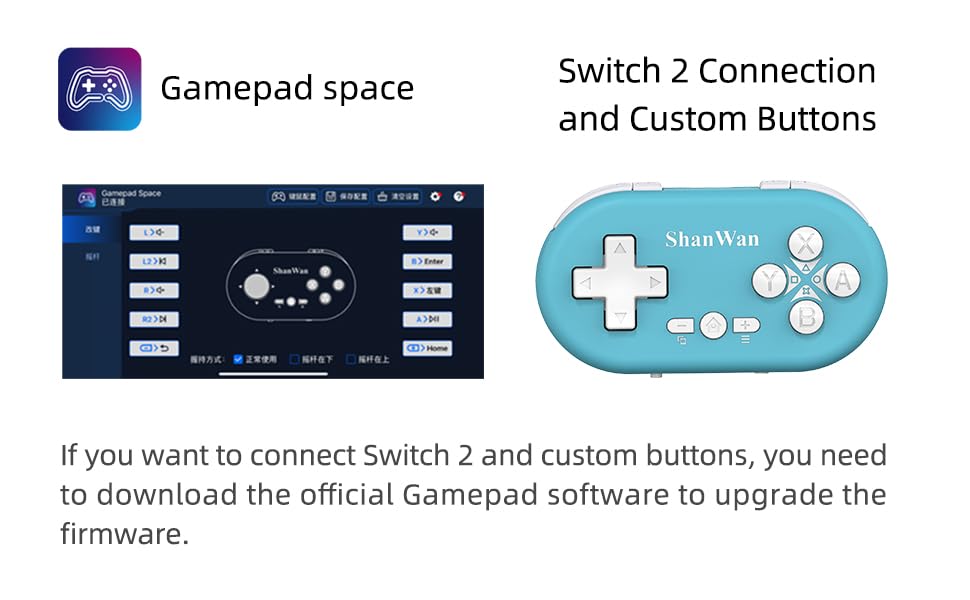
Figure 4.1: The mode switch on the controller, allowing selection between X (Xbox/PC), S (Switch), and P (PlayStation) modes for multi-device compatibility.
4.3.1 Emparellamento con Nintendo Switch
- Na túa Nintendo Switch, vai ao menú INICIO.
- Select "Controllers" then "Change Grip/Order".
- Set the controller's mode switch to "S" (Switch mode).
- Press and hold the "Pair" button on the controller until the indicator lights begin to blink rapidly.
- The Switch will detect the controller. Once paired, the LED indicator on the controller will remain solid, and the controller will be displayed on the Switch host screen.

Figure 4.2: Visual guide for connecting the controller to a Nintendo Switch, showing menu navigation and the pairing button location.
4.3.2 Pairing with Android/iOS Devices
- Set the controller's mode switch to the appropriate mode (e.g., "X" for Android, or a specific iOS mode if available, refer to device-specific instructions).
- On your Android or iOS device, go to Bluetooth settings.
- Asegúrese de que o Bluetooth estea activado.
- Press and hold the "Pair" button on the controller until the indicator lights blink rapidly.
- Select "ShanWan Controller" or a similar name from the list of available devices on your phone/tablet.
- Unha vez conectado, o indicador luminoso do controlador acenderase de forma fixa.
4.3.3 Pairing with PS4
- Set the controller's mode switch to "P" (PlayStation mode).
- On your PS4, go to "Settings" > "Devices" > "Bluetooth Devices".
- Press and hold the "Pair" button on the controller until the indicator lights blink rapidly.
- Select "ShanWan Controller" or a similar name from the list of available devices on your PS4.
- Unha vez conectado, o indicador luminoso do controlador acenderase de forma fixa.
4.3.4 Pairing with Windows PC
- Set the controller's mode switch to "X" (Xbox/PC mode).
- On your Windows PC, go to "Settings" > "Devices" > "Bluetooth & other devices".
- Ensure Bluetooth is enabled and click "Add Bluetooth or other device".
- Select "Bluetooth".
- Press and hold the "Pair" button on the controller until the indicator lights blink rapidly.
- Select "ShanWan Controller" or a similar name from the list of available devices.
- Unha vez conectado, o indicador luminoso do controlador acenderase de forma fixa.
5. Instrucións de funcionamento
5.1 Funcións dos botóns
The controller features standard gamepad buttons. Their specific function may vary slightly depending on the platform and game.
- D-Pad: Entrada direccional.
- Botóns A, B, X, Y: Botóns de acción.
- L1, L2, R1, R2 Buttons: Botóns de ombreiro e de gatillo.
- Botón de inicio: Power on/off, return to home screen (platform dependent).
- Botóns máis (+) / menos (-): Start/Select or menu functions.
- Botón de par: Inicia o emparellamento Bluetooth.
5.2 Características especiais
5.2.1 One-Button Wake-Up Function
After initial pairing, you can wake up the controller and reconnect it to the last paired device by simply pressing the Home button. This feature allows for quick resumption of gameplay.
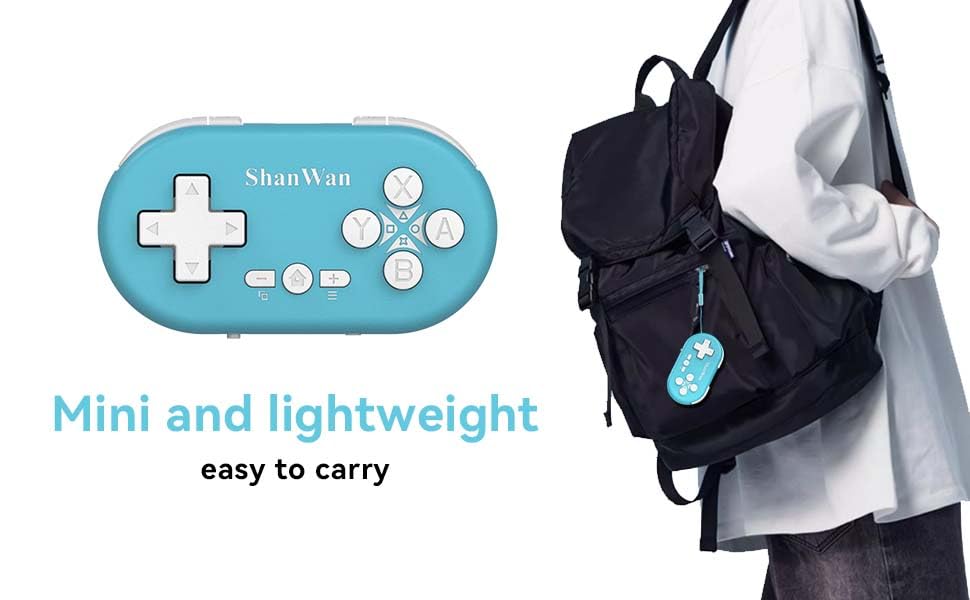
Figure 5.1: Illustration of the one-button wake-up function, highlighting the Home button used to quickly reactivate the controller.
5.2.2 Gyroscope Motion Sensing
The controller is equipped with a gyroscope for motion sensing effects, providing an immersive gaming experience in supported games, particularly on platforms like Nintendo Switch.
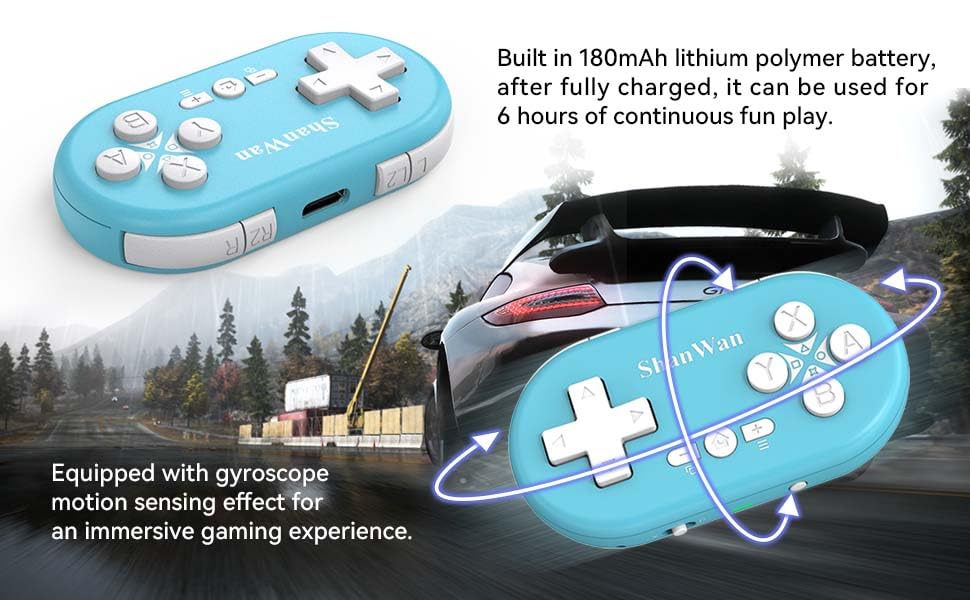
Figure 5.2: Visual representation of the gyroscope motion sensing effect, showing the controller being tilted to influence in-game actions.
5.2.3 Firmware Upgrade for Switch 2 and Custom Buttons
For compatibility with Switch 2 and to customize button mappings, it may be necessary to download the official Gamepad software and upgrade the controller's firmware. Refer to the manufacturer's official websitio web para obter o software e as instrucións máis recentes.

Figure 5.3: Screenshot illustrating the "Gamepad Space" software interface, used for firmware upgrades and custom button configurations, particularly for Switch 2 compatibility.
6. Mantemento
- Limpeza: Usa un pano suave e seco para limpar o controlador. Evita o uso de produtos químicos agresivos ou materiais abrasivos.
- Almacenamento: Garde o controlador nun lugar fresco e seco, lonxe da luz solar directa e de temperaturas extremas.
- Coidado da batería: Para prolongar a duración da batería, evite descargala completamente con frecuencia. Cargue o controlador regularmente, mesmo se non o usa durante períodos prolongados.
- Evitar impacto: Non deixe caer o controlador nin o someta a impactos fortes, xa que isto podería danar os compoñentes internos.
7 Solución de problemas
7.1 O controlador non se acende
- Asegúrate de que o controlador estea completamente cargado. Conéctao a unha fonte de alimentación e déixao cargar durante polo menos 15 minutos antes de tentar acenderlo de novo.
- Verify that the charging cable and power source are functioning correctly.
7.2 Unable to Pair Controller
- Ensure the controller is in pairing mode (indicator lights blinking rapidly).
- Check that the mode switch on the controller is set to the correct platform (S for Switch, X for Android/Windows, P for PS4).
- Make sure Bluetooth is enabled on your device (Switch, phone, PC, PS4).
- Move the controller closer to the device you are trying to pair with.
- Remove any previous pairings of the controller from your device's Bluetooth settings and try pairing again.
- Reinicia tanto o controlador como o dispositivo.
7.3 Retardo ou desconexións de entrada
- Ensure the controller is within the 10-meter wireless range of your device.
- Minimiza as interferencias doutros dispositivos sen fíos (routers Wi-Fi, outros dispositivos Bluetooth).
- Ensure the controller is fully charged. Low battery can affect connection stability.
- Tenta volver emparellar o controlador co teu dispositivo.
- Update the controller's firmware if available (refer to Section 5.2.3).
7.4 Buttons Not Responding Correctly
- Test the controller on a different game or application to determine if the issue is game-specific.
- Asegúrate de que o firmware do controlador estea actualizado.
- Perform a factory reset if possible (refer to manufacturer's support for specific instructions, as this model may not have a dedicated reset button).
8. Garantía e soporte
ShanWan products are designed for reliability and performance. For warranty information, technical support, or further assistance, please visit the official ShanWan websitio web ou póñase en contacto co servizo de atención ao cliente. Garde o recibo da compra como proba de compra para reclamacións de garantía.
Official ShanWan Store: ShanWan Store on Amazon
9. Información adicional
The ShanWan Mini Controller's compact and lightweight design makes it highly portable, allowing users to carry it easily and enjoy gaming on the go.

Figure 9.1: The ShanWan Mini Bluetooth Gamepad attached to a backpack, illustrating its keychain-sized portability and ease of transport.

Figure 9.2: The ShanWan Mini Bluetooth Gamepad being used outdoors with a portable screen, demonstrating its ease of transport and use anywhere.
Ask a question about this manual
Ask about setup, troubleshooting, compatibility, parts, safety, or missing instructions. Manuals+ will review the question and use this page’s manual context to help answer it.