
1. Introdución
This manual provides comprehensive instructions for the installation, operation, maintenance, and troubleshooting of your EIMSOAH 7in HD Carplay Screen. Please read this manual thoroughly before using the product to ensure proper function and safety.
The EIMSOAH Carplay Screen is an advanced in-dash navigation and multimedia system designed to enhance your driving experience with features such as wireless CarPlay/Android Auto, GPS navigation, and a high-definition touch screen display.
2. Información de seguridade
Always prioritize safety. Improper installation or operation can lead to damage to the device, vehicle, or personal injury. Observe the following safety guidelines:
- Asegúrese de que o contacto do vehículo estea apagado e a batería desconectada antes da instalación para evitar curtocircuítos.
- Se tes dúbidas sobre algún paso, consulta cun profesional para a instalación.
- Do not operate the device in a way that distracts you from driving. Always keep your eyes on the road.
- Evite expoñer o dispositivo a temperaturas extremas, á luz solar directa durante períodos prolongados ou a humidade excesiva.
- Do not attempt to disassemble or modify the unit. This will void the warranty and may cause damage.
- Ensure all wiring is properly insulated and secured to prevent short circuits or interference.
3. Contido do paquete
Verifique que todos os elementos que se indican a continuación estean presentes no seu paquete:
- 1 x Car Multimedia Player Display
- 7 x Wiring Harnesses (various types for power, audio, video, etc.)
- 1 x GPS Box/Antenna
- 1 x Manual de instrucións (este documento)
- 1 x Wiring Instruction Diagram

Figure 3.1: Complete package contents including the main display unit, wiring harnesses, and GPS antenna.
4. Configuración e instalación
This section outlines the general steps for installing the EIMSOAH Carplay Screen. Specific wiring details are provided in the separate Wiring Instruction Diagram included in your package. Professional installation is recommended.
- Preparar o vehículo:
- Turn off the vehicle's ignition and remove the key.
- Desconecte o terminal negativo da batería do coche para evitar riscos eléctricos.
- Carefully remove the existing car stereo or dashboard panel to access the wiring harness and mounting area.
- Conectar os arneses de cableado:
- Refer to the provided Wiring Instruction Diagram for detailed connections.
- Connect the main power harness, speaker wires, and other necessary connections (e.g., AUX, USB, reverse camera input if applicable) to the corresponding ports on the car multimedia player.
- Asegúrese de que todas as conexións estean seguras e debidamente illadas.
- Instalar a antena GPS:
- Monte a antena GPS nun lugar con luz despexada view of the sky, typically on the dashboard or under the windshield, away from metal obstructions.
- Route the GPS antenna cable to the back of the head unit and connect it to the designated GPS input.
- Montar a unidade:
- Carefully slide the car multimedia player into the dashboard opening.
- Secure the unit using the provided mounting brackets or screws, ensuring it is firmly in place.
- Volver conectar a batería e probar:
- Volve conectar o terminal negativo da batería do coche.
- Turn on the vehicle's ignition and power on the car multimedia player.
- Test all functions, including audio, touch screen response, GPS signal, Bluetooth connectivity, and any connected accessories (e.g., reverse camera).
- Volver montar o panel de control:
- Once all functions are verified, carefully reassemble the dashboard panels.

Figure 4.1: The Carplay screen integrated into a vehicle's dashboard.
5. Instrucións de funcionamento
The EIMSOAH Carplay Screen operates on Android 12, providing a user-friendly interface. Below are common operations:
5.1 Navegación básica
- Encendido/apagado: Mantén premido o botón de acendido e apagado (normalmente no lado esquerdo da unidade) para acender ou apagar o dispositivo. Unha pulsación curta normalmente silencia ou activa o son.
- Control de volume: Use the volume buttons on the unit or steering wheel controls (if configured) to adjust audio levels.
- Pantalla de inicio: Tap the "Home" icon to return to the main application screen.
- Botón Atrás: Tap the "Back" icon to return to the previous screen or menu.
- Aplicacións recentes: Tap the "Recent Apps" icon to view e alternar entre as aplicacións abertas recentemente.
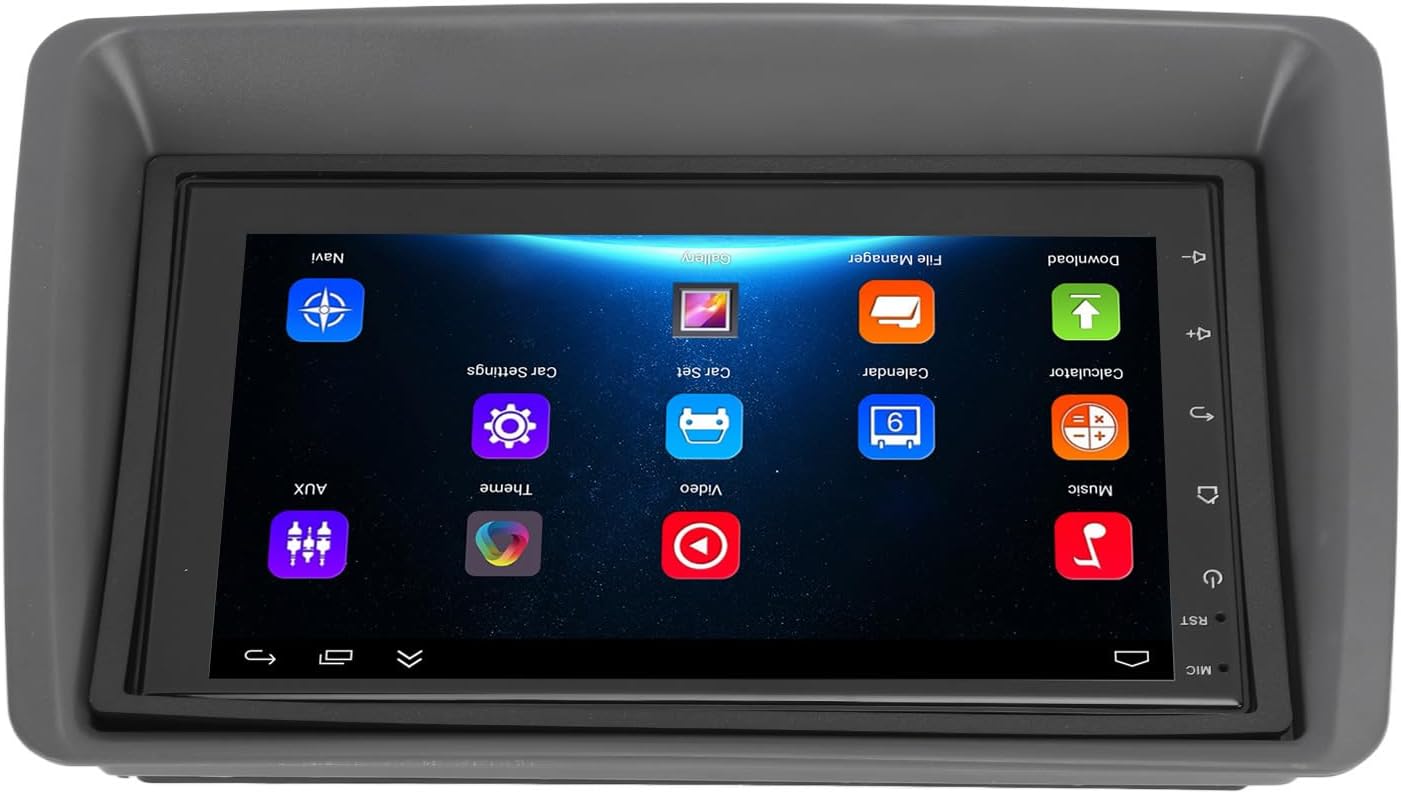
Figure 5.1: Main user interface of the Carplay screen.
CarPlay sen fíos 5.2 / Android Auto
A unidade admite Apple CarPlay sen fíos e Android Auto para unha integración sen fisuras cos teléfonos intelixentes.
- Asegúrate de que Bluetooth e Wi-Fi estean activados no teu smartphone.
- On the Carplay screen, navigate to the "CarPlay" or "Android Auto" application.
- Follow the on-screen prompts to pair your phone via Bluetooth. Once paired, the system will automatically establish a Wi-Fi connection for CarPlay/Android Auto functionality.
- Your phone's compatible apps (navigation, music, messaging) will be displayed on the Carplay screen.
5.3 Navegación GPS
The unit supports both online and offline GPS navigation.
- Navegación en liña: Connect the unit to Wi-Fi (via a mobile hotspot or vehicle Wi-Fi) to use online mapping services. Download navigation apps from the pre-installed app store.
- Navegación sen conexión: Download map data for offline use within your preferred navigation application. This allows navigation without an active internet connection.
5.4 Conectividade Bluetooth
Conecta o teu teléfono intelixente mediante Bluetooth para facer chamadas mans libres e reproducir audio en streaming.
- Go to the "Settings" menu on the Carplay screen and select "Bluetooth".
- Activa o Bluetooth e fai que o dispositivo sexa detectable.
- On your smartphone, search for available Bluetooth devices and select "EIMSOAH Carplay" (or similar name).
- Confirma o código de emparellamento en ambos dispositivos.
- Once connected, you can make/receive calls and play audio through the car's speakers.
Pantalla dividida de 5.5
The unit supports split-screen functionality, allowing two applications to be viewed simultaneamente.
- Abre a primeira aplicación que queiras usar.
- Press and hold the "Recent Apps" button (or swipe up and hold from the bottom of the screen, depending on the Android version).
- Drag the first app to one side of the screen.
- Select the second application from the recent apps list or app drawer to fill the other half of the screen.
5.6 Reverse Image Function
If a compatible reverse camera is connected (not included), the screen will automatically display the reverse view when the vehicle is shifted into reverse gear.
- Ensure the reverse camera is properly installed and connected to the designated video input.
- The system will automatically switch to the camera view cando se engancha a marcha atrás.
6. Mantemento
Proper maintenance ensures the longevity and optimal performance of your EIMSOAH Carplay Screen.
- Limpeza da pantalla: Usa un pano suave e sen pelusa para limpar a pantalla con suavidade. Para manchas difíciles, limpa lixeiramenteampLimpe o pano con auga ou cun limpador de pantallas. Evite materiais abrasivos ou produtos químicos agresivos.
- Actualizacións de software: Periodically check for software updates through the system settings (if available) to ensure you have the latest features and bug fixes.
- Condicións ambientais: Avoid exposing the unit to extreme temperatures, high humidity, or direct sunlight for extended periods.
- Xestión de cables Asegúrate de que todos os cables estean conectados de forma segura e non estean aprisionados nin expostos a un desgaste excesivo.
7 Solución de problemas
If you encounter issues with your EIMSOAH Carplay Screen, refer to the following common problems and solutions:
| Problema | Causa posible | Solución |
|---|---|---|
| A unidade non se acende. | Sen subministración eléctrica; cableado solto; fusible fundido. | Check power connections and vehicle fuse box. Ensure battery is connected. |
| Sen saída de audio. | Volume muted; speaker wires disconnected; incorrect audio settings. | Check volume level and mute status. Verify speaker wire connections. Adjust audio output settings. |
| A pantalla táctil non responde. | Software glitch; screen protector interference; physical damage. | Restart the unit. Remove any screen protectors to test. If problem persists, contact support. |
| Sinal GPS débil ou perdido. | GPS antenna obstructed or disconnected; poor satellite coverage. | Asegúrate de que a antena GPS teña unha visión clara view of the sky and is securely connected. Move to an open area. |
| Problemas de conexión Bluetooth. | Bluetooth off on device/phone; pairing error; interference. | Ensure Bluetooth is enabled on both devices. Delete previous pairings and re-pair. Move phone closer to unit. |
| CarPlay/Android Auto non se conecta. | Wi-Fi/Bluetooth issues; phone compatibility; app issues. | Verify Wi-Fi and Bluetooth are active. Restart phone and unit. Ensure phone OS is up to date. |
If the problem persists after trying these solutions, please contact EIMSOAH customer support for further assistance.
8. Especificacións
Detailed technical specifications for the EIMSOAH 7in HD Carplay Screen:
| Característica | Descrición |
|---|---|
| Tamaño da pantalla | 7 polgadas |
| Sistema Operativo | Android 12 |
| CPU | 4 núcleos |
| Resolución de pantalla | 1024x600 |
| Versión Bluetooth | 4.0 |
| Radio | FM/RDS |
| Potencia de saída | 4 x 45 W |
| Image Connection | For Android / For iOS (Wireless Apple CarPlay, Wired/Wireless Android Auto) |
| Navegación GPS | Support Online/Offline Navigation |
| Tipo de pantalla táctil | HD Capacitive Multi-Point Touch |
| Wireless WI-FI | Support 3G/4G/5G wireless signal reception |
| Pantalla dividida | Supported (left and right split screen) |
| Control do volante | Soportado |
| Reverse Image Input | Supported (HD reverse video input, camera not included) |
| Función USB | Two USB ports (media playback, file transfer, DVR) |
| Función AUX | Audio/Video input from external devices |
| Circuítos de protección | Sobrecarga, sobrevoltage, Curtocircuíto |
| Apagar a memoria | Soportado |
| Entrada/Saída de vídeo | Two video inputs, one video output |
| Saída de audio | Left Audio Output, Right Audio Output |
| Formatos de imaxe admitidos | JPEG, GIF, PNG, BMP, JPG |
| Formatos de vídeo admitidos | MP4 / MP5 / MKV / AVI / RMVB / 1080P |
| Formatos de audio admitidos | MP3/WMA/WAV/FLAC |
| Linguaxe | Built-in Multiple Languages (Simplified Chinese, Traditional Chinese, English, German, Russian, Spanish, Italian, etc.) |
| Encaixe | Replacement for Fiat Panda 2003-2012 |
| Peso do elemento | 2.57 libras |
| Dimensións do paquete | 14.17 x 8.27 x 4.72 polgadas |
9. Garantía e soporte
EIMSOAH products are designed for reliability and performance. For warranty information and technical support, please refer to the following:
- Garantía: Specific warranty terms and conditions may vary. Please refer to the warranty card included with your product or contact the seller/manufacturer directly for details regarding coverage period and claims process.
- Soporte técnico: For technical assistance, troubleshooting beyond this manual, or inquiries about parts and service, please contact EIMSOAH customer support through the retailer where you purchased the product or visit the official EIMSOAH brand store on Amazon: EIMSOAH Store.