
1. Introdución e finalview
This manual provides detailed instructions for the installation, operation, and maintenance of your JideTech 4K 8 Channel PoE Network Video Recorder (NVR). This NVR is designed for home security camera systems, supporting up to 12 channels and resolutions up to 12MP. It features Power over Ethernet (PoE) for simplified camera connections, remote access capabilities, and advanced video compression.
2. Que hai na caixa
Comprobe o contido do seu paquete coa lista seguinte:
- 1x 8 Channel NVR PoE Unit
- 1 x Manual de usuario
- 1 adaptador de corrente para NVR
- 1 cable de rede de 1 m
- Rato
- Tornillos (para a instalación do disco duro)

Image: The JideTech 4K 8 Channel PoE NVR unit.
3. Instrucións de configuración
3.1. Conexións físicas
Follow these steps to connect your NVR to your network and display:
- Conecte o NVR a unha fonte de alimentación mediante o adaptador de alimentación proporcionado.
- Connect the NVR to your router using the included network cable.
- Conecte un monitor ao NVR usando o porto HDMI ou VGA.
- Connect the USB mouse to a USB port on the NVR for local control.
- Connect your PoE cameras to the NVR's PoE ports. For non-PoE cameras, connect them to your network via a router and ensure they are powered separately.
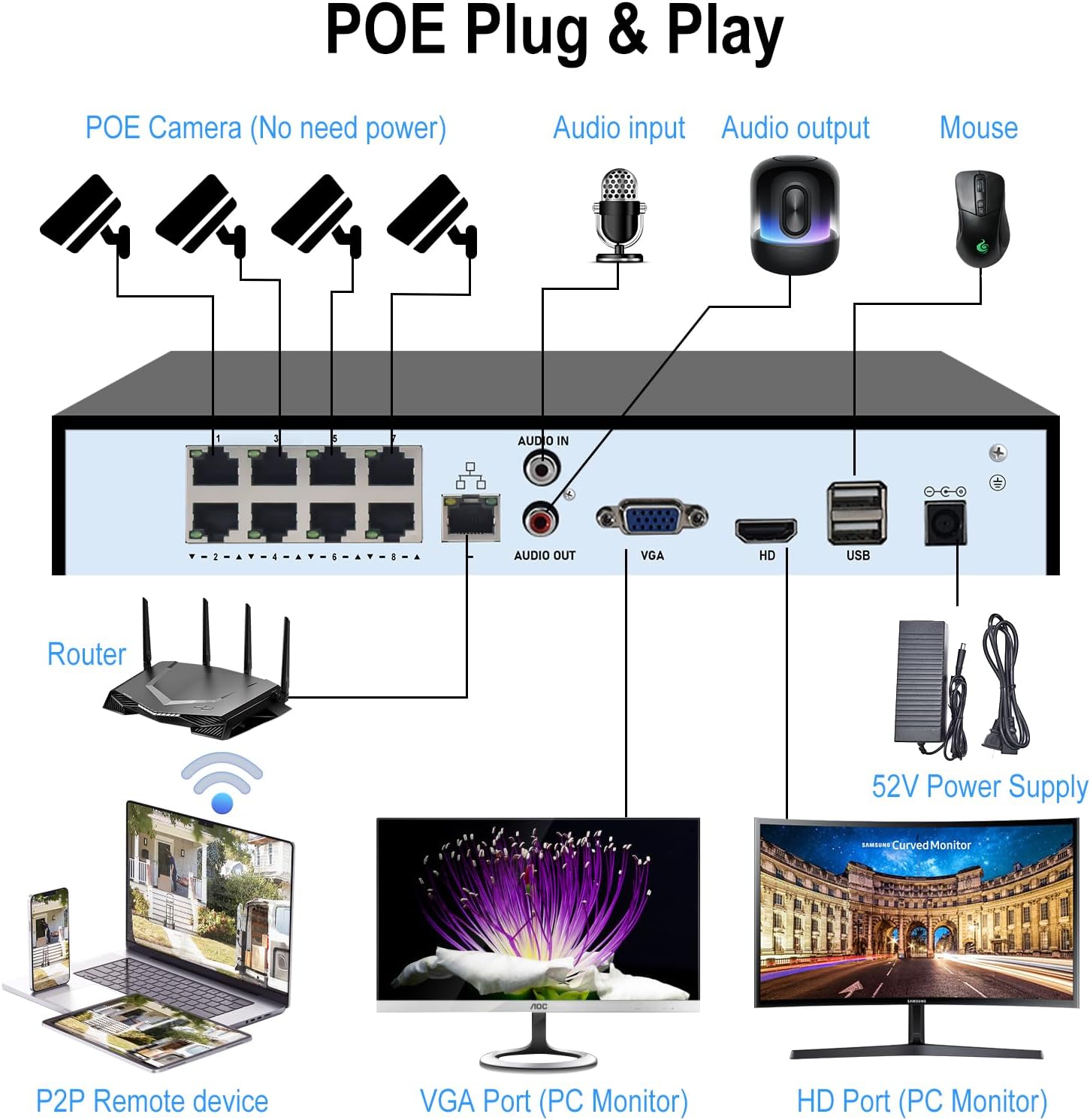
Image: Connection diagram illustrating how to connect PoE cameras, router, monitor, and mouse to the NVR.

Image: Diagram detailing the connection of a wired ONVIF camera to the NVR, requiring a power adapter and Ethernet cable.
3.2. Hard Drive Installation (HDD Not Included)
The NVR requires a 3.5-inch SATA hard drive (up to 14TB) for recording. Please follow these steps to install it:
- Unscrew and remove the top cover of the NVR unit.
- Connect the SATA data cable and power cable from the NVR to the hard drive.
- Fixe o disco duro dentro do chasis do NVR cos parafusos fornecidos.
- Replace the NVR cover and fasten the screws.
Video: Instructions on how to install a hard drive into the NVR unit.

Image: The NVR unit shown with a hard drive, highlighting its maximum storage capacity of 14TB.
4. Instrucións de funcionamento
4.1. Acceso remoto
The NVR supports remote access via PC/Mac or the Videolink App for Android/iOS. Once connected to the internet, you can view foo en tempo realtage and playback recordings from anywhere.

Image: Illustration of remote access to the NVR system using various devices like a PC, tablet, and smartphone application.
4.2. Motion Detection and Smart Playback
Configure motion detection settings to receive instant notifications and email alerts on your phone when movement is detected. The smart playback feature allows you to quickly review recorded video at up to 16x speed to locate specific events.

Image: Depiction of the smart human detection feature, triggering app alerts when motion is detected.
5. Características clave
- Resolución 4K UltraHD: Supports recording, playback, and live view up to 12MP resolution. HDMI output up to 4K@30fps, VGA output up to 1080P@30fps.
- 12 Channel Expandable NVR: Built-in 8 PoE ports (IEEE802.3at, up to 30W per port) for 8 PoE cameras. Expandable to 12 channels with additional PoE switches.
- Compatibilidade ONVIF: Works with most third-party ONVIF IP cameras.
- Advanced Video Compression: Supports H.265+/H.265/H.264 formats, reducing storage space and bandwidth by up to 75%.
- Gran capacidade de almacenamento: Equipped with 1 SATA interface, supporting a single hard drive up to 14TB (HDD not included).
- Motion Detection & Smart Playback: Instant notifications and email alerts for detected motion. Playback recording at up to 16x speed.
- Local & Remote Access: Easy configuration and control via PC/Mac or Videolink App (Android/iOS).
Video: Demonstration of how to connect a network video recorder surveillance system.
6. Especificacións
| Marca | JideTech |
| Número de modelo | 8CH-NVR |
| Tecnoloxía de conectividade | Ethernet, HDMI, USB, VGA |
| Dispositivos compatibles | IP Camera, PoE Camera |
| Dimensións do produto (L x W x H) | 9.88" x 8.42" x 1.57" |
| Capacidade de almacenamento da memoria | Up to 14 TB (HDD not included) |
| Número de canles | 8 (Ampliable a 12) |
| Formato multimedia Vídeo dixital | HDD |
| Entrada de audio | RCA |
| Total de portos USB | 2 |
| Entrada de vídeo | HDMI, VGA |
| Peso do elemento | 2.8 libras |
7. Mantemento
To ensure optimal performance and longevity of your NVR, consider the following maintenance tips:
- Limpeza regular: Keep the NVR unit free from dust and debris. Use a soft, dry cloth for cleaning. Ensure ventilation openings are not blocked.
- Actualizacións de firmware: Comprobe periodicamente o fabricante website for firmware updates. Keeping your NVR's firmware up-to-date can improve performance, add new features, and enhance security.
- Copia de seguridade de datos: Regularly back up important recordings to an external storage device or cloud service to prevent data loss.
- Condicións ambientais: Operate the NVR within recommended temperature and humidity ranges to prevent damage. Avoid direct sunlight and excessive heat.
8 Solución de problemas
If you encounter issues with your JideTech NVR, refer to the following common troubleshooting steps:
- Sen enerxía:
- Ensure the power adapter is securely connected to both the NVR and a working power outlet.
- Verifica que a toma de corrente funcione conectando outro dispositivo.
- Sen saída de vídeo:
- Check HDMI/VGA cable connections between the NVR and the monitor.
- Asegúrate de que o monitor estea acendido e configurado na fonte de entrada correcta.
- Proba cun cable HDMI/VGA ou monitor diferente se estás dispoñible.
- Cámaras que non mostran:
- For PoE cameras, ensure they are properly connected to the NVR's PoE ports and receiving power.
- For non-PoE cameras, verify they are powered on and connected to the same local network as the NVR.
- Check camera IP addresses and ensure they are not conflicting.
- Confirm cameras are ONVIF compatible and added correctly to the NVR system.
- Problemas de acceso remoto:
- Asegúrate de que o NVR estea conectado a Internet.
- Verify network settings (IP address, gateway, DNS) on the NVR.
- Check firewall settings on your router that might be blocking access.
- Ensure the Videolink App or PC software is up-to-date.
- Problemas de gravación:
- Confirm a hard drive is installed and properly formatted by the NVR.
- Comprobe o estado do disco duro na configuración do sistema do NVR.
- Asegúrate de que os horarios de gravación estean configurados correctamente.
If these steps do not resolve your issue, please contact JideTech customer support for further assistance.
9. Garantía e soporte
JideTech offers comprehensive support for its products. For specific warranty details, please refer to the documentation included with your purchase or visit the official JideTech websitio.
Hai plans de protección adicionais dispoñibles para a súa compra:
- Plan de protección a 2 anos
- Plan de protección a 3 anos
- Protección completa (facturación mensual)
For technical support, troubleshooting, or any product-related inquiries, please contact JideTech customer service.