
1. Introdución
Thank you for choosing the PUTRIMS K12 Google TV Projector. This manual provides essential information for the safe and efficient use of your new projector. Please read it thoroughly before operation and keep it for future reference.

Figure 1.1: PUTRIMS K12 Projector
2. Información de seguridade
- Non mire directamente á lente do proxector cando estea aceso.amp está activado.
- Garantir unha ventilación adecuada para evitar o sobrequecemento.
- Manteña o proxector lonxe da auga ou outros líquidos.
- Use só o adaptador de alimentación proporcionado.
- Evite colocar o proxector en superficies inestables.
- Non intente desmontar nin reparar o proxector vostede mesmo. Póñase en contacto co servizo de atención ao cliente para obter axuda.
3. Contido do paquete
Verifica que todos os elementos estean presentes no teu paquete:
- PUTRIMS K12 Projector
- Control remoto
- Cable de alimentación
- Cable HDMI
- Cuberta da lente do proxector
- Manual de usuario (este documento)
4. Produto rematadoview
The PUTRIMS K12 projector is designed for a versatile home theater and business experience. It features a sleek design with essential ports for connectivity.
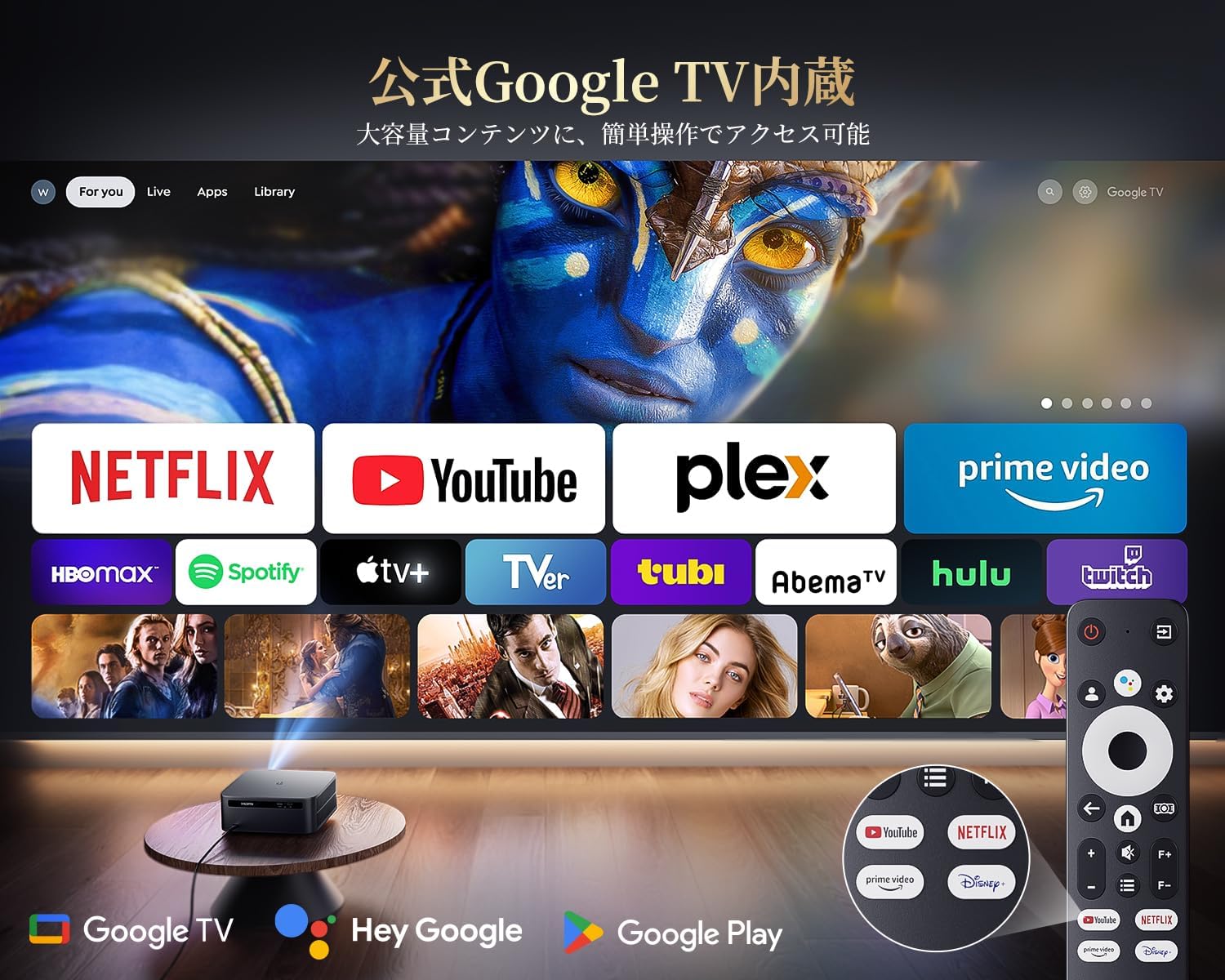
Figura 4.1: Fronte view of the K12 Projector, showing the lens and auto-focus sensors.

Figura 4.2: Traseira view of the K12 Projector, highlighting HDMI, USB, and audio ports.
Video 4.1: General product overview and feature demonstration of the PUTRIMS K12 projector.
5. Configuración
5.1 Configuración física
The K12 projector offers flexible installation options to suit various environments:
- Colocación de mesa: Coloque o proxector sobre unha superficie estable e plana.
- Montaxe de trípode: Use the M5 screw hole on the bottom to attach a tripod.
- Montaxe no teito: Securely mount the projector to the ceiling using a compatible mount.
- Montaxe na parede: Attach the projector to a wall using a suitable bracket.

Figure 5.1: Diverse installation methods for the K12 Projector.
5.2 Encendido inicial
- Conecte o cable de alimentación ao proxector e a unha toma de corrente.
- Preme o botón de acendido do proxector ou do control remoto para acendelo.
- The projector will automatically perform auto-focus and keystone correction.
5.3 Conexión de rede (WiFi)
To access online streaming services and updates, connect your projector to a WiFi network:
- Navega ata o menú "Configuración" do proxector.
- Select 'Network' or 'WiFi Settings'.
- Turn on WiFi and select your desired network from the list.
- Introduza o contrasinal se se lle solicita e conéctese.
5.4 Conexión Bluetooth
Connect external Bluetooth speakers or headphones for enhanced audio:
- Go to 'Settings' and select 'Bluetooth'.
- Turn on Bluetooth and put your external device into pairing mode.
- Selecciona o teu dispositivo da lista para emparellalo.
5.5 Espello da pantalla
Share content from your mobile devices or computer wirelessly:
- For iOS devices (Airplay): Ensure your iOS device and the projector are connected to the same WiFi network. Open the 'iOS Cast' interface on the projector. On your iOS device, open Control Center, tap 'Screen Mirroring', and select 'K12-xxxx' from the list.
- For Android/Windows devices (Miracast): Ensure your device and the projector are connected to the same WiFi network. Open the 'Miracast' interface on the projector. On your Android/Windows device, enable screen mirroring/cast feature and select 'K12-xxxx' to connect.
6. Instrucións de funcionamento
6.1 Funcións de Google TV
The PUTRIMS K12 comes with official Google TV, providing access to a vast library of content and applications.
- Aplicacións de streaming: Directly access Netflix, Disney+, YouTube, Prime Video, Hulu, and many more with a single click.
- Google Play Store: Download and install over 10,000 applications and games.
- Actualizacións periódicas: The projector receives periodic updates to enhance security and stability.

Figure 6.1: Google TV interface with popular streaming applications.
6.2 Control por voz
Utilize the Google Voice Assistant for convenient control of your projector and content.
- Press the voice control button on your remote.
- Speak commands such as "Open Netflix," "Play One Piece," "Tell me the weather," or "Increase volume."

Figure 6.2: Using the Google Voice Assistant with the remote control.
6.3 Axuste da imaxe
The K12 projector features advanced image adjustment capabilities for optimal viewing.
- Foco automático: The projector automatically adjusts the focus for a clear image upon startup or movement.
- Corrección trapezoidal automática: It automatically corrects horizontal and vertical trapezoidal distortions, ensuring a perfectly rectangular image even from an angle.
- Función de zoom: Axusta o tamaño da pantalla do 50 % ao 100 % sen mover o proxector.
- Relación de aspecto: Admite relacións de aspecto 4:3 e 16:9.
- Brillo e contraste: Customize brightness and contrast settings to your preference.

Figure 6.3: Automatic focus and keystone correction in action.

Figure 6.4: Projection distances and corresponding screen sizes (100", 120", 150").
6.4 Conexión de dispositivos externos
The K12 projector offers multiple connectivity options for various devices:
- ARC HDMI: Connect to soundbars, laptops, gaming consoles (Switch, PS5), or DVD players.
- USB: Play media directly from USB memory sticks.
- Porto de audio de 3.5 mm: Conectar a sistemas de son externos.

Figure 6.5: Seamless connection with various external devices.
7. Mantemento
7.1 Limpeza das lentes
To maintain optimal image quality, regularly clean the projector lens.
- Asegúrese de que o proxector estea apagado e desenchufado.
- Gently wipe the lens with a soft, lint-free cloth or a cotton swab.
- For stubborn smudges, use a lens cleaning solution specifically designed for optical surfaces.
- Avoid using abrasive materials or harsh chemicals that could damage the lens.
8 Solución de problemas
Aquí tes solucións para problemas comúns cos que podes atoparte:
- No image/signal: Check all cable connections (HDMI, power). Ensure the correct input source is selected on the projector.
- Imaxe borrosa: The projector features auto-focus. If the image remains blurry, ensure the lens is clean and there are no obstructions.
- Image not rectangular: The projector has auto-keystone correction. If issues persist, ensure the projector is placed on a stable surface and try repositioning it.
- Sen son: Check volume settings on both the projector and connected devices. Ensure external speakers are properly connected via Bluetooth or audio cable. If using HDMI ARC, verify the connection and settings.
- WiFi/Bluetooth connection issues: Ensure the projector and your device are within range of the router/device. Restart both the projector and the router/device.
- App crashes or malfunctions (for unofficial Android TV versions): The PUTRIMS K12 has an official Google TV license, which ensures stability. If you experience issues, ensure your system is updated.
Para obter máis axuda, consulte a sección Garantía e asistencia.
9. Especificacións
| Característica | Descrición |
|---|---|
| Marca | PUTRIMS |
| Modelo | K12 |
| Brillo | 1500 lúmenes ANSI |
| Resolución | 1080P FHD (4K Support) |
| Sistema Operativo | Google TV oficial |
| Control de voz | Asistente de voz de Google |
| Foco | Omnidirectional Auto Focus |
| Corrección Keystone | Horizontal & Vertical Auto Keystone Correction |
| Zoom | 50%-100% |
| Tamaño máximo da pantalla | 300 polgadas |
| WiFi | WiFi 6 |
| Bluetooth | Bluetooth 5.3 |
| Saída de audio | 20W HIFI Speaker, 3.5mm Audio Jack |
| Portos de entrada | HDMI ARC, USB |
| Dimensións | 40.5 x 30.2 x 17 cm |
| Peso | 3.31 kg |
10. Garantía e soporte
PUTRIMS is committed to providing excellent customer service. Your K12 projector comes with comprehensive support:
- Servizo posvenda: 24 hours a day, 365 days a year.
- Soporte técnico: Professional technical assistance is available.
- Garantía: Free exchange or 100% refund guarantee for initial defects or natural failures under normal use.
If you have any questions or require assistance, please contact PUTRIMS customer support via the official email address provided in your product packaging or on the official websitio.


