
CITLLA L570
CITLLA L570 Wireless Bluetooth Mouse User Manual
Model: L570 | Brand: CITLLA
Introdución
This manual provides detailed instructions for the setup, operation, and maintenance of your CITLLA L570 Wireless Bluetooth Mouse. Please read this manual thoroughly before using the product to ensure proper functionality and to maximize your user experience.

Imaxe: Arriba view of the CITLLA L570 Wireless Bluetooth Mouse.

Image: User operating the CITLLA L570 mouse.
Contido do paquete
Verifica que todos os elementos estean presentes no paquete:
- CITLLA L570 Wireless Bluetooth Mouse
- Receptor USB-A (gardado dentro do rato)
- Cable de carga tipo C
- Manual de usuario (este documento)
Produto rematadoview
Familiarize yourself with the components and key features of your CITLLA L570 mouse.

Imaxe: Máis deview of the CITLLA L570 mouse features.

Image: CITLLA L570 mouse alongside a keyboard.
Características principais:
- 4-Way Scroll Wheel: Provides both vertical high-speed scrolling and horizontal tilt scrolling.
- DPI axustable: Four levels (1000/1600/2400/3000) for precise control.
- Conectividade multidispositivo: Connects to up to three devices via one 2.4G USB-A receiver and two Bluetooth channels.
- Batería recargable: Built-in high-capacity lithium battery with Type-C charging.
- Clics silenciosos: Designed for a quiet working environment.
- Botóns Adiante/Atrás: Located on the side for enhanced navigation.
Configuración
The CITLLA L570 mouse offers flexible connectivity options. Choose between 2.4G wireless or Bluetooth connections.
1. 2.4G USB-A Receiver Connection
- Locate the USB-A receiver. It is typically stored in a compartment on the underside of the mouse.
- Insert the USB-A receiver into an available USB port on your computer or device.
- Acende o rato usando o interruptor de acendido situado na parte inferior.
- Press the device switch button (usually on the top or bottom of the mouse) to select the 2.4G mode (indicated by a specific LED color or number, refer to the mouse's physical markings). The mouse should connect automatically.
2. Conexión Bluetooth (BT1 / BT2)
The mouse supports two independent Bluetooth connections (BT1 and BT2).
- Acende o rato usando o interruptor de acendido.
- Press the device switch button to select either Bluetooth 1 (BT1) or Bluetooth 2 (BT2) mode. The corresponding indicator light will flash.
- For initial pairing, hold down the device switch button for three seconds until the indicator light flashes rapidly. This indicates the mouse is in pairing mode.
- No teu dispositivo (ordenador, tableta, teléfono intelixente), vai á configuración de Bluetooth.
- Busca new devices. The mouse should appear as "CITLLA L570" or a similar name.
- Select the mouse to pair. Once connected, the indicator light will stop flashing and remain solid for a few seconds before turning off.
To connect to a second Bluetooth device, repeat steps 2-6, selecting the other Bluetooth channel (BT2).

Image: Multi-device connectivity of the CITLLA L570 mouse.
Instrucións de funcionamento
1. Axuste de DPI
The mouse features 4 adjustable DPI settings to suit various tasks and preferences.
- 1000 DPI: Suitable for design work requiring high precision.
- 1600 DPI: Ideal for general study and browsing.
- 2400 DPI: Recommended for work and productivity tasks.
- 3000 DPI: Optimal for gaming or fast-paced activities.
Para cambiar a configuración de DPI, prema o botón Botón DPI located below the scroll wheel. Each press cycles through the available DPI levels.

Image: DPI adjustment settings and their recommended uses.
2. 4-Way Scroll Wheel
The innovative scroll wheel provides enhanced navigation capabilities:
- Desprazamento vertical: Scroll the wheel up or down for standard vertical navigation. The smart fly scroll feature allows for super-fast scrolling on long web páxinas.
- Horizontal Scrolling: Tilt the scroll wheel to the left or right to enable horizontal scrolling, useful for wide documents or spreadsheets.
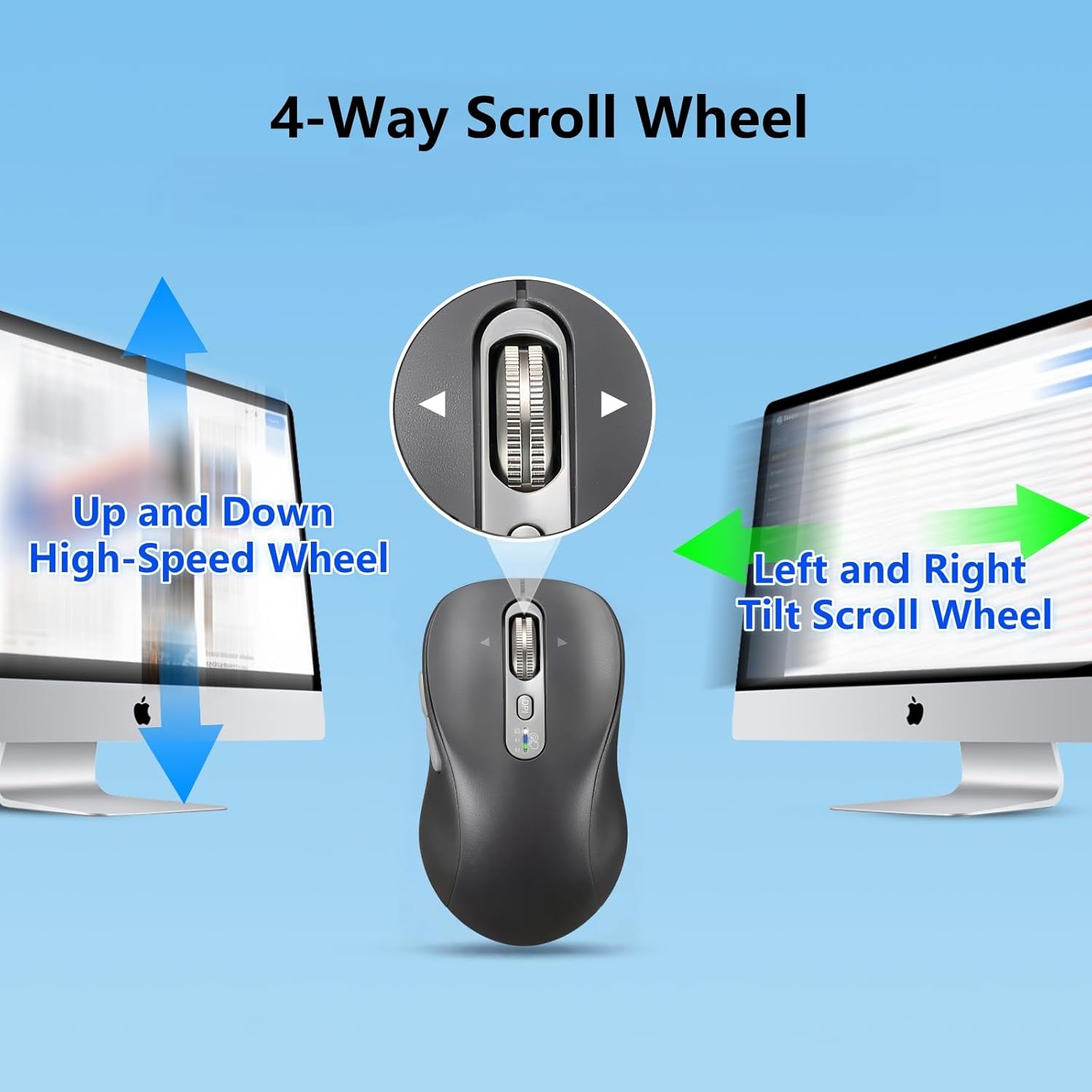
Image: Explanation of the 4-way scroll wheel functionality.
3. Conmutación multidispositivo
To switch between connected devices (2.4G, BT1, BT2), simply press the device switch button. The indicator light will show which channel is currently active.

Image: Mouse used with multiple devices.
4. Cargando
The CITLLA L570 mouse is equipped with a rechargeable battery.
- Connect the provided Type-C charging cable to the charging port on the front of the mouse and to a USB power source.
- A full charge typically takes 1.5-2 hours and can provide approximately 60 days of normal use.
- The low power indicator light will illuminate when the remaining power is sufficient for less than 7 days of use, providing ample time to recharge.

Image: Mouse charging via Type-C cable.

Image: Mouse connected for charging.
Compatibilidade
The CITLLA L570 mouse is designed for broad compatibility across various operating systems and devices.
- Sistemas operativos: Windows (8/10/11 and later), Mac OS (10.15 and later; USB connection supports 10.10 and later), Chrome OS (11 and later; USB connection supports 9 and later), iOS (13.4 and later), Android (5.0 and later), Linux (10 and later; USB connection supports 8 and later).
- Dispositivos: Desktops, Laptops, Tablets, Smartphones, All-in-one PCs.

Image: Operating system compatibility icons.

Image: Specific system version compatibility details.
Mantemento
To ensure the longevity and optimal performance of your CITLLA L570 mouse, follow these maintenance guidelines:
- Limpeza: Usa un pano suave e seco para limpar a superficie do rato. Para a sucidade persistente, limpa lixeiramente.amp pódese usar un pano, pero asegúrate de que non entre humidade nos compoñentes internos. Evita produtos químicos agresivos ou produtos de limpeza abrasivos.
- Almacenamento: Cando non o use durante períodos prolongados, garde o rato nun lugar fresco e seco.
- Coidado da batería: Avoid fully discharging the battery frequently. Charge the mouse when the low power indicator appears. Do not expose the battery to extreme temperatures.
- Receptor: Keep the USB-A receiver in its designated storage slot within the mouse when not in use to prevent loss.
Resolución de problemas
| Problema | Solución |
|---|---|
| O rato non responde (2.4 G) |
|
| O rato non responde (Bluetooth) |
|
| O movemento do cursor é errático ou lento |
|
| Scroll wheel not working |
|
| Low battery indicator always on |
|
Especificacións
| Característica | Detalle |
|---|---|
| Número de modelo | L570 |
| Tecnoloxía de conectividade | 2.4G USB-A Receiver, Bluetooth 1, Bluetooth 2 |
| Configuración de DPI | 1000 / 1600 / 2400 / 3000 |
| Detección de Movemento | Óptica |
| Características especiais | 4-Way Scrolling, Forward/Back buttons, Multi-Device (3 devices), Quiet Clicks (10 million click lifespan), Rechargeable (Type-C charging) |
| Tipo de batería | High-capacity Lithium Battery (500mAh) |
| Porto de carga | Tipo-C |
| Duración da batería (aprox.) | 60 days after 1-hour charge |
| Peso do elemento | 5.6 onzas |
| Dimensións | 5.59 x 3.11 x 2.13 polgadas |
Garantía e Soporte
CITLLA products are manufactured with quality and reliability in mind. For warranty information or technical support, please refer to the contact details provided with your purchase or visit the official CITLLA websitio.
Para obter máis axuda, tamén podes contactar directamente co vendedor a través da plataforma onde compraches o produto.
Fabricante: CITLLA
Tenda da marca: Visit the CITLLA Store on Amazon
Ask a question about this manual
Ask about setup, troubleshooting, compatibility, parts, safety, or missing instructions. Manuals+ will review the question and use this page’s manual context to help answer it.